


How to Turn off Touch ID on Your iPhone or iPad Quickly

Touch ID is a convenient way to unlock your iPhone or iPad without entering your passcode repeatedly. However, you have to turn off the biometric lock in a few scenarios. If you worry about the security issue, you’d better get rid of Touch ID and use a digit passcode to lock your device. Furthermore, you need to disable Touch ID before giving your device to others. Anyway, this guide shared multiple ways to turn off Touch ID on an iPad or iPhone.
PAGE CONTENT:
Part 1: How to Temporarily Turn off Touch ID on iPhone
In some cases, you cannot unlock your iPhone or iPad with Touch ID, such as when you just restart your device, you haven’t unlocked your device for more than 48 hours, your device is locked remotely, and more.
To temporarily turn off Touch ID on your iPad, scan the wrong fingerprint five times in a row or use Emergency SOS with the steps below:
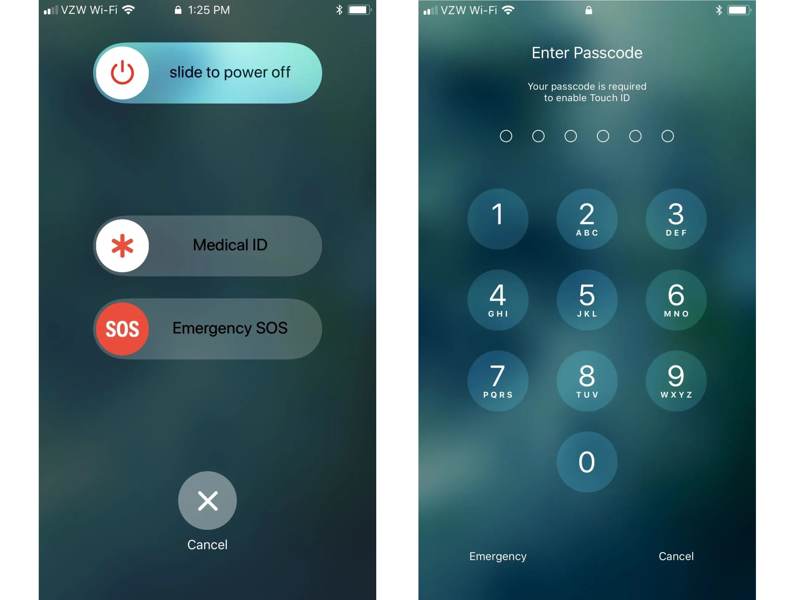
Step 1. For iPhone 8 and later, hold the Side button and either Volume button together.
For other iPhone models, press and hold the Side or Sleep/Wake button.
Step 2. When the Emergency SOS option appears, tap the Cancel button.
Step 3. Now, Touch ID is temporarily disabled, and you have to unlock your device with the passcode.
Tips: This way is working at one time.
Part 2: How to Turn off Touch ID on iPhone
If you wish to permanently turn off Touch ID on iPad or iPhone, you have to adjust the relevant settings in the built-in Settings app. This method requires authentication with your digit passcode.
How to Turn off Touch ID on Your iPhone
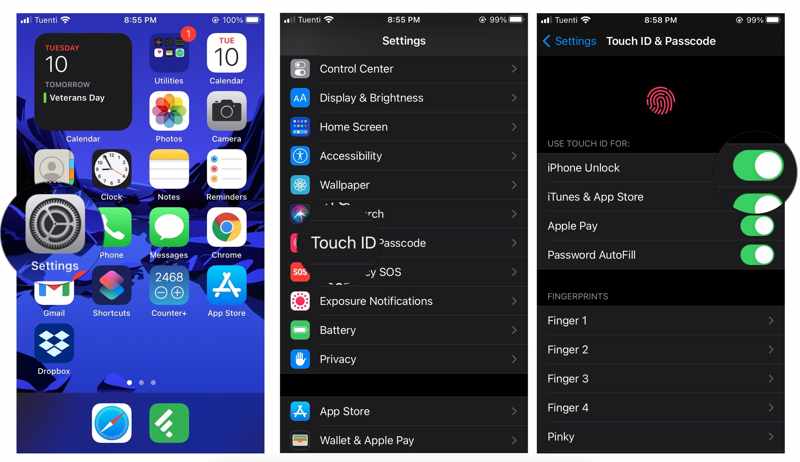
Step 1. Open the Settings app from your home screen.
Step 2. Scroll down and tap the Touch ID & Passcode option.
Step 3. If prompted, enter your device passcode.
Step 4. Toggle off iPhone Unlock.
Note: If you intend to turn off Touch ID for App Store or other services, toggle them off under the USE TOUCH ID FOR section.
How to Remove Touch ID on iPhone
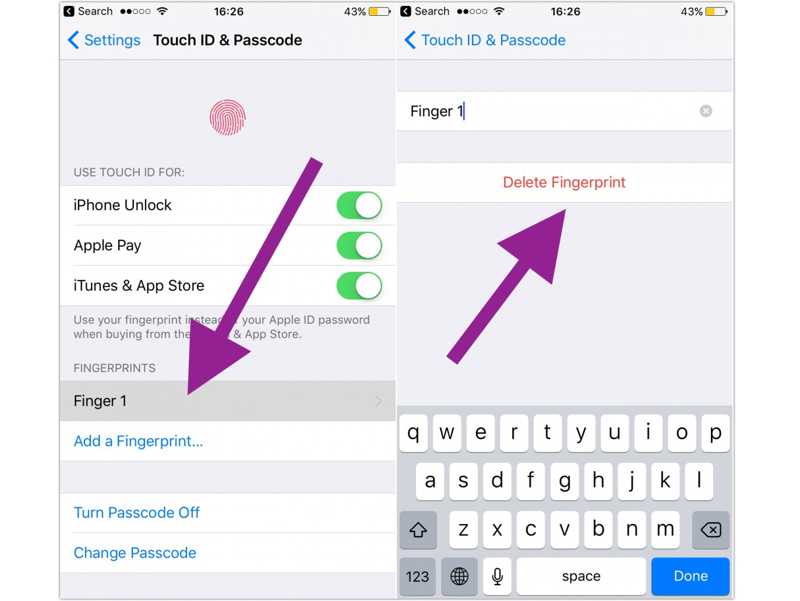
Step 1. Go to Touch ID & Passcode in your Settings app.
Step 2. Enter your passcode to authenticate.
Step 3. Tap one fingerprint under the FINGERPRINTS heading.
Step 4. Tap the Delete Fingerprint button.
Step 5. Delete all fingerprints to turn off Touch ID on your iPhone.
Part 3: How to Turn off Touch ID and Passcode on iPhone
Besides, you can also turn off Touch ID and passcode on your iPhone. Then, you can unlock your device without any block. After the change, everyone can access your iPhone or iPad. That may bring risks to your privacy.
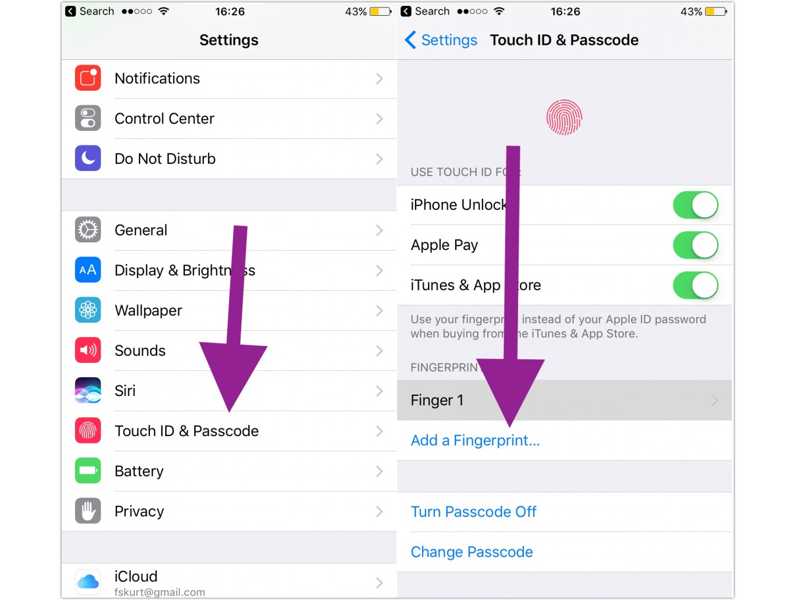
Step 1. Choose the Touch ID & Passcode option in your Settings app.
Step 2. Enter your digit passcode to authenticate.
Step 3. Tap the Turn Passcode Off button.
Part 4: How to Turn off Touch ID on iPhone Without a Password
When you forgot your iPhone or iPad passcode, it is difficult to turn off Touch ID. Alternatively, you can try Apeaksoft iFoneKit iOS Unlocker. It is able to remove any screen locks from your iOS device without restrictions. Plus, the user-friendly interface simplifies the process.

Downloaded by over 1,000,000 users
- Unlock an iPhone or iPad without a passcode.
- Remove Touch IDs, digit passcodes, and Face IDs.
- Offer bonus features, like Apple ID removal.
- Support almost all iPhones and iPad devices.
Secure Download
Secure Download

How to Turn off Touch ID on Your iPhone Without a Password
Step 1. Link to your device
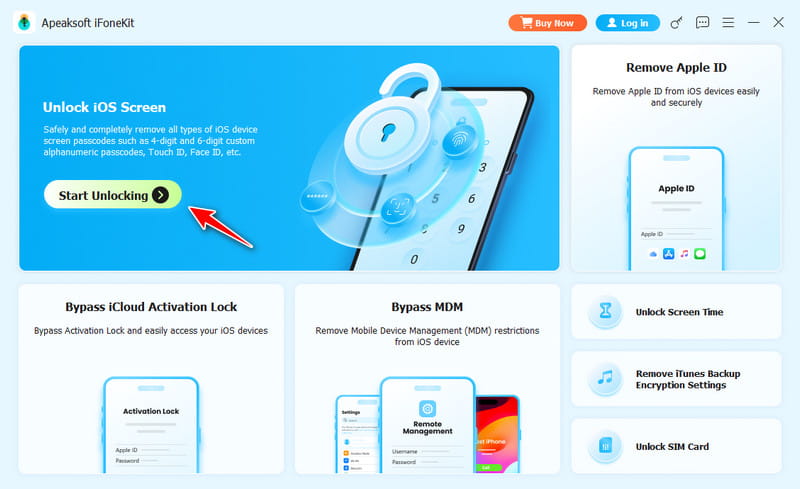
Start the iOS unlocking software after you install it on your PC. There is another version for Mac users. Choose the Unlock iOS Screen mode to proceed. Link your iPhone or iPad to your PC using a Lightning cable. Make sure to trust this PC and permit the connection.
Step 2. Download the firmware
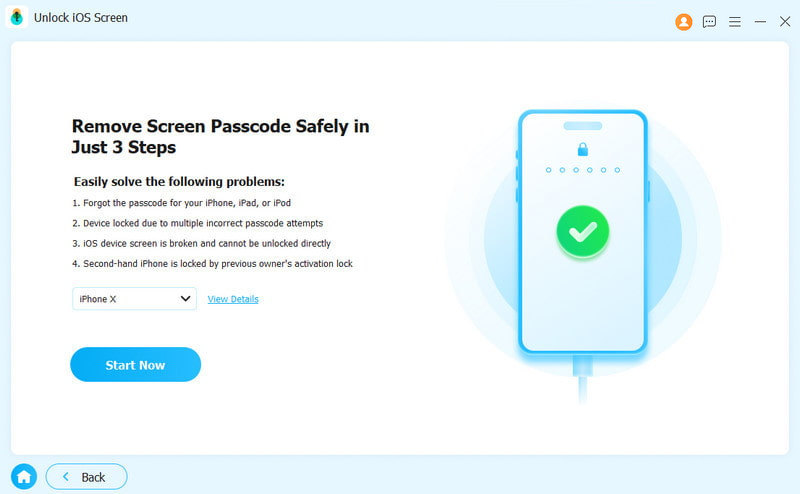
Once your device is detected, the software will load the device information. Check it and click the Start Now button to begin downloading the firmware package. It may take a while, and you must be patient.
Step 3. Turn off Touch ID
When the download is complete, click the OK button on the confirmation dialog. Next, click the Confirm Again button to verify the firmware. When it is done, the software will initiate turning off Touch ID on your iPhone or iPad automatically.

Note: The process will erase all data on your device, so you’d better back up your iPhone or iPad to avoid data loss.
Conclusion
This guide shared multiple ways to turn off Touch ID on your iPhone or iPad. If you wish to disable Touch ID for one time, try the wrong fingerprint or Emergency SOS. Plus, you can delete all fingerprints or toggle off Touch ID to disable it. Apeaksoft iFoneKit iOS Unlocker is the ultimate way to get rid of Touch ID and passcode on your iOS device directly.
 Apeaksoft iFoneKit
 Unlock all types of iOS passwords from iPhone, iPad and iPod.
Secure Download
Secure Download
Related Articles




