How to Record a Voice over with 4 Quick Approaches

According to Wikipedia, voiceover is a technique used in videos, presentations, and other media. It describes or comments on the visual content spoken by a person who is not seen. In fact, most presentation applications allow users to record a voiceover for specific slides. This concrete guide walks you through the steps to record a voiceover on PowerPoint, Google Slides, Canva, and more when you're making a presentation.
PAGE CONTENT:
Part 1: How to Record a Voice-over on PowerPoint
Since Office 2016, you can record a voice-over on PowerPoint directly. However, the workflows are different in various versions. We share the processes in PowerPoint 2016-2019 and newer versions.
How to Record a Voiceover on PowerPoint 2016-2019
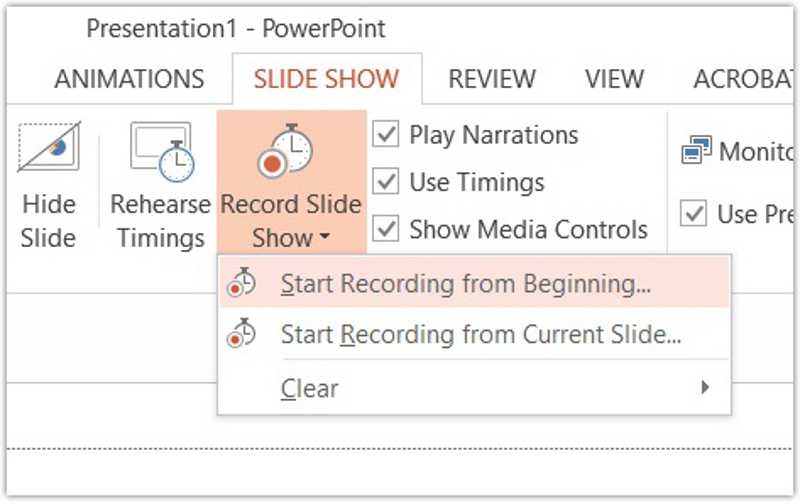
Step 1. Open an existing presentation in PowerPoint or create a new slideshow.
Step 2. Go to the Slide Show tab on the top ribbon and click Record Slide Show.
Step 3. Choose Start Recording from Beginning or Start Recording from Current Slide.
Step 4. Check or uncheck the boxes:
- Slide and animation timings: Automatically records the time you spend on each slide.
- Narrations, ink, and laser pointer: Record your voice.
Step 5. Click the Start Recording button to begin recording a voiceover.
Step 6. Control the slides with the buttons on the Recording toolbar.
Step 7. To end your recording, click End Show.
How to Record a Voiceover on New Versions of PowerPoint
Step 1. When you need to record a voice-over on PowerPoint, select the starting slide.
Step 2. Locate the Record section in the Record tab.
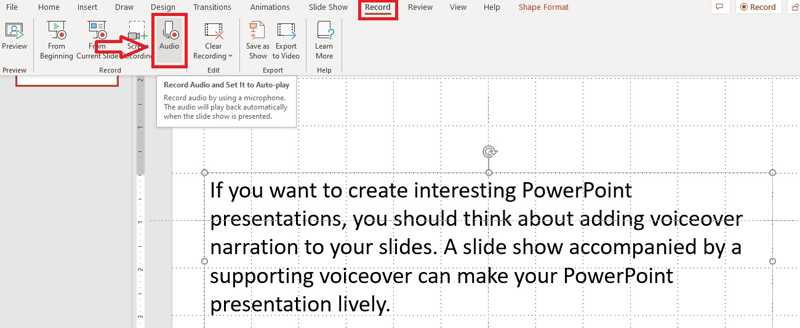
Step 3. Click the Audio button to run the Record Sound dialog.
Step 4. Name the voiceover and click the Record button to initiate it.
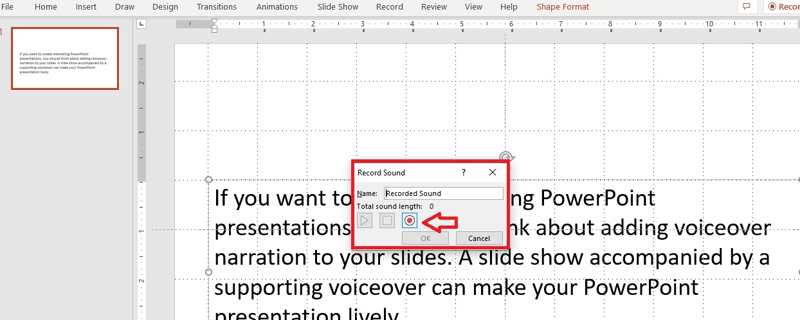
Step 5. When you finish, click the Stop button.
Step 6. Play the voiceover and click OK if you are satisfied.
Part 2: How to Record a Voice-over on Google Slides
The web version of PowerPoint cannot record a voiceover. However, you can record a voice-over on Google Slides online. Make sure that your computer has a microphone or that you have connected one.
Step 1. Access the desired presentation in Google Slides.
Step 2. Go to the Insert menu on the top ribbon and choose Audio.
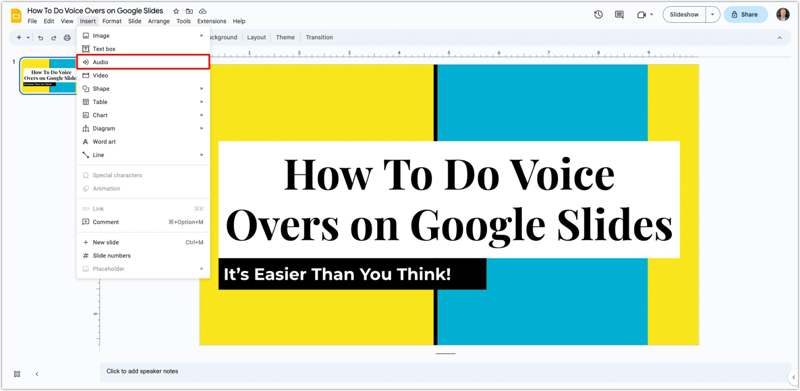
Step 3. Select the narration file in your Google Drive. If not, you have to upload it from your hard drive.
Step 4. Drag the Audio icon to the right slide.
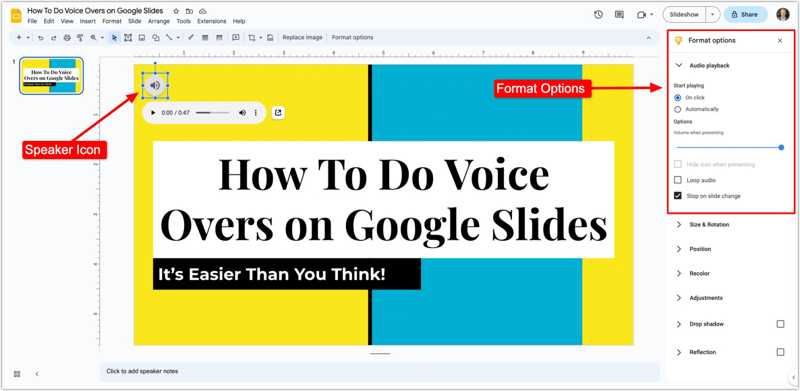
Step 5. Then, adjust the playback on the Audio playback pane.
Note: Currently, Google Slides doesn’t support recording narration. You can only record a voiceover and upload it to your Google Drive.
Part 3: How to Record a Voice-over on Canva
Another option is recording a voice-over on Canva. This online graphic app is useful if you want to make a presentation, record yourself, and share the document without doing it over and over again.
Step 1. Open a presentation or create one on Canva.
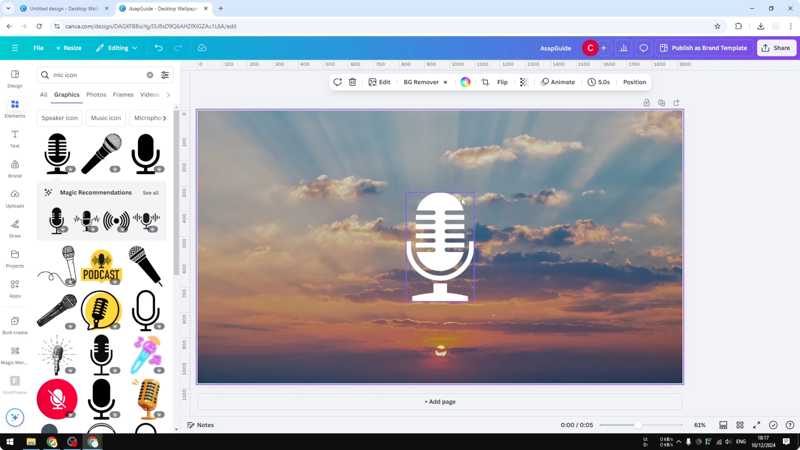
Step 2. Go to the Uploads tab and click Record yourself.
Step 3. Grant the web app access to your microphone.
Step 4. Next, select your microphone device.
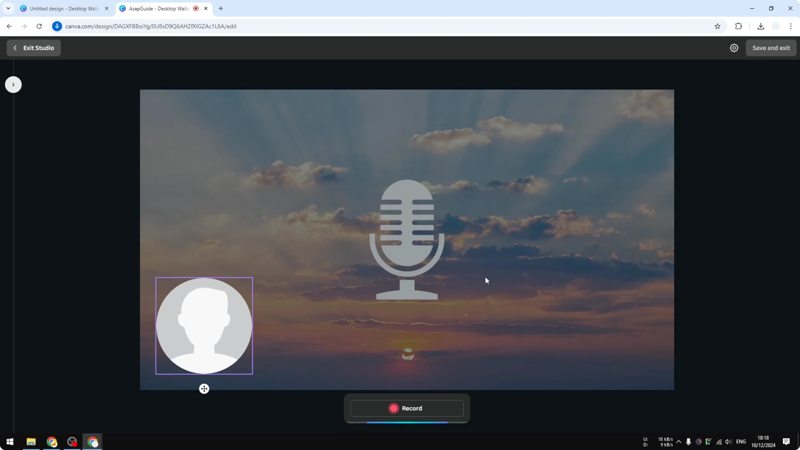
Step 5. Click the Record button to start recording a voice-over.
Step 6. When you are done, click Save.
Part 4: How to Record a Voice-over with High Quality
If you want to record a voice-over independently, try Apeaksoft Screen Recorder. It enables you to capture your voice through the internal or external microphone on your computer. The built-in AI can optimize audio quality and denoise automatically.

Downloaded by over 1,000,000 users
- Recover a voice-over with one click.
- Create a voice-over for PPT, Google Slides, and more.
- Optimize audio quality with AI.
- Pre-listen to your voiceover and edit it.
- Support lossless WAV and FLAC codecs to encode high quality audio.
Secure Download
Secure Download
How to Record a Voice-over Quickly
Step 1. Install the voiceover recorder
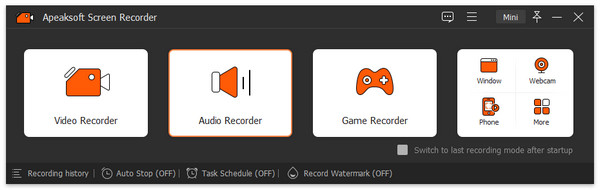
Launch the voiceover recording software after you install it on your PC. There is another version for Mac. Choose the Audio Recorder mode from the top left corner.
Step 2. Record a voice-over
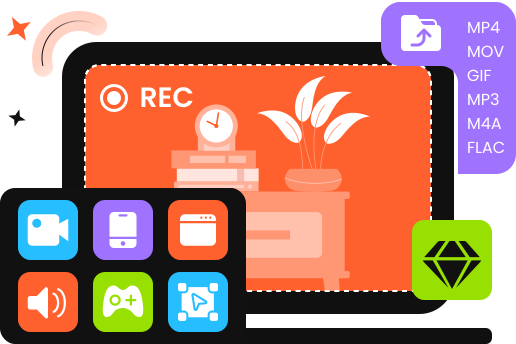
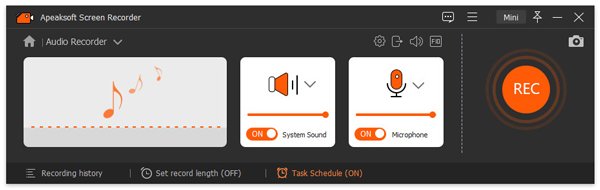
Turn off System Sound while turning on the Microphone. If you want to add background music to the voiceover, turn on both. If you have multiple microphones, click the Arrow button and select the desired one. Click the REC button to begin recording the voice-over.
Step 3. Save your voiceover
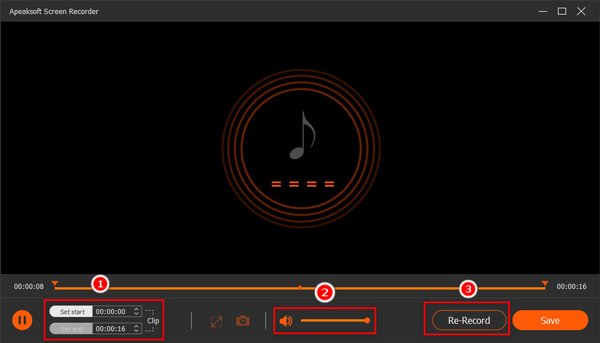
When you are done, click the Stop button. Then, play the voiceover on the preview window. If you are satisfied, save it.
Further Reading
Conclusion
Now, you should understand how to record a voice-over on Google Slides, PowerPoint, Canva, and more. If you already have Office, add your narration to your presentations directly. Google Slides allows you to add voiceovers from your computer. Canva is the online option to capture your narration. Apeaksoft Screen Recorder is a great option if you wish to generate high-quality results.
 Apeaksoft Screen Recorder
Record any video and audio on phone and computer screen.
Secure Download
Secure Download
Related Articles