Apowersoft Free Online Screen Recorder: Review & Alternative

Is Apowersoft Free Online Screen Recorder good? Many people looking for a free online screen recording solution might have come across this tool online. But they may not be sure whether it can meet their usage requirements. This post will provide you with detailed information related to it. After reading this Apowersoft Free Online Screen Recorder review, you can determine, based on its pros and cons, whether it is suitable for you.
PAGE CONTENT:
Basic Information About Apowersoft Free Online Screen Recorder
Apowersoft Free Online Screen Recorder is a recording tool that works through the web. All you need to do is visit its official website in your browser, and you can start capturing your screen activities quickly. The entire process does not require you to download any additional software or extensions.

As a web-based tool, Apowersoft Free Online Screen Recorder is not suitable for heavy-duty recording tasks. This means that tasks like game recording will encounter various issues such as delays and glitches. However, if your requirement is merely to record some web activities or online meetings, you will find that it offers a very convenient option.
Pros & Cons: Does Apowersoft Free Online Screen Recorder Suit You
If you want to know more about whether Apowersoft Free Online Screen Recorder meets your usage requirements, then you can refer to the content of this section. After conducting several trials, we have summarized the following pros and cons to help you better understand it.
- Test Computer: Windows 10 64-bit PC
- Test Scenario: Only open two tabs on the latest version of Google Chrome. One is Apowersoft Free Online Screen Recorder, and another is a tab for activities like an online meeting or a YouTube stream.
- Test Task: 1. Record a 15-minute meeting. 2. Record a 42-minute game stream.
Pro 1 - Video & Audio Sync
Sometimes, due to unstable network conditions, your online meeting may occasionally experience delays. You don't need to worry about the final result if such a case happens when you record a Zoom meeting. Apowersoft Free Online Screen Recorder will automatically synchronize the video and audio for you.
Pro 2 - Unlimited Recording Duration

Unlike many online recording tools, Apowersoft Free Online Screen Recorder allows you to record your screen activities without a time limit. Apowersoft Free Online Screen Recorder allows you to record your screen without a fixed time limit.
Pro 3 - Multiple Device Options

In terms of device options, Apowersoft Free Online Screen Recorder offers a wide range of choices. You can freely select the audio devices you want to record from, including system sounds, microphones, etc. All these recordings will ask for your permission before proceeding and will not start recording without it.
Con 1 - Potential Saving Failure
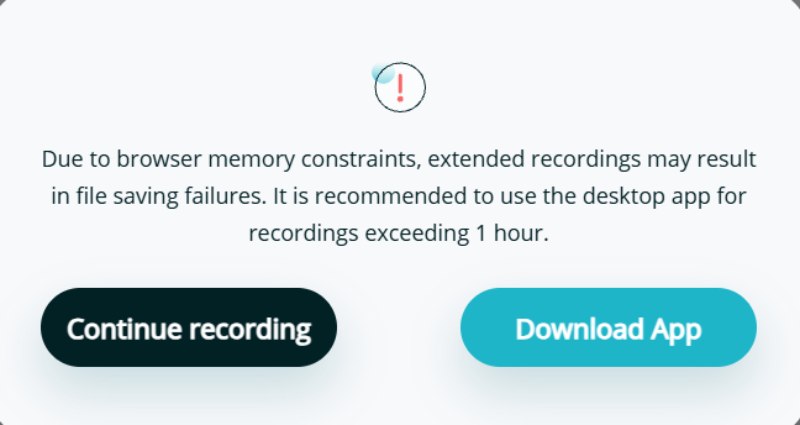
Although we have not encountered any saving failures across several recording tasks, based on some feedback from the forum, you may encounter one. This is largely due to unstable memory space or network connection.
Con 2 - Incorrect Frame & Resolution
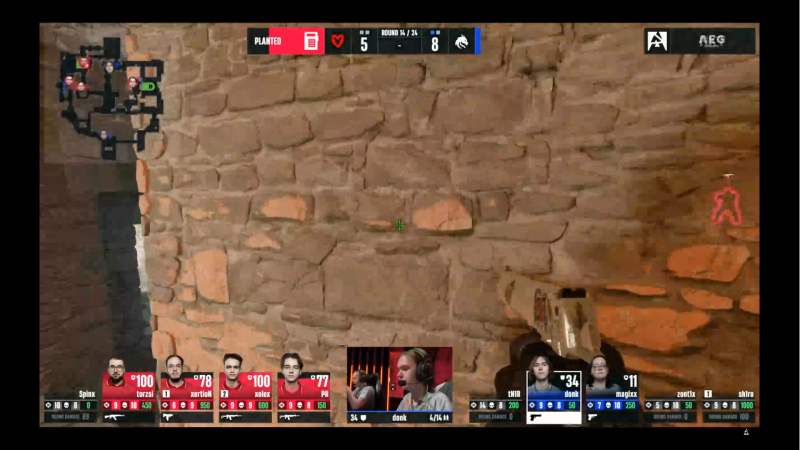
While using Apowersoft Free Online Screen Recorder to record YouTube streams, we discovered a significant issue with frames and resolutions. Our game screen is in a 16:9 full-screen format. However, when we downloaded the output recording, we noticed black borders around it.
Con 3 - Some Missing Details

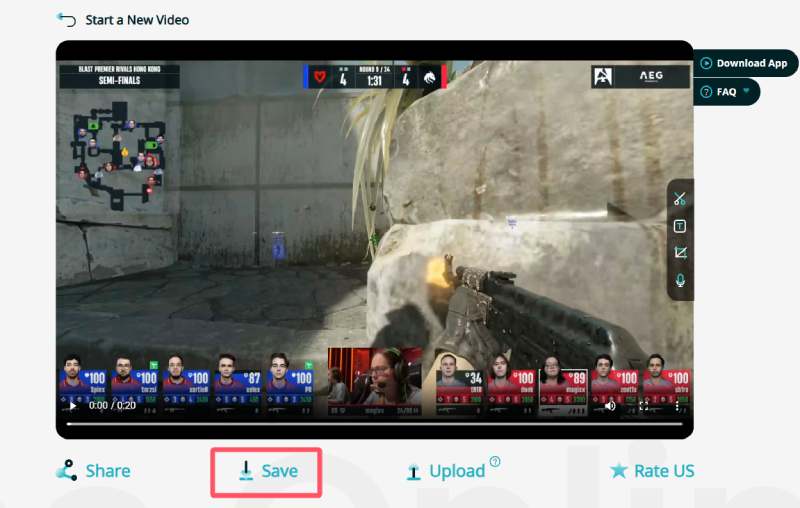
Sometimes, the content you record may contain some details. However, Apowersoft Free Online Screen Recorder may not be able to preserve them clearly. Take our screen recording as an example. When we wanted to check some minor details during the live broadcast (such as the radar and map on the game screen), we found that it was so blurry that we could hardly make out the details.
How to Use Apowersoft Free Online Screen Recorder within Browsers
Apowersoft Free Online Screen Recorder does not add watermarks to the results, unlike some online tools. So you don't have to worry about how to remove the watermarks from the videos. All you need to do is follow the steps below to learn how to use it quickly to complete the recording tasks.
Step 1. Navigate to the official website of Apowersoft Free Online Screen Recorder in your browser and click the Start Recording button.
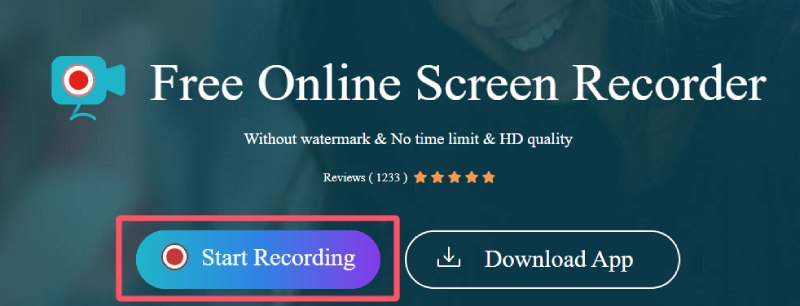
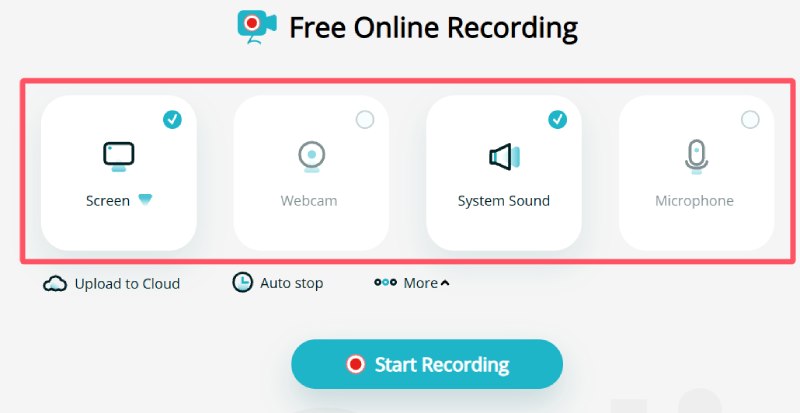
Step 2. Click to select the presets for your recording. You can decide whether to record with certain devices or not.
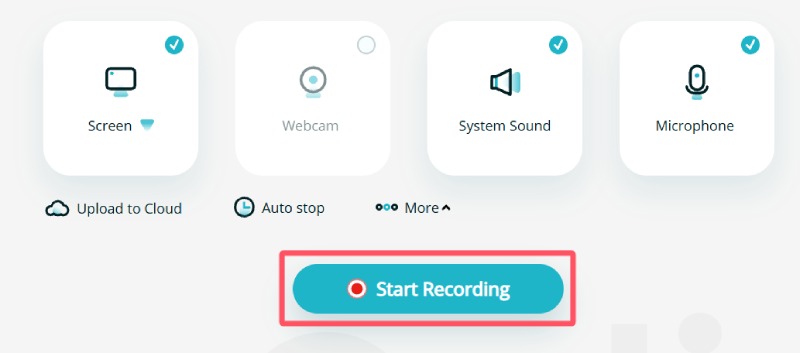
Step 3. Click the Start Recording button to proceed. The recording will not start immediately.
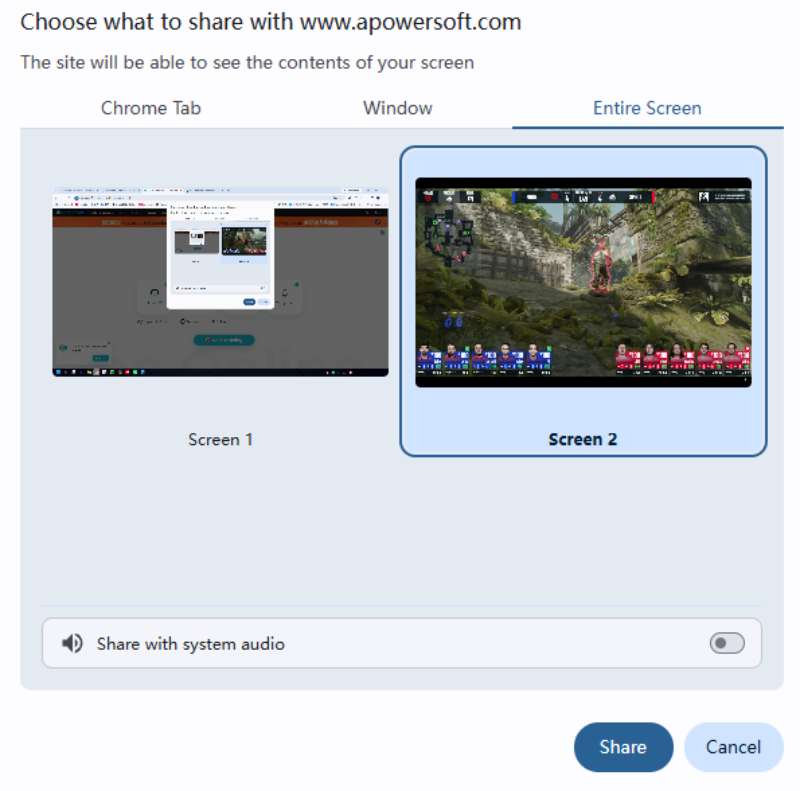
Step 4. A window will pop up, and you can select the desired tab or window to record using Apowersoft Free Online Screen Recorder.
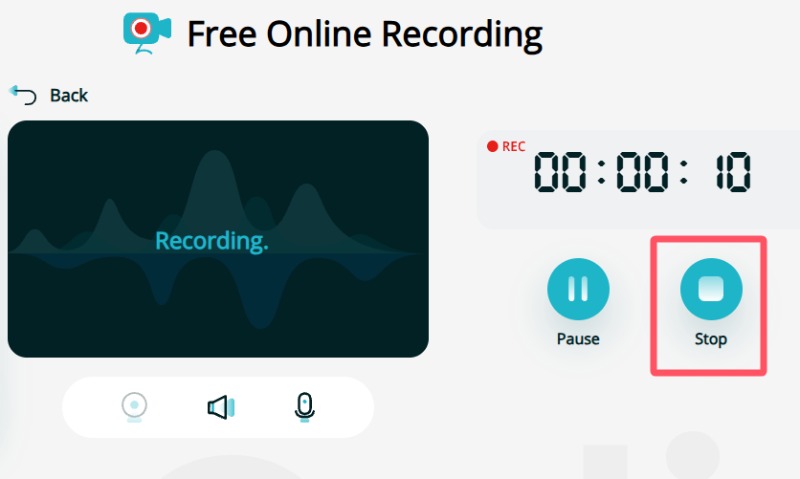
Step 5. After clicking the Share button, the recording will start. To stop the recording, click the Stop button.
Step 6. You can preview the recording before saving it. Finally, click the Save button and download the result.
A Professional Alternative to Apowersoft Free Online Screen Recorder
For recording tasks that require high quality and attention to detail, online tools like Apowersoft Free Online Screen Recorder might not meet your needs. In this situation, you need a more professional and powerful tool to support high-quality screen recording. For these tasks, Apeaksoft Screen Recorder can handle them very well.

Downloaded by over 1,000,000 users
- Record your screen activities in their original quality.
- The recording duration will not be limited.
- Adjust the recording settings based on your needs.
- Edit your screen recording for post-production.
Secure Download
Secure Download
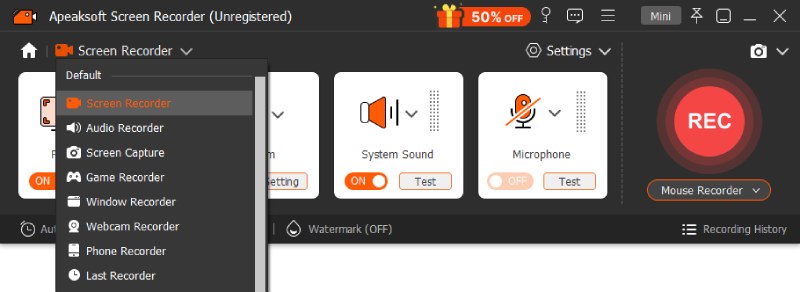
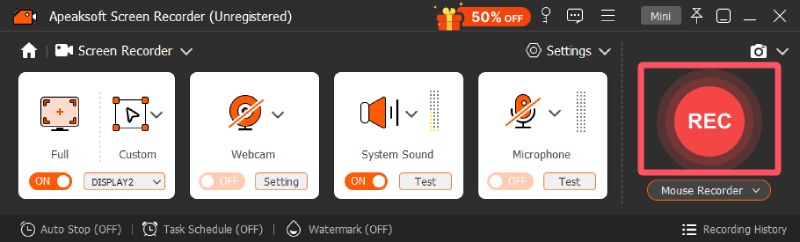
Step 1. Launch Apeaksoft Screen Recorder on your device. Under the Screen Recorder tab, click to select a recording mode that suits your needs.
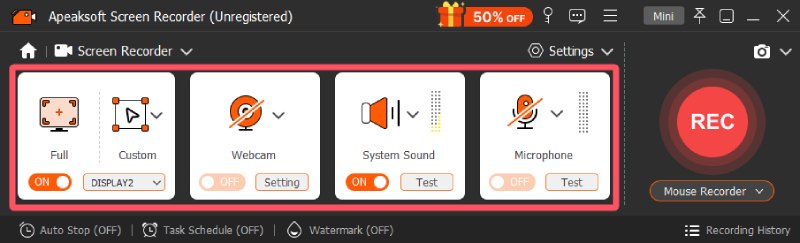
Step 2. Before starting to record your screen, you can adjust the settings and select the input devices.
Step 3. After clicking the Record button, the recording will start after a 3-second countdown.
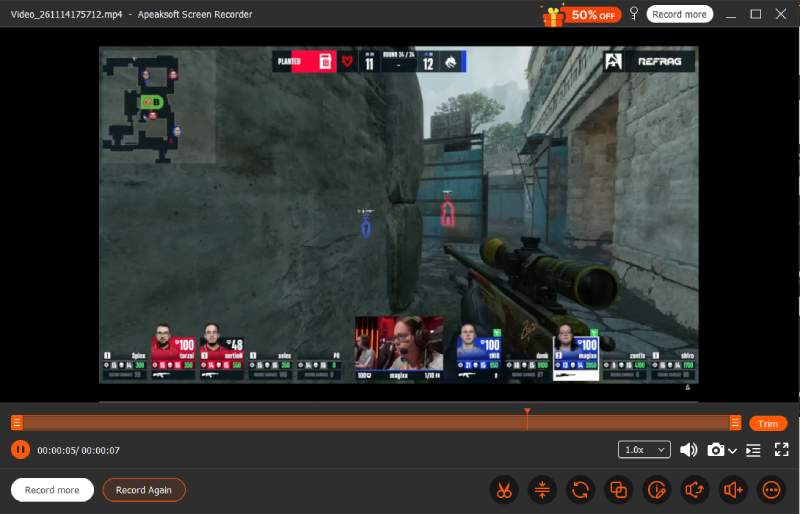
Step 4. Once finished, click the Stop button. You can preview and edit the recording the way you want.
Conclusion
In short, Apowersoft Free Screen Recorder Online can meet all kinds of daily lightweight recording tasks. As a browser-based tool, it is very convenient. However, if you emphasize the quality and details of the results, then you will need a recording tool like Apeaksoft Screen Recorder that is more powerful.
 Apeaksoft Screen Recorder
Record any video and audio on phone and computer screen.
Secure Download
Secure Download
Related Articles