Detailed Answer for If FaceTime Notifies Screen Recording

FaceTime is the pre-installed video chat app developed by Apple for two or more users to see and talk to each other in real time. Apple keeps FaceTime private and simple. Suppose you are laughing with a friend on FaceTime, and suddenly a thought hits you: what if they are recording it? According to our research, such doubt is not rare. This article answers whether FaceTime notifies when screen recording on iPhone or Mac.
PAGE CONTENT:
Part 1: Does FaceTime Notify Screen Recording
Does Apple notify when you screen record FaceTime? No, FaceTime doesn't notify users if someone screen records a video call, making it less secure for private conversations. When someone records FaceTime on either an iPhone, iPad, or a Mac computer, no pop-up, no sound, no notification.
Apple designed FaceTime this way for a few reasons, such as a lack of recording controls, the built-in screen recording feature doesn't report activity to apps, no interrupt conversations, and more.
Part 2: How Can You Tell If Someone Is Recording FaceTime
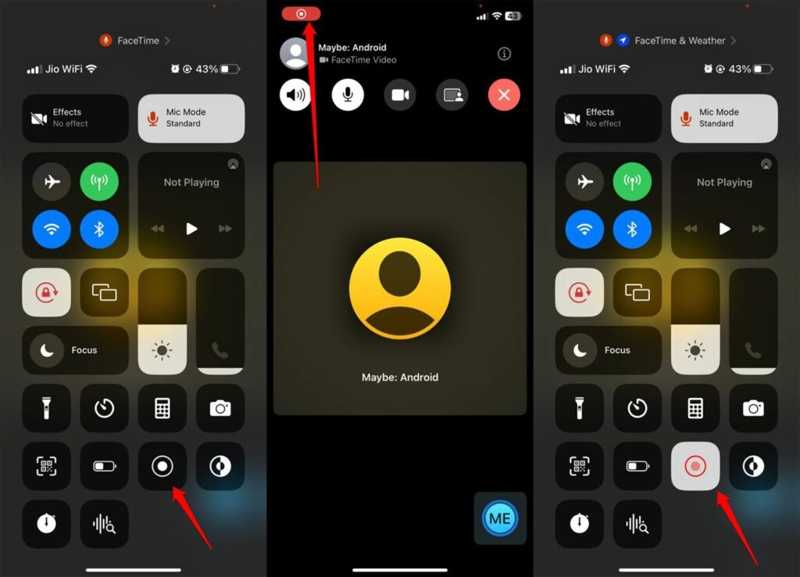
Even if FaceTime doesn't notify you of screen recording, you can learn the action by following a few signs. Technically, there is no guaranteed method. Learn these signs to keep your chat private and confident.
Sign 1: Recording Dot
When screen recording FaceTime, whether using the built-in screen recording feature or a third-party screen recorder app, a red recording dot will appear on the screen. If you can see the recording indicator on your friend's screen, they are screen recording your video call. You can ask your friend to share the phone screen through FaceTime when making a call.
Sign 2: Lag or Delay
One important symbol is lag and delay. When calling in FaceTime, it uses lots of sources. If someone turns on screen recording for FaceTime, the video can suddenly lag and delay due to device stutter or heat up.
Sign 3: Suspicious Sound or Actions
To record FaceTime on an iPhone or Mac, the caller needs to go to the Control Center and access the Screen Recording feature. You may hear the suspicious click sound or see the odd activities when calling FaceTime.
Sign 4: Unusual Request
Another clue to tell if someone is screen recording FaceTime is the unusual requests or behaviors during the call. If you encounter these problems, chances are that the caller is trying to record your FaceTime call to achieve a specific purpose.
Part 3: How to Protect Your Privacy on FaceTime
If you prefer to keep in touch with your friends and family on FaceTime, you can protect your privacy by following a few tips. We share the practical tips and tricks to stay safe when calling through FaceTime:
- 1.Only call trusted people.
- 2.Don't show private information in your camera view.
- 3.Ask your friends and family directly when using FaceTime.
- 4.Use an alternative app that notifies when screen recording chats, like Zoom.
Further Reading
Part 4: Ultimate Way to Record FaceTime Without Lagging
If you wish to record FaceTime without notifying others, Apeaksoft Screen Recorder is a good option. It lets you record video calls on your iPhone or iPad with a computer. Thus, the chat won't be interrupted. Moreover, the intuitive design simplifies the workflow.

Downloaded by over 1,000,000 users
- Record FaceTime calls on your iPhone smoothly.
- Save FaceTime calls in HD videos.
- Support a variety of video formats.
- Won't notify others when screen recording.
- Offer bonus features, like making scheduled recordings.
Secure Download
Secure Download
How to Record FaceTime on Your iPhone Without Lagging
Step 1. Install FaceTime recorder
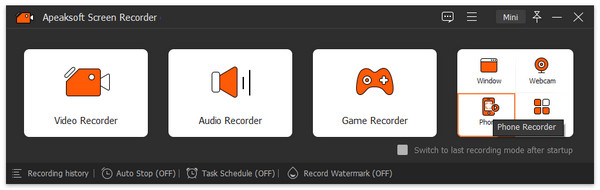
Launch the FaceTime recorder software once you install it on your computer. It is available on Windows 11/10/8/7/XP/Vista and Mac OS X 10.13 or above. Choose Phone Recorder and select iOS Recorder. Next, follow the onscreen instructions to mirror your iPhone screen.
Step 2. Record FaceTime
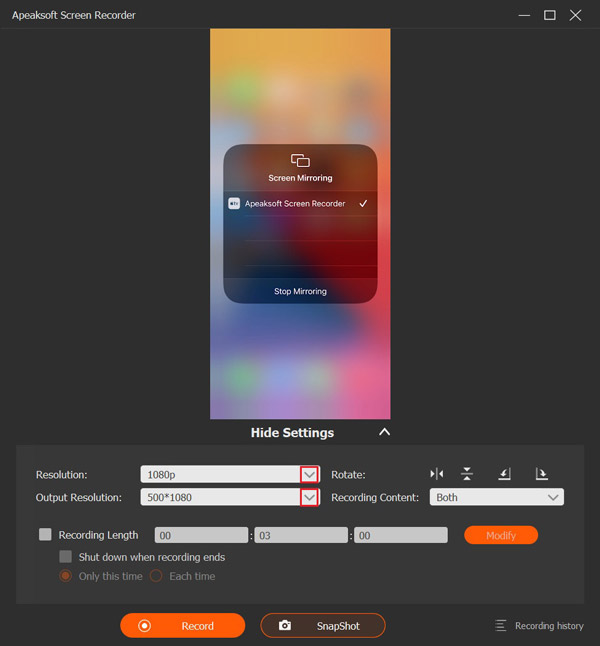
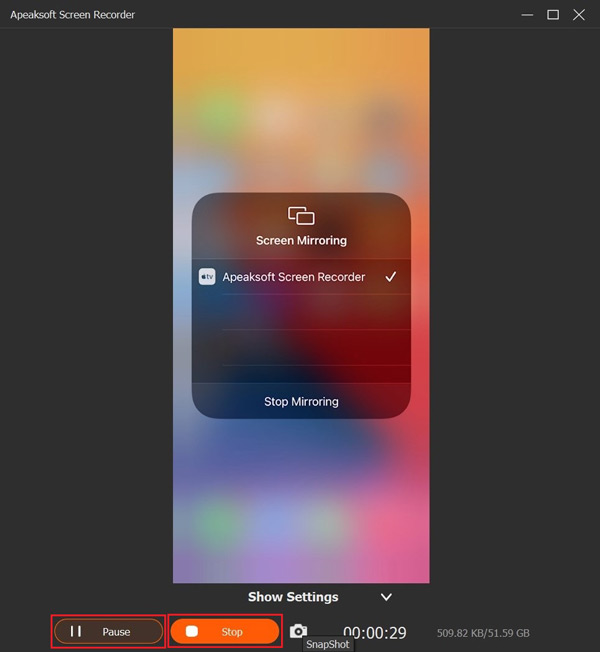
Set the resolution and recording content, such as Phone Speaker. Start a call in FaceTime on your iPhone and click the Record button to begin recording the call.
Step 3. Save the call recording
When the call is complete, click the Stop button on the window to save the call recording to your hard drive. During the process, you can temporarily stop recording by hitting the Pause button. To view the recording, click Recording History and open the latest video.
Tips: If you want to change the video format or output folder, click the Settings menu in the main interface and go to the Output tab on the Preferences dialog.
Conclusion
This article answered whether FaceTime notifies when you screen record on your iPhone, iPad, or Mac. Now, you should learn the answer and the relevant knowledge. If you suspect others are screen recording your FaceTime calls, follow our clues to tell the truth. If you want to save a FaceTime call secretly, Apeaksoft Screen Recorder is an excellent option for ordinary people.
Related Articles