Top 10 Free and Freemium Game Recorders to Capture HD Gameplay

For pro gamers on PCs, you may be experiencing those problems right now: Are you still bothered by the limited functions on your mouse control and device settings when recording your gameplay? Do you feel overburdened by countless subscription ads to choose a suitable recorder? Are you still compromising the video quality in exchange of a smoother process during playing?
To capture the ideal moments on your screen easily and share the HD videos with your fellows is always a wonderful experience for many gamers when playing on the computer. To tackle those annoying but crucial problems for you, we would like to offer you a cost-effective selection and best take care of your every need. Here are 9 best game recorders we have tested to use with little effort.
PAGE CONTENT:
Apeaksoft's editorial team independently tests every game recorder included in this review. We select tools based on their popularity, features, and relevance to different gaming and recording needs. Our reviews are based on hands-on testing, technical analysis, trusted sources, and user feedback.
- Test Environment: Windows 10/11 Pro (24H2) and macOS Ventura & Sequoia 15
- Games Tested: Minecraft, League of Legends, Genshin Impact, and Cyberpunk 2077
- Testing Focus: Resolution, frame rate, video and audio quality, CPU and GPU usage, hardware acceleration, file size, ease of use, and more.
- Testing Rules: Each recorder is tested multiple times under the same or similar conditions.
Quicklist: Comparison Table of the 9 Game Recorders
| Game Recorder | Platform | Price | Recording Quality | Best For |
| Apeaksoft Screen Recorder | Windows, Mac | Free trial, paid version | Up to 4K | Beginners who want flexible recording and editing options |
| OBS Studio | Windows, Mac, Linux | Free | Up to 4K and higher | Advanced users and game streaming |
| Xbox Game Bar | Windows 10/11 | Free | Up to 1080p/60 FPS* | Quick gameplay recording on Windows |
| QuickTime Player | Mac | Free | Depends on Mac settings | Basic gameplay recording on Mac |
| Action! | Windows | Free trial, paid version | Up to 4K/120 FPS* | Gamers who want high-quality recording and streaming |
| Bandicam | Windows | Free version, paid version | Up to 4K/480 FPS | High-quality gameplay recording with hardware acceleration |
| XSplit Broadcaster | Windows | Free and paid versions | Up to 4K* | Game streaming and multi-source recording |
| Gecata by Movavi | Windows | Free trial, paid version | Up to 4K/120 FPS* | Beginners who want simple game recording |
| NVIDIA App | Windows | Free | Up to 4K* | NVIDIA GPU users who want low-impact gameplay recording |
Top 1: Apeaksoft Screen Recorder
As we know different recorders for gaming work with diversified features. If you want to save game recordings in different formats without quality loss or capture screens from external sources like Web Cam, then you had better take this powerful software that supports comprehensive functions. Here we offer you the perfect option to record your game videos - Apeaksoft Screen Recorder.

Downloaded by over 1,000,000 users
- Best game recorder for Windows and Mac users.
- Capture any video gameplay on computer in 4K/HD quality
- Record PC screen, WebCam, and more with up to 60 fps frame rate.
- Support picture-in-picture recording.
- Latest hardware acceleration technology to capture with low CPU, GPU and RAM.
- Edit recorded videos on length, segment, audio, format, annotations, drawings and more.
Secure Download
Secure Download
This game screen recorder has the capability to record any gameplay on your Windows 11/10/8/7/XP/Vista PC or Mac. With its help, you are free to capture moments in the world of hot and popular game. Whether you're exploring single-player adventures or competing in popular games like Counter-Strike 2, Fortnite, Minecraft, Roblox, League of Legends, and VALORANT, you will never miss your records in high image and sound quality. With the adoption of the latest hardware acceleration technology, it guarantees you can have a smooth and stable gaming and recording experience.
Bonus: How to Record Game Screens with Apeaksoft Screen Recorder
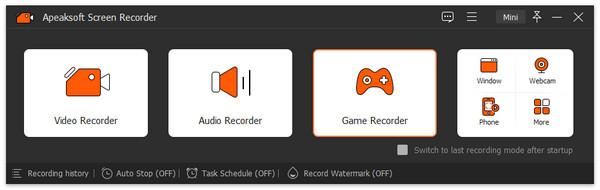
Step 1. Download this best game recorder for free. Open the software and choose Game Recorder to get ready.
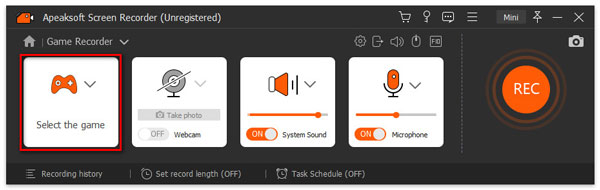
Step 2. Click Select the Game button to choose the recording source. After that, you are free to decide whether to turn on your webcam, system sound and microphone.
Step 3. Reach Rec button and start recording your game moments. When your wanted part gets done, click the Square button or use hotkey to stop your recording. Then you are free to edit your recording in the pop-up window.
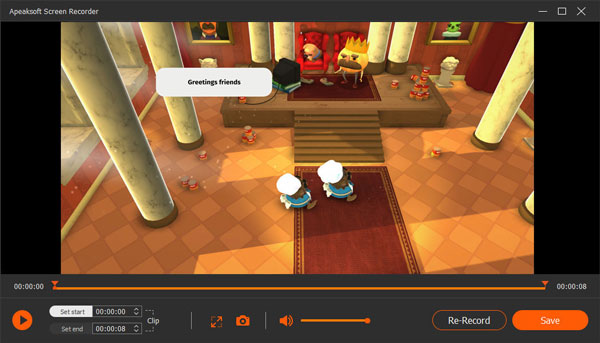
Step 4. When gratified with all content, you can save your works by Done button.
Top 2: OBS Studio
OBS Studio is one of the most popular game recording software which can help you record video games with high quality. It has the capability to handle a wide variety of formats and systems. When you are looking for an all-in-one solution for recording gameplay, OBS Studio can be a good choice.
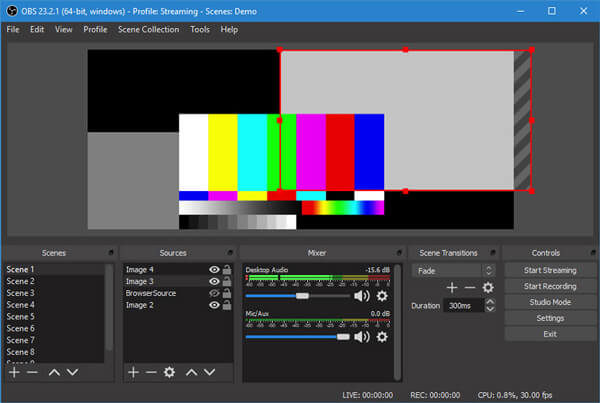
With OBS Studio, you can customize your audio settings, including choosing to record only game audio or capture game audio and your voice at the same time. If you experience issues such as OBS lagging while recording or streaming, even though the game itself runs smoothly, adjusting the recording and streaming settings may help improve performance.
- Capture video and audio from webcam and microphone for free.
- Record 2D/3D video games without file size or time limitation.
- Stream gameplay and provide multiple transitions and tools.
- No obvious sign to tell whether the program is running or not.
- Steep learning curve for beginners.
- Take up significant system resources.
Top 3: Xbox Game Bar
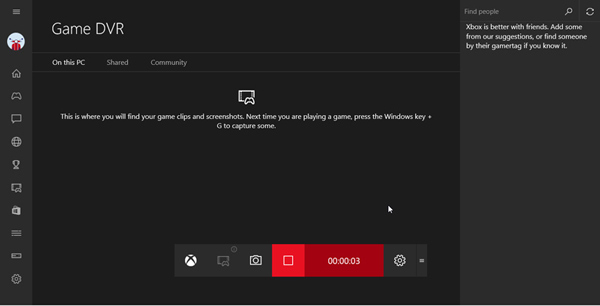
Xbox Game Bar screen recording can be the best PC video game recording software for Windows 10/11 users. It offers a simple and convenient way to take full control of the gaming activities while playing on your computer. Xbox Game Bar is the customizable built-in gaming overlay in Windows 10. It makes your computer more and more like an Xbox. You can easily call up Xbox Game Bar by pressing Win + G on your keyboard. After that, you can choose Overlay menu > Capture to start the game recording. You can record Xbox gameplay with the built-in Game Bar and adjust the recording quality based on your system and settings.
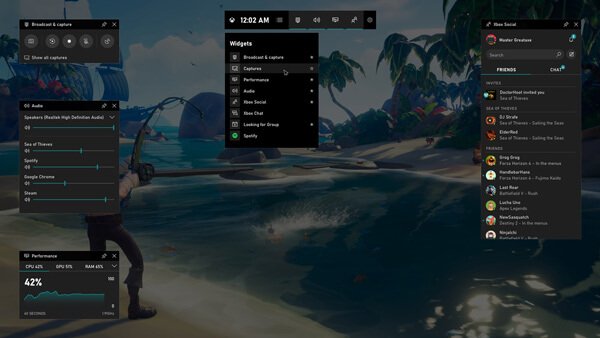
- Highly support almost all PC video games.
- Connect to new teammates with LFG and communicate with Xbox console.
- Provide editing function for more convenience.
- Record game clips with limited time.
- A little time-wasting for players for the direct recording result.
Top 4: QuickTime Player
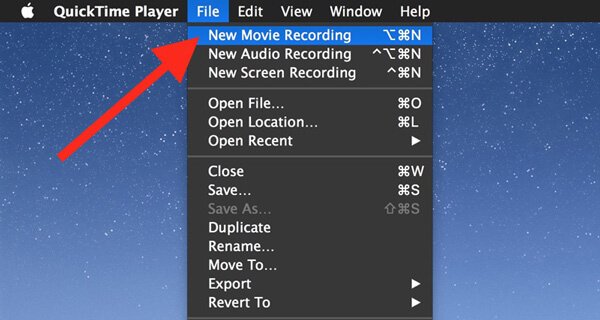
For Mac users, selecting a screen recorder for free on Mac is not as easy as it sounds. QuickTime Player is the best screen recording software for you. This built-in media player and video audio recorder can help you capture anything displayed on your Mac monitor with high quality. There is no watermark or any limits of file size or recording time. You can easily get a stable gameplay recording experience. However, QuickTime Player can't directly capture internal system audio during screen recording. To record system sound, you need to use an additional virtual audio device or third-party audio tool.
- Widely available and supported for Mac users.
- Focused and simple design for use.
- Equipped with Security flaws for better privacy.
- No support for dual recording.
- Limited choices for video quality and format for output.
- Audio channel for recording is not connected to system sound.
Top 5: Action!
Action! Game Recorder is the easy-to-use game recording software for Windows, which can give you smooth HD game recording up to 120fps. It carries many must-have tools and features for your gameplay recording. This game recorder is compatible with all versions of windows like Windows 11, Windows 10, Windows 8, Windows 7 and more. It allows you to stream and real-time record in HD video quality.
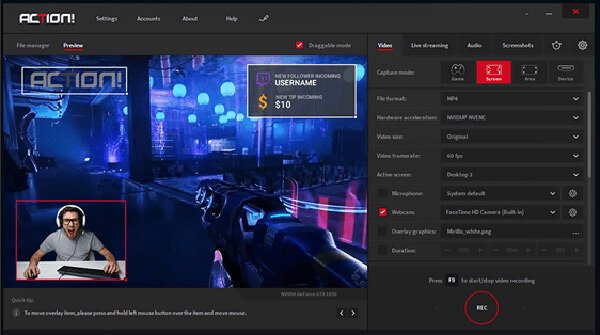
- Enable players to stream gameplay and web player videos.
- Record your r gameplay in a smaller file with less CPU and GPU usage.
- Directly capture game video to MP4 (H.264/AVC) file.
- A paid plan for long-term use on this software.
- Custom frame rate and video bitrates are set inflexible to adjust.
Top 6: Bandicam
Bandicam is one famous gameplay recording software which can help you capture any activities on your computer. It enables you to record game videos up to 120 FPS. The game recorder offers 3 recording modes, Recording screen, Game recording mode, and Device Recording mode. It can capture webcam videos. Actually, it has the capability to capture screen with 4K Ultra HD resolution.
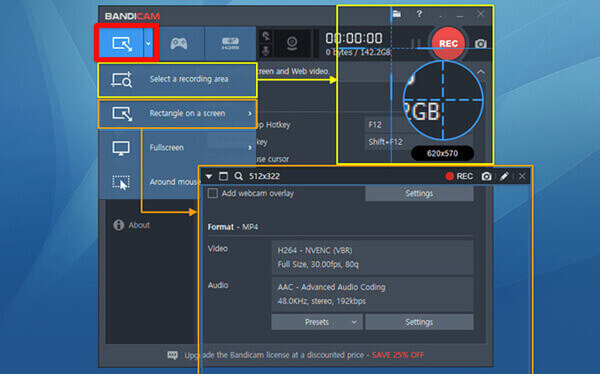
- Record HD videos with a small file size.
- Free to adjust the recording area for gaming or other activities.
- The free version is limited to 10 minutes per recording.
- Watermarks will appear on displaying of your recorded videos.
- Only support Windows system.
Top 7: XSplit Broadcaster
XSplit Broadcaster is a popular screen recording tool for games which mainly designed for high-quality video recording. It can capture video and audio from a number of sources. In addition, it is able to combine them during a live stream.
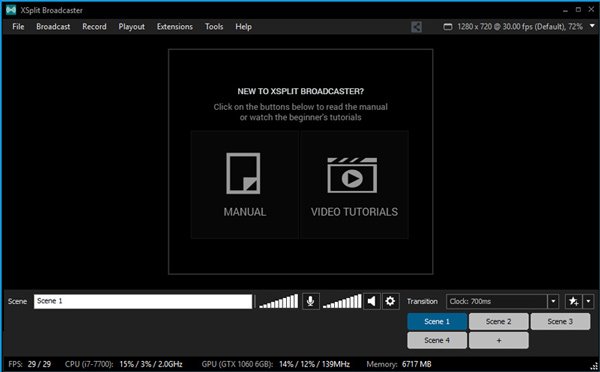
- Various custom plugins are provided to increase.
- Both free and paid versions for the recording.
- Supported functions to integrate recording files for use.
- Watermarks are automatically affiliated to the recorded file.
- May cause major slowdown in the gaming process.
- Have to upgrade to paid version if you want to remove the watermark or capture 4K video.
Top 8: Movavi Gecata
Gecata by Movavi is a feature-rich game recording software that helps you capture memorable gaming moments and share them online with ease. It is designed to provide a smooth recording experience and supports recording a wide range of games, from Minecraft and Battlefield 4 to Roblox and World of Warcraft.
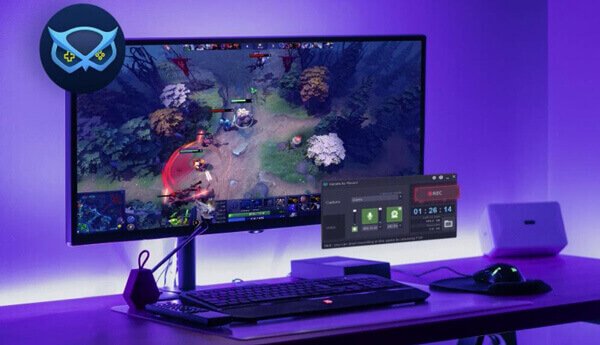
- Enables you to start capturing with one click.
- Hotkeys are supported to control the screen recording.
- Offers in-game sound effects, music, and dialogue to immerse viewers.
- Watermarks will stay with the final result.
- Videos are protected for further editing before you share them on YouTube.
Top 9: NVIDIA App
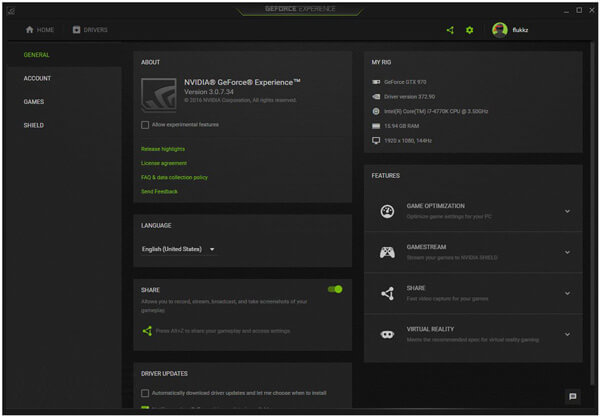
NVIDIA App is a built-in game recording solution for Nvidia users. If you want to know how to record gameplay with NVIDIA, you can use the NVIDIA Overlay to capture your gameplay without installing additional recording software. Its recording features include Instant Replay and Manual Recording, which can help you reduce CPU usage and maintain smooth gameplay while recording with the help of NVIDIA GPU hardware encoding.
- Capability to capture screen with the same resolution as your display
- Record HD or even 4K UHD game recordings with a 4K panel
- Offers a simple and straightforward design for basic gameplay recordings
- Only work with Nvidia GPUs
FAQs About Game Recorders
How big is a one-hour 1080p video for gaming?
The video size mainly depends the resolution, frame rate, bitrate, and video codec. For example, a 1080p recording may take up around 3-10 GB per hour.
Does Windows 11 have screen recorders?
Now Windows 11/10 are both equipped with built-in Xbox Game Bar as we have introduced as above. You can press Win + G to open Xbox Game Bar, or use Win + Alt + R to start or stop recording.
Can I record my game on mobile devices?
Yes. There are built-in screen recording features for gameplay on modern phones. You can also find some game recorder apps.
Conclusion
A reliable game recorder makes it easy to capture gameplay highlights. After reading this post, you can choose the right game recorder and capture the important moments to share with your friends. If you want an easy-to-use recorder with more flexible recording and editing options, Apeaksoft Screen Recorder is also worth considering.
 Apeaksoft Screen Recorder
 Record any video and audio on phone and computer screen.
Secure Download
Secure Download
Related Articles