Best Screen Capture Video and Audio Mac Methods for Beginners

Whether it's recording an online meeting, making an instructional video, or trying to save a game highlight, many users face the same problem before they get started: how to record screen video on Mac with sound? This guide will tell you which methods are the most hassle-free and which settings are the most reliable to help you complete a high-quality recording with sound.
PAGE CONTENT:
Part 1. Understanding Screen Recording on Mac
Recording a screen on a Mac may seem simple, but there are obvious differences between different recording methods that directly affect your ability to record video with sound successfully.
To achieve stable audio synchronization, you first need to understand the types of audio sources. Macs treat microphones, human voices, and system sound effects as different input channels, and built-in tools often capture only a single source, making how to record video and audio on Macs unreliable in real-world scenarios.
On the whole, Mac screen recording can be divided into "system built-in tools" and "professional recording software" into two categories. The former is simple to operate and suitable for occasional use; The latter is more complete and can truly provide a smooth experience for screen capturing video and audio on Mac. Understanding these differences will help you quickly determine which approach works best for your needs in the next section and get you to the end goal of how to record screen video on Mac with sound.
Part 2. How to Record Screen Video on Mac
After the basic understanding is completed, the next step is to choose the right way to record the screen. Different tools have different performance in audio capture, picture quality, and controlability, and the key to truly smooth how to record screen video on Mac with sound is to find a solution that can process multiple sources of audio simultaneously and maintain a high-quality output.
Screen Recording Tools Comparison
| Tools/Functions | System sound recording | Multi-source recording | Image quality | Flexibility of recording | Long-term recording stability | Application scenarios |
| Apeaksoft Screen Recorder | ✔Support | ✔Support multiple audio sources | ✔High definition adjustable | ✔Customize the area/window | ✔Very stable | Teaching, games, conferences, professional recording |
| QuickTime Player | ✘Not supported | ✔Support Microphone recording | ▲Basic picture quality | ▲Limited choice | ▲Medium | Basic demonstration, simple tutorial |
| Screenshot Toolbar | ✘Not supported | ✔Support Microphone recording | ▲Basic picture quality | ✔Fast operation | ▲Medium | Instant recording, fast capture |
Best Third-Party Tool: Apeaksoft Screen Recorder
Record Screen Video on Mac with Sound
- Supports simultaneous recording of system audio and microphone to ensure complete sound capture.
- Offers flexible screen control, such as custom area recording and window lock recording.
- Output supports high definition, high frame rates, and multiple format options.
- High stability for long-time recording, minimizing audio loss or video lag.
Secure Download
Secure Download
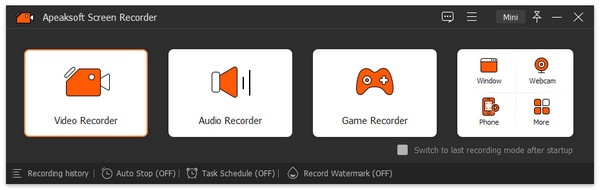
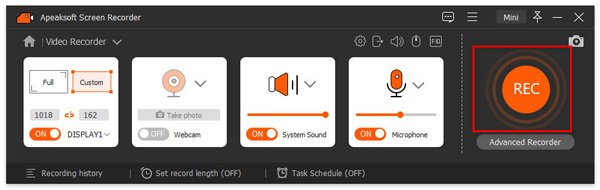
Step 1. Open the software and select Screen Recorder in the drop-down box of the main interface to record both picture and audio simultaneously.
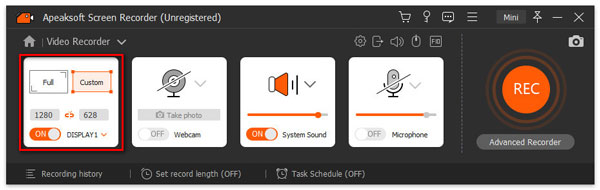
Step 2. Then you can set the recording area; you can directly select Full screen or Custom to select a specific area.
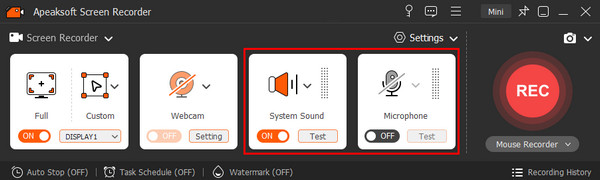
Step 3. To find out how to record screen video on Mac with sound, turn on the toggle under System Sound and adjust the volume slider. Or turn on the Microphone under the microphone. You can choose between the Mac's built-in or external microphone.
Step 4. Then click the REC button to enter the recording state.
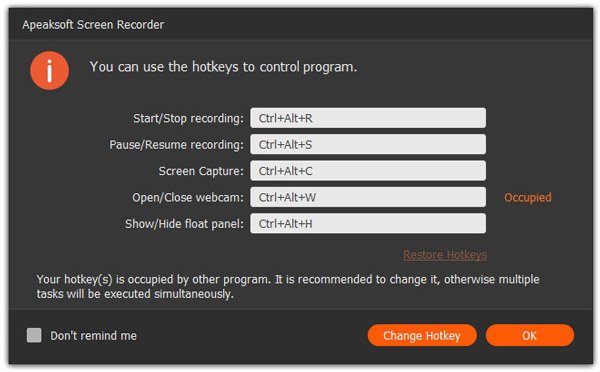
Step 5. The software will also automatically show you some hotkeys. If the default combination is not satisfactory, you can also change it.
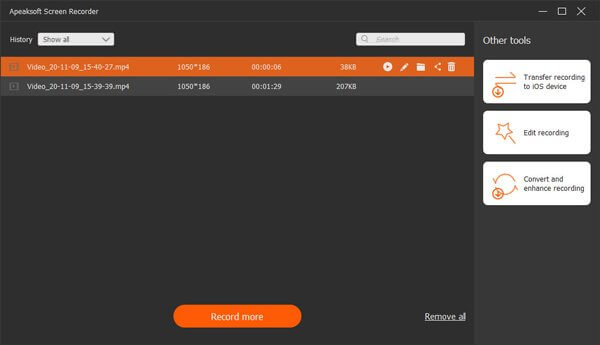
Step 6. Finally, click the red square in the top left corner to stop recording. You will be directly in the preview window, and can quickly crop the video, re-record or directly save, etc.
QuickTime Player
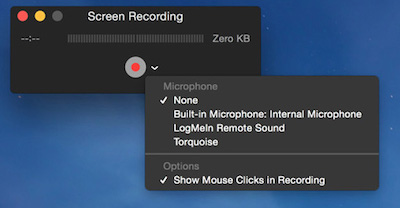
QuickTime Player is a built-in macOS tool for simple scenarios. It can record pictures and microphones, but it can't capture the internal sound of the system, so it's still limited when you need a full audio track. More users use QuickTime for screen audio recording. But if you only need to record a presentation or external sound, then it can meet the most basic need on how to record video with sound on Mac.
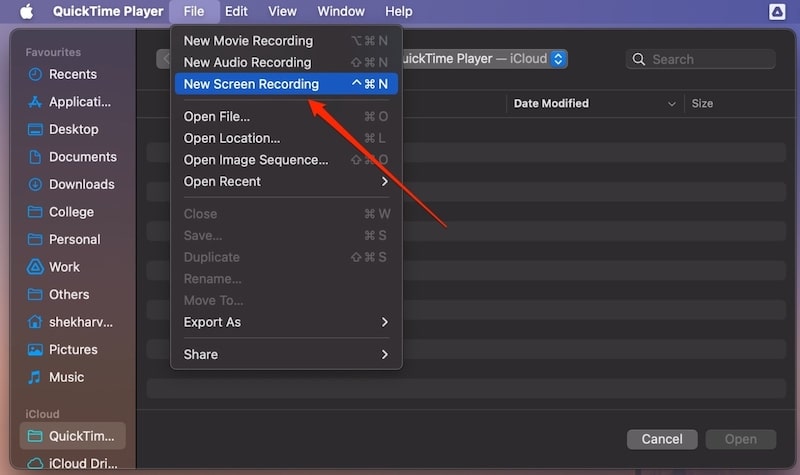
Step 1. Open QuickTime Player and select New Screen Recording.
Step 2. Tap the Microphone button to select the external or built-in microphone you wish to use.
Step 3. Select the recording area and start recording.
Step 4. Save the video file when you're done.
Screenshot Toolbar
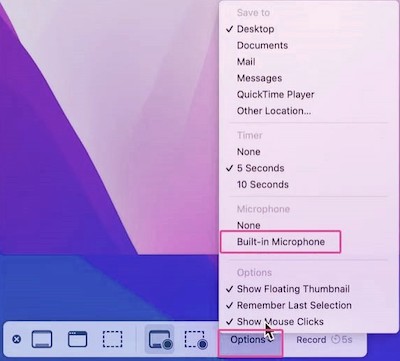
The Screenshot Toolbar is an easier way to record a screen on macOS and is perfect for quickly capturing the flow of actions. It is simple to operate, but also unable to record system audio directly, so it is not suitable as a complete how to record video and audio on Mac solution, but it is very suitable for quick recording of short scenes.
Step 1. Press Shift + Command + 5 to call out the recording panel.
Step 2. Choose to record the entire screen or a selected area.
Step 3. Enable external audio in the microphone options (if desired).
Step 4. Click the Record button to start capturing the picture.
Part 3. Tips for High-Quality Video Recording on Mac
Whether you use built-in tools or professional software, it takes more than just starting to record to really get a clear, smooth, synchronized screen. The following tips will help you maintain consistent and high-quality recording performance in your daily operations and further improve the success rate of how to record video with sound on Mac.
Make sure the sound source is clear and adjust the volume in advance
Be sure to check the system volume, microphone distance, and input device selection before you start recording.
- • If you are working on a screen capture video and audio on a Mac, make sure the system sound effects are not set to mute.
- • If you use an external microphone, it is recommended to conduct a volume test to avoid the problem of being too loud or too low.
- • When using professional software, remember to adjust the system sound and the microphone wind sound separately to make the ratio of the two more natural.
Clean up high-occupancy tasks in the running
Recording video itself consumes CPU and GPU, especially when recording sound and high frame rate images at the same time.
Suggestions:
- • Close irrelevant software and browser tabs
- • Pause background apps that cause heat
- • Keep your Mac free of heat
This can reduce the problem of picture lag and audio delay during recording, and make recording video on Mac with audio more stable.
Keep enough storage space
Screen recording files can easily grow large quickly, especially when recording high-quality images.
It is recommended to free up disk space on Mac in advance or set the video to an external hard disk to avoid interruption during recording due to a lack of space.
Choose the right resolution and frame rate
Different screen recording purposes require different screen Settings:
- • Teaching and demonstration: 1080p + 30fps
- • Game and operation demonstration: 1080p or above + 60fps is recommended
- • Social media sharing: Use a lighter format to reduce file size
Too high parameters may lead to a less smooth recording process, so choose flexibly according to your needs.
Conclusion
When you really master how to stably screen capture video and audio on the Mac, recording the screen is no longer a complicated thing. No matter what your goal is for recording video, the key is to choose the right tool for your needs, combined with the right setup and recording techniques. Professional software will have an edge in all aspects, so using a tool like Apeaksoft Screen Recorder will make your recording process easier. Now you can try a recording based on your own scene to make content creation smoother!
Related Articles