How to Record a Webinar on Windows/Mac/Online with Easy Steps

Key Takeaways
- If you are the host, you can use the webinar platform's built-in recorder.
- If you are an attendee, you can use a screen recorder, but you should follow the organizer's recording policy.
Webinars are live, web-based events that allow you to give presentations to hundreds or even thousands of people at once.
However, if you do not want to miss any important points in a webinar, taking notes is not enough. Recording a webinar will be a good solution.
But how to record a webinar?
This guide covers several easy ways to record a webinar on Windows, Mac, and online.
PAGE CONTENT:
Part 1: How to Record a Webinar with the Built-in Recorder
Some webinar platforms have built-in recording features that allow hosts and organizers to record a webinar without using additional software. The recording steps vary by platform. Next are the steps about how to record webinars with a built-in recorder on main webinar platforms, such as GoTo Webinar, Zoom, and Microsoft Teams.
Scenario 1: Record webinar on GoTo Webinar
Step 1. Sign in to GoTo Webinar and start the webinar session. Broadcast and share your screen.
Step 2. Click Start Recording (Windows) or Record (Mac).
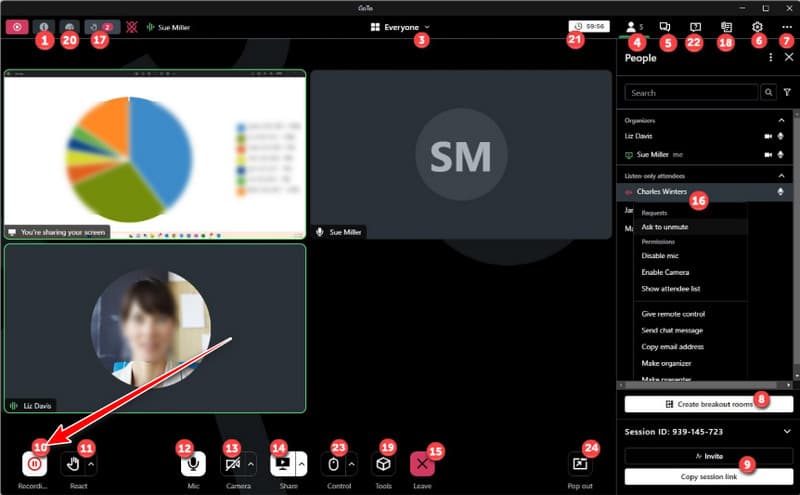
Step 3. When the webinar is over, click Stop Recording in the screen-sharing pane. You can open your Video Library to find the recording. After that, you can share the video with social media websites or further edit it with other programs.
Scenario 2: How to record a Zoom webinar
Step 1. Sign in to Zoom and start the webinar as the host or co-host.
Step 2. Click Record in the meeting controls.
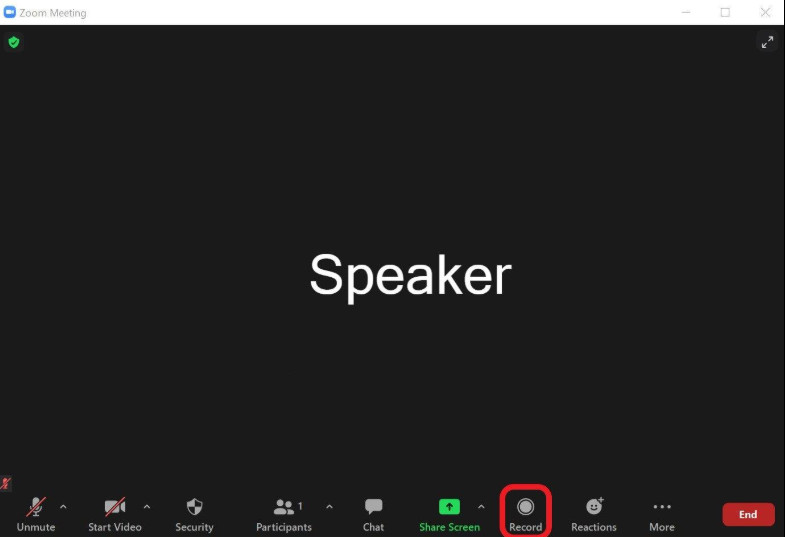
Step 3. When the webinar is over, click Stop Recording. The recording will be saved to your computer or Zoom Cloud, depending on your recording settings.
Scenario 3: Record a Webinar on Microsoft Teams
Step 1. Open Microsoft Teams and start the webinar as the organizer or a user with recording permission.
Step 2. Click More actions (...) > Record and transcribe > Start recording.
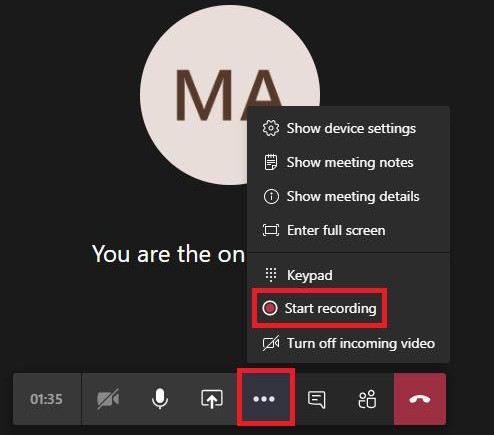
Step 3. When the webinar is over, select More actions (...) > Record and transcribe > Stop recording. The recording will be saved to OneDrive or SharePoint.
Part 2: How to Record a Webinar on Windows/Mac
Method 1: Use the Built-in Screen Recorder
If you are a webinar attendee or your webinar platform does not provide a built-in recording feature, you can use the built-in screen recorder feature on your Windows PC or Mac to record a webinar with ease.
How to record a webinar on Windows
Step 1. Press Win + G to open Xbox Game Bar.
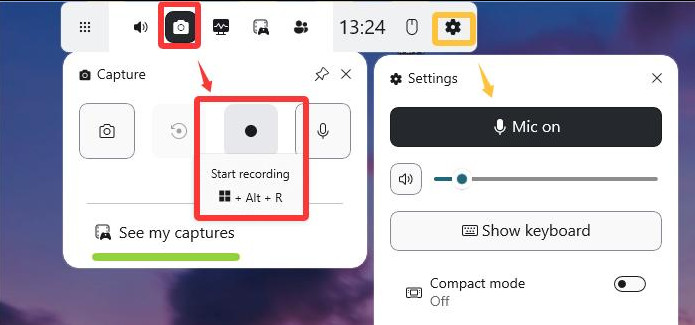
Step 2. Click Record or press Win + Alt + R to start recording.
Step 3. Press Win + Alt + R again to stop recording. The video will be saved in the Captures folder.
How to record a webinar on Mac
Step 1. Press Shift + Command + 5 to open the Screenshot toolbar.
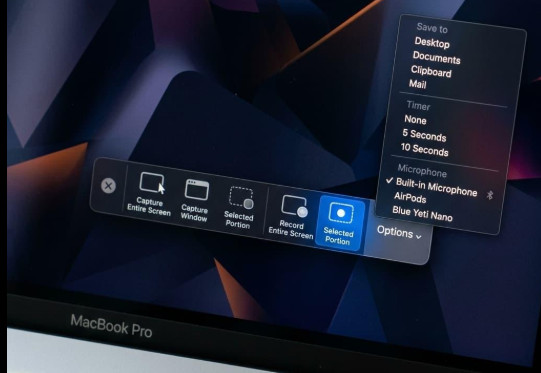
Step 2. Select Record Entire Screen or Record Selected Portion, then click Record.
Step 3. Click the Stop button in the menu bar to end the recording. The video will be saved to your desktop by default.
Method 2: Use a Third-Party Screen Recorder
If you need more control over your webinar recording, Apeaksoft Screen Recorder lets you record the webinar with system sound and microphone, annotate the recording during capture, and schedule recordings in advance.

Downloaded by over 1,000,000 users
- Record live webinar on Windows 11/10/8/7 and Mac.
- Record webinars with system sound and microphone audio.
- Schedule webinar recordings to start automatically at a specific time.
- Choose a full screen, window, or custom area to record the webinar.
- Lock or exclude the window for recording a webinar.
- Use built-in tools to edit or annotate the recording during capture.
Secure Download
Secure Download
Step 1. Download and install the latest version of Apeaksoft Screen Recorder with the download button above, then install and launch the program on your computer to record on-screen activities for a wsebinar.
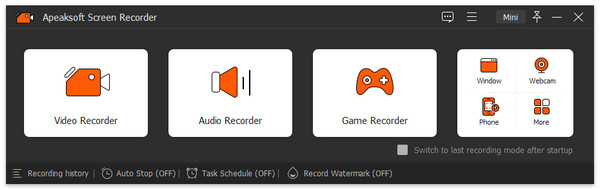
Step 2. When you want to record Webinars, choose the Screen Recorder in the left corner of the interface. If you want to record audio or a snapshot, you can also find the corresponding button in the same interface.
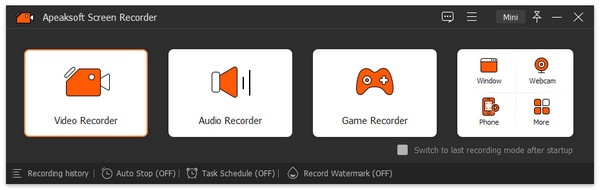
Step 3. In the new window, you can change the settings for webinar recording one by one. Select the recording area as a full screen or a customized window. Then make sure you have turned on the System Sound to hear all the content in the online conference.
If you don't want yourself and your voice recorded in the video, just remember to turn off the Webcam and Microphone shown below.
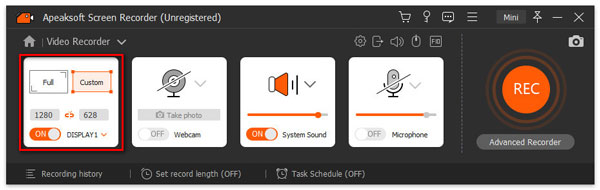
Step 4. With all set, you can click the REC button and start your recording. During the process, you can use the toolbox to change the recording settings if you like.
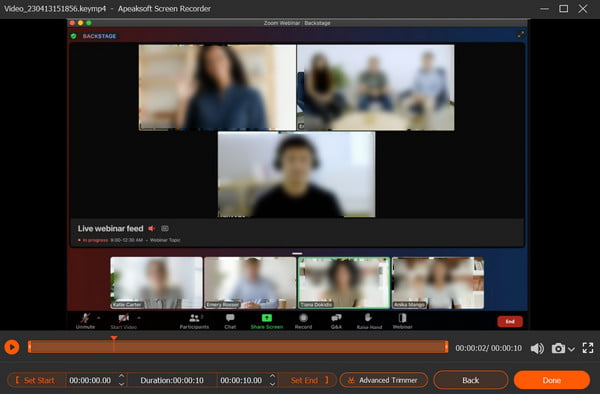
When you want to stop the recording, click the Stop button, and you can preview the effect. Click the Save button.
Step 5. After that, you can view the recording with the following list. And there are other editing tools on the right side next to it if you need.
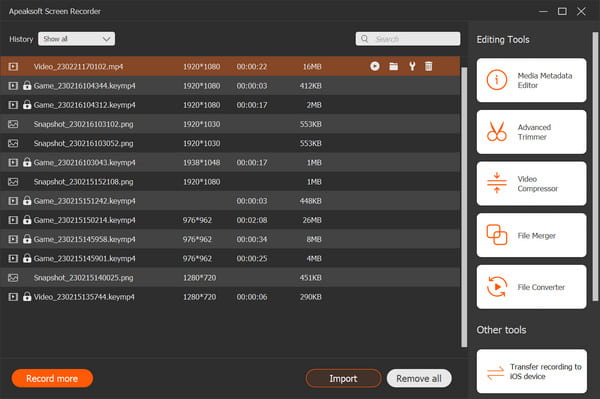
With the steps above, you are expected to capture a smooth and good-quality webinar video. And it's also worthwhile mentioning that Apeaksoft Screen Recorder functions not only as a desktop recorder, but also as an iPhone and iPad webinar recorder with selective access from the "Phone section".
Tips:
1. Make sure the audio quality is good before recording a webinar.
Try to choose a quiet environment to eliminate as much background noise as you can. We recommend that you test the audio before the day you record a Webinar in advance.
2. Enable a high-quality webinar video.
Set up the best environment for the webcam, such as the lighting, optics, and physical appearance.
3. Set a schedule for the webinar recording.
If you are busy and cannot make time to sit in front of computer, just set the task schedule to let it record a webinar at a certain time.
4. Make more entertainment apart from the webinar recording
This software not only works for recording webinars, but it can also be used as a video tutorial maker, music saver, and video capture and gameplay maker on a computer.
Part 3: How to Record a Webinar Online for Free
If you want to record a webinar on a laptop for free, you can try recording a webinar online without installing desktop recording software. Apeaksoft Free Screen Recorder is an ideal choice. You can use this online tool to record webinar for free and capture any on-screen activities within a few clicks.
Follow the instructions below to record your webinar.
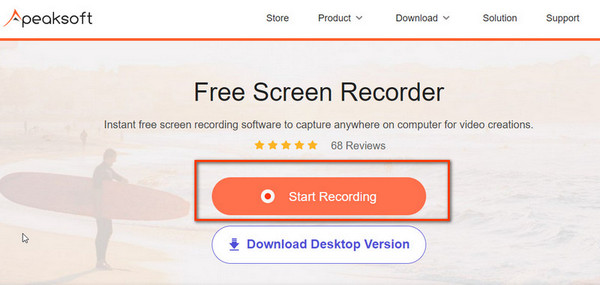
Step 1. Click Start Recording and download the launcher to your PC. Then follow the instructions to continue.
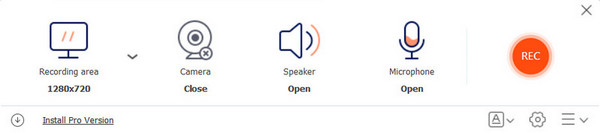
Step 2. In the pop-up window, you can select the recording area and make audio settings to get ready.
Make sure you turn on the Speaker and Microphone to record the talking from other people and yourself respectively.
Close the Camera option if you don't want yourself recorded in the video. Then click the REC button to start recording.
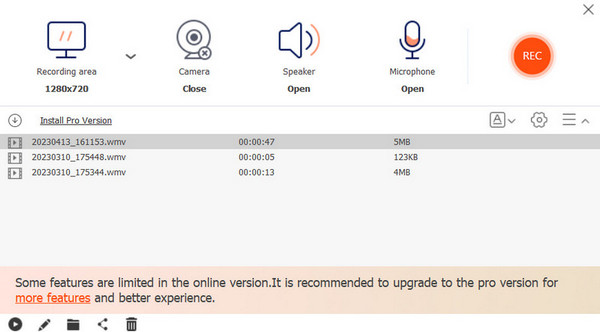
Step 3. Click the End button to complete the recording process. Then you can view all recorded videos in the next window. Here you can play, rename, share, or delete the file if you want.
Part 4: FAQs of Recording a Webinar
Can I record a webinar on iPhone?
Yes. You can record a webinar on iPhone with a built-in recorder. Before you can start recording, you'll need to make sure you've enabled screen recording in the Control Center.
How do I record a webinar online?
You can use an online screen recorder such as Apeaksoft Free Online Screen Recorder to make the webinar recording on your computer. It is totally free, and you don't have to install extra software on your computer.
Can I record a webinar if I am not the host?
Yes. You can use a screen recorder to capture the webinar. However, you'd better check the organizer's recording policy and get permission in advance.
Conclusion
After reading this tutorial, you will know how to record a webinar and what to notice when recording a webinar. What's more, you can also find free Webinar recorders to get the video files. If your webinar project supports built-in recording, just use it. If not, Apeaksoft Screen Recorder will be a good option.
 Apeaksoft Screen Recorder
 Record any video and audio on phone and computer screen.
Secure Download
Secure Download
Related Articles