

7 Recommended Ways to Record Viber Calls on Computer/Phone

By using Viber, you can make calls and send messages to other Viber users for free. With over 30 languages supported, Viber is a good choice for people all over the world. However, there is no built-in Viber recording feature. So when you want to keep records of business conferences, memorable moments or other important calls, you need to choose a Viber call recorder to solve the problem. This article offers detailed steps on how to record Viber audio calls on the computer and phone. Let’s read together to find your best Viber call recorder tool and solution here.
PAGE CONTENT:
Part 1. How to Record Viber Calls on Windows/Mac
When you want to record Viber calls on your desktop, you cannot miss Apeaksoft Screen Recorder. It is a novice-friendly screen recorder that allows users to record any on-screen activity with audio. Furthermore, there are lots of editing tools and settings you can manage.
Best Viber Call Recorder Tool
- Record Viber video/audio calls easily with no lag.
- Record the Viber call on the computer, whether you are using a mobile app or the desktop software.
- Customize screen size, video/audio/screenshot formats, and other preferences before recording.
- Record satisfactory videos or audio with high quality.
Secure Download
Secure Download
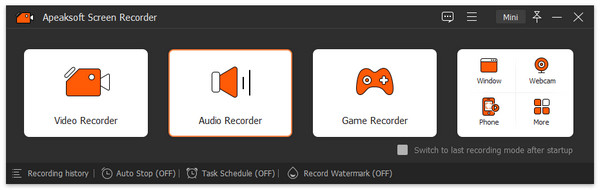
Step 1. Download and run Apeaksoft Screen Recorder on your Windows or Mac. Click the Screen Recorder or Audio Recorder button from the drop-down menu in the top-right corner of the main interface.
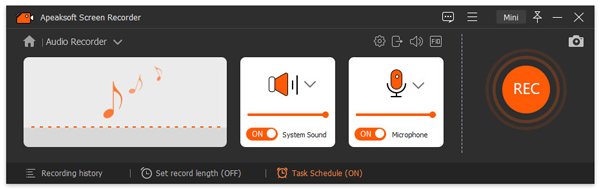
Step 2. You can adjust settings in the new window. You can choose to turn on System Sound and Microphone at will and customize the recording settings with the drop-down menu. Then, you can launch Viber on your computer and click the Rec button to record a Viber call on your Windows or Mac.
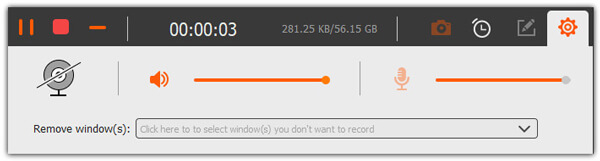
Step 3. Click the red square in the top-left corner to finish recording.
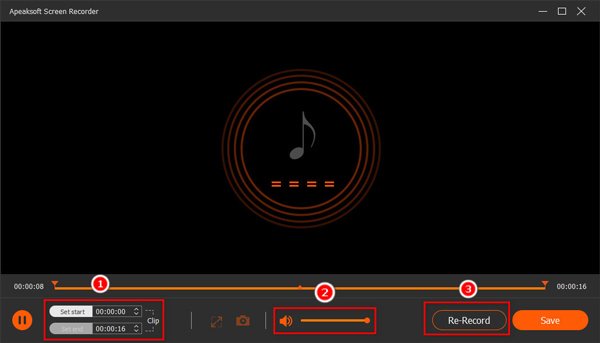
Step 4. Edit your recorded video/audio simply, and then press the Save button.
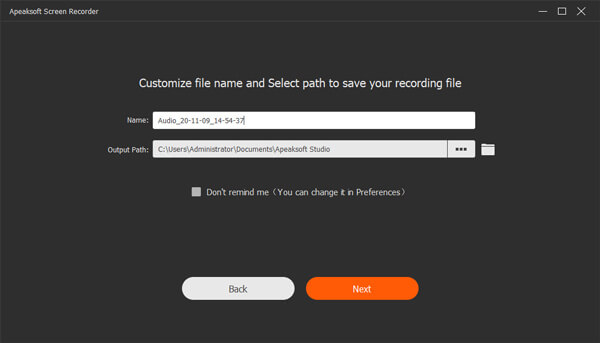
Step 5. Name your file and choose the output path. Click Next.
Part 2. How to Record Viber Calls on iPhone
1. The Built-in Screen Recording Feature
For iPhone, iPad, and iPod Touch users, you can use the iOS screen recording feature without any third-party application. In other words, this built-in Apple recording feature can be your Viber call recorder app for iPhone directly. Just make sure you have updated your iOS device to iOS 11 or higher.
Step 1. Open Settings on your iPhone, iPad or iPod Touch. Find Control Center, and head to customizing controls. Choose the green + button before Screen Recording. Since then, you can see the screen recording feature in the Control Center.
Tips: If you are using iOS 17 or later, you need to swipe down from the top-right corner and long-press the screen. Click Add a Control at the bottom to make sure Screen Recording is displayed. 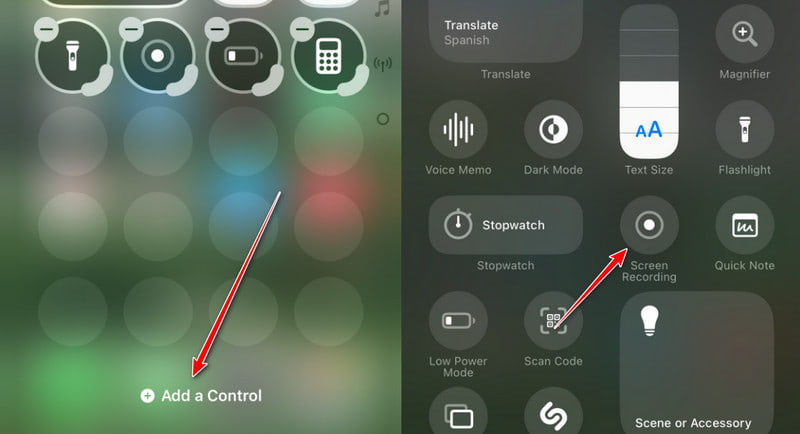
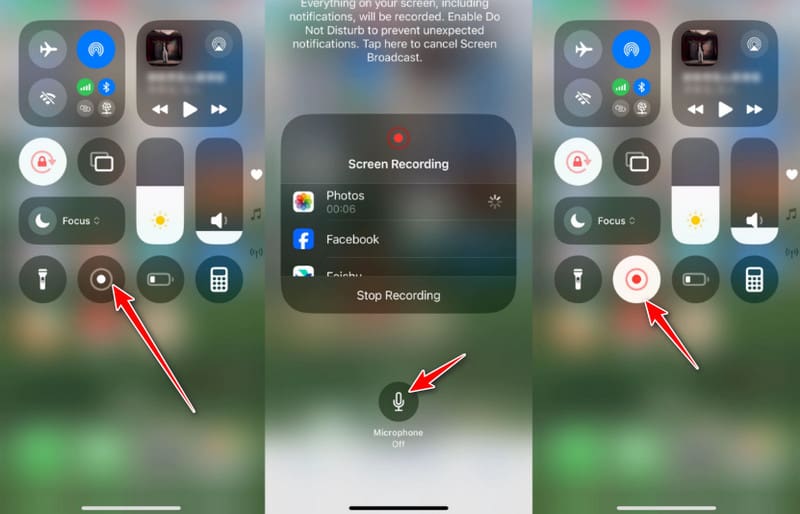
Step 2. Swipe down your iOS screen to get the Screen Record button. Tap it and start to record Viber calls on iPhone after a countdown from three. When you see the button turn red, open the Viber app and make a call after the countdown.
You can also long-press the recording button to check whether your microphone audio is enabled.
If you want to end the Viber call recording process, you can click the red status button to stop it immediately.
You can try this method to record a Viber video call on an iPhone as well. Furthermore, you can use iOS 11 or later screen recording feature to record iPhone screen activities without jailbreaking easily.
Tips: You can also use this tool to record gameplay on Windows or Mac with ease.
2. Screen Recorder: Go Record
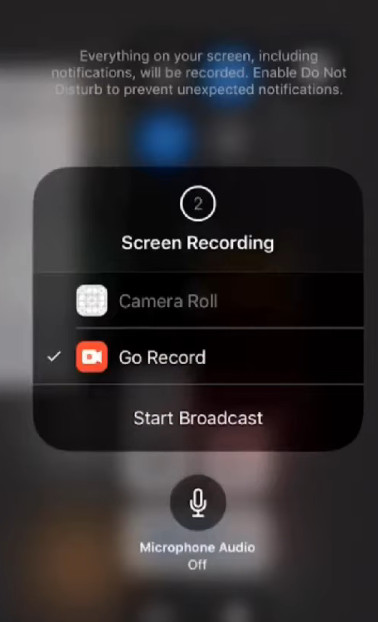
Go Record is an all-in-one screen recorder with Face Cam and editing capabilities. You can record your iPhone screen with audio from your installed apps. So, you can utilize this feature to record your Viber calls on your iPhone.
Step 1. You can search and install Screen Recorder: Go Record directly in your App Store.
Step 2. Go to Settings > Control Center, then browse and add the Screen Recording. Then, you can have access to your Screen Recording button in your Control Center.
Step 3. Swipe down from the top right corner of your iPhone screen to open the Control Center. Then, you can press and hold the recording button and select Go Record from the list. Tap Start Broadcast to start recording your Viber calls.
Part 3. How to Record Viber Calls on Android
1. Android Built-in Screen Recorder
On most modern Android devices, there is a built-in screen recording feature that enables direct recording of Viber's voice or video calls without the need to download or install additional Viber call recording apps. See the steps below to learn how to record a Viber video call on Android:
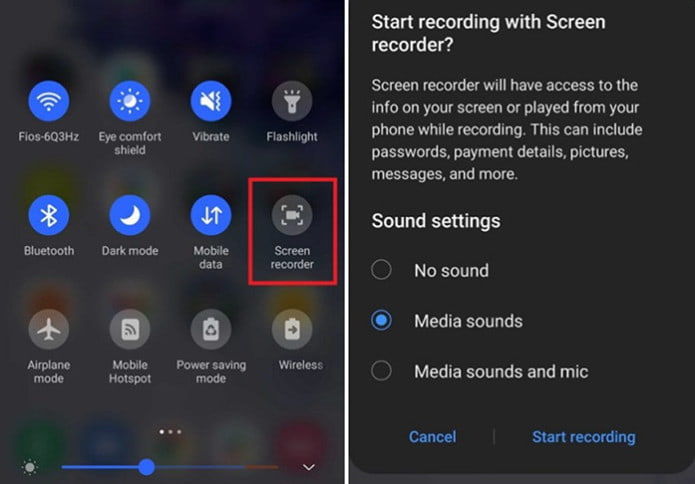
Step 1. Swipe down from the top of the screen to open the Quick Settings menu.
Step 2. Find the Screen Recorder option and click it. Choose your audio source.
Step 3. Start a Viber video or voice call.
Step 4. Press the square button to stop.
2. AZ Screen Recorder
AZ Screen Recorder allows users to record Viber calls on Android easily. There are not many recording and editing filters you can get from the Viber call recorder apk. But it is enough for recording Viber audio calls on Android. What’s more, you do not need to root your Android phone or tablet.
Step 1. Search for and download AZ Screen Recorder from Google Play. Run the Viber call recorder for Android application after the installation. Then you can see a toolbar with four buttons.
Step 2. Click the red option in the first place from left to right. Call your Viber friend and start to record Viber voice calls on Android. When you want to finish the process, you can pull down your notification and choose the Stop button to end the Viber call recording. Later, choose the Export option to save your Viber call recording file.
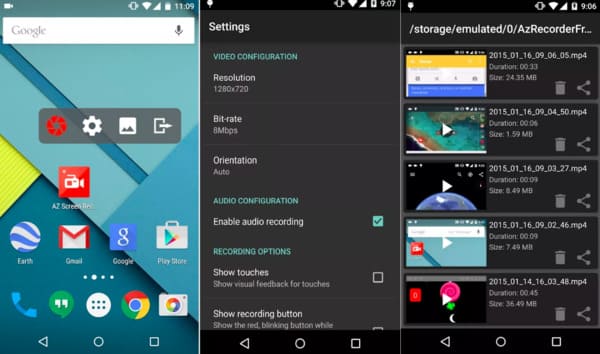
If you want to trim the video or apply other effects, you have to pay for extra features in the Viber call recorder apk. Of course, you can also save the recorded Viber call directly.
3. Call Recorder – Cube ACR
You can install Cube ACR on Google Play. This app supports Viber call recording for most versions of Android devices.
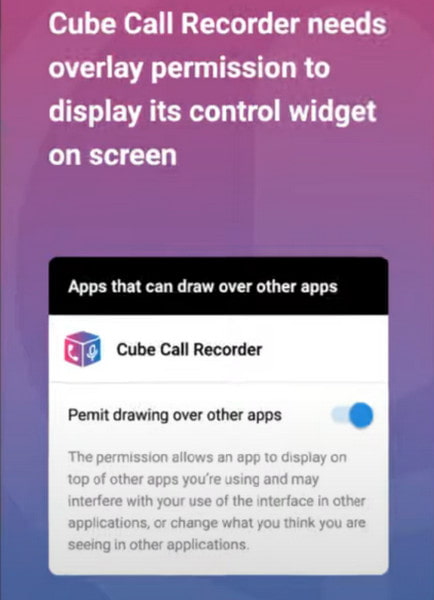
Step 1. After installing it successfully, you should grant permissions for it. Tap Allow thrice to continue. Turn on the button to permit drawing over other apps.
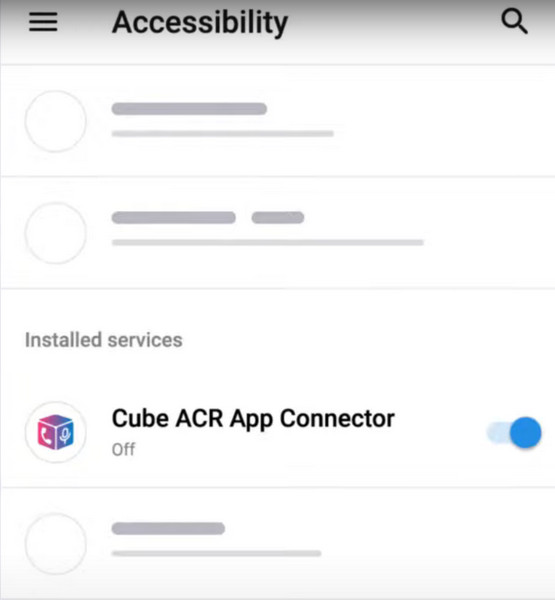
Step 2. Enable Cube ACR App Connector.
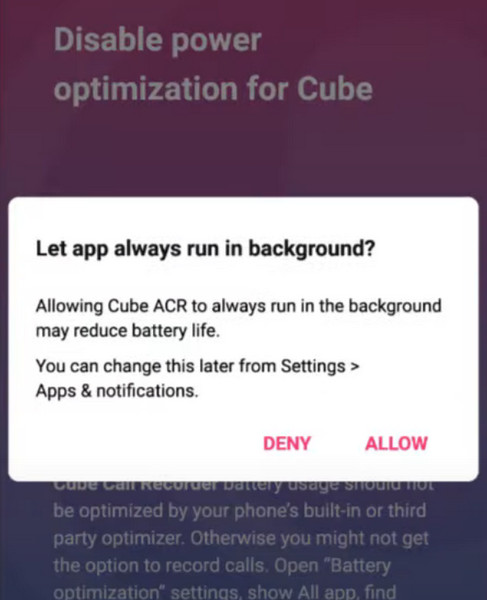
Step 3. Disable power optimization for Cube. You need to tap Allow to let the app always run in the background. Then, you can enjoy recording Viber calls via Cube ACR.
4. Rec. (Screen Recorder)
Rec. has an intuitive interface for you to start recording Viber calls. You can install it from the Play Store. With Rec., you can make long screen recordings with audio of up to 1 hour.
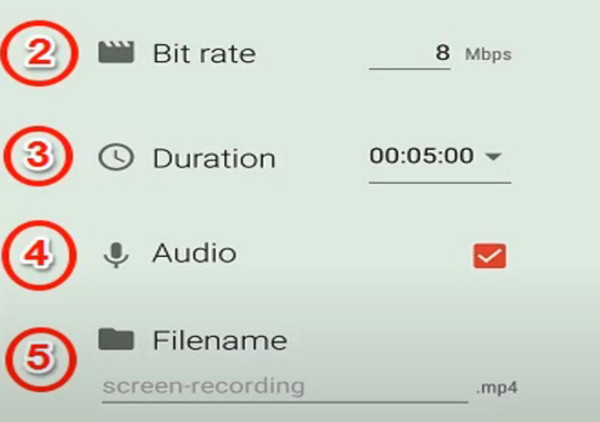
Step 1. Install Rec. for free on your Android phone. You need to turn on the Audio on the home screen of the app.
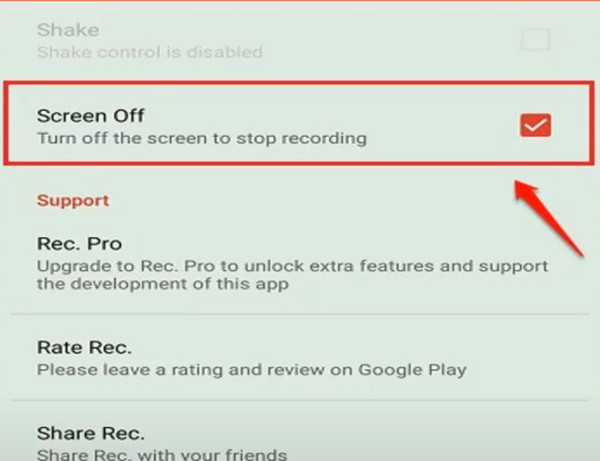
Step 2. Click the Settings option. You can turn on the Screen Off option to enable you to stop recording by turning off your phone screen.
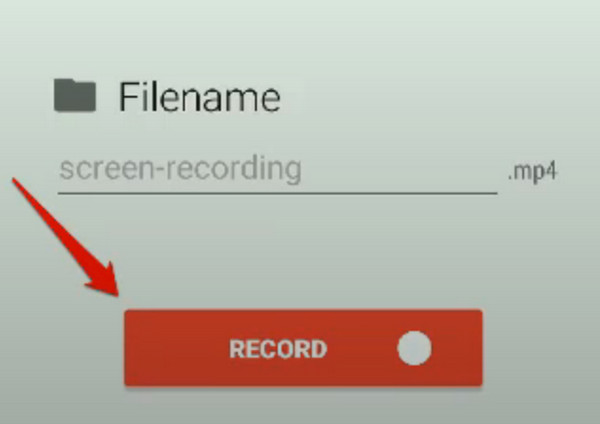
Step 3. Now, you can return to the home screen and tap the Record button to start recording your Viber calls.
Part 4: Legal & Privacy Considerations
1. You must follow local laws when recording audio or video. Some regions allow recording with one-party consent, while others require all participants to agree before recording is permitted.
2. It’s best to inform the other party before you start recording Viber calls.
3. Viber does not offer an official call recording feature, so be mindful of privacy and security when using third-party recording tools.
4. Be cautious when storing or sharing your Viber call recordings.
Conclusion
That’s all for how to record Viber calls on Windows/Mac/iPhone/Android. Feel free to contact us if you have other good Viber call recorders. We hope this article can help you to record Viber calls anytime and anywhere.
Related Articles
What is the best recorder to screen record your iPhone? Can I record iPhone screen on Mac or PC? You can get top 12 screen recorders for iPhone in this post.
To back up Viber messages, you can use emails, Google Drive, iCloud, iTunes, and professional software. You can also access the Viber backup within them.
No matter whether you have a cloud or local backup or not, you can get deleted photos back on Viber on Android and iPhone.
This page shows you how to recover deleted or lost Viber messages on your iPhone 17/16/15/14/13/12/11 and earlier without losing any conversations.



