How to Record Screen on Snapchat Without Notification

What does screen recording mean on Snapchat? It means recording the snaps with the built-in or third-party screen recorder on your iPhone, Android phone, or computer. It is well known that Snapchat deletes snaps after viewing or after a specific period. If you wish to save a snap or a story, the only way is to screen record it. This article explains how to save your favorite snaps and stories.
PAGE CONTENT:
Part 1: Does Snapchat Show Screen Recording
Can you screen record on Snapchat? Yes. While Snapchat doesn’t come with a screen recording feature, you can record snaps and stories using the built-in feature or third-party screen recorders on your iPhone or Android phone.
Does Snapchat notify when you screen record? Yes. Snapchat notifies the sender when you screen record their snaps. This social platform is designed to let users share moments. Once you view a snap, it will be deleted automatically. Moreover, Snapchat deletes snaps after the expiration period, even if you didn’t view them. Saving someone’s snaps without permission can break their trust and copyright. That is why Snapchat detects and notifies you of the screen recording.
Part 2: How to Screen Record Snapchat on iPhone/Android
One way to screen record on Snapchat without it showing is to use Airplane Mode. You can view the snap or story you want to record. Then, turn on Airplane Mode on your device, and record it. Since Airplane Mode cuts off all network connections on your mobile device, Snapchat cannot detect your action.
How to Screen Record Snapchat on iPhone Without Showing
Step 1. Open your Snapchat app and view the desired snap.
Step 2. Go to the Control Center on your iPhone.
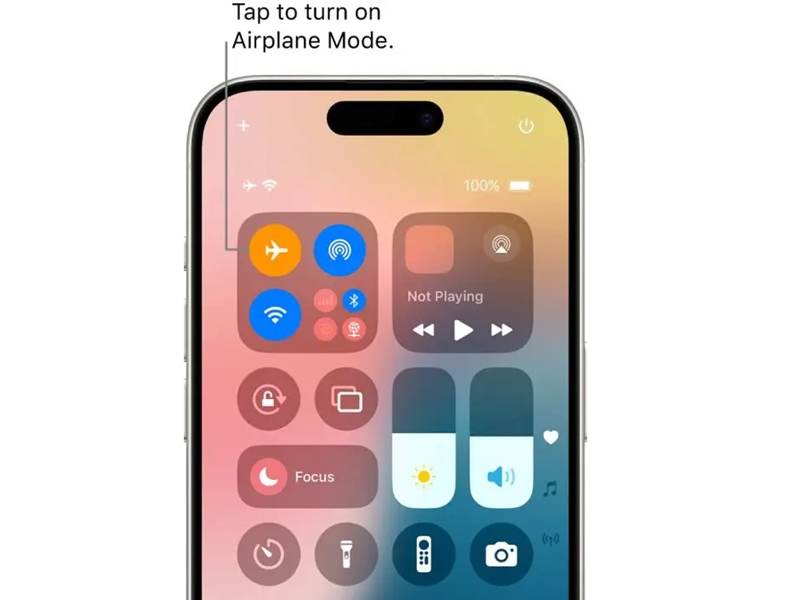
Step 3. Tap the Airplane Mode button to enable it.
Step 4. Then, tap the Screen Recording button on your Control Center.
Step 5. Turn on Microphone and tap Start Recording.
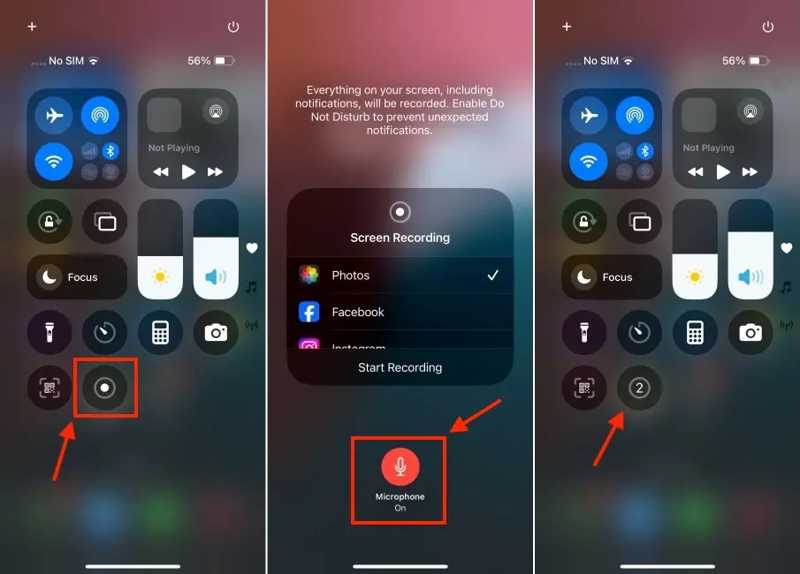
Step 6. Open the snap you want to save after the countdown.
Step 7. After screen recording Snapchats on your iPhone, tap Airplane Mode on Control Center to turn it off.
Note: You can find the recorded snap in your Photos app.
How to Screen Record Snapchat on Android Without Showing
Step 1. To screen record Snapchat without its notification on an Android phone, load the snap in your app.
Step 2. Swipe downward from the top of your screen.
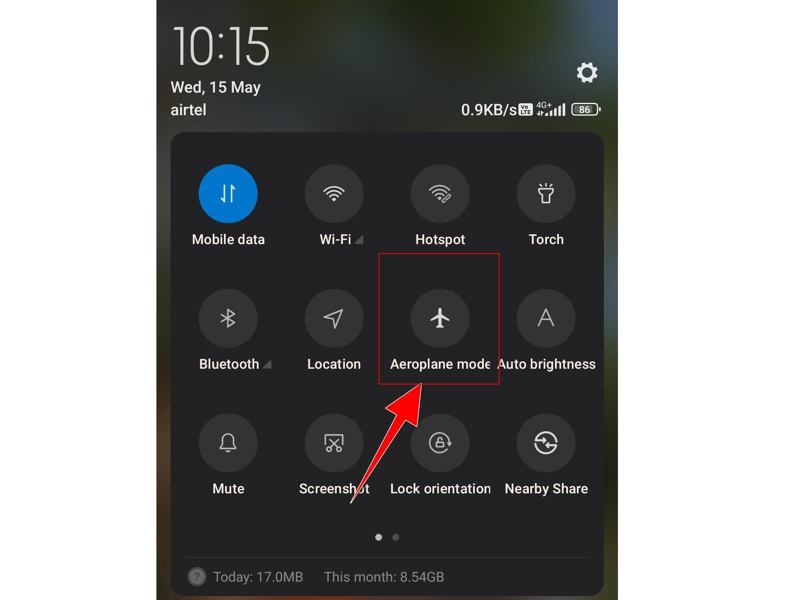
Step 3. Tap the Airplane mode button to turn it on.
Step 4. Next, tap the Screen record button to start the built-in screen recorder.
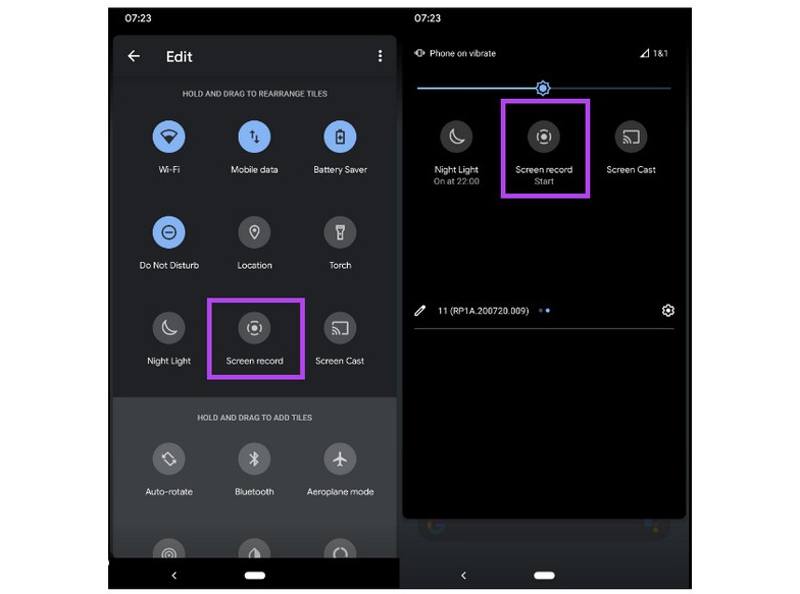
Step 5. Now, open the snap and record it.
Note: You can also search in the Google Play to install a third-party Android screen recorder that offers some specific and fashionable features.
Part 3: How to Screen Record on Snapchat on Desktop Without Notification
With Apeaksoft Screen Recorder, you can screen record on Snapchat without notification, either on the Snapchat website or app. Moreover, it simplifies the process due to the user-friendly design.

Downloaded by over 1,000,000 users
- Screen record Snapchat on your desktop in one click.
- Capture snaps and stories on your phone.
- Save snaps in the high-quality videos.
- Offer custom options, like schedule recording.
- Preview the recordings with the built-in media player.
Secure Download
Secure Download
How to Screen Record Snapchat Without Notification on Desktop
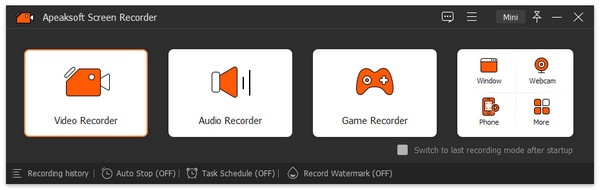
Step 1. Install Snapchat recorder
Launch the Snapchat recorder software after installing it on your computer. Choose the Screen Recorder mode.
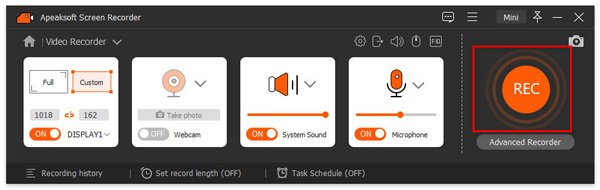
Step 2. Record Snapchat
Log in to www.snapchat.com in a browser. Click the Recording Area option and set the recording area according to the snap. Turn on System Sound and test it. Click the REC button to start recording the snap.
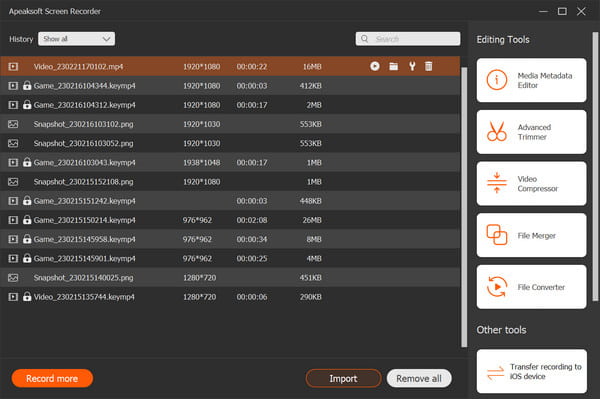
Step 3. Save the Snapchat recording
When the snap is complete, click the Stop button. Check the recording in the preview window. If you are satisfied, click the Save button to export the video.
How to Screen Record Snapchat Without Notification on a Phone
Step 1. Mirror phone screen
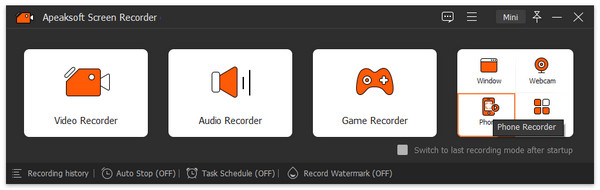
If you want to screen record Snapchat on your iPhone or Android phone, choose the Phone Recorder option. Select your device type and link your handset to your computer with a compatible cable.
Step 2. Record Snapchat on your phone
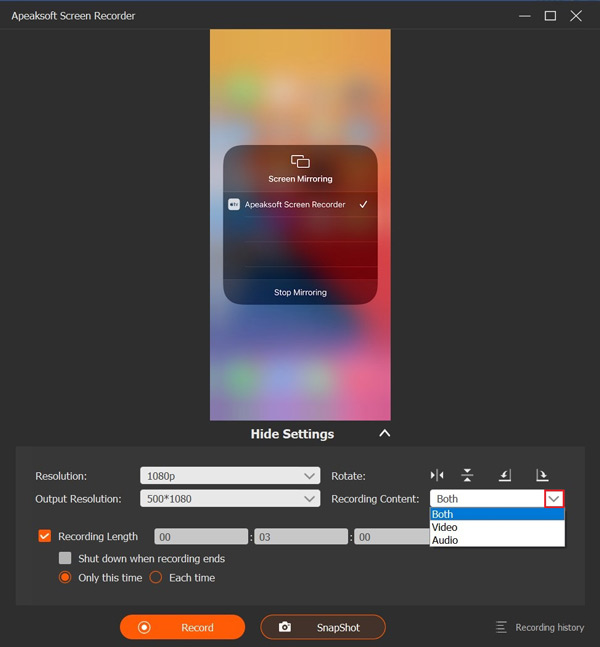
Follow the onscreen instructions to mirror your screen. Set the resolution and output resolution. Click the Recording Content menu, check Screen and Speaker, and select Phone Speaker.
Turn on your device, and play the snap. Click the Record button in the software to initiate screen recording on Snapchat without notification.
Step 3. Preview recording
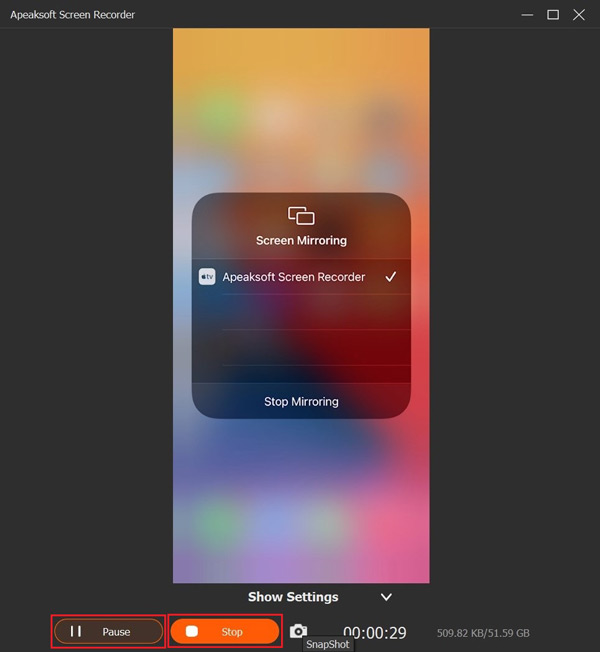
When it is done, click the Stop button to save the snap recording to your hard drive.
Further Reading
Conclusion
This guide explained how to screen record Snapchat without notifying others. If you wish to save snaps and stories secretly, you can completely load them, turn on Airplane Mode, and record them on your mobile device with the built-in or third-party screen recorder. Apeaksoft Screen Recorder is an easy option to save your favorite snaps without showing notifications.
 Apeaksoft Screen Recorder
 Record any video and audio on phone and computer screen.
Secure Download
Secure Download
Related Articles