

6 Ways to Recover Deleted Call History on iPhone Easily

Phone call history carries essential information like unsaved phone numbers. However, if we delete some archives or they are lost due to a phone crash, the iOS system update error, or even water damage, how to see deleted calls on iPhones?
Fortunately, the post covers all these conditions and helps you recover call logs even from several years ago on all iPhones, no matter whether you have backups.
PAGE CONTENT:
- Part 1: [Easiest] How to Recover Deleted Call History on iPhone Without Backup
- Part 2: How to Check Deleted Calls on iPhone with iCloud
- Part 3: How to Get Deleted Call History on iPhone via iTunes
- Part 4: How to See Deleted Call History on iPhone Without Erasing iPhone
- Part 5: How to See Call History on iPhone via the Carrier Website/App
- Part 6: Contact the Carrier for Support
Part 1: [Easiest] How to Recover Deleted Call History on iPhone Without Backup
As is known to all, you can use iCloud to retrieve deleted iPhone call history with ease. However, what if users haven’t backed up their iPhones with iCloud? Don’t worry! If you haven’t backed up your phone to iCloud or iTunes, Apeaksoft iPhone Data Recovery is the program that saves your deleted phone calls. It is a professional data recovery program that restores data with advanced algorithms conforming to the iOS system’s logic and features. In addition to phone calls, it recovers Safari history, deleted files, calendars, notes, videos, and even data from third-party apps.
Recover Deleted iPhone Call History
- Scan deleted calls and optionally restore them.
- Preview all deleted data for free before saving it.
- Recover calls to iPhone or save them to your computer.
- View iTunes and iCloud backup without wiping iDevices.
- Support iPhone, iPad, and iPod touch.
Secure Download
Secure Download

How to Recover Deleted Calls on iPhone
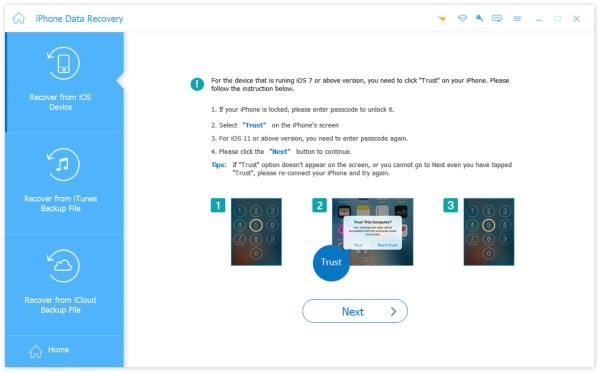
Step 1. Get the software to recover the deleted iPhone call history Download the program for Windows or Mac by pressing the button above. Install and launch it, and click iPhone Data Recovery. Choose Recover from iOS devices and plug the iPhone into your computer. If your iPhone pops up a window asking if you trust the computer, tap Trust.
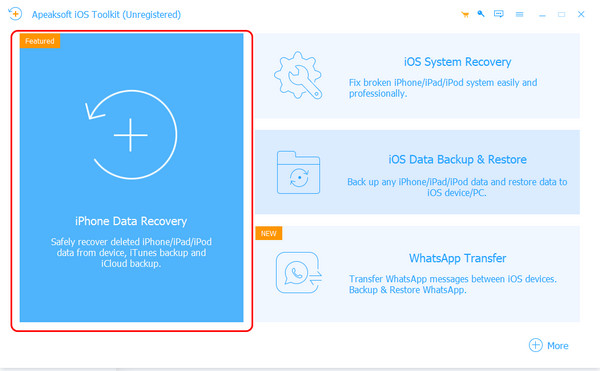
Note: If your iDevice is old, you will likely download a plugin with the guide on the interface.
Step 2. If the device is connected successfully, click Start Scan.
Step 3. Wait for the program to scan your iPhone. It may take several minutes. Here, you can see all data on your iPhone and check deleted data by choosing Show Deleted Only on the top.
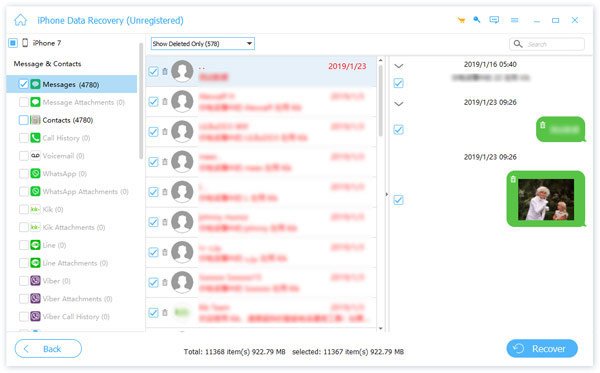
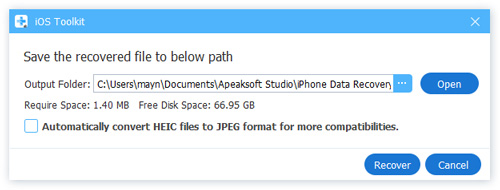
Step 4. You can select to recover all data or part of them. Click Recover and set the output path on the computer.
Notes for recovering deleted calls:
1. For users who have iOS 13 or higher, they need to confirm whether to scan encrypted calls. If you click cancel, the encrypted call history will not be scanned and, hence, will not appear on the list.
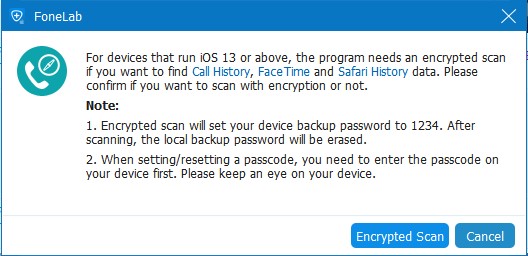
2. Apeaksoft iPhone Data Recovery, or any other data recovery software, restores data if other data do not cover it. Therefore, if you are wondering how to recover deleted recent calls on iPhone, you can try it because they are almost definitely not covered and most importantly, Apeaksoft iPhone Data Recovery allows you to check them for free.
Tips: Apeaksoft iPhone Data Recovery can also help you find deleted history on iPhone.
Part 2: How to Check Deleted Calls on iPhone with iCloud
If you backed up your iPhone to iCloud before deleting the call history, you can retrieve it with iCloud. Officially, you can’t recover only your call history but can only restore all your iPhone data, which may cause you to lose other data on your phone.
How to Recover Deleted Calls on iPhone via iCloud
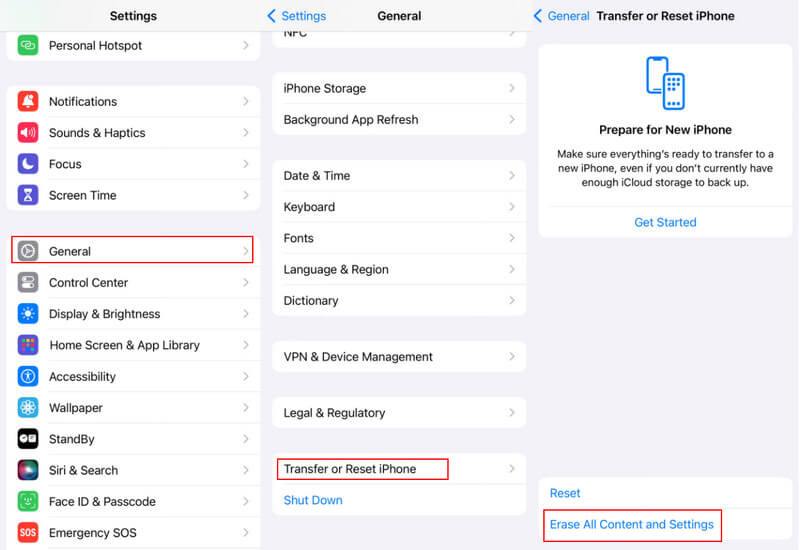
Step 1. Factory Reset Your iPhone
On the iPhone, go to Settings > tap the General option > hit Transfer or reset phone at the bottom. Tap Erase all Contents and Settings and Continue. Then, wait for your iPhone to reset.
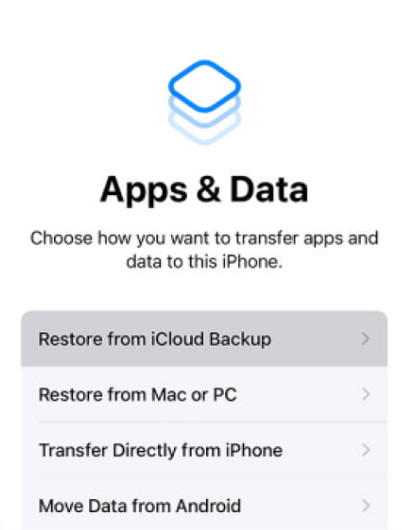
Step 2. Restore Your iPhone from iCloud Backup
After resetting your iPhone, connect the iPhone to Wi-Fi and sign in with the Apple ID that has at least one backup. Click Restore from iCloud on the App & Data screen.
Part 3: How to Get Deleted Call History on iPhone via iTunes
Backing up iPhone to iTunes is another official backup solution for iDevices. This method isn’t limited by free 5GB iCloud storage because, generally, laptop storage is much larger than 5GB. However, same as iCloud, you can’t recover deleted call logs iPhone separately with the official method.
How to View Deleted Calls on iPhone via iTunes Backup
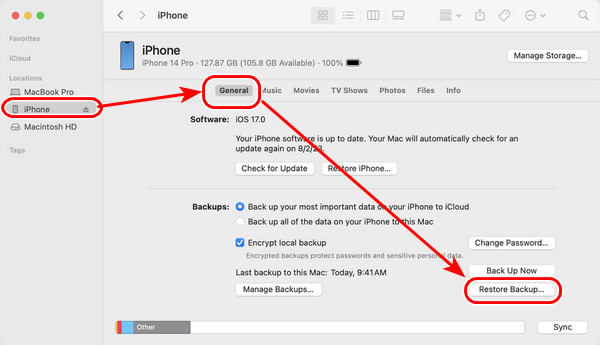
Step 1. On your laptop, open iTunes and attach your iPhone with a USB to it. Choose your iPhone name if it is connected successfully, and click the General tab.
Step 2. Click Restore a backup on the left bottom corner and choose one to restore. You have to enter the password if you are restoring an encrypted backup.
Part 4: How to See Deleted Call History on iPhone Without Erasing iPhone
You may notice that both iCloud and iTunes will erase your iPhone when retrieving deleted call logs. Therefore, you may wonder “Can I recover deleted call history on iPhone without erasing all data?” The answer is Yes. Follow the steps below to make it!
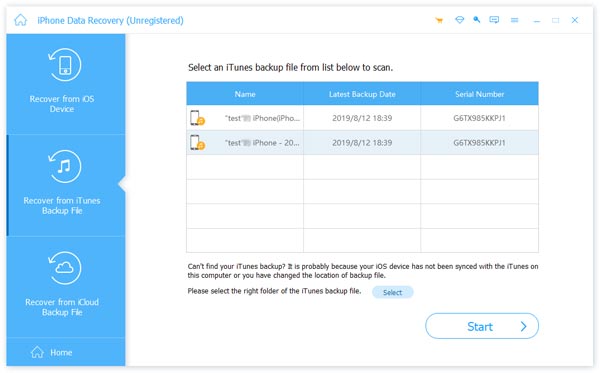
Step 1. Open Apeaksoft iPhone Data Recovery > click iPhone Data Recovery > choose Recover from iTunes. The program will automatically detect backups on your computer if you haven't changed the default iPhone backup location of iTunes. Choose one backup due to the backup time and click Start.
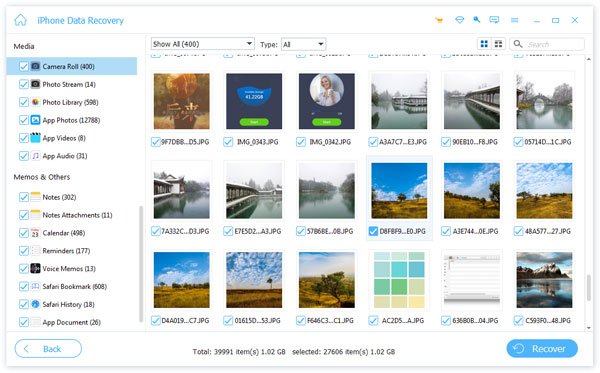
Step 2. It takes a few minutes to scan the backup. After scanning, choose the deleted call history to recover.
Part 5: How to See Call History on iPhone via the Carrier Website/App
If you’ve accidentally deleted your call history on your iPhone, and still cannot recover it using all the methods above. Don’t worry - your mobile carrier may still have a record of those calls.
| Carrier | Retention |
| AT&T | 5-7 years |
| Verizon | 12 months |
| T-Mobile | 1 year |
You can log into your carrier’s official website to view and download your detailed call logs, including deleted ones.
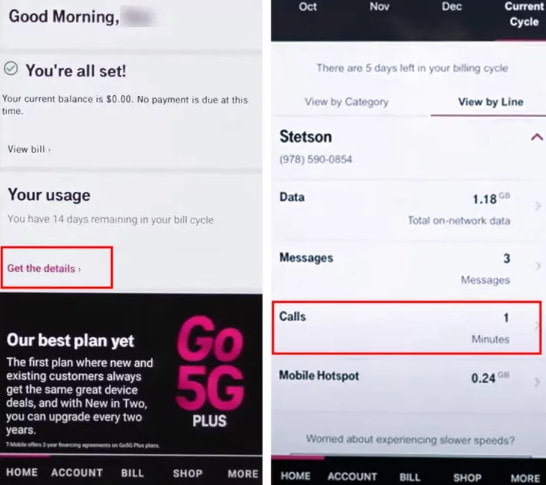
Step 1. Visit the website of your mobile carrier or open the app.
Step 2. Sign in with your account.
Step 3. Click Call logs. The name can be varied among different carriers.
Step 4. Click Calls to see deleted call logs.
Part 6: Contact the Carrier for Support
If you can’t find the deleted call history on your own, you can contact your carrier’s customer support directly. Their support team can help you retrieve call logs that aren’t visible in your account. However, you need to provide your account details and verification information to verify you are the owner of the account.
Conclusion
How to find deleted calls on iPhone? In case you don't have a backup, download Apeaksoft iPhone Data Recovery and check deleted calls for free. If you have iCloud or iTunes backup, you can restore them en masse. You can also analyze, check, and download contents you want from backups separately for with Apeaksoft iPhone Data Recovery.
Related Articles




