


How to Get iTunes or iTunes Backup Password Recovery

iTunes is still a popular utility for iPhone and iPad users to back up their devices and manage their music library. To protect your data and privacy, you can use a password to log in to iTunes or set encryption for your backups. However, forgetting a password is a big challenge. If you forgot your password and are locked out of your account or backups, don't worry. You can follow our proven methods to recover your iTunes password.
PAGE CONTENT:
Part 1: iTunes Password Recovery vs. iTunes Backup Password Recovery
For iTunes, you can use two types of passwords: iTunes account password and iTunes backup password. When connecting your iOS device to iTunes, you need to log in with your Apple ID and password.
On the other hand, you can encrypt your iPhone backups in iTunes using a password. They can differ from your iTunes account password.
Part 2: How to Recover iTunes Password
As mentioned previously, your iTunes password is the same as your Apple Account password. In other words, iTunes account password recovery means recovering your Apple ID password. If you have logged in to any Apple website on your Apple device, the built-in password manager may save your password.
How to Recover iTunes Password on iOS 18 and macOS Sequoia or above
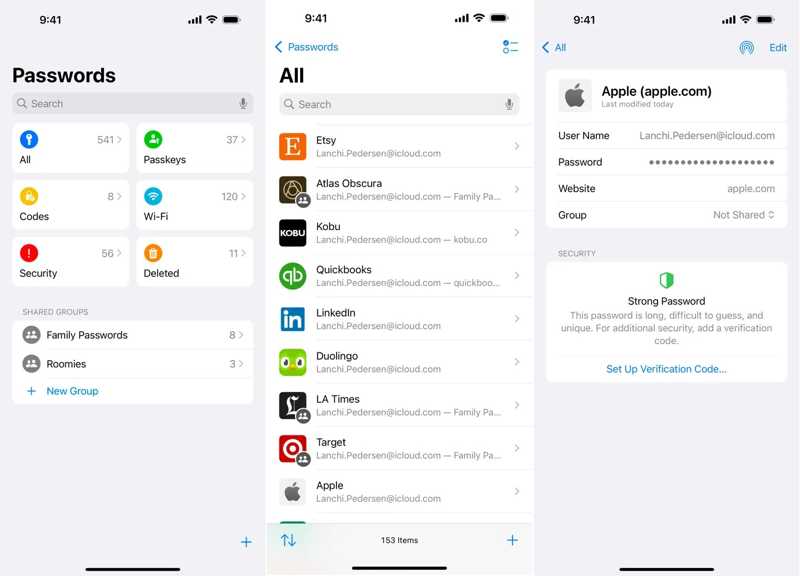
Step 1. Open the Passwords app on your device.
Step 2. Go to the All group.
Step 3. Enter apple.com or icloud.com in the top Search bar.
Step 4. Select the most relevant website.
Step 5. Tap the Edit button to recover the iTunes account password.
How to Recover iTunes Password on iOS 17 and macOS Sonoma or Earlier
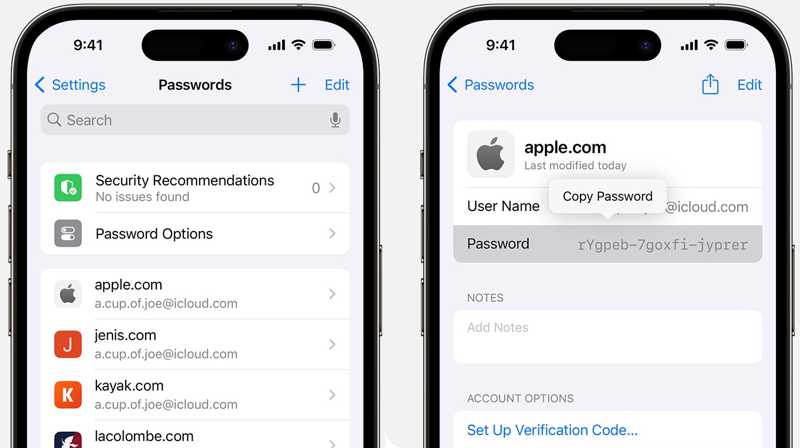
Step 1. Run the Settings or System Settings app.
Step 2. Go to the Passwords tab.
Step 3. Search for a relevant website.
Step 4. Tap a website where you have logged in to your Apple ID.
Step 5. Press the Edit button to get iTunes password recovery.
Note: If you have logged in to your iTunes account in a third-party browser, try to find your password from the built-in password manager.
Part 3: How to Recover iTunes Backup Password
If you forgot your iTunes backup password, it is worth trying a bunch of passwords that you might have used, such as your email password, your login passcode, or your phone number, birthday, and so on. On Mac, you can recover the iTunes backup encryption password from macOS Keychain.
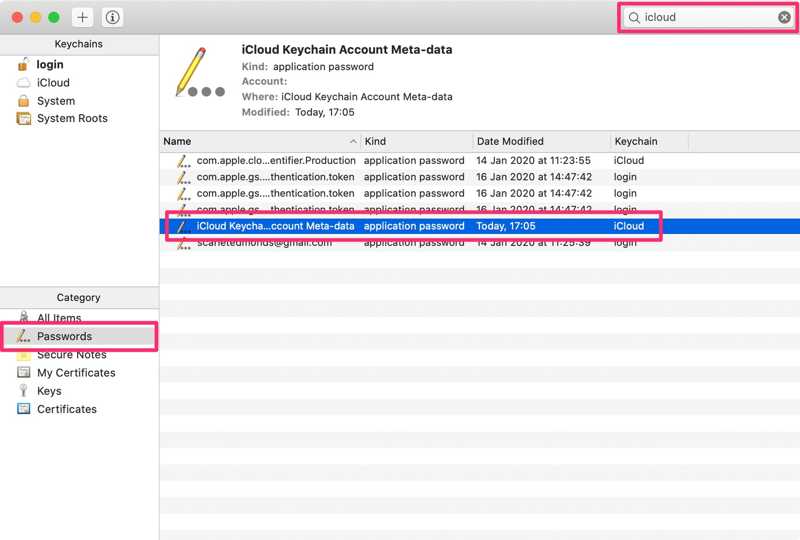
Step 1. Go to the Applications folder in Finder.
Step 2. Open the Keychain Access app. Or launch the app by opening Spotlight.
Step 3. Click the Passwords option on the left sidebar.
Step 4. Type backup in the Search box at the top-right corner to find all relevant items.
Step 5. Double-click the result named iOS Backup or iPhone Backup.
Step 6. Next, click the Show password box to recover the password for the iTunes backup.
Further Reading
Part 4: One-stop Way to Recover iTunes and iTunes Backup Password
Apeaksoft iFoneKit iOS Unlocker is a one-stop way of iTunes password recovery and iTunes backup encryption password recovery. It is able to quickly remove either the forgotten iTunes password or iTunes backup password from your iPhone or iPad.

Downloaded by over 1,000,000 users
- Remove the iTunes account password from your iPhone.
- Delete iTunes backup password without data loss.
- Don't require any restrictions or a password.
- Support the latest models of iPhone and iPad.
Secure Download
Secure Download

How to Remove iTunes Account Password
Step 1. Install iFoneKit
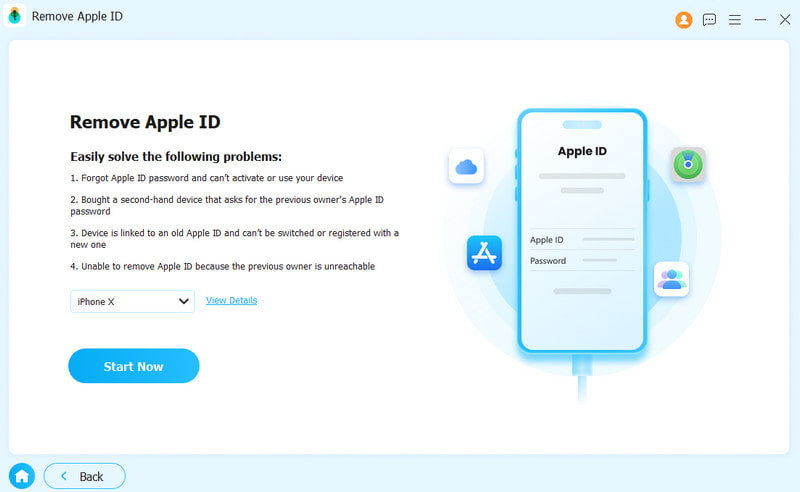
Run iFoneKit after you install it on your PC. There is another version for macOS 10.7 and above. Choose the Remove Apple ID mode.
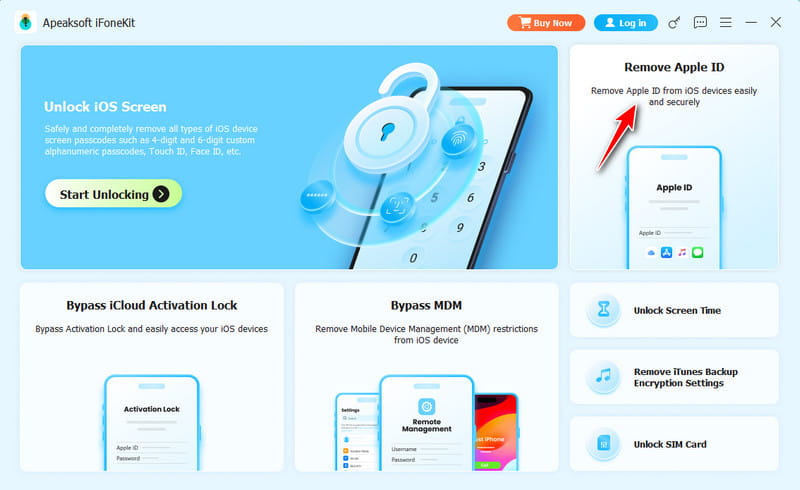
Step 2. Connect to your device
Plug your iPhone into your PC with a Lightning cable. Once your device is detected, your iPhone information will be loaded. Click the Start Now button.
Step 3. Remove iTunes password
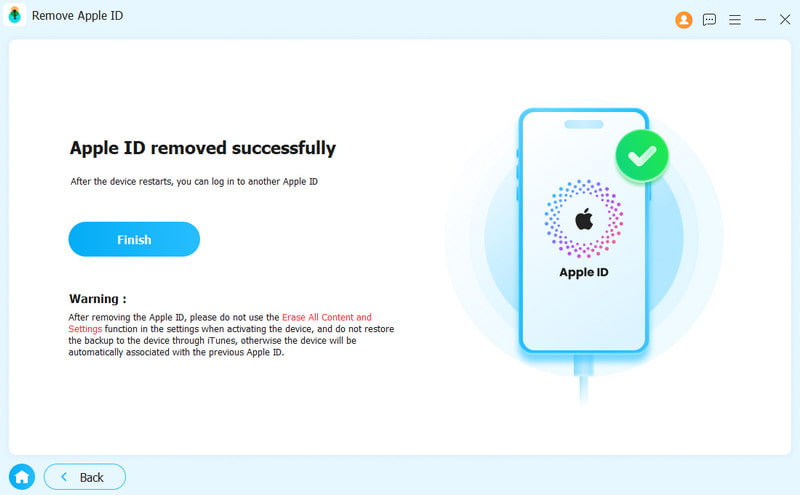
The software will begin removing the iTunes password immediately if Find My is disabled.
If Find My is enabled, reset all settings following the onscreen instructions. Then, click the OK button and hit Confirm Again to initiate the process.
How to Remove iTunes Backup Password
Step 1. Recognize your iPhone
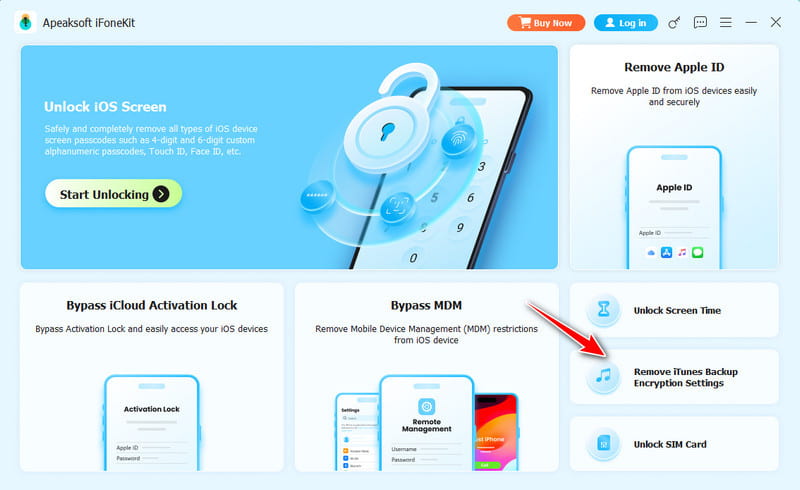
Connect your iOS device to a computer with a compatible cable. Run the iTunes backup password recovery tool and choose the Remove iTunes Backup Password Encryption Settings mode.
Step 2. Remove iTunes backup password
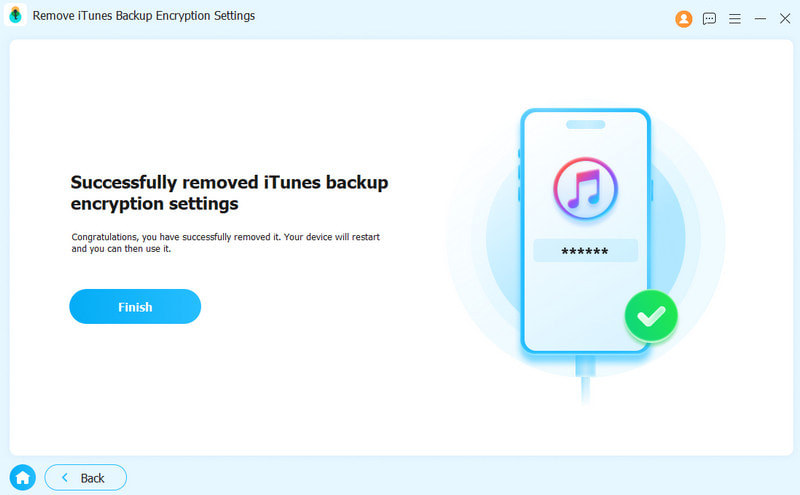
Wait a few seconds for the process to finish. When it is done, your iPhone will restart. Click the Finish button and disconnect your device.
Conclusion
This guide shared how to get your iTunes account password recovery on your iPhone, iPad, or Mac computer. Moreover, we explained how to recover your iTunes backup password if you forgot it. You can follow our steps to get back your password and regain access to your data. Apeaksoft iFoneKit iOS Unlocker enables you to remove the forgotten iTunes password and iTunes backup password without a password or technical skills.
 Apeaksoft iFoneKit
 Unlock all types of iOS passwords from iPhone, iPad and iPod.
Secure Download
Secure Download
Related Articles




