

5 Best Data Recovery Software for Laptop Hard Drives

A laptop is a portable and compact computer. The slim design makes it ideal for on-the-go use. Compared to computers, laptops are usually weak on storage space and processing capability. Moreover, the design also makes it easy to accidentally delete files on laptops. This article identifies and reviews the top five data recovery software for laptop hard drives. They run fast and efficiently recover lost data in various situations.
PAGE CONTENT:
Part 1: Comparison of Top Laptop Hard Drive Recovery Software
Methodology
According to the slim design of laptops, we identified the lightweight hard drive recovery software on the market. Moreover, we tested them in our lab and collected hundreds of users’ reports. When we tested laptop hard drive data recovery software, we concentrated on a few factors, such as price, success rate, supported devices, compatible file formats, and more.
| Price | Success Rate | Best for | |
| Apeaksoft Data Recovery | $22.45 monthly, $55.96 yearly, $71.96 lifetime | 98.7% | All laptop brands |
| Disk Drill | Free $89.00, $499.00 | 96.5% | Old laptops |
| OnTrack EasyRecovery | Free Start at $59.99 | 95.0% | High-end laptops |
| Undelete 360 | Free | 92.5% | |
| PhotoRec | Free | 92.0% | Media files |
Part 2: Top 5 Hard Drive Recovery Software
Top 1: Apeaksoft Data Recovery
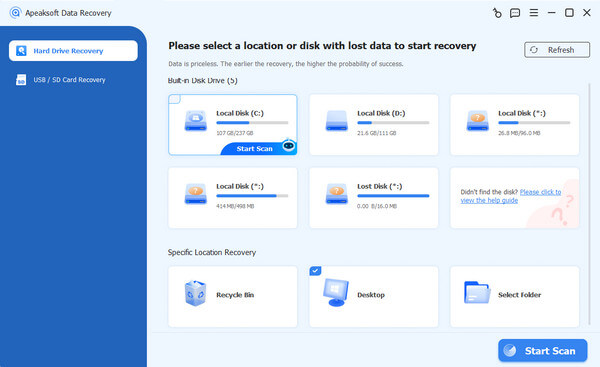
Apeaksoft Data Recovery is one of the great laptop hard drive data recovery tools. It works for almost all major laptop brands, including Dell, HP, Apple, Lenovo, and more. The compact design helps users to recover data quickly and easily. Plus, it works for external hard drives.
Secure Download
Secure Download
- Recover data on any laptop quickly.
- Support hundreds of file formats.
- Preview lost files before laptop recovery.
- Integrate a quick scan and a deep scan.
- Work on laptops running Windows 11 and earlier, macOS 10.7 and above.
- It takes a while if your laptop has tons of data.
Top 2: Disk Drill
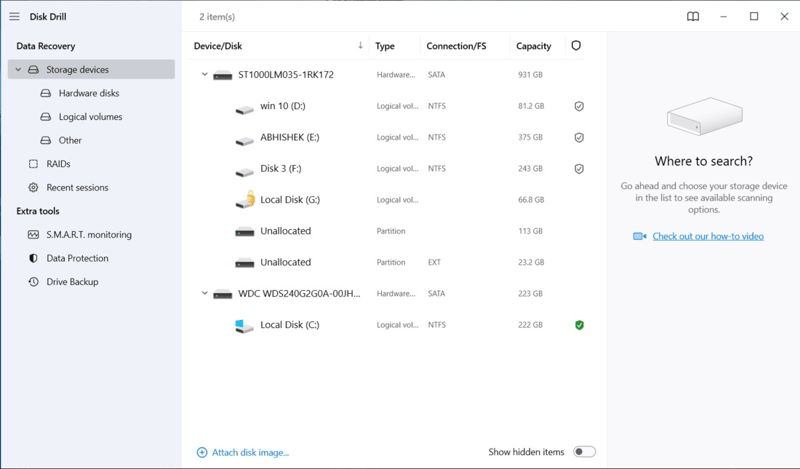
Disk Drill is a popular Dell laptop hard drive data recovery tool. It can recover data from any storage device, including laptops and external hard drives. Users can download the free edition to try the program.
- Organize deleted files by type.
- Filter recoverable files by size and date.
- Support quick and deep scan modes.
- Compatible with various file systems.
- The free edition can recover up to 500MB of data.
- It lacks a portable version.
Top 3: OnTrack EasyRecovery
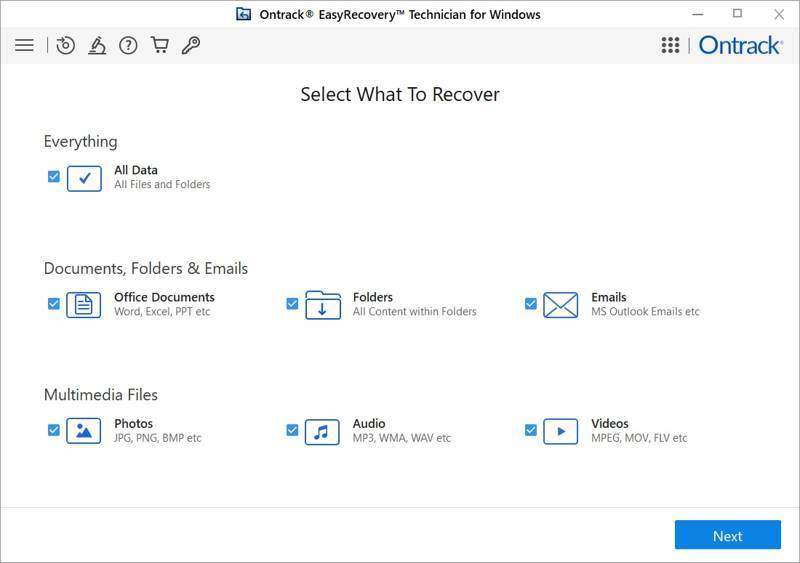
OnTrack EasyRecovery is a solid HP laptop hard drive recovery. It was released by the reputable data recovery company, OnTrack. The free demo can recover up to 1GB of data. To recover more data, users need to purchase a license.
- Reliable and fast.
- Recover data on a wide range of laptops.
- Integrate an easy-to-use GUI.
- Offer flexible plans.
- The configuration is a little complex.
- The plans are somewhat pricey.
Top 4: Undelete 360
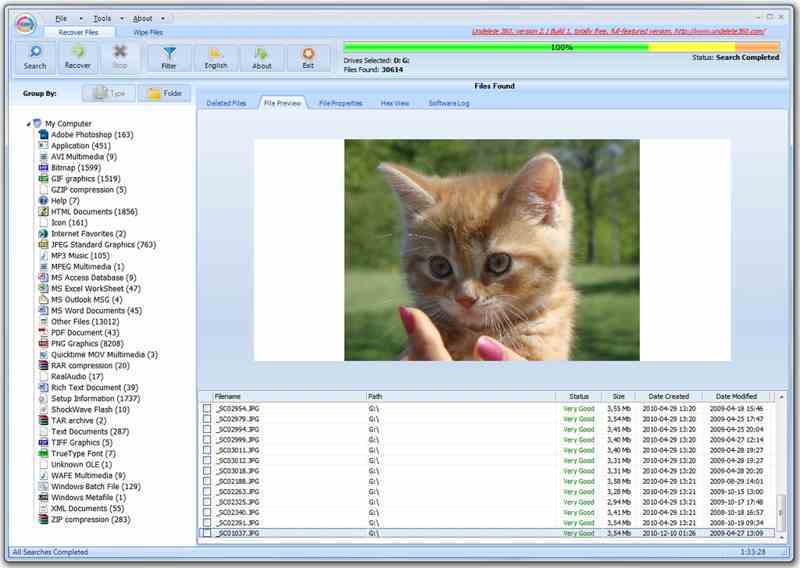
Undelete 360 is a free way to recover data from laptop hard drives on a PC. It works for SSDs, HDDs, and external hard drives, like USB flash drives, digital cameras, and more. The excellent preview feature lets you filter desired files easily.
- Simple to use.
- Free to download.
- Manage found files by type.
- Preview files, properties, and more.
- The interface looks outdated.
- It only integrates basic features.
Further Reading
Top 5: PhotoRec
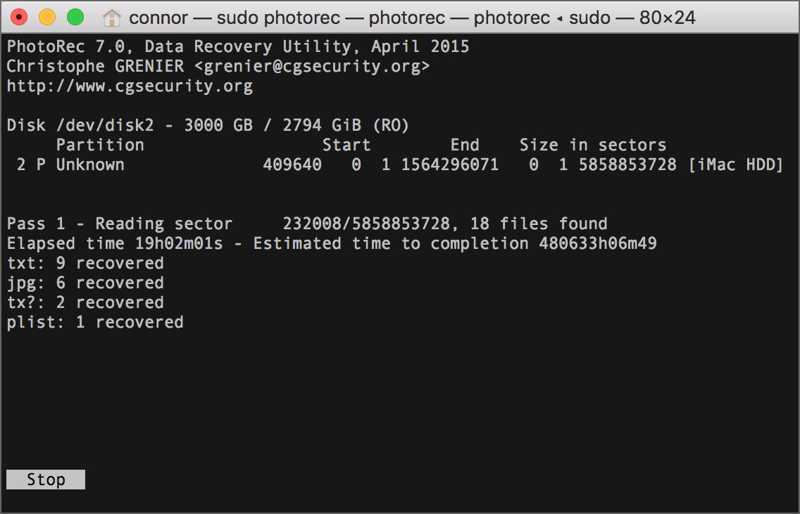
PhotoRec is another free method to recover a laptop hard drive running Windows, macOS, and Linux. Since it is an open-source project, anyone can use it to retrieve lost media files without paying a penny.
- Completely free of charge.
- Lightweight and portable.
- Recover data from formatted drives.
- Compatible with over 480 file types.
- It cannot recover the folder structure.
- It lacks a GUI.
Part 3: How to Recover Data from a Hard Drive
Step 1. Install a laptop hard drive recovery tool
Launch the laptop hard drive recovery software, such as Apeaksoft Data Recovery, after you install it on your computer. Go to the Hard Drive Recovery tab, pick the desired drive, and click Start Scan. To recover an external hard drive, choose USB / SD Card Recovery instead.

Step 2. Preview lost files
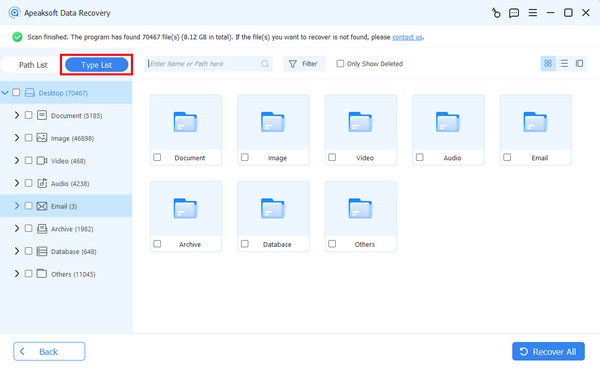
When the data scan is complete, go to the Type List tab and select the data types you want to recover. Then, you can preview the found files. Or head to the Path List tab to view files by directory. The Filter option can quickly locate specific files.
Step 3. Recover laptop hard drive
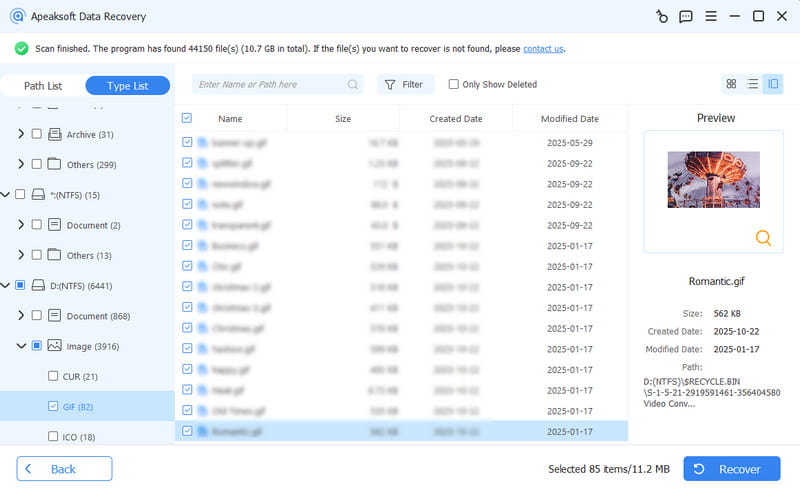
Select all files you want to get back and click the Recover button. Set an output folder and confirm laptop hard drive recovery.
Conclusion
This article shared the top 5 data recovery software for laptop hard drives. You can discover the right tool based on your situation and our review. Apeaksoft Data Recovery, for instance, is a good option for ordinary people and beginners due to the user-friendly design.
Related Articles




