


How to Recover Data from a Formatted Hard Drive [Windows & Mac]

Have you accidentally formatted your hard drive when reinstalling Windows, changing the file system, preparing a drive for reuse, or accidentally selecting the wrong drive? Whatever the reason, you may lose important files. But don't worry. It is still possible to recover lost data. This post will introduce 4 possible ways to recover data from a formatted hard drive.
PAGE CONTENT:
Method 1: Recover Data from a Formatted Hard Drive from a Backup
If you have ever backed up your hard drive before formatting, directly restoring the backup is the easiest and free way to get your data back. With this method, you don't need to scan the formatted hard drive. Instead, you only need to find the backup and restore it to your computer. This section will comprehensively guide you on how to recover data from a hard drive after formatting on Windows and Mac.
Recover Data from a Formatted Hard Drive on Mac - Time Machine
If you are using a Mac and have enabled Time Machine before formatting, you can easily restore the lost files from a previous backup. Below are detailed steps:
Step 1. Connect the external drive you used for a Time Machine backup to your Mac.
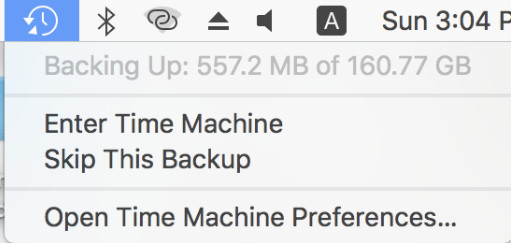
Step 2. Open Time Machine in the top-right corner.
Step 3. Use the timeline on the right to choose a suitable Time Machine backup.
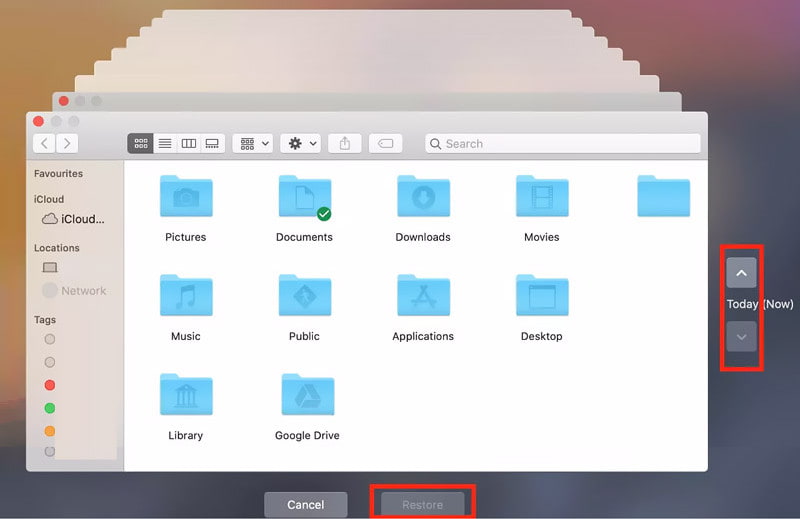
Step 4. Click Restore. Then, open the folders to check whether your lost data has been recovered.
Recover Data from a Formatted Hard Drive on Windows - File History
Windows also has a built-in File History feature that keeps previous versions of your files. Follow the steps below to recover a formatted hard drive via File History:
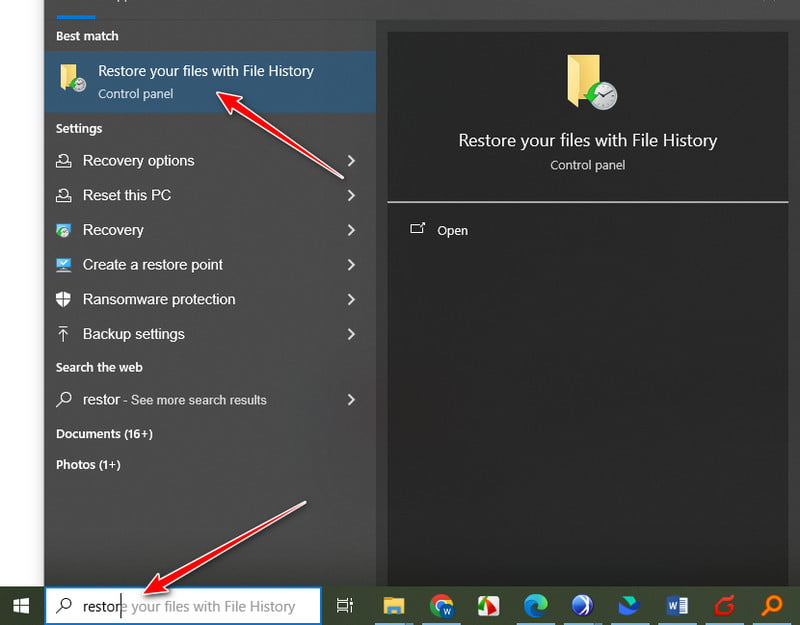
Step 1. Open the Windows search box and search for Restore your files with File History. Open it.
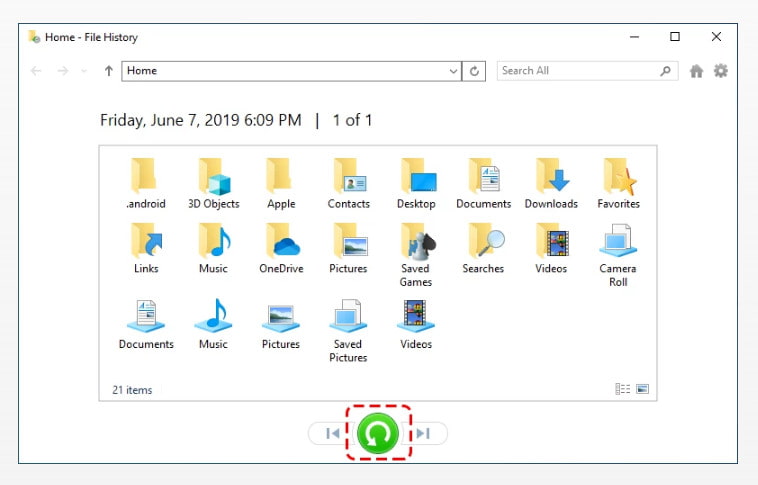
Step 2. Use the arrows to switch backups.
Step 3. Click the green restore button to restore the lost files.
Method 2: Recover Formatted Hard Drive with Data Recovery Software
If you haven't backed up your hard drive beforehand, things will be much more complicated. But don't worry. You can use data recovery software, such as Apeaksoft Data Recovery, to scan the formatted drive and find recoverable files. But keep in mind that stop writing new data to your hard drive when you notice the data loss, otherwise recovery will be difficult, and even impossible.

Downloaded by over 1,000,000 users
- Recover data from a formatted hard drive with a high success rate.
- Provide a Deep Scan feature to scan more files.
- Support recovery of photos, videos, docs, and 200+ other file formats.
- Recover up to 200MB of data for free.
- Works on Windows and Mac.
Secure Download
Secure Download

Step 1. Download and install Apeaksoft Data Recovery by clicking the button above.
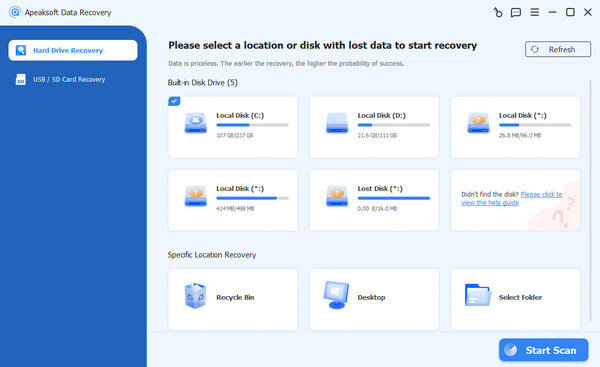
Step 2. Run it and choose the Hard Drive Recovery option (the default one). Choose your hard drive containing the lost data, then click Start Scan.
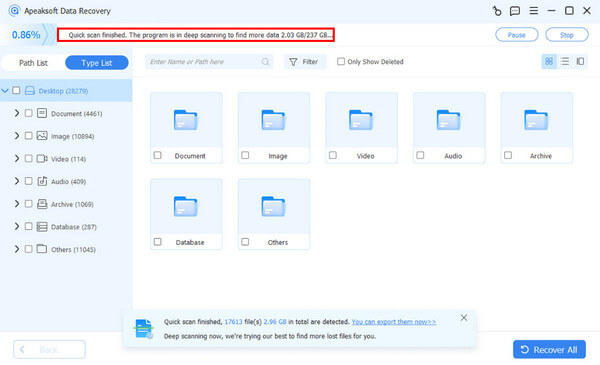
Step 3. This software will perform a Quick Scan and then a Deep Scan to find recoverable files. The scanning time varies depending on the amount of data on the drive. You can see a progress bar at the top.
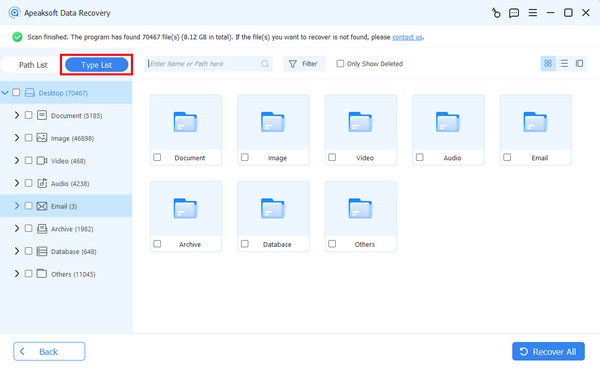
Step 4. When the scan finishes, you can view all the recoverable files. To quickly locate your important files, you can filter them by Type List or use the search feature.
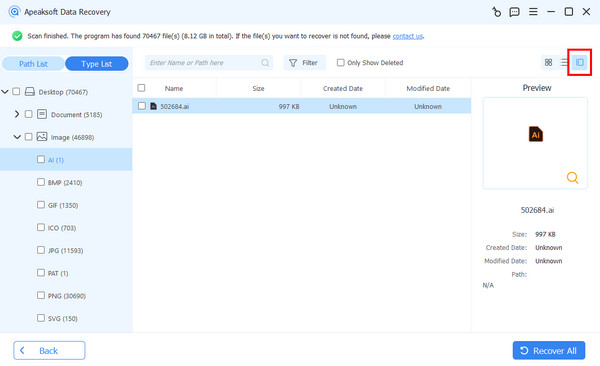
Step 5. Preview the files to make sure they are the ones you want to recover.
Step 6. Check the files you need and click the Recover button. Choose a saving path to save the deleted data from a formatted hard drive.
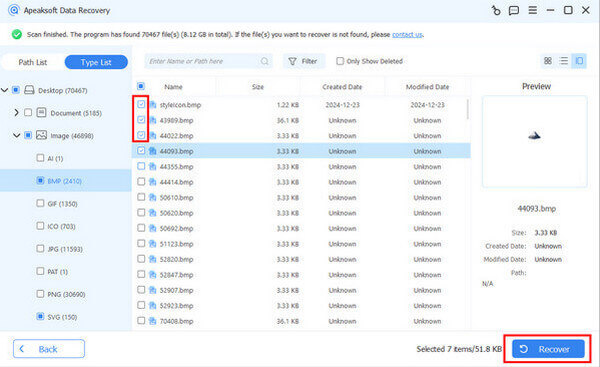
Tips: This software can also help you recover deleted files from an SD card.
Method 3: Recover Data from a Formatted Hard Drive with Windows File Recovery
Microsoft also provides a command-line tool called Windows File Recovery to help you recover formatted hard drive data. Detailed steps are listed below:
Step 1. Open the Microsoft Store. Search, install, and launch Windows File Recovery.
Step 2. Open Command Prompt in the search box, and run as an administrator.
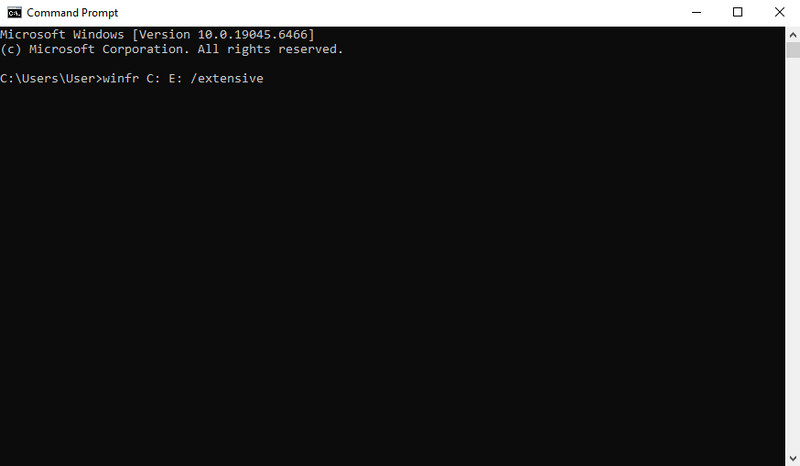
Step 3. Type winfr C: E: /extensive (replacing C: with the formatted hard drive and E: with another drive where you want to save the recovered files).
Step 4. Press Y to confirm and start the recovery. Follow the on-screen instructions to move on. Wait for the process to finish.
Method 4: Recover Data from a Formatted Hard Drive with a Data Recovery Service
If none of the methods above work, or your hard drive suffers physical damage, you may need to contact a professional data recovery service. However, data recovery services are usually more expensive than data recovery software. If the lost data is of great importance, avoid further use of the drive and consult a professional as soon as possible.
Conclusion
Formatting a hard drive can be heartbreaking. Fortunately, there are ways to recover data from formatted hard drives. We hope you can get your important data back successfully!
 Apeaksoft Data Recovery
 Recover deleted or lost data on Windows and Mac computer.
Secure Download
Secure Download
Related Articles




