


How to Quickly Unlock Your Apple ID Account and Password

When you see a message saying this Apple ID has been disabled for security reasons or similar messages, your Apple account is locked or disabled. The causes are complicated, such as you or someone else entering your password or information incorrectly too many times. Anyway, Apple will lock your account when it detects security risks. This guide explains how to unlock your Apple ID with or without the password.
PAGE CONTENT:
Part 1: How to Tell If Your Apple ID Is Locked
As mentioned previously, when Apple detects security risks, it will lock your Apple ID account. The security risks may be involved with incorrect password entry, payment problems, unauthorized app use, phishing threats, and more. Once your account is locked, you may see some of the messages:
This Apple ID has been disabled for security reasons.
You cannot sign in because your account was disabled for security reasons.
This Apple ID has been locked for security reasons.
Your account has been disabled in the App Store and iTunes Store.
You cannot log in because your account has been locked.
Part 2: How to Unlock Apple ID from a Trusted Device
According to Apple, you can unlock your Apple ID in Settings or System Settings. All you need to do is change your Apple ID password. We demonstrate the workflows on iPhone, iPad, and Mac below:
How to Unlock Apple ID on iPhone/iPad

Step 1. Open the Settings app associated with the locked Apple ID.
Step 2. Tap on your profile and choose Sign-In & Security.
Step 3. Tap the Change Password button.
Step 4. Enter your iPhone passcode.
Step 5. Set a new password for your Apple ID and verify it.
Step 6. Tap the Continue button.
Step 7. Choose Sign Out Other Devices or Don’t Sign Out.
How to Unlock an Apple ID Account on a Mac

Step 1. Click the Apple menu and choose System Settings or System Preferences.
Step 2. Press Apple Account or Apple ID.
Step 3. Click the Change Password button.
Step 4. Type in your account password.
Step 5. Input a new password for your Apple ID and confirm it.
Step 6. Finally, choose sign out or don’t sign out to unlock your Apple ID without a phone number.
Part 3: How to Unlock Apple ID Online
If your Apple device is inaccessible, you can unlock your Apple ID and password on Apple’s iForgot website. The process requires you to choose a channel to verify your ownership, like your phone number.
Step 1. Go to www.iforgot.apple.com in a web browser.

Step 2. Click the Reset Password button.
Step 3. Type in your Apple ID email or phone number, complete the captcha, and click Continue.

Step 4. Input your phone number and click Continue.
Step 5. Next, click the Send Code button.

Step 6. When you receive the 6-digit code, enter it on the page.
Step 7. Click the Continue button to move on.
Step 8. Then, set a new password following the instructions and confirm it.
Step 9. Click the Continue button to unlock the Apple ID and password.
Part 4: How to Unlock Apple ID by Apple Support
Another way to unlock the Apple ID is the Apple Support app. This method requires another iPhone or iPad. You can borrow one device from a friend or family member. Plus, you must have a verification channel.

Step 1. Run the Apple Support app on a borrowed iOS device.
Tips: You can install the app from the App Store for free.
Step 2. Tap the Reset Password button under the Support Tools section.
Step 3. Choose Help Someone Else.
Step 4. Next, enter the primary phone number or email address associated with your account.
Step 5. Next, enter your recovery key to verify your ownership.
Step 6. Finally, type in a new password for your Apple ID and verify it.
Part 5: How to Remove a Locked Apple ID from Your iPhone
If the above methods cannot unlock your Apple ID and password, you’d better get rid of the old account from your iOS device. From this point, we recommend Apeaksoft iFoneKit iOS Unlocker. It is able to remove the old Apple ID account from an iPhone or iPad without a password. Moreover, the user-friendly design makes it an ideal option for beginners.

Downloaded by over 1,000,000 users
- Remove the Apple ID from an iPhone or iPad in three steps.
- Won’t ask your iPhone passcode or Apple ID password.
- Work on locked and disabled Apple ID accounts.
- Offer bonus features, like Screen Time bypass and MDM profile removal.
- Support the latest models of iPhone and iPad.
Secure Download
Secure Download

How to Remove a Locked Apple ID from Your iPhone Without a Password
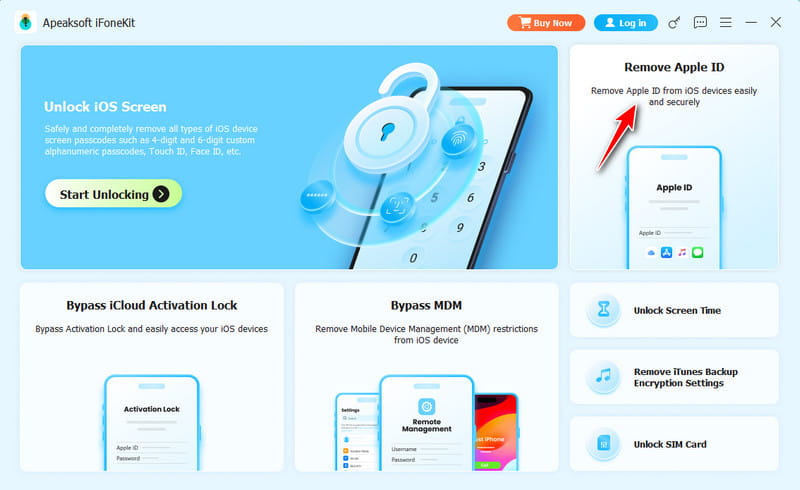
Step 1. Install iOS Unlocker
Launch the Apple ID removal software after installing it on your computer. It is compatible with Windows 11/10/8/7/XP/Vista and macOS 10.7 or later. Choose the Remove Apple ID mode to continue.
Step 2. Link to your device
Connect your iPhone to your computer with a Lightning cable. If prompted, make sure to tap Trust on your screen to trust your computer. The software will detect your iPhone and load device information.
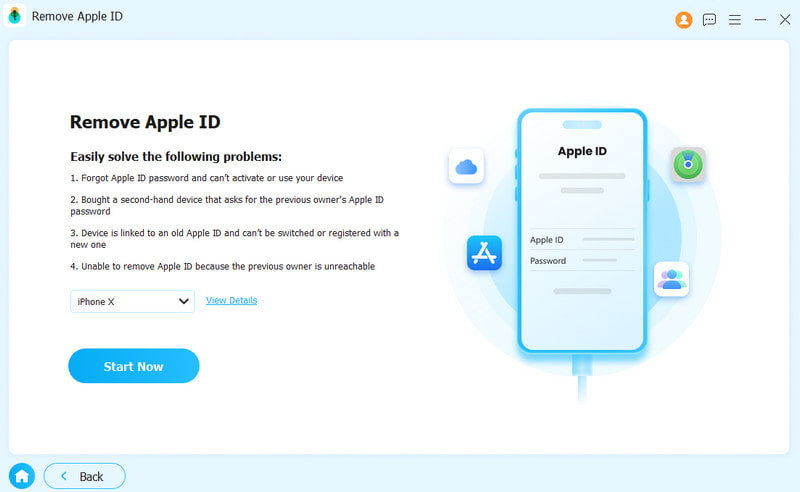
Step 3. Remove the locked Apple ID
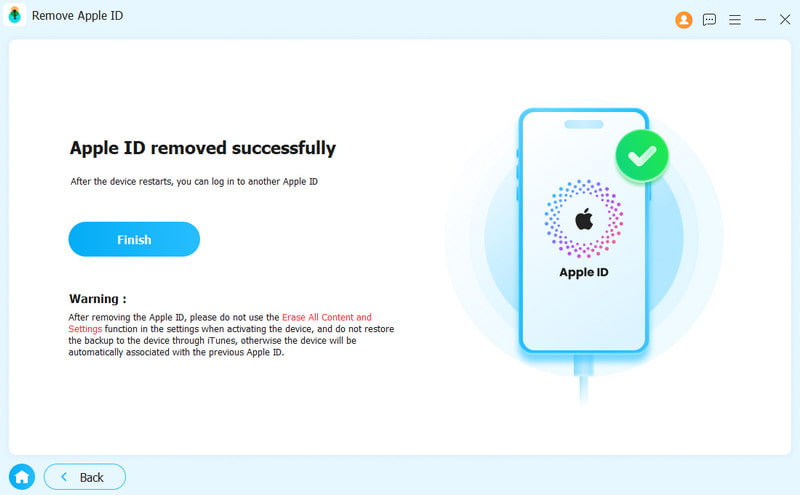
Click the Start Now button to begin unlocking your Apple ID without a password if Find My is disabled. If Find My is enabled, reset all settings on your device. Then, click OK and hit Confirm Again in the software to initiate the process.
Further Reading
Conclusion
This article shared unlock Apple ID account in various situations. You can unlock your account password on a trusted device, like an iPhone, iPad, or MacBook. Apple’s iForgot website allows you to unlock the disabled account with the trusted phone number. Plus, you can try the Apple Support app on a borrowed iPhone or iPad. Apeaksoft iFoneKit iOS Unlocker is the ultimate option to get rid of the locked account without technical skills.
 Apeaksoft iFoneKit
 Unlock all types of iOS passwords from iPhone, iPad and iPod.
Secure Download
Secure Download
Related Articles




