


How to Recover Data from a Broken Phone (Android & iPhone)

A broken phone can happen to anyone. A broken screen, black display, or water damage may make your phone unusable. Rather than worrying about the phone itself, most users may be more concerned about the important data stored on it.
Fortunately, your data is stored on the phone's internal storage, not on the screen or touch system. Therefore, in most cases, you can recover data from broken phones as long as the storage and main motherboard are still intact. This guide introduces how to recover data from a broken phone for both Android and iPhone users, ranging from free DIY fixes to professional tools.
PAGE CONTENT:
Can I Recover Data from a Broken Phone
As mentioned above, you can usually recover data from a broken phone as long as its storage and motherboard are still intact. Different conditions support different data recovery solutions. Below is a clear reference for quick judgment:
| Phone Damage Situation | Possible Recovery Methods |
| Cracked screen or unresponsive touch, but the display still works | USB transfer, OTG control, cloud backup, data recovery software |
| Black screen, but the phone still powers on or vibrates | Cloud backup, USB transfer if recognized, external display on supported devices, professional software |
| Severe water damage, with the phone completely dead or unable to boot | Professional repair or data recovery service |
Method 1: Recover Data from Broken Phone via USB Connection
This is the simplest free solution to recover data from a phone with a broken screen. However, there are strict prerequisites. Your phone must be able to turn on, and you have trusted the connected computer beforehand. Otherwise, this method isn't viable.
For Android
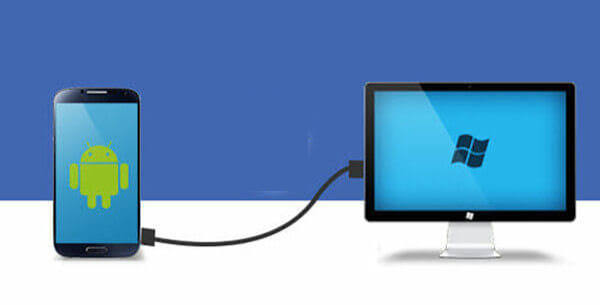
Step 1. Connect your Android phone to a computer with a USB cable.
Step 2. Select File Transfer on your Android phone if prompted.
Step 3. Open the phone's storage folder on your computer and copy the important data to your local folder.
For iPhone
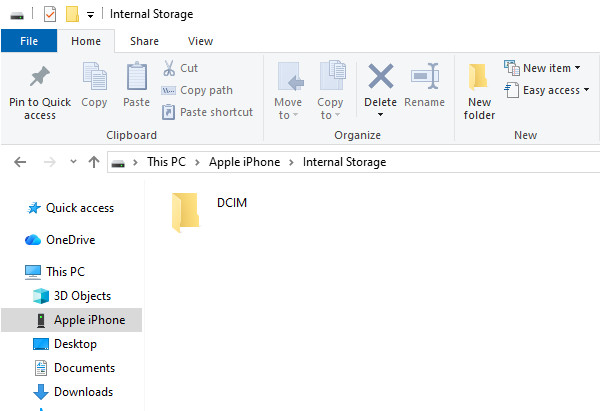
Step 1. Connect the broken iPhone to a previously trusted computer.
Step 2. Open the iPhone's internal storage in File Explorer on Windows and copy available photos and videos from the DCIM folder to the computer.
Method 2: Recover Broken Phone Data via OTG & External Monitor
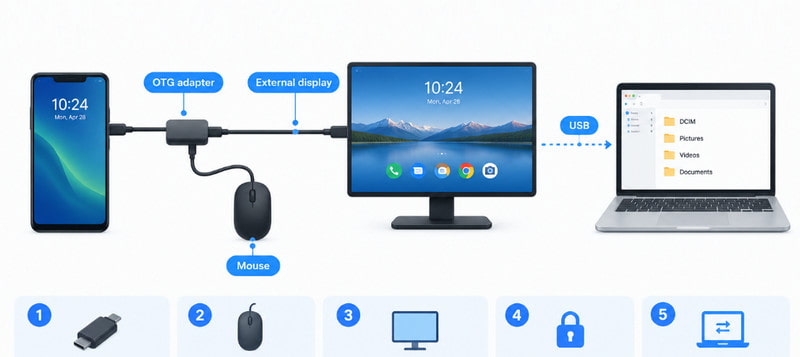
This method only works for Android phones with broken or unresponsive screens that can still be turned on. With OTG and a compatible external display, you can control your Android phone and recover your data.
Step 1. Prepare an OTG adapter and a wired mouse.
Step 2. Connect the mouse to your broken Android phone via the OTG adapter. If the screen is black, you need to connect the phone to an external display.
Step 3. A cursor will appear on the screen, allowing you to enter the password and unlock the device. Then, you can control the phone freely and transfer all files to a computer.
Method 3: Restore Broken Phone Data from Cloud Backup
If you have the habit of backing up your phone regularly before it is damaged, it will be much easier for you to recover broken phone data. This method is the most reliable one and is suitable for all damage levels.
For Android
Step 1. Sign in to your Google Account on a new Android phone.
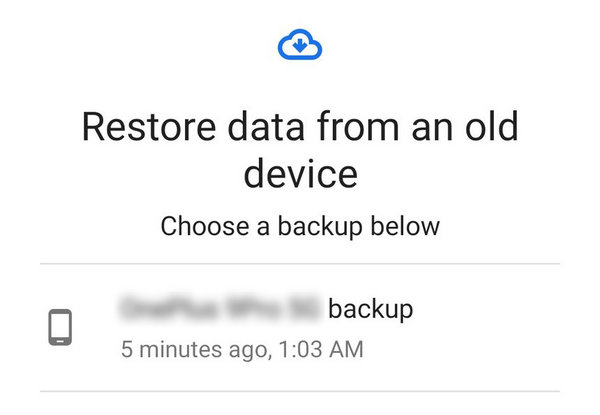
Step 2. Choose to restore data from your Google backup during the phone setup.
Step 3. Select a backup and follow the on-screen instructions to finish the broken phone data recovery.
For iPhone
Step 1. Sign in to your Apple Account on a new iPhone.
Step 2. Choose From iCloud Backup in the setup process.
Step 3. Select the corresponding backup and follow the on-screen instructions to restore your available data.
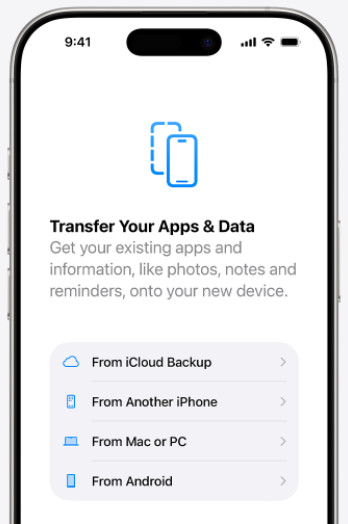
Tips: If you have backed up your iPhone to a computer using iTunes, you can also restore your iPhone from iTunes backup.
Method 4: Recover Broken Phone Data via Professional Recovery Software
If all the above methods don't work, you can try professional data recovery software to recover data from broken phones that can still be detected by a computer and have accessible internal storage. The software can scan through your device more thoroughly for recoverable data such as photos, videos, contacts, messages, and more.
For Android

Downloaded by over 1,000,000 users
- Recover data from an Android phone with a broken screen.
- Recover broken Android phone data in 3 simple steps.
- Preview and recover data selectively.
- Supports all popular Android phones and Android 17.
Secure Download
Secure Download

Step 1. Download this tool from the button above. Install and run it.
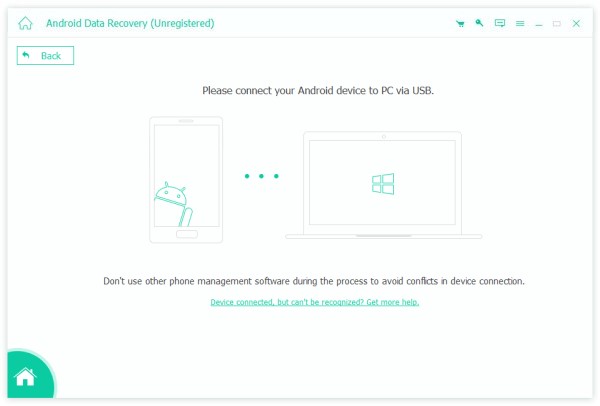
Step 2. Connect your Android phone to your computer. Choose Transfer Files mode on the Android phone.
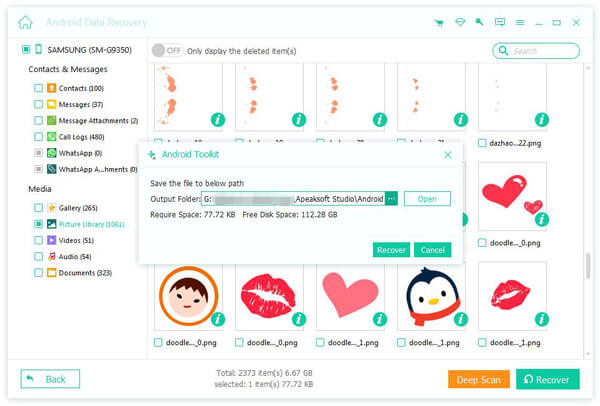
Step 3. After scanning, you will see all recoverable files. Check the files you need, and click Recover.
For iPhone
Downloaded by over 1,000,000 users
- Recover iPhone data from a broken phone.
- Preview all recoverable data before the recovery.
- Selectively recover only the data you need.
- Support the latest iPhone 18 series and iOS 27.
Secure Download
Secure Download

Step 1. Download and install this software.
Step 2. Connect your iPhone to your computer and click Start Scan.
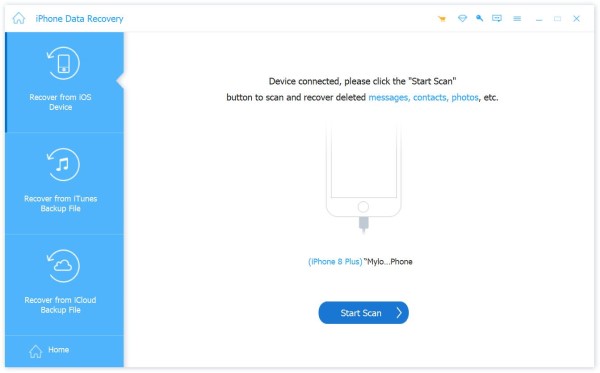
Step 3. Once the scan finishes, choose your target files. You can quickly locate them according to the data type in the left panel. Then, click the Recover button and choose a saving path.
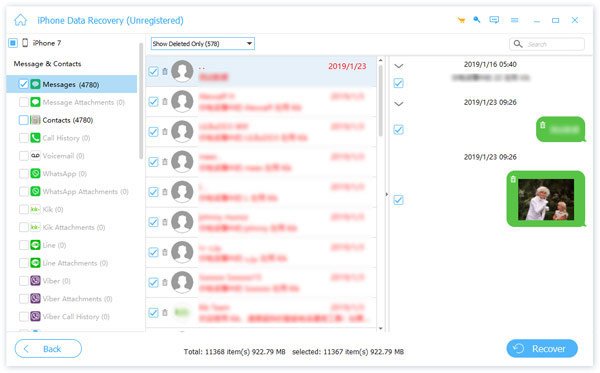
Tips: This tool also enables you to restore from iCloud selectively.
Conclusion
Conclusion
When your phone is broken, don't worry. It is still possible to recover data from a broken phone. This post provides 4 practical ways. Hope you can successfully get your data back from a broken phone!
 Apeaksoft Android Data Recovery
 Recover various deleted or lost data from all popular Android devices.
Secure Download
Secure Download
Related Articles




