


How to Recover Data from a Damaged Hard Drive Safely and Fast

Key Takeaways:
- Before you start, figure out whether your hard drive is crashed logically or physically.
- For logical damage, recover data using a backup or Apeaksoft Data Recovery.
- For physical damage, keep the hard drive as it is and send it to a technician.
"My hard drive started showing bad sectors after a Windows update. I can still see most of my files, but some are missing or won't open. How can I recover data from a damaged hard drive?"
Hard drives are often used to store important files, documents, tablets, media, and more, so it's a headache when they're broken. If your hard drive is damaged and inaccessible, stop using it and follow our concrete guide to get your data back.
PAGE CONTENT:
Part 1: A Diagnose Why Your Hard Drive Fails
First things first, make sure the drive is connected correctly. If it still fails, check out the table below to see which fits the best to your situation.
| Failure Type | Detected in BIOS? | Any Noise? | Typical Symptoms |
| Logical | Yes | No | Slow access Missing files Errors |
| Physical | No/Rarely | Probably | Completely dead Freezes Wrong capacity detected |
A logically damaged hard drive usually has healthy hardware, but the data structure is corrupted. It often happens after an improper ejection, a sudden power off during a write, or a virus. It's overall fixable using a backup or a recovery software, with which you can fix it on your own.
If you identified your problem as physical damage, you'd better be cautious. Don't do anything to it if you're not tech-savvy. Physically recovering data from a damaged hard drive requires subtlety like a surgery, so I suggest that you go to a professional instead of DIY.
Part 2: Recover Data from a Damaged Hard Drive with Backup
Via File History
If you have turned on the backup feature on Windows, you can now get data from a damaged hard drive using a File History Backup. This works for the damaged hard drive or sectors on internal hard disks.
Step 1. Locate the damaged hard drive in a File Explorer, and right-click on it.
Step 2. Select Properties and go to the Previous Version tab.
Step 3. Click the Arrow button next to the Open button, and choose File History. You can also search for File History from the Start menu. Then, navigate to the damaged hard drive.
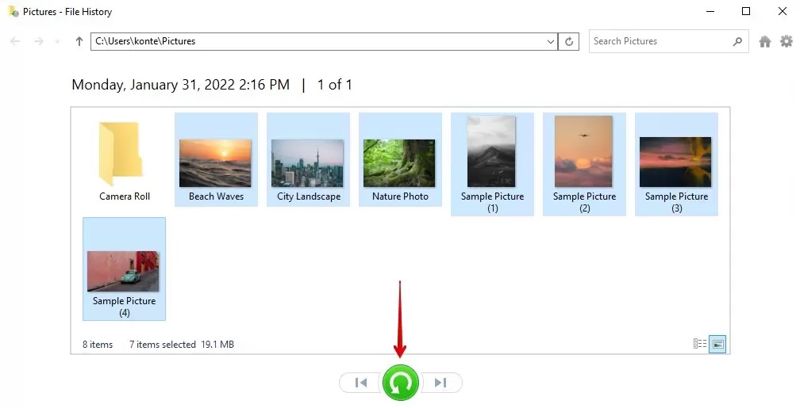
Tips: By default, File History only backs up local folders in your user libraries. You can recover data from a damaged external hard drive only if you've manually restored it in File History.
Use OneDrive
If you are using a Microsoft account on your PC and have set up OneDrive, it may hold a copy of the damaged hard drive. That gives you a chance to get data recovery from a broken hard drive.
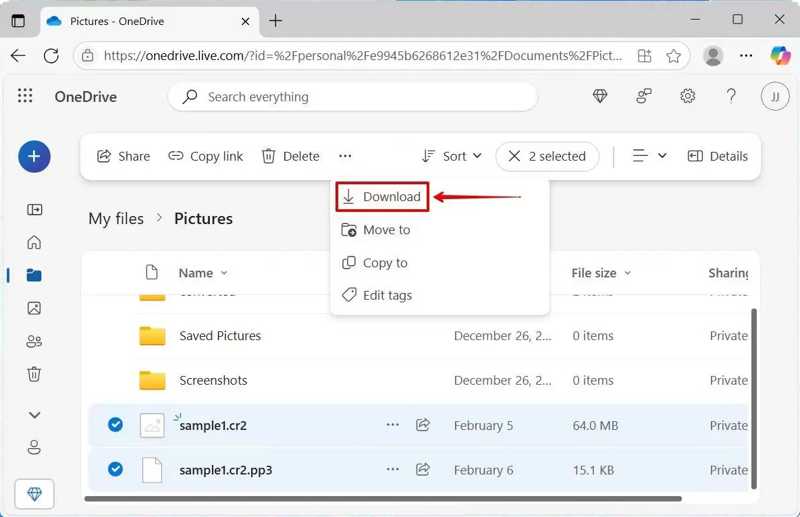
Step 1. Go to onedrive.live.com in any browser, and log in to your Microsoft account.
Step 2. Head to My files from the left panel and view the backup files.
Step 3. Select the files you want to retrieve, and click Download.
Step 4. Save the archive file to another hard drive.
Part 3: Software to Recover Data from a Damaged Hard Drive Without Backup
What if you don’t have a backup? Or you need to recover data on a Mac?
Apeaksoft Data Recovery is a good option to get data from a damaged hard drive. It scans your hard drive even if it is damaged, crashed, or formatted. Then, you can recover your files and data quickly.

Downloaded by over 1,000,000 users
- Retrieve data from a damaged hard drive in a single click.
- Offer a deep scan to find as many recoverable files as possible.
- Preview the data on your damaged hard drive.
- Support a wide range of file types and formats.
Secure Download
Secure Download

Step 1. Download and install Apeaksoft Data Recovery on Windows or Mac.
Step 2. Connect your hard drive to the computer and launch the software.
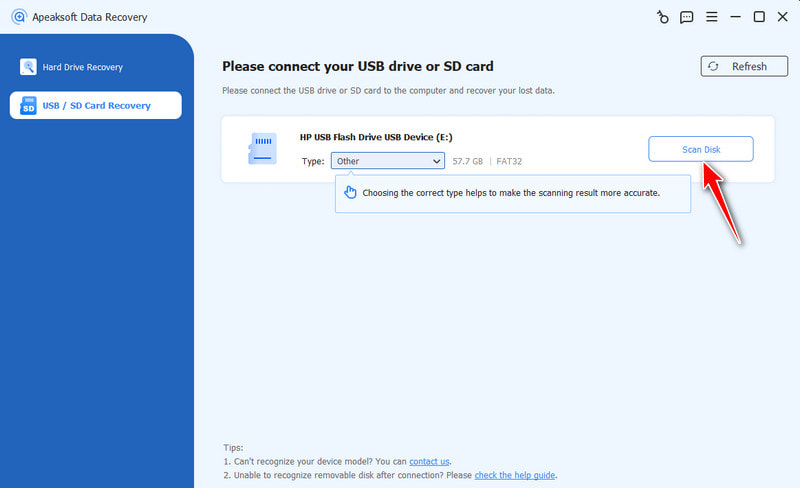
Step 3. Go to the USB / SD Card Recovery tab, and click the Scan Disk button.
Step 4. When the quick scan ends, preview the data on your hard drive by type and path. You can locate specific files using Filter.
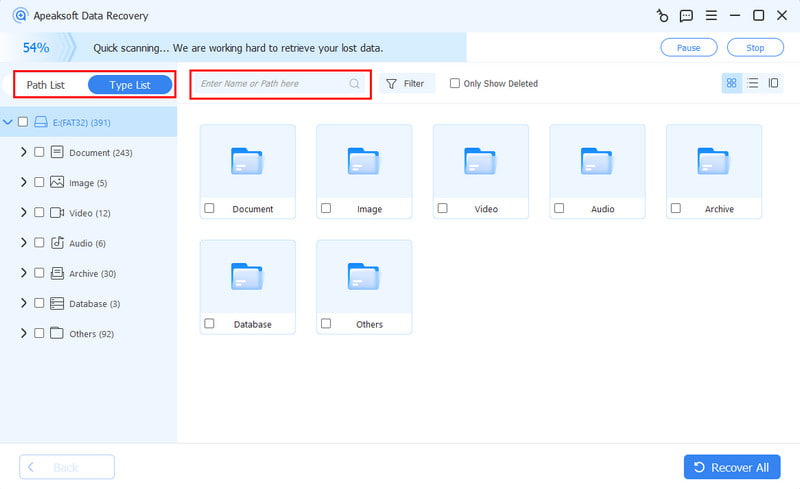
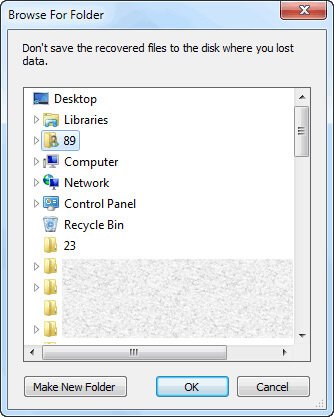
Step 5. Select the files you want to recover, and click the Recover button. Then, select an output folder and click OK to confirm it. You can recover data even if you have wiped the hard drive.
Part 4: How to Find a Reliable Recovery Lab for a Damaged Hard Drive
Not all recovery services for recovering files are equal, and finding the right one is like finding a needle in a haystack. How do you know the technician is trustworthy? Look for the following factors when consulting with a recovery lab.
Do they have an in-house cleanroom?
This is essential because opening a physically damaged drive in a regular environment will ruin the platters. Class 100 / ISO Class 5 recommended.
Tips: Class 100 came from the U.S. standard Federal Standard 209, while ISO Class 5 was created by the International Organization for Standardization (ISO). These standards indicates extremely clean air with very low particle levels.
Do they have relevant certifications?
Look for certifications such as ISO 9001 (an international standard for quality management), ISO 27001 (a global standard for information security), or Certified Data Recovery Professional (CDRP). These show they follow professional standards for quality and security.
Are their pricing and process transparent?
A reliable company should provide a free diagnosis and a clear quote. They explain the process without pressure. Avoid companies with hidden fees or vague answers.
Do they offer a "No-data, no-fee" policy?
Most reliable labs offer this guarantee. This not only protects your rights but also shows their confidence in their ability to recover your data.
How long have they been in business?
Years of experience means they have handled many different drive models and complex cases. Also, their ability to survive long-term in the industry surely says something.
What do real customers say?
Check recent reviews on Google, Reddit, Trustpilot, et cetera. Pay special attention to reviews from those who had the same damage as you do.
Conclusion
This guide shows how to recover data from damaged hard drives, external or internal. If you have enabled backup, you can retrieve lost files from the File History. If you logged into a Microsoft account, you may find your files in OneDrive. Apeaksoft Data Recovery works with both internal and external hard drives. Plus, follow our guide to find a good technician to repair your hard disk that is physically damaged.
 Apeaksoft Data Recovery
 Recover deleted or lost data on Windows and Mac computer.
Secure Download
Secure Download
Related Articles




