


How to Recover Data from a Dead Hard Drive in 2026

Suppose you press the power button, but you hear a rhythmic clicking sound, a harsh grinding noise, or worse, complete silence. Your PC won’t recognize the storage disk.
If you are currently staring at a non-responsive computer, you are likely asking yourself: how can I recover data from a dead hard drive?
The good news is that a dead drive isn't always a total loss. Depending on the cause of the failure, there are several proven methods to retrieve your lost files. This comprehensive guide will walk you through everything you need to know about how to recover data from dead hard drive safely, whether you are using a Windows PC or a Mac.
PAGE CONTENT:
Part 1: Is Your Hard Drive Really Dead?
Before diving into recovery solutions, it is crucial to understand how the drive died. Hard drive failures generally fall into two types of reasons. Knowing which one you are dealing with will help you know how you can recover data from a dead hard drive without causing further damage.
1. Logical Failure (Software-Based)
The drive's physical components are completely healthy, but the computer cannot read the data due to a software-level issue.
- Symptoms: Frequent blue screens, corrupted files, accidental formatting, or the computer prompting you to format the drive before using it.
- Recovery Chance: Very high. This is where specialized data recovery software can make a difference.
2. Physical Failure (Hardware-Level)
This means the internal components of the hard drive have suffered physical damage, which is a sad situation.
- Symptoms: Clicking, clunking, or scraping noises; the drive doesn’t spin at all; or the drive is completely undetected by the system.
- Recovery Chance: Moderate to low. Physical damage usually requires a professional cleanroom environment and professionals.
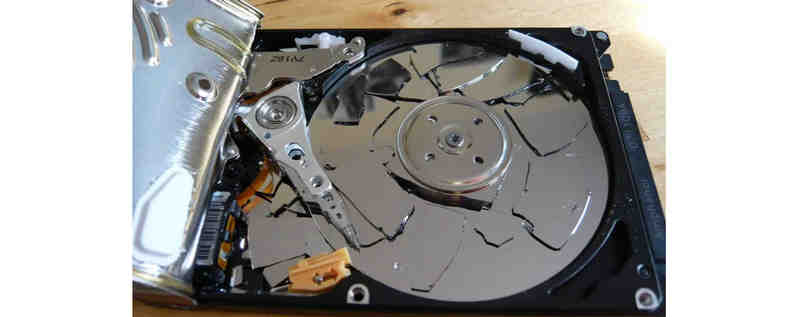
WARNING: If your hard drive is making unusual clicking or grinding noises, please power it off immediately. Forcing a physically damaged drive to run may permanently destroy the data, and then even professionals may fail to rescue your data.
Part 2: Easy Fixes to Recover Data from Dead Hard Drive
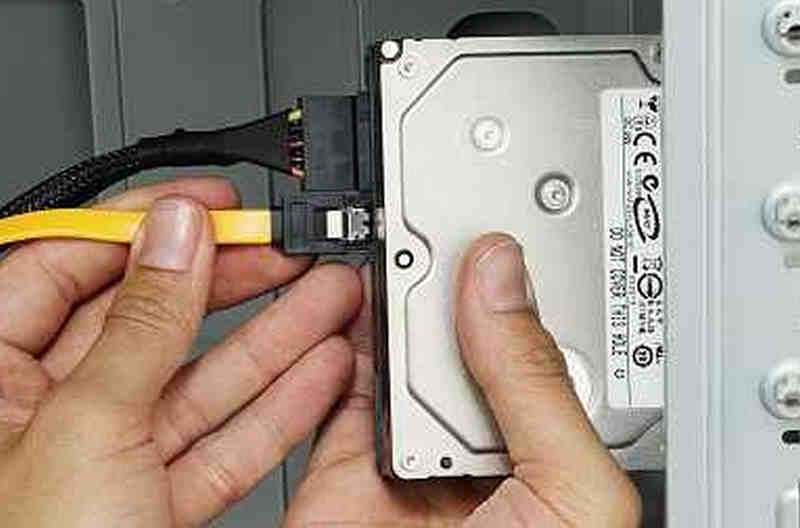
Sometimes, the drive isn't dead at all; the connection between the drive and your computer is simply broken. Before spending money, try these preliminary steps on how to recover data off a dead hard drive:
- Change the Cable: If you are using an external hard drive, change the USB or Thunderbolt cable.
- Try a Different Port: Plug the drive into a different port directly on the motherboard.
- Test on Another Computer: If eligible, connect the drive to an entirely different computer. If it works there, your computer's operating system or motherboard ports are the problem, not the hard disk.
Part 3: The Best Way to Recover Data from Dead Hard Drive
You cannot deny that the quick fixes above cannot work for all users. Some beginners have no idea of the components of a PC. Therefore, if you need an easier way to recover lost data from a dead hard drive, select Apeaksoft Data Recovery. It can quickly recognize and detect your hard disks and retrieve all types of lost flies, like documents, photos, videos, project files, and more. You don't need any professional skills to recover data.
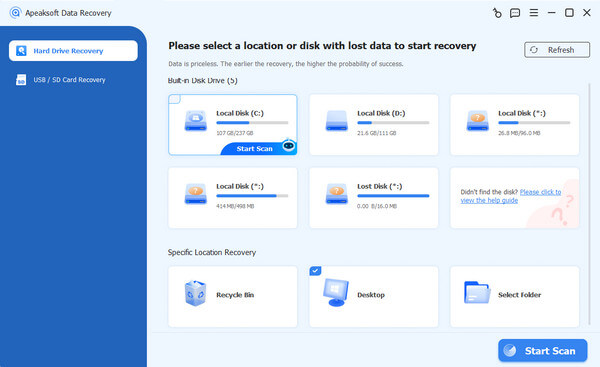
Step 1. Get Apeaksoft Data Recovery
Click the Free Download button below to download Apeaksoft Data Recovery. Then, install and launch it.
Secure Download
Secure Download
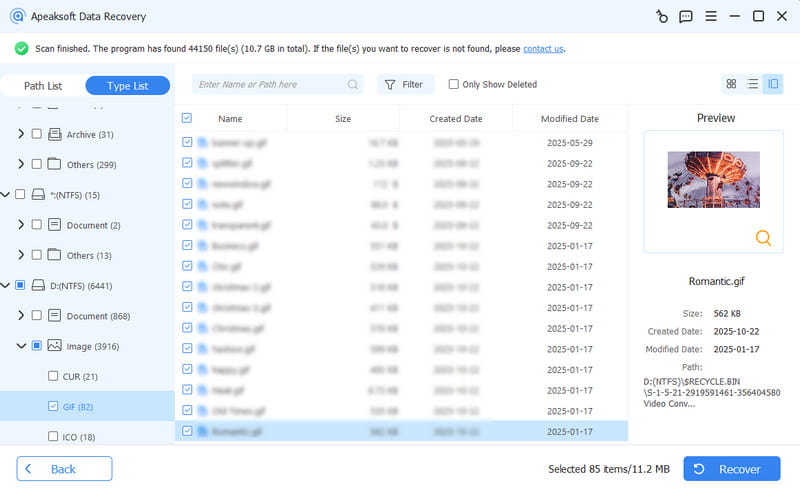
Step 2. Scan Your Dead Hard Disk
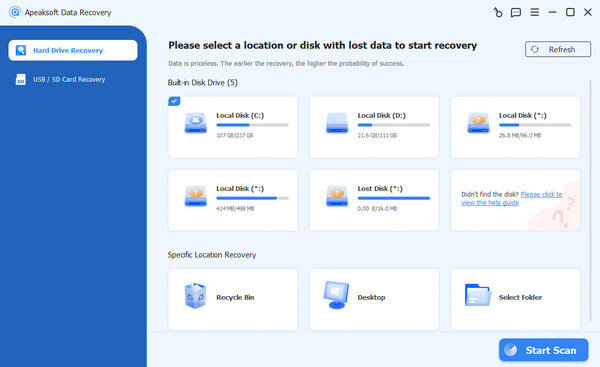
You don't need to care about the distributions; just select all disks on the home interface. Then, click the Start Scan button at the bottom right.
Step 3. Select and Recover Lost Files
You can see that the files are gradually appear during the scanning process. You can already select your lost files and click the Recover button to recover data from your dead hard drive.
Further Reading
Part 4: Special Ways to Deal with Dead Hard Drive on Mac
If you are a macOS user, the process looks slightly different. You can use Apple's built-in utility tools or specific target modes. Learn how to recover data from dead Mac hard drive easily as below.
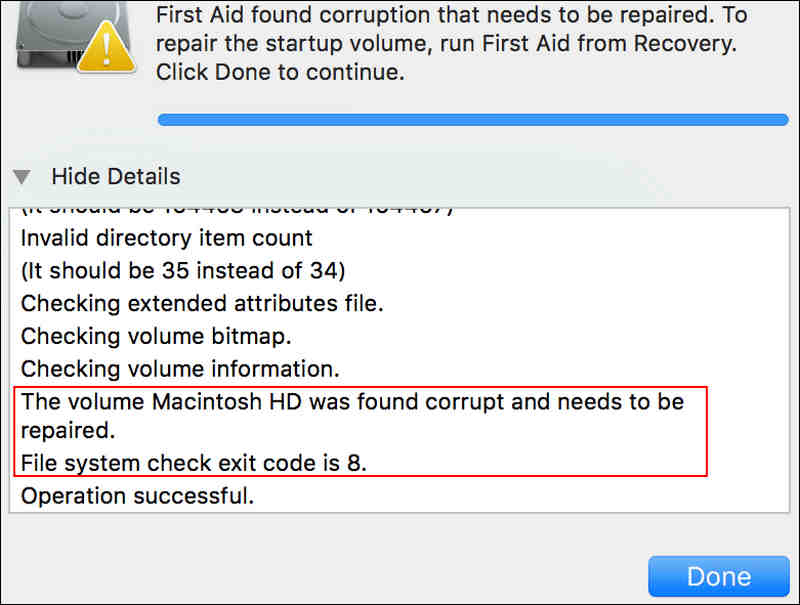
1. Use macOS Disk Utility (First Aid)
If your Mac won't boot, restart it and immediately hold down Command + R to enter Recovery Mode. Open Disk Utility, select your internal hard drive, and click First Aid. This tool will attempt to repair directory structures and file system errors. Finally, it will recover data from dead hard drive on Mac.
2. Mac Target Disk Mode / Share Disk
If you have a secondary MacBook, you can use your dead Mac as an external drive.
- 1.Shut down your Mac, press and hold the power button until Loading startup options appears.
- 2.Select Options > Continue, then choose Utilities > Share Disk to share it with your healthy Mac over a network or direct cable connection.
If these native tools fail, you can still resort to Mac-compatible hard-drive recovery software like Apeaksoft Data Recovery.
Tips: When to Call the Professionals (Physical Failures)
If you have tried software solutions and the dead hard drive still won't cooperate, or if the drive is suffering from physical hardware failure, you should resort to professionals immediately.
Professional dead hard drive recovery services can do the things below to rescue your data:
- 1.Diagnostic: They will evaluate the drive to determine if it needs a replacement.
- 2.Copy data: They will physically repair the drive just enough to create a sector-by-sector clone of the disk.
- 3.Recovery: Finally, they will extract your data safely from the clone and bring it back to you on a brand-new external drive.
While professional recovery can be expensive, it is the only realiable solution when the hard drive itself has physically died.
Conclusion
While knowing how to recover data from dead hard drive is a powerful skill, preventing data loss in the first place is always the best strategy. You need to back up your files and protect your hard drive: don't shut down your PC when there are many apps still running.
If you have ever manually deleted some files and have no backup, you can try Apeaksoft Data Recovery. It can quickly scan your hard disks and bring back all lost files and info. You can get back your items in their original condition.
 Apeaksoft Data Recovery
 Recover deleted or lost data on Windows and Mac computer.
Secure Download
Secure Download
Related Articles




