

How to Recover Deleted Notes on iPhone (5 Effective Methods)

Accidentally deleted important notes on your iPhone? Do you wonder how to recover deleted notes on iPhone? Whether it’s due to accidental deletion, iOS updates, or sync issues, this guide will show you 5 easy methods to retrieve lost or deleted notes on iPhone without backup or via iTunes/iCloud backup.
PAGE CONTENT:
- Why iPhone Note Get Deleted
- Comparison of iPhone Note Recovery Method
- Recover Deleted Notes on iPhone from Recently Deleted
- Recover Permanently Deleted Notes on iPhone Without Backup
- Recover Erased Notes on iPhone from icloud.com
- Restore Notes on iPhone from iCloud Backup
- Restore Deleted Notes on iPhone from iTunes Backup
- FAQs About iPhone Notes Recovery
Why iPhone Note Get Deleted
Did your iPhone notes disappear for no reason? Check the common causes below first!
- You accidentally delete or empty the Recently Deleted folder.
- There was an iOS upgrade or factory reset.
- iCloud failed to sync or you switched your account.
- Jailbreak or system errors.
Tips: Regularly backing up your iPhone can help prevent permanent data loss.
Comparison of iPhone Note Recovery Method
| Method | Pros | Cons |
| Recently Deleted Folder | Easy, fast, no software needed. | Only for notes deleted within 30 days |
| iPhone Data Recovery (Third-Party Tool) | No backup required, recover permanently deleted notes. | Need to install software |
| iCloud Website | Online, no computer needed. | Only works for notes synced to iCloud |
| iCloud Backup | Complete recovery. | Need a backup, factory reset, overwrite current data. |
| ITunes Backup | Offline, Complete recovery. | Need a backup, data overwrite. |
Recover Deleted Notes on iPhone from Recently Deleted
How can you find deleted notes on your iPhone? When you mistakenly delete a note on iPhone 18 Pro/17/16, the Recently Deleted folder may give you a chance to retrieve it. The deleted note will not be permanently deleted from your iPhone until you completely empty the Recently Deleted folder. Now you can follow the next steps to get deleted notes back on your iPhone.
Step 1. Open the Notes app and go to the Recently Deleted folder.
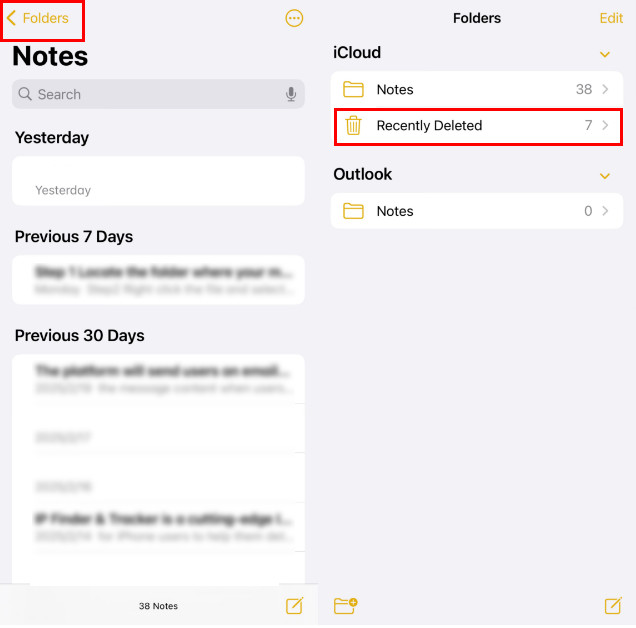
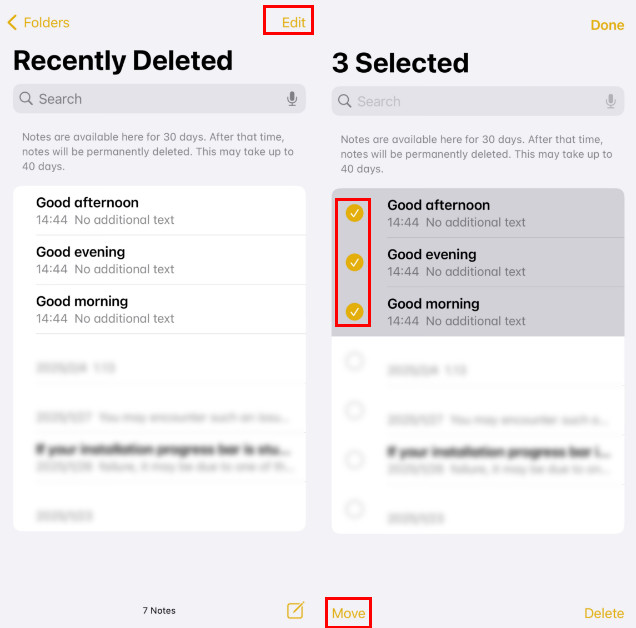
Step 2. Tap Edit on the top-right corner. Here, you can find your recently deleted iPhone notes. Choose the iPhone notes you want to restore.
Step 3. Tap the Move button in the lower-left corner to transfer these selected notes to a new folder.
Tips: One thing you should know is that deleted iPhone notes will be removed from the Recently Deleted folder permanently after 30 days. Therefore, you can only do a recovery on the Notes app for iPhone deleted notes within 30 days.
Recover Permanently Deleted Notes on iPhone Without Backup
If you have deleted notes on your iPhone for more than 30 days or emptied the Recently Deleted folder, and want to recover the permanently deleted notes, you need to get help from iPhone notes recovery software. Apeaksoft iPhone Data Recovery offers a good solution to recover deleted notes on your iPhone directly. You don't need to reset your iPhone or update iTunes on your computer.
Learn how to recover deleted notes on iPhone in detail as below.
Recover Permanently Deleted Notes on iPhone Without Backup
- Recover deleted types, including notes, contacts, messages, etc.
- Rescue deleted iPhone notes from accidental deletion, jailbreak, iOS upgrade, or any situation.
- Preview and selectively recover deleted notes on iPhone.
- Recovery notes on iPhone/iPad/iPod running iOS 5 to iOS 27.
- Recover deleted notes on iPhone with/without backup.
Secure Download
Secure Download

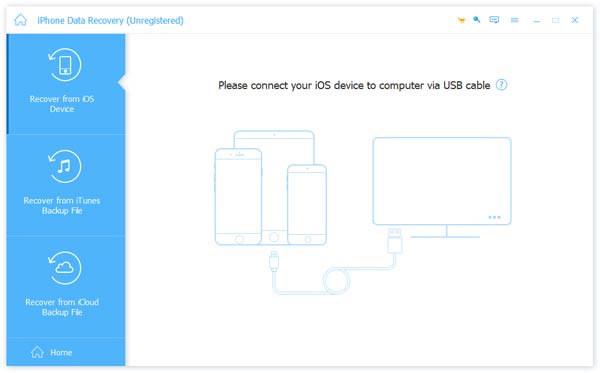
Step 1. Launch Apeaksoft iPhone Data Recovery and select the Recover from iOS Device mode, and connect your iPhone with a USB cable.
Step 2. Click Start Scan.
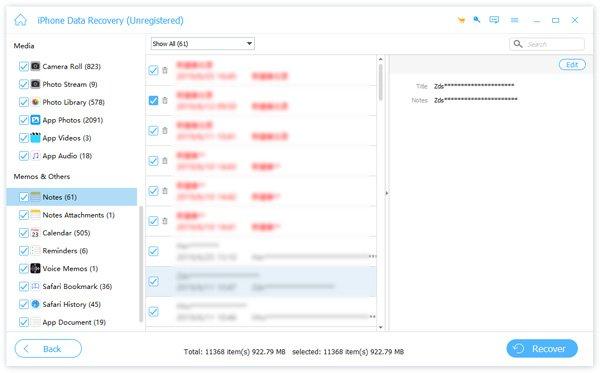
Step 3. Click Notes from the left panel, preview, and choose the notes you want to get back.
Step 4. Click Recover to save iPhone deleted notes on the local disk. This method is applicable when you want to back up iPhone notes to keep them safe.
Tips: Follow the same method, you can also recover deleted photos, videos, and contacts on iPhone. This method also enables you to recover deleted photos from iPad with ease.
Recover Erased Notes on iPhone from icloud.com
Do you want to recover deleted notes from iCloud without installation on your desktop? iCloud can help you do that easily on a browser.
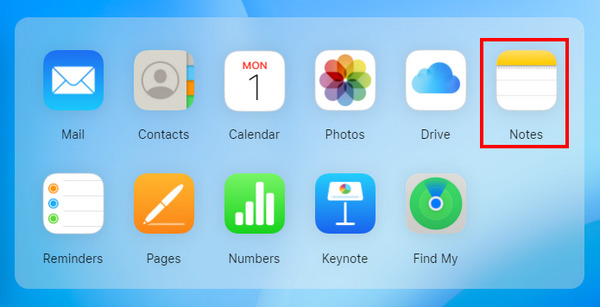
Step 1. Go to the iCloud website and sign into your iCloud account, which is also your Apple ID. Then, you'll see a Notes button clearly in a panel.
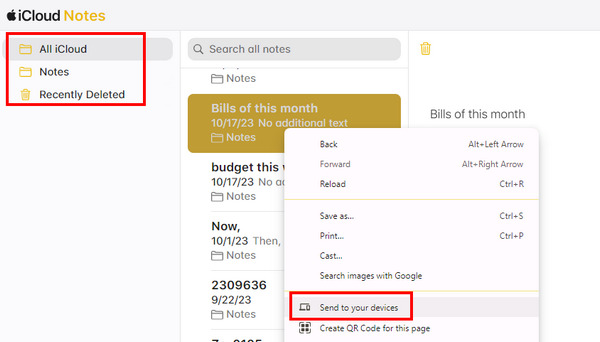
Step 2. You can see deleted notes from your iPhone in iCloud. Then, right-click on it and choose Send to your devices. You can also just copy them to recover missing notes on your iPhone.
Restore Notes on iPhone from iCloud Backup
If you have backed your iPhone with iCloud, you can recover deleted notes on the iPhone from the iCloud backup.
Here are the steps on how to recover missing notes on your iPhone:
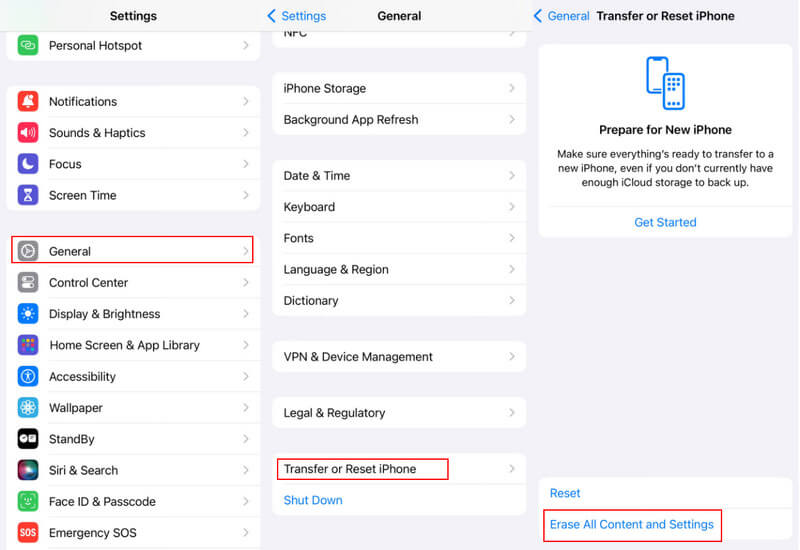
Step 1. Open your iPhone Settings and click the following path: General > Transfer or Reset iPhone > Erase All Content and Settings to factory reset your iPhone.
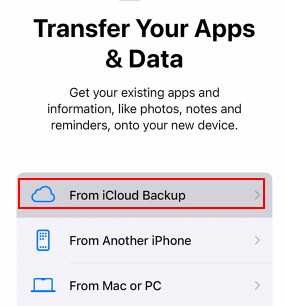
Step 2. Restart your iPhone and choose From iCloud Backup. Choose the backup that you think contains your deleted notes and enter your Apple ID and password.
Tips: You should note that this method requires factory resetting your iPhone. All your data will be erased after it. Remember to back up your iPhone in advance.
Restore Deleted Notes on iPhone from iTunes Backup
If you wonder how to recover permanently deleted notes on iPhone without iCloud , another method we recommend is the iTunes backup. Before that, make sure you have a habit of backing up with iTunes.
Here are the steps:
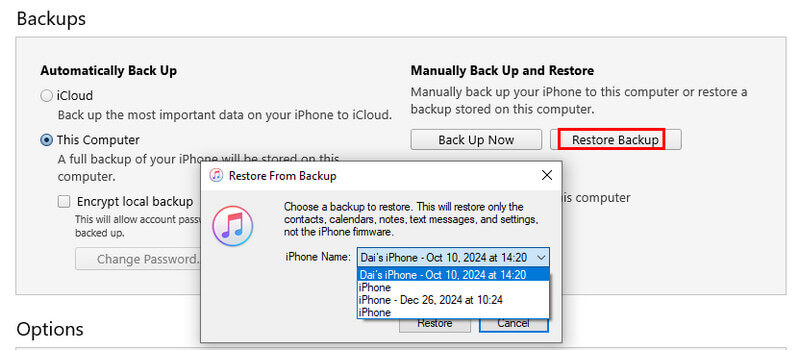
Step 1. Connect your iPhone to the computer and launch iTunes.
Step 2. Click your iPhone pattern, and then choose Restore Backup in the Backups section.
Step 3. Choose the backup that you think has your deleted iPhone notes and then click Restore.
Bonus tips: Recover Deleted iPhone Notes Without Data Overwrite
If you want to know if there are your targeted deleted photos in the chosen backup or if you don't want to recover all deleted photos, you can try Apeaksoft iPhone Data Recovery to preview and selectively recover deleted iPhone notes.
Secure Download
Secure Download
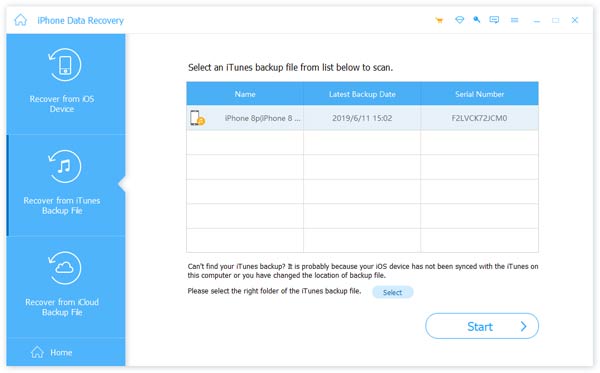
Step 1. Choose Recover from iTunes Backup File
Free download and open this iPhone Backup Extractor on your computer. Choose Recover from iTunes Backup File mode in the left menu.
Step 2. Extract iTunes backup
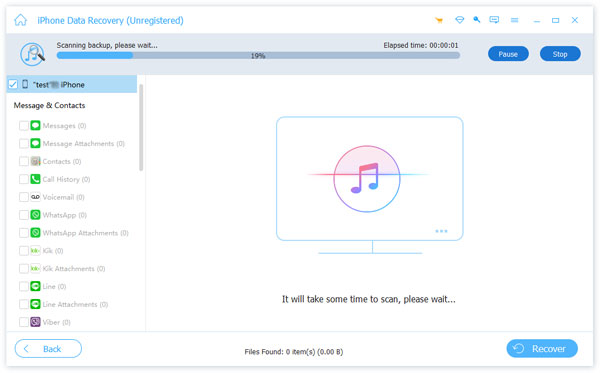
Select the right backup of your iPhone and click Start Scan to scan and extract the backup content (notes, music, contacts, photos, etc.). Then, you will see deleted notes from iTunes backup.
Step 3. Recover deleted iPhone notes
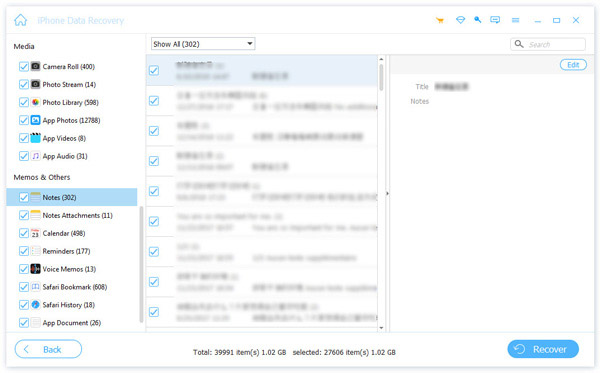
After scanning, click the Notes category in the left panel, and preview the details of your iPhone notes. Check all notes you want to recover, and then click Recover to restore the deleted notes on your computer.
FAQs About iPhone Notes Recovery
How long can I recover deleted notes?
Notes deleted from your iPhone remain in the Recently Deleted folder for up to 30 days. After that, you’ll need to use a third-party recovery tool or restore from a backup.
Can I recover notes without a backup?
Yes! You can use third-party tools like Apeaksoft iPhone Data Recovery to scan your iPhone and recover permanently deleted notes even if you don’t have an iCloud or iTunes backup.
Will restoring from iCloud/iTunes overwrite current data?
Yes. Restoring from an iCloud or iTunes backup will replace all your current iPhone data with the backup. Make sure to back up your current data before performing a restore.
Conclusion
In this article, we mainly give you 5 methods to recover deleted notes from iPhone. We recommend starting with Recently Deleted. If unsuccessful, try iCloud/iTunes backup. If there is no backup, try third-party software like Apeaksoft iPhone Data Recovery to retrieve permanently deleted notes on iPhone without backup or overwrite.
Related Articles




