

5 Feasible Ways to Recover Deleted Photos on Your Mac

Recovering deleted photos on your Mac can be really helpful to prevent losing precious pictures from your Mac, especially when they hold personal or professional value. Fortunately, macOS provides several ways to help you recover deleted or lost photos with ease. Whether they were accidentally deleted or permanently erased, this guide introduces multiple effective methods to recover deleted photos on a Mac safely and efficiently.
PAGE CONTENT:
- Part 1: How to Recover Permanently Deleted Photos on Mac
- Part 2: Built-in Solution: Recover Deleted Photos via the Photos App
- Part 3: How to Use Time Machine for Deleted Photos Recovery
- Part 4: Find Deleted Photos from Trash on Your Mac
- Part 5: iCloud: How to Retrieve and Recover Deleted Photos on Mac
Part 1: How to Recover Permanently Deleted Photos on Mac
When photos are permanently deleted and cannot be found in the Trash or Photos app, specialized software becomes the most effective solution. To restore deleted photos from your Mac, you need a professional tool, provided that you don't have a backup from a previous version. And that's why you need Apeaksoft Data Recovery. It performs deep scans to locate hidden or formatted files, allowing secure and effortless recovery of your valuable images.
Step 1. Download Apeaksoft Data Recovery from its official website and install it on your Mac.
Secure Download
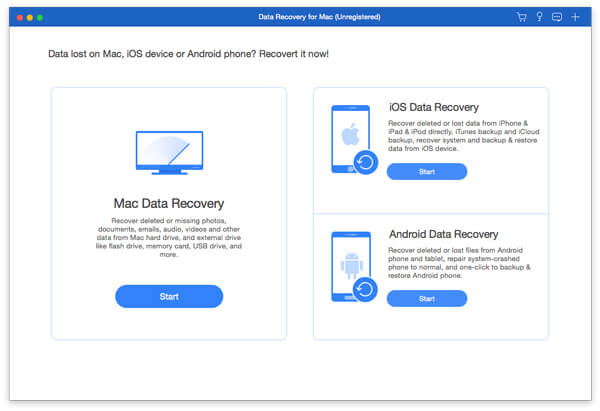
Step 2. Launch Apeaksoft Data Recovery on your Mac to proceed. To restore deleted data on your Mac, click Mac Data Recovery on the main interface.
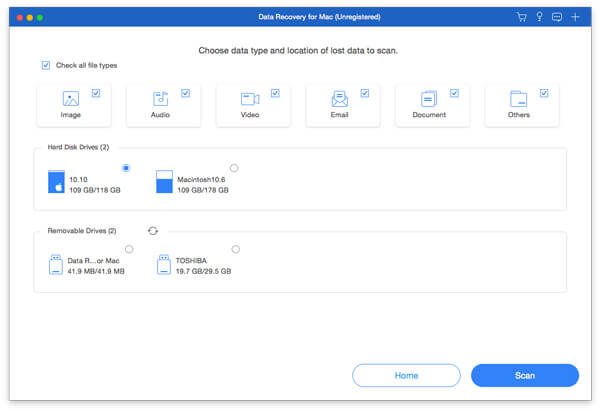
Step 3. All information about your files and storage spaces will be displayed. You can click Image and Video as the selected file types for data recovery. As for hard disk drives, simply select them all. Then, click Scan.
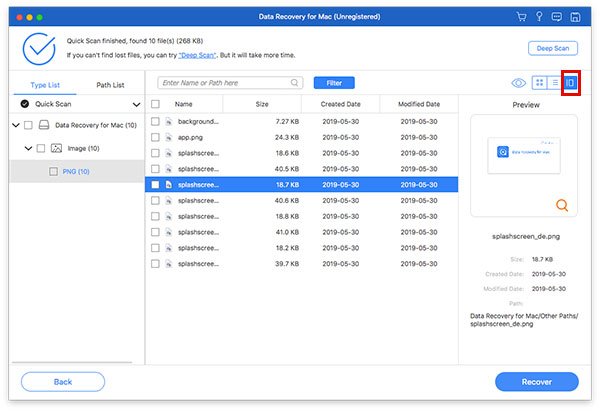
Step 4. After a short time of scanning, all photos, whether deleted or not, will be detected and listed. To further search for photos you want, you can click Filter. Click to select the deleted photos you want to recover on your Mac.
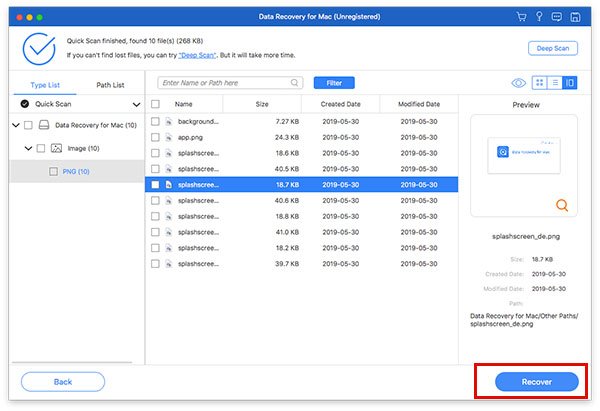
Step 5. Once the selection is done, click Recover and choose an output folder to save them. And deleted photos on your Mac will be recovered automatically.
Part 2: Built-in Solution: Recover Deleted Photos via the Photos App
Actually, deleted photos can be restored on your Mac if you just deleted them recently, the macOS Photos app may still hold them in the Recently Deleted folder. This built-in feature keeps deleted photos for up to 30 days, offering an easy way to restore them before they're permanently removed. With this built-in solution, you can quickly return your photos to your main library without external tools.
Step 1. Launch Photos app on your Mac. Under the Library tab, click Recently Deleted to check the album that contains all photos deleted in the past 30 days.
Step 2. From the photos listed, you can check the details and how many days are left before they are permanently deleted. You can click to select the deleted photos you want to recover on your Mac, then click Recover to proceed.
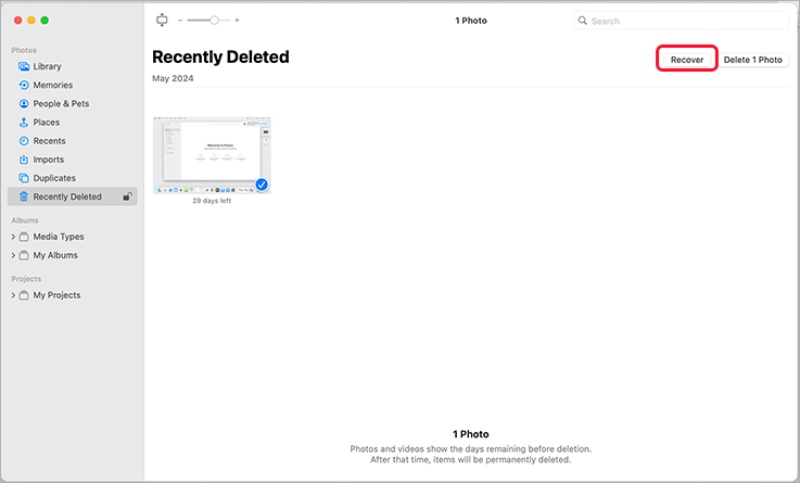
Tips: Recently Deleted feature also allows you to recover deleted photos from iPhone.
Part 3: How to Use Time Machine for Deleted Photos Recovery
Time Machine is a powerful backup utility that can help restore deleted photos on your Mac if you've set it up previously. When entering Time Machine, you can browse older snapshots of your Photos Library to retrieve deleted content from past backups. It's an ideal option for those who maintain regular backups and want a simple recovery process.
Step 1. On your Mac, click Enter Time Machine from the Mac Menu to open Time Machine for searching deleted photos.

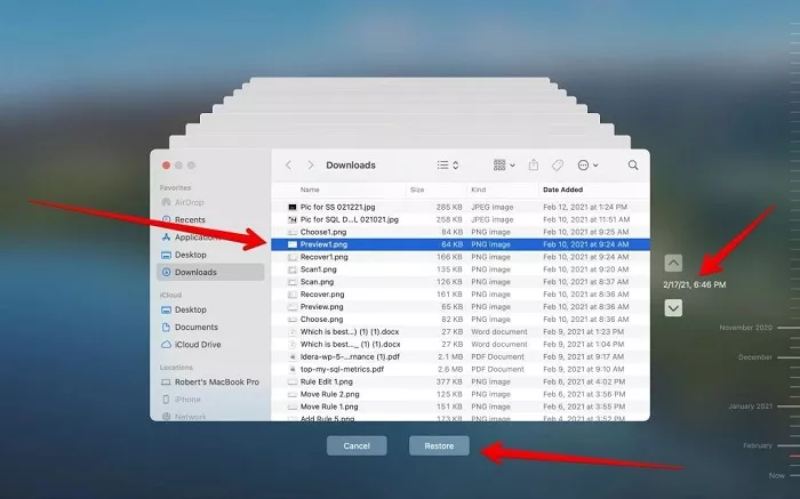
Step 2. On Time Machine, you can use the timeline to check for the deleted photos you want to find. If they're not deleted permanently, you will find them along with the date.
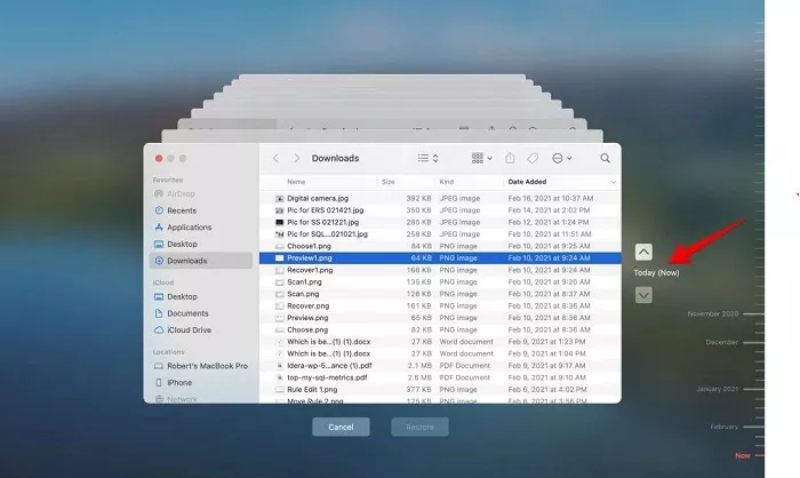
Step 3. You are allowed to check the detailed information of the deleted photos by clicking them. After selecting all the images that you deleted by accident, click Restore to recover deleted photos on your Mac.
Part 4: Find Deleted Photos from Trash on Your Mac
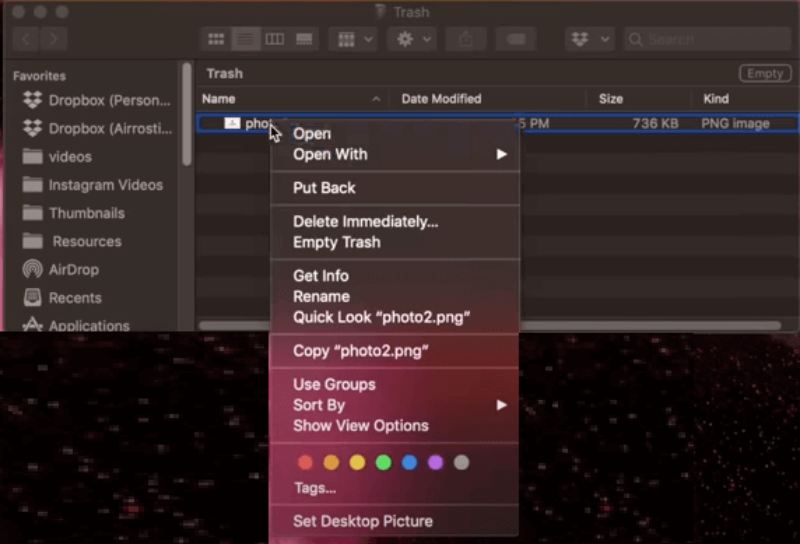
Sometimes, deleted photos may not be gone permanently - they could still be in the Trash folder. Checking your Trash should always be your first step before using more advanced methods. If the files are still there, you can easily restore them to their original location by right-clicking them and then clicking Put Back, saving time and avoiding unnecessary recovery steps.
Part 5: iCloud: How to Retrieve and Recover Deleted Photos on Mac
If you use iCloud Photos, your deleted photos may still be recoverable from the cloud. iCloud retains deleted photos in its Recently Deleted folder for up to 30 days, syncing across all your Apple devices. You can log in to iCloud.com or use the Photos app to recover recently deleted photos instantly, ensuring your essential memories are safely restored.
Step 1. Navigate to the official website of iCloud via your browser, and click Sign In to proceed.
Step 2. Enter your email or phone number. Then, you can choose to sign in with a password or a Passkey. And follow the instructions to keep yourself signed in.

Step 3. Now, on your computer, click Recently Deleted to open the folder that saves your recently deleted photos. Click Recover to recover deleted pictures on Mac via iCloud.

Conclusion
Recovering deleted photos on a Mac doesn't have to be complicated. From built-in tools like Photos and Time Machine to cloud-based recovery with iCloud, there are plenty of reliable options. For permanently lost files, Apeaksoft Data Recovery provides a comprehensive and secure way to bring your images back - making photo recovery on Mac simple and stress-free.
Related Articles
You can learn five effective methods to recover lost photos from an SD card, including corrupted, crashed, or damaged SD cards.
Do you know how to retrieve deleted photos from Google Photos within or beyond 60 days? Read this guide and acquire three practical methods.
Many people complain that photos disappeared from iPhone after iOS 26 update. So this post offers detailed ways to find disappeared/missing photos back.
How do you retrieve deleted photos on iPad? This post will show you how to recover deleted photos on iPad with iCloud backup, without backup, etc.



