


How to Recover Deleted or Formatted Photos from an SD Card

"Hey everyone, I messed up big time. I accidentally formatted my SD card before backing it up. … I need to know straight up, is it actually possible to recover photos from a formatted SD card?"
If you have ever faced a similar situation, you know how stressful it can be. SD cards store our important and precious memories. Therefore, accidentally deleting or formatting one can feel like a disaster.
Fortunately, it is still possible to recover photos from an SD card, no matter whether they are deleted or formatted accidentally. This tutorial will show you a step-by-step guide. Keep reading!
Disclaimer
If you notice that data is missing from your SD card, stop using the card immediately to prevent further data from being overwritten.
PAGE CONTENT:
Part 1: Why It Is Possible to Recover Deleted Photos from an SD Card
There are several reasons why deleted photos can still be recovered from an SD card.
First, when you delete photos or format the SD card, data will not disappear immediately. Instead, the space occupied by the data is typically marked as available for reuse. As long as it is not overwritten by new data, SD card data recovery software can scan the SD card for lost photos. Therefore, it is important to stop using the SD card as soon as you notice data loss.
Second, modern SSDs support the TRIM technology, which tells the drive that deleted data is no longer needed. Then, the SSD may clear the deleted data during its normal operations, making it difficult to recover. Fortunately, SD cards generally do not use TRIM. Therefore, it is possible to recover erased photos from an SD card.
Finally, SD cards often use FAT32 or exFAT systems, which are widely supported by SD data recovery software. Their storage structure is relatively simple, and the photo file formats are common. Therefore, the SD photo recovery is relatively simple.
Part 2: How to Recover Photos from an SD Card
Since deleted or formatted photos may still remain on an SD card until they are overwritten, data recovery software can help scan the card for lost files. This section will provide a comprehensive tutorial on how to recover deleted or formatted photos from an SD card using a professional SD card recovery software - Apeaksoft Data Recovery.

Downloaded by over 1,000,000 users
- Recover SD card photos after deletion or formatting.
- Provides the Quick Scan and Deep Scan features for all recoverable photos.
- Preview lost photos and choose to recover them selectively.
- Offers up to 200 MB of free data recovery for testing.
- Compatible with both Windows and macOS systems.
Secure Download
Secure Download

Step 1. Connect the SD Card with Your Computer
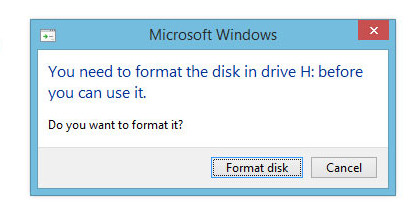
Take out the SD card from your camera or other device. Connect it to your computer with a card reader or insert it into the card slot on your computer. If a format prompt appears, do not click Format.
Download Apeaksoft Data Recovery for free from the button above and run it after installation.
Step 2. Scan Your SD Card for Lost Photos
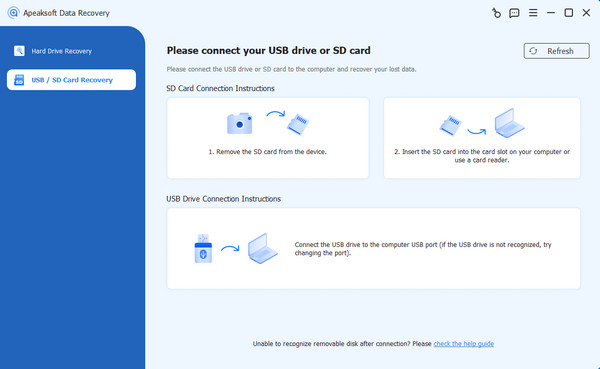
Choose USB / SD Card Recovery from the left menu bar. Choose the correct type, and click Scan Disk. Quick Scan checks for recently deleted files, while Deep Scan searches more thoroughly for recoverable data.
Step 3. Preview and Recover Photos from the SD Card
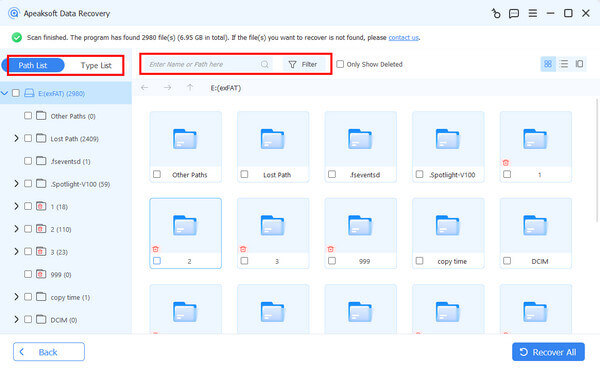
After the scan finishes, you will see all the files on your SD card. You can use Path List and Type List to filter desired files.
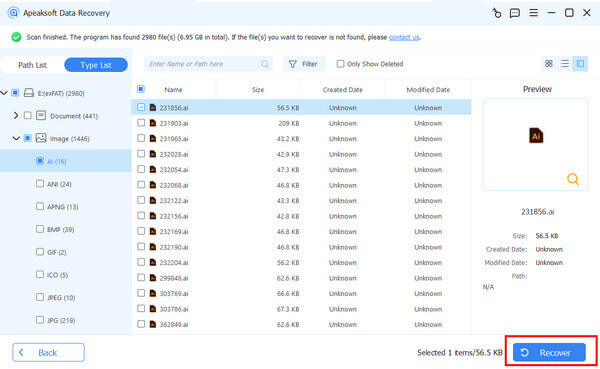
Preview the found photos before recovery. Instead of recovering all the files at once, select only the photos you want to restore and click the Recover button. Choose a saving path on your computer. Do not save the recovered photos back to the original SD card to avoid overwriting other recoverable data.
Part 3: What to Avoid When Recovering Photos from an SD Card
Don't Keep Using the SD Card
Once you notice that photos are missing, stop taking new photos, recording videos, or saving files to it, as it may overwrite the lost data and make recovery more difficult.
Don't Rely on the Recycle Bin or Backup
If you delete photos directly from an SD card connected to a Windows computer, the deleted photos usually do not appear in the Recycle Bin. Therefore, you cannot simply restore them from the Recycle Bin.
Windows File History and macOS Time Machine can restore files only if the lost photos were previously backed up. If you have not backed up the photos from your SD card, stop wasting time trying these methods.
Don't Repair or Modify the SD Card
If the SD card becomes inaccessible or shows a formatting prompt, avoid formatting the SD card or running repair tools such as CHKDSK. These operations may modify the card and make data recovery more difficult.
Conclusion
Now you may have a better understanding of how to recover photos from an SD card. Always keep in mind that you should stop using your SD card immediately when there is data loss, or the recovery chance will be slim.
 Apeaksoft Data Recovery
 Recover deleted or lost data on Windows and Mac computer.
Secure Download
Secure Download
Related Articles




