


How to Recover Deleted Photos from iCloud Precisely

Whether you accidentally deleted a beautiful photo, lost your phone, or have your iPhone damaged, you may want to know how to recover deleted photos from iCloud. The good news is yes, you can! Apple has built several safety nets into iOS and iCloud to help you get your photos back to another Apple device or a Windows computer.
In this easy-to-follow guide, we will show you how to recover photos from iCloud using different methods. We will also introduce a key feature, iCloud Photo Sync. Without proper setup, even iCloud cannot help you to back up or restore photos.
PAGE CONTENT:
- Part 1: Photo Backup vs. Sync: Choose the Right Option
- Part 2: How to Recover Recently Deleted Photos on iPhone/iPad
- Part 3: How to Recover Recently Deleted Photos from iCloud on PC
- Part 4: How to Recover Recently Deleted Photos on Mac
- Part 5: Ultimate Way to Directly Recover Deleted Photos on iPhone
Part 1: Photo Backup vs. Sync: Choose the Right Option
- iCloud Photo Backup: If you've turned on iCloud Backup, your iOS device will automatically back up all data and files to your iCloud storage.
- Sync This iPhone/iPad in iCloud Photos: However, if you've turned on this feature, your iCloud will sync even your photo deletions. That means you cannot recover deleted photos from iCloud.
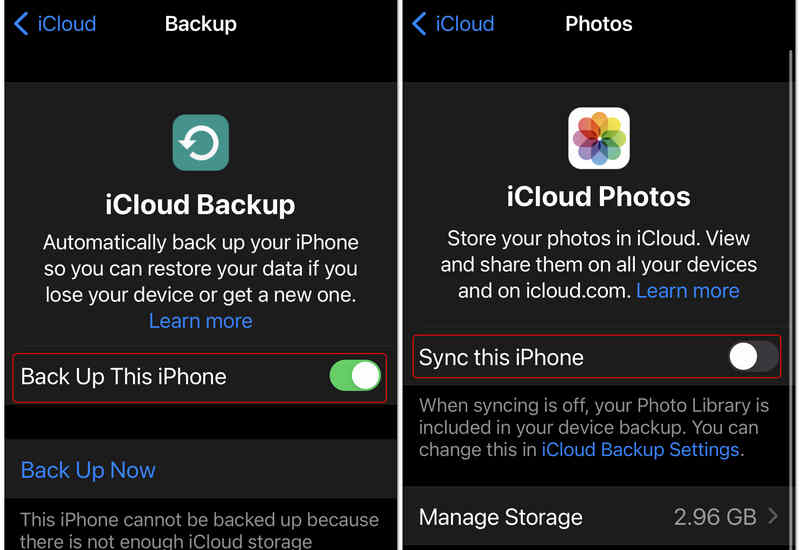
Therefore, it is not recommended to turn on Sync This iPhone in iCloud. If you need to back up photos, you only need to enable iCloud Backup.
Part 2: How to Recover Recently Deleted Photos on iPhone/iPad
Did you lose your phone, or did you reset it to factory settings? If you have an old backup, you can use it. This method shows you how to recover photos from iCloud backup.
Important Note: To use this method, you must erase all the current data on your iPhone first. Make sure you back up any new files before you start! This is also an obvious drawback of using iCloud to recover data.
Step 1. Go to Settings > General > Reset.
Step 2. Tap Erase All Content and Settings and confirm Erase iPhone.
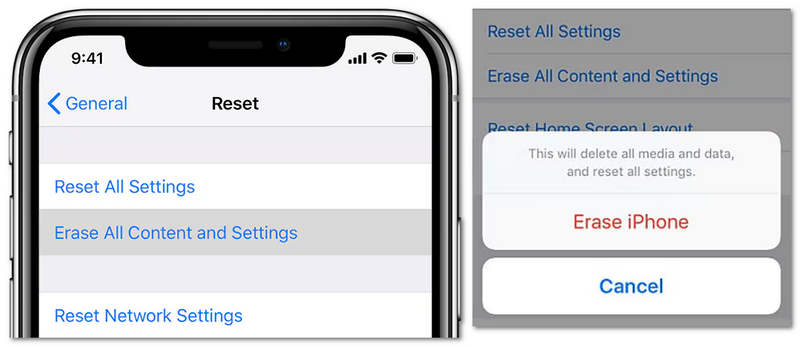
Step 3. Wait for your iPhone to restart. You will see the Hello screen. Then, set up your iPhone.
Step 4. Follow the on-screen steps until you reach the Transfer Apps & Data screen.
Step 5. Tap on From iCloud Backup. Sign in with your Apple ID and password.
Step 6. Choose the backup that contains the old photos you want. Keep your phone connected to Wi-Fi and power until the process finishes.
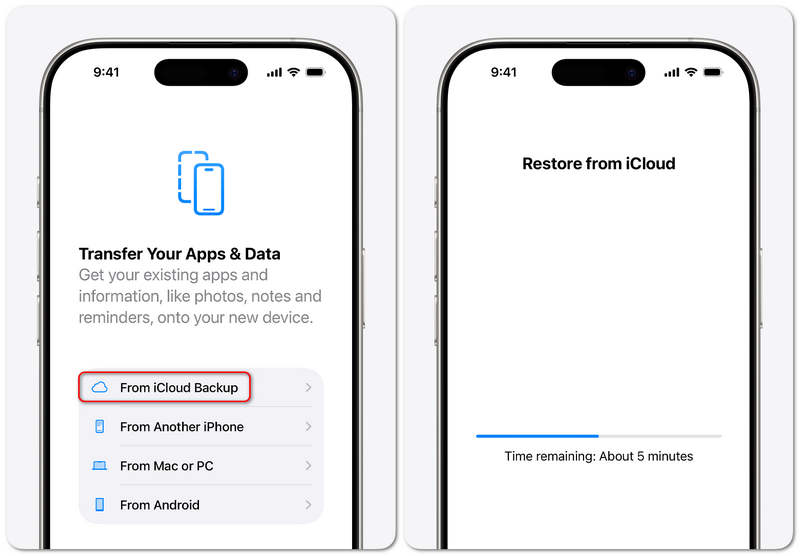
When the process is finished, you will recover photos from iCloud successfully. However, you can see that the process is really complex. You just need to recover photos, but it will erase and then recover all data. So, maybe you can follow the desktop iCloud methods to select your desired photos to recover.
Part 3: How to Recover Recently Deleted Photos from iCloud on PC
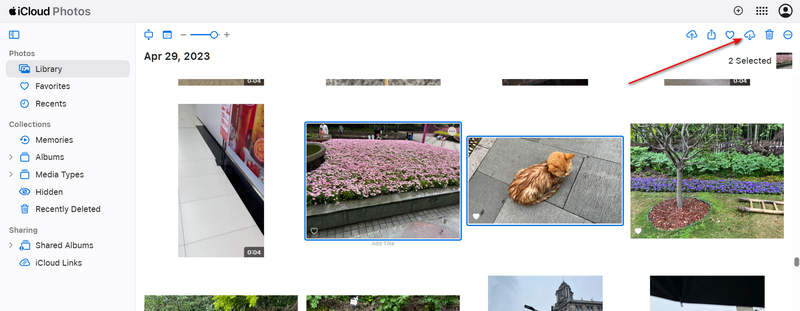
If you do not have your phone, you can use any computer web browser to recover deleted photos from iCloud.com.
- 1.Go to iCloud.com and sign in with your Apple ID.
- 2.Click on the Photos button.
- 3.Check all photo backups with the same album on your iPhone.
- 4.Select the photos you need and click the Download button at the top.
- 5.Then, you just need to transfer the photos to your iPhone or iPad with a cable if needed.
Part 4: How to Recover Recently Deleted Photos on Mac
If you have a MacBook, it will be more convenient and faster to select and recover deleted photos from iCloud than on a Windows computer. The built-in iCloud feature in Finder lets you directly access the photo backups. You can also use the AirDrop feature to directly send the photos to your iPhone or iPad.
- 1.Launch the Finder app on your Mac.
- 2.Locate and click on iCloud Drive under the iCloud section in the left-hand sidebar.
- 3.Navigate to the specific photo albums containing your desired images.
- 4.Select them, and then right-click on them to open the context menu.
- 5.Locate Share in the context menu, then select AirDrop from the secondary menu.
- 6.In the pop-up window, click your iPhone target. Then, it will quickly recover deleted photos from iCloud to your iPhone on Mac.
Part 5: Ultimate Way to Directly Recover Deleted Photos on iPhone
If you don't have an iCloud backup, you cannot recover deleted photos from it. In that case, Apeaksoft iPhone Data Recovery will help. It can quickly scan your iPhone and retrieve all lost files, including photos, videos, messages, and contacts. Even if you don't have any backup, or your photos are gone due to iCloud Sync, this program can easily rescue your lost photos.

Downloaded by over 1,000,000 users
- Connect your iPhone to your PC or Mac to start photo recovery.
- Quickly scan your iPhone storage to retrieve all lost photos and other files.
- Mark the lost files in red for your quick notice and selection.
- Let you directly recover deleted photos during the scanning process.
Secure Download
Secure Download

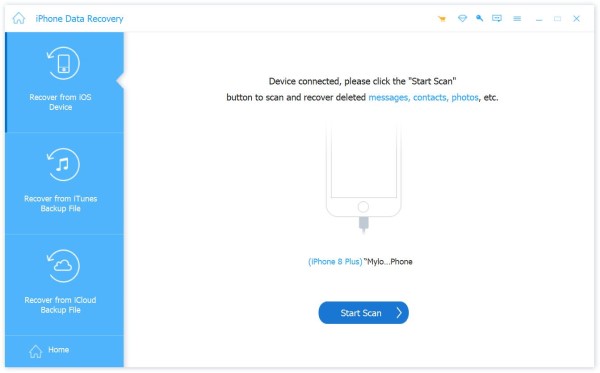
Step 1. Get Apeaksoft iPhone Data Recovery
Download, install, and launch Apeaksoft iPhone Data Recovery on your Windows or Mac. Connect your iPhone to your computer. Then, this program will recognize your phone. Now, click the Start Scan button.
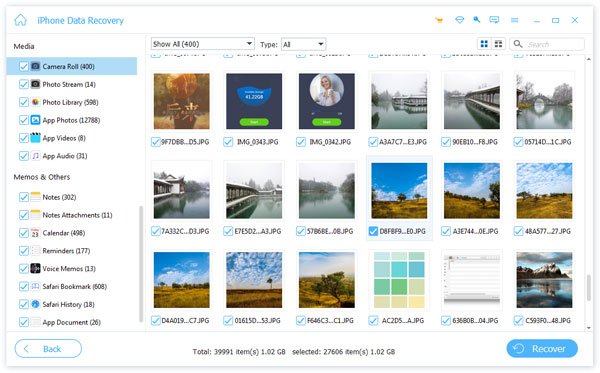
Step 2. Select and Recover Deleted Photos
This program will quickly scan your device. You will see there are lost photos in the Camera Roll tab. Select your lost photos and click the Recover button at the bottom right corner to recover them.
Further Reading
Conclusion
It is never difficult to recover photos from iCloud because iCloud is a very powerful and comprehensive official data management tool. For most users, the iCloud Sync feature is the key cause of photo recovery failure. You should turn it off. If you don't have iCloud backup, please select Apeaksoft iPhone Data Recovery. It can easily recover all types of lost data without previous backup on iCloud or iTunes.
 Apeaksoft iPhone Data Recovery
 Recover deleted or lost data from iOS Devices, iTunes, and iCloud backup.
Secure Download
Secure Download
Related Articles




