


How to Recover Voice Memos on iPhone With or Without Backup

The Voice Memos app is the preinstalled app on iOS devices. It turns an iPhone or iPad into a portable recorder and enables users to record, edit, and manage audio content. It is widely used for recording personal notes, lectures, interviews, or any sound with the iPhone's built-in microphone. It makes sense that losing a voice memo can be frustrating. This concrete tutorial shares the proven ways to recover deleted voice memos on your iPhone.
PAGE CONTENT:
Part 1: How to Recover Voice Memos on iPhone from Recently Deleted
When you delete a voice memo on your iPhone, it will go to the Recently Deleted folder and be stored there for 30 days. Before it is permanently removed, you can recover voice memos on iPhone quickly.
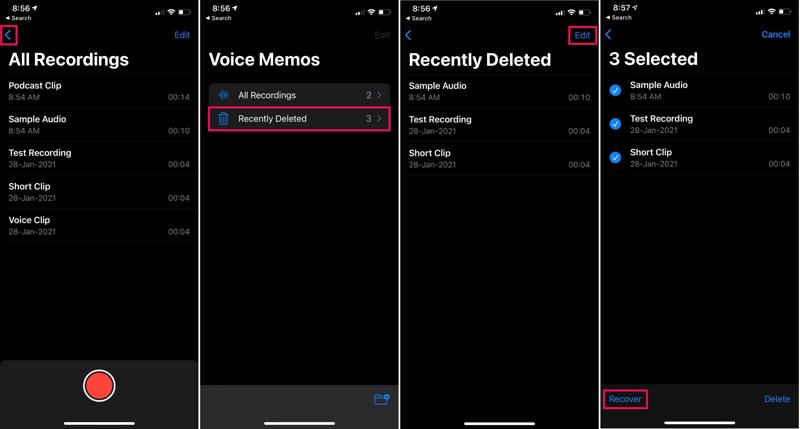
Step 1. Open the Voice Memos app on your iPhone or iPad.
Step 2. Tap the Back button at the top of the screen.
Step 3. Choose the Recently Deleted folder.
Step 4. Now, you will see all voice memos recently deleted.
Step 5. Tap the Edit menu at the top right corner.
Step 6. Select the desired voice memos and tap the Recover button.
Step 7. Go back to the Voice Memos app and check the lost voice memos.
Part 2: How to Recover Lost Voice Memos on iPhone from iCloud Backup
If you have set up iCloud backup, chances are that you can recover lost voice memos on your iPhone. Of course, you must have turned on Voice Memos for iCloud backup and have a backup covering the lost voice memos.
Step 1. Open the Settings app.
Step 2. Tap on your profile and choose iCloud.
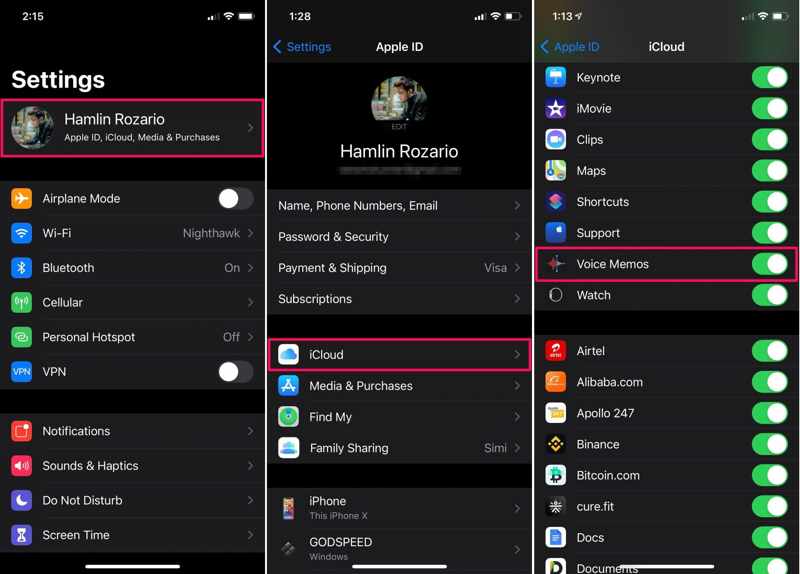
Step 3. If Voice Memos is enabled, go back to the Settings app.
Step 4. Navigate to General and Transfer or Reset iPhone.
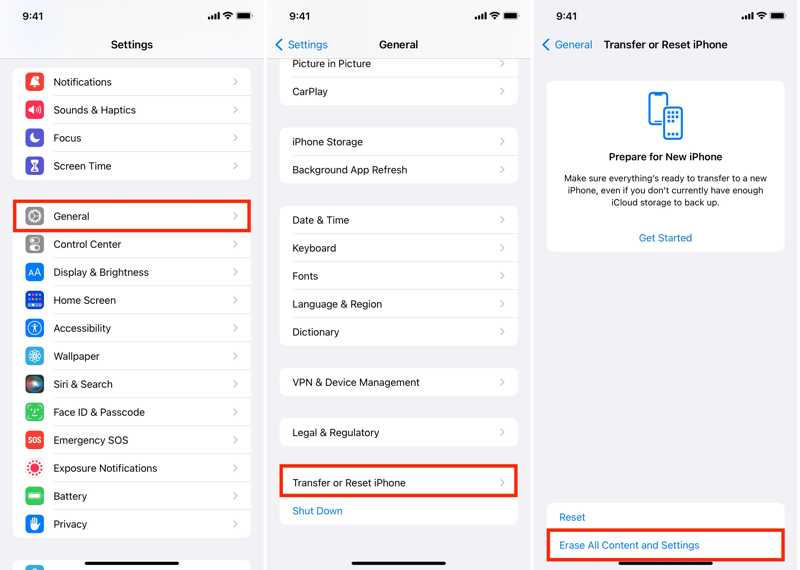
Step 5. Tap Erase All Content and Settings.
Step 6. Hit Continue, authenticate with your iPhone passcode, and confirm erasing your device.
Step 7. When it completes, set up your iPhone and connect to a Wi-Fi.
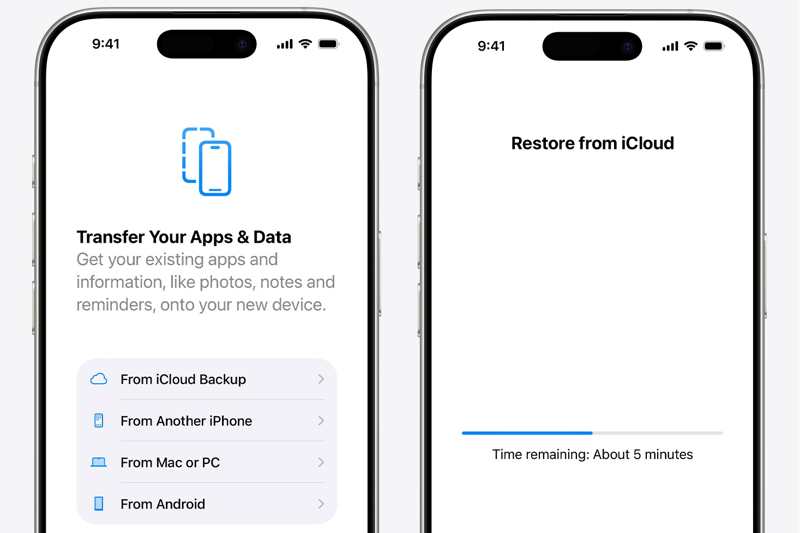
Step 8. Choose From iCloud Backup from the Transfer Your Apps & Data screen.
Step 9. Enter the associated Apple Account and password.
Step 10. Select the right backup to begin voice memos recovery. Without viewing iCloud Backup, you can recover your lot Voice Memos.
Part 3: How to Recover Deleted Voice Memos on iPhone from Computer
If you prefer to back up your iPhone to a computer, you can recover permanently deleted voice memos from your iPhone. This approach requires the backup computer and a compatible USB cable.
Step 1. Connect your iPhone to your computer with a USB cable.
Step 2. Open iTunes on Windows and macOS Mojave or earlier. Or run Finder on macOS Catalina or later.
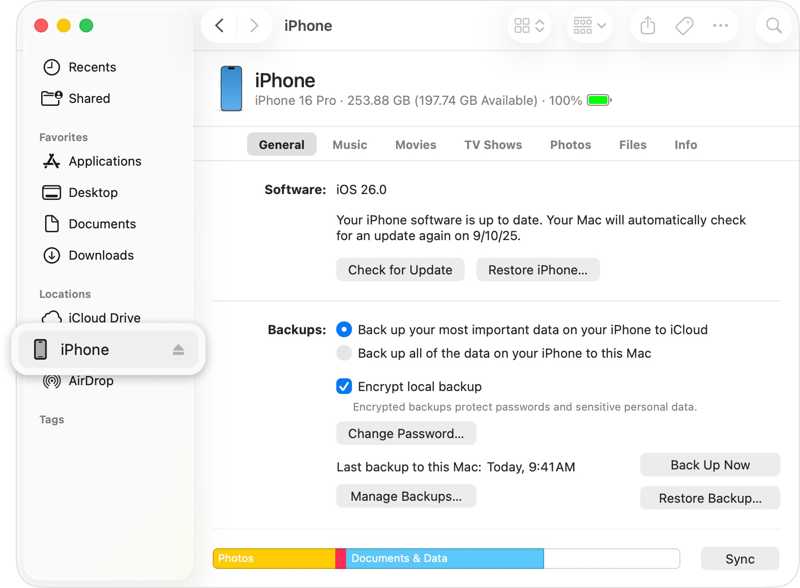
Step 3. Click the Phone button in iTunes after the device is detected, and go to Summary. In Finder, click your device name and head to General.
Step 4. Click the Restore Backup button at the Backups heading.
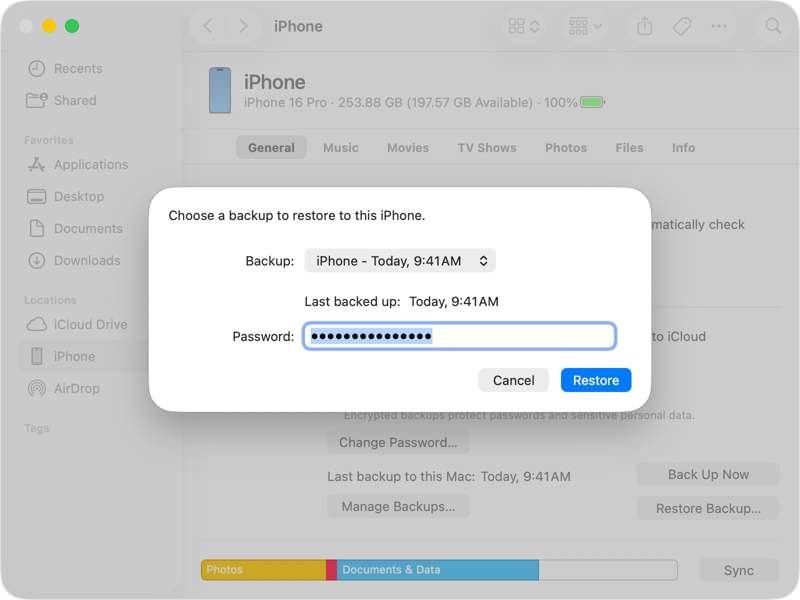
Step 5. Select the right backup and click the Restore button.
Part 4: How to Recover Deleted Voice Memos on iPhone Without Backup
Without a backup, you still can recover deleted voice memos on your iPhone using a powerful data recovery program, such as Apeaksoft iPhone Data Recovery. It is able to scan your iPhone's memory and look for lost voice memos quickly.

Downloaded by over 1,000,000 users
- Recover lost voice memos from your iPhone without backup.
- Retrieve data from iCloud or iTunes backup without restoring your device.
- Preview deleted voice memos and recover selected files.
- Work for a wide range of data types.
- Support the latest editions of iOS and iPadOS.
Secure Download
Secure Download

How to Recover Deleted Voice Memos on Your iPhone
Step 1. Scan your iPhone
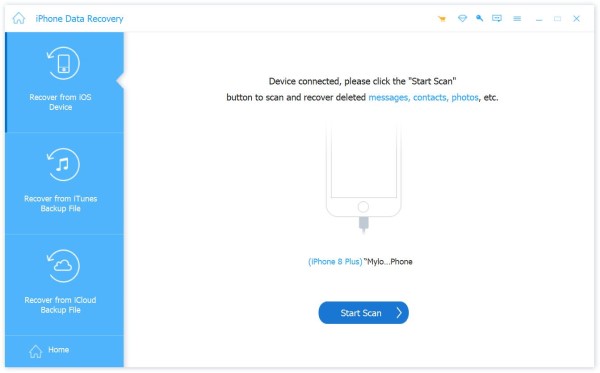
Run the iPhone data recovery software after installing it on your PC. There is a version for Mac. Choose the Recover from iOS Device tab. Plug your iPhone into your PC with a Lightning cable. Once the software recognizes your device, click the Start Scan button.
Step 2. Preview voice memos
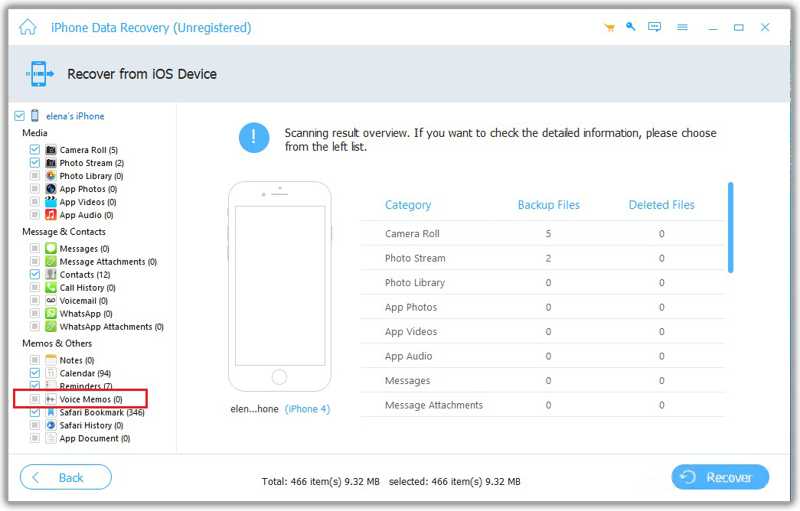
After data scans, select the desired data type, like Voice Memos, on the sidebar. Then, you can preview them in the window. Pick Show Deleted Only from the top option to view deleted voice memos on your iPhone memory.
Step 3. Recover lost voice memos
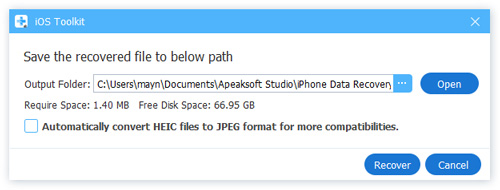
Select the voice memos you want to get back and click the Recover button at the bottom right corner. Then, set an output folder in the Output Folder field and click the Recover button again.
Conclusion
This guide demonstrated four ways to recover deleted voice memos on an iPhone. The Recently Deleted folder lets you find the voice memos that were deleted within 30 days on your iOS device. Of course, you can try the iCloud backup or computer backup files. Bear in mind that they will erase or overwrite current data on your device. Apeaksoft iPhone Data Recovery enables you to retrieve lost voice memos without a backup.
 Apeaksoft iPhone Data Recovery
 Recover deleted or lost data from iOS Devices, iTunes, and iCloud backup.
Secure Download
Secure Download
Related Articles




