


What Is Recovery Mode on Mac and How to Use It on Mac

It is well known that Recovery Mode is available for all iOS devices for troubleshooting. In fact, Mac computers come with the same feature. It is designed to perform a few tasks, bypassing the macOS. However, some users are confused about this feature, such as how it works, how to use it, and more. This concrete guide explains what Mac Recovery Mode is and shares all the knowledge you should know.
PAGE CONTENT:
Part 1: What Is Mac Recovery Mode
The macOS Recovery Mode was introduced in 2010 with Mac OS X 10.7. It is the built-in recovery system on Mac computers, with utilities to reinstall macOS, repair or erase your startup disk, restore from a Time Machine backup, and more.
When to Start Mac in Recovery Mode
- 1.Repair your hard drive if your Mac is malfunctioning.
- 2.Reinstall macOS.
- 3.Restore all data from a Time Machine backup.
- 4.Set the encryption and passwords for different drive volumes.
- 5.Connect to a second Mac with a USB on a Mac with Apple silicon.
- 6.Use Terminal to enter commands.
- 7.Wipe disk drives with Disk Utility.
Part 2: How to Run Mac in Recovery Mode
Starting Mac in Recovery Mode is easy, but the process differs depending on the processor of your MacBook. We demonstrate the workflows for Intel Mac and M1 Mac, respectively, below:
How to Start an Intel Mac in Recovery Mode

Step 1. Click the Apple menu and choose Restart.
Step 2. Once it turns on, press and hold the Cmd + R keys on your keyboard.
Step 3. When the Apple logo appears, let the keys go.
Step 4. Then, your Mac restarts in Recovery Mode.
How to Run M1 Mac in Recovery Mode
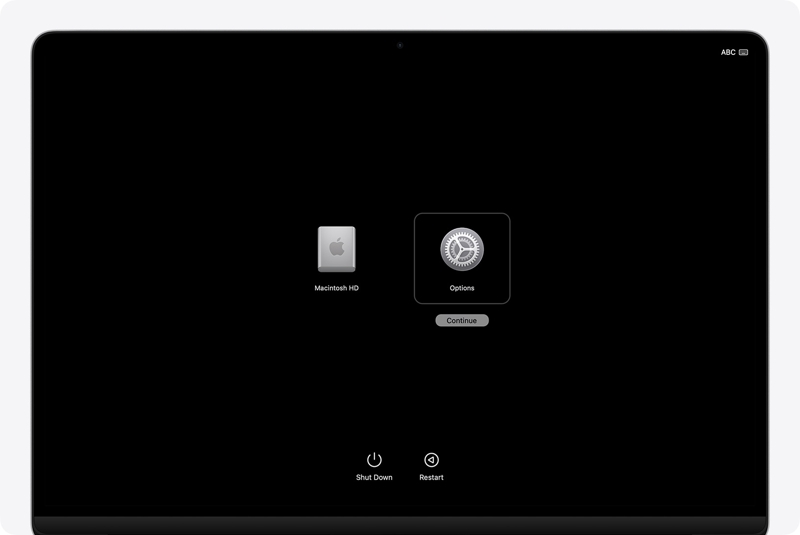
Step 1. Go to the Apple menu and choose Shut Down.
Step 2. Then, hold the Power button until you see Loading startup options.
Step 3. Click the Options button and hit Continue.
Step 4. Type in your admin password if prompted to run Mac in Recovery Mode.
Part 3: How to Use Mac Recovery Mode
While the booting processes are a little different, you will get the same four options in Recovery Mode: Restore from Time Machine, Reinstall macOS, Web Browser, and Disk Utility. After booting into Recovery Mode on a Mac, you can:
How to Restore from Time Machine
Step 1. Choose Restore from Time Machine on the Utilities window.
Step 2. Click the Continue button.
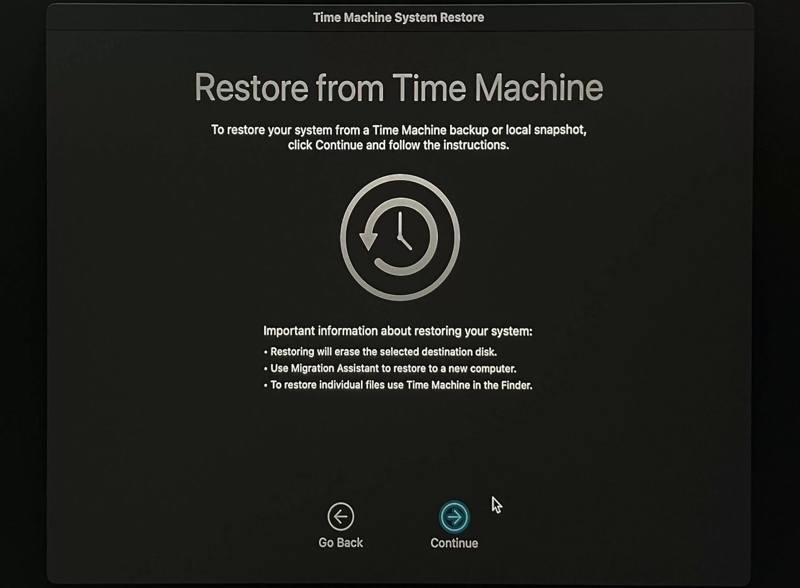
Step 3. Read through the information and hit Continue.
Step 4. Insert the backup medium into your computer and select it from the window.
Tips: To restore a backup on a server, click Other Server.
Step 5. Hit Continue, select the backup, and click Continue.
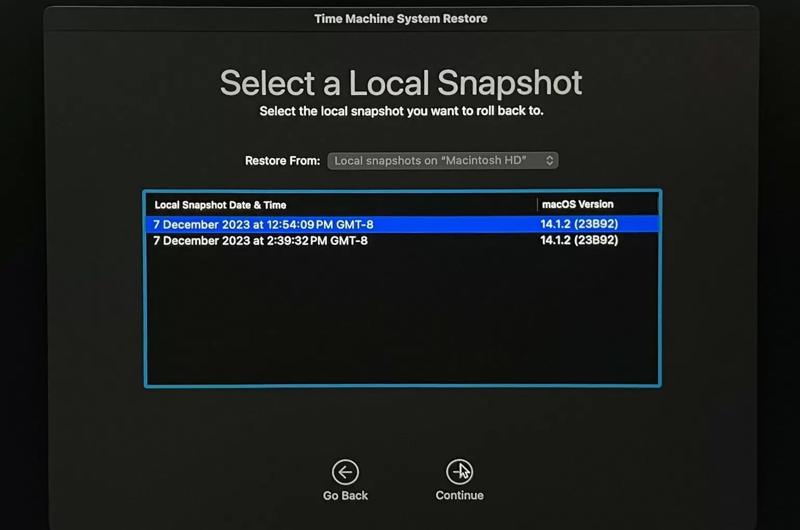
Step 6. Choose where to restore the backup to and click Continue.
Step 7. Finally, click Erase Disk to begin restoring the backup in Mac Recovery Mode.
How to Reinstall macOS
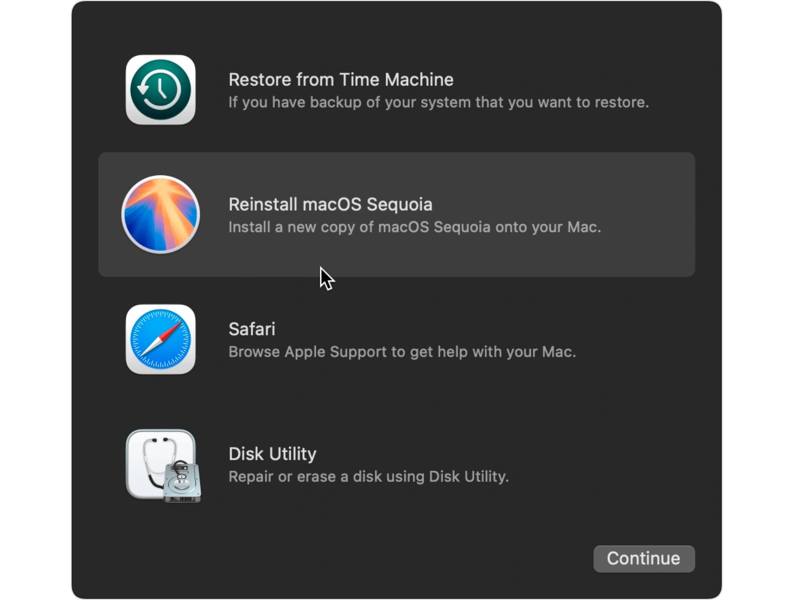
Step 1. Choose Reinstall macOS in Mac Recovery Mode
Step 2. Click the Continue button.
Step 3. Allow installation to complete without putting your Mac to sleep or closing the lid.
Step 4. If prompted, enter your login password.
Step 5. After installation, your Mac will start up to a setup assistant.
Further Reading
How to Open Safari
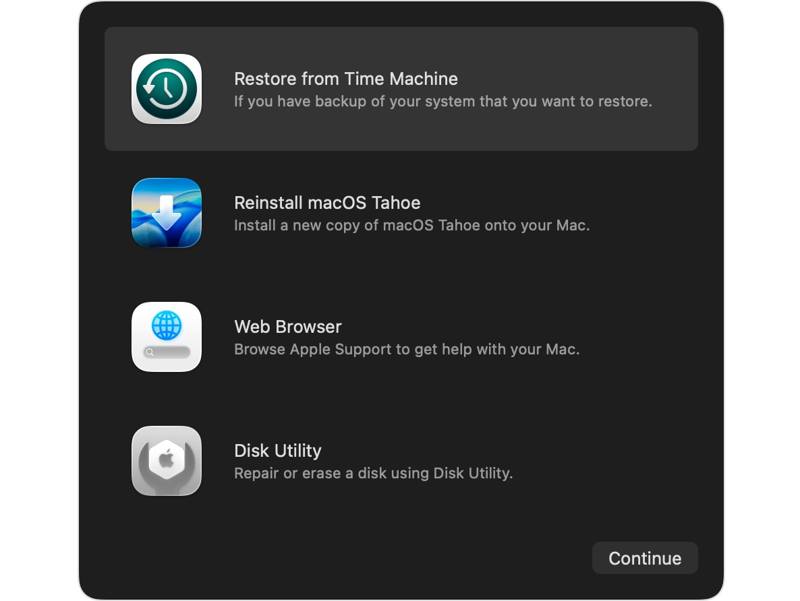
If you want to get help online in Mac Recovery Mode, choose Web Browser or Safari and click the Continue button. Then, you can search for the desired information in your web browser.
How to Repair a Disk
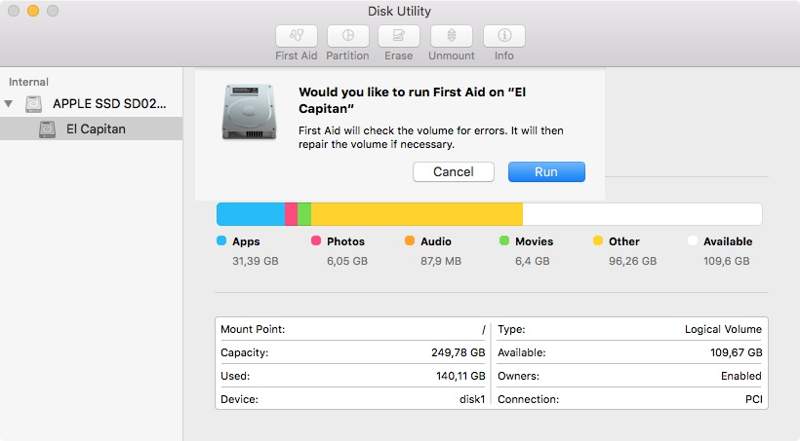
Step 1. After booting into Mac Recovery Mode, choose Disk Utility and hit Continue.
Step 2. Select the desired volume.
Step 3. Click the First Aid menu.
Step 4. Click Repair Disk and hit Run to start the process.
How to Erase Your Mac
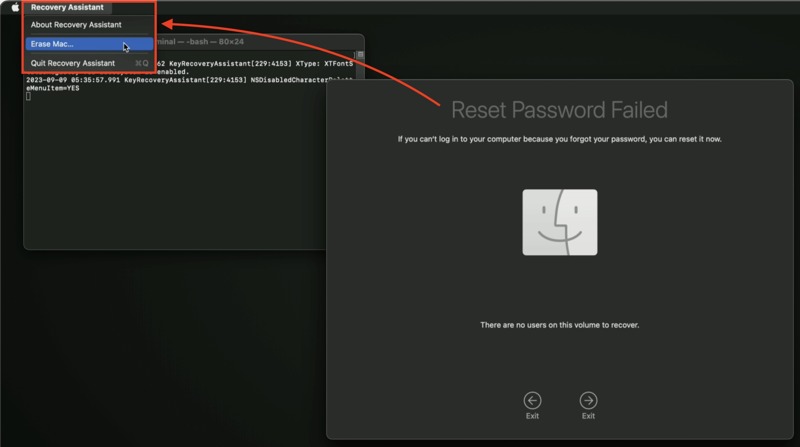
Step 1. Once you put Mac in Recovery Mode, click the Recovery Assistant menu, and choose Erase Mac.
Step 2. Next, select Erase Mac on the alert window.
Step 3. Finally, hit Erase Mac to confirm it again. It will be better if you have previous backups that can help you recover data on your Mac.
Part 4: How to Get out of Recovery Mode on Mac
If you accidentally enter Recovery Mode or complete the task, you can get out of Recovery Mode on a Mac quickly. Moreover, you have multiple ways to boot into the standard macOS window.
Option 1: Restart Mac
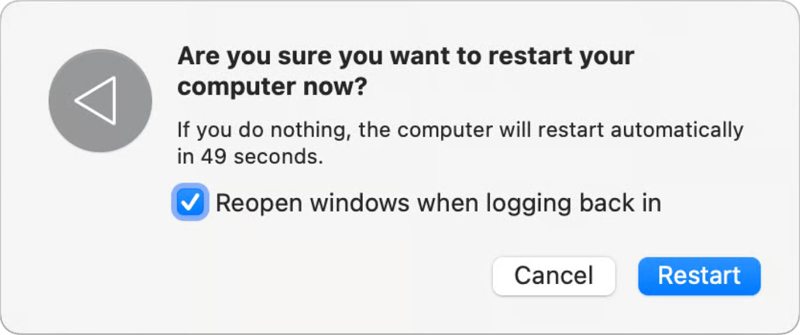
Step 1. Click the Apple menu and choose Restart.
Step 2. When prompted, click the Restart button and wait for the system to restart into the standard macOS.
Option 2: Use Startup Disk Settings
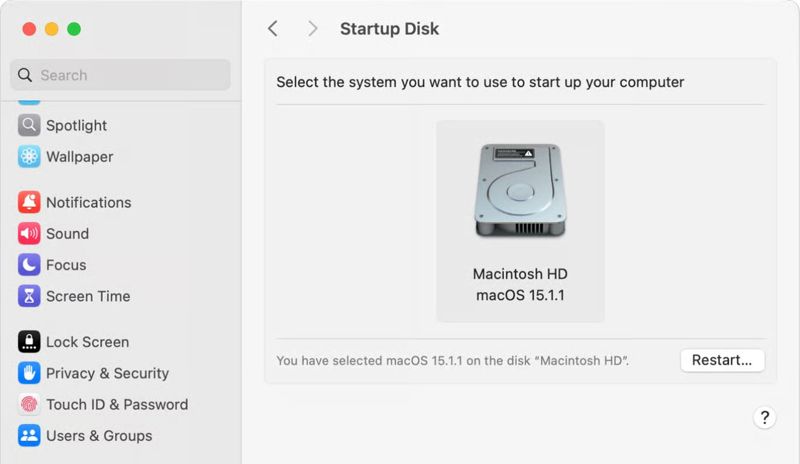
Step 1. Click the Apple menu and choose System Settings.
Step 2. Go to General.
Step 3. Select the startup hard disk and click Restart.
Part 5: How to Recover Data on Mac
Even if Mac Recovery Mode is not working, you can recover data from your machine using Apeaksoft Data Recovery. It extracts lost data from your hard drive without a backup. Moreover, it offers a full set of useful features for Mac recovery.

Downloaded by over 1,000,000 users
- Recover data from a Mac without a backup.
- Support a wide range of data types.
- Preview lost data for selective recovery.
- Offer a deep scan mode.
- Work on Mac OS X 10.7 or above.
Secure Download
Secure Download

How to Recover Data on Your Mac Computer
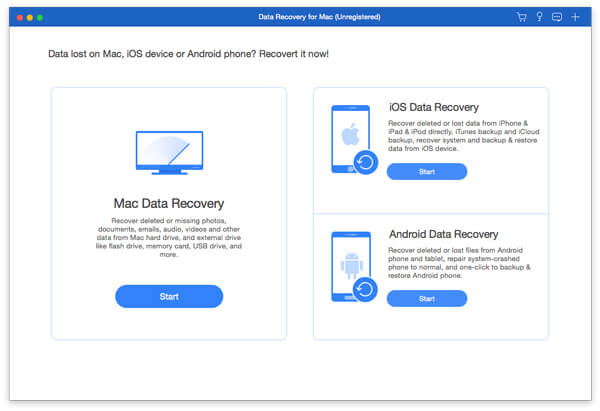
Step 1. Set up the Mac recovery tool
Run the Mac data recovery application after installing it on your computer. Select where the data is stored and the desired data types. Click the Scan button to proceed.
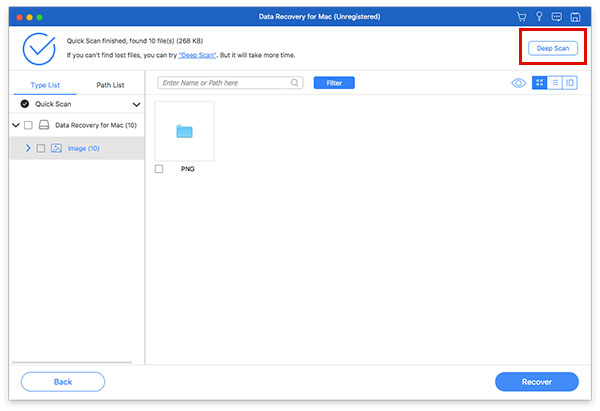
Step 2. Preview lost data
After data scanning, go to the Type List tab and preview lost files by type. If you want to view files by directory, go to the Path List tab.
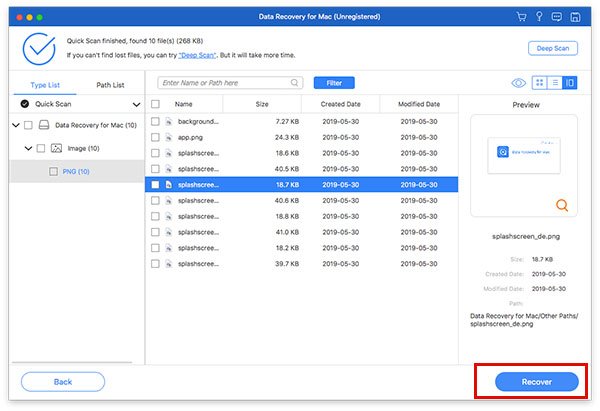
Step 3. Recover Mac data
Select the files you want to recover and click the Recover button. Set the output folder and confirm data recovery on Mac.
Conclusion
Following our guide, you should understand what macOS Recovery Mode is, how to start it, and how to use this mode to perform various tasks, such as restoring a backup, repairing a disk, or erasing the Mac. Furthermore, we recommend Apeaksoft Data Recovery to help you recover data from your Mac without a backup.
 Apeaksoft Data Recovery
 Recover deleted or lost data on Windows and Mac computer.
Secure Download
Secure Download
Related Articles




