

Why Replay File Corrupted and How to Fix This Issue

"When I want to watch my gameplay, I notice an error message says This replay file has been corrupted and couldn’t be loaded. How to fix this problem?" Developers, content creators, and coaches heavily relied on the replay files for analysis and content creation. However, they may encounter a bug that corrupts replay files after matches. This article explains why this problem happens and how to fix it with effective solutions.
PAGE CONTENT:
Part 1: Why Replay File Is Corrupted
The replay files in League of Legends are recordings of your gameplay. It allows you to review your matches, analyze strategies, and learn from practices and mistakes. These files are saved locally on your hard disk, but you can only access them through the League of Legends client due to encryption. Why do you encounter the error that this replay file has been corrupted and cannot be launched?
1. File transfer issues. Transferring replay files from one folder to another, especially during the downloading process, can corrupt League of Legends replay files.
2. Improper shutdown. If your gameplay suddenly crashes or your computer unexpectedly powers off while a replay file is being saved, it may become corrupted.
3. Outdated game version. You’d better keep your game up to date; otherwise, you may encounter compatibility issues with replay files.
4. Software conflicts. League of Legends records your gameplay and saves the replay file in the background. If other software running in the background interferes with the LOL client, a corrupt reply file error will occur.
5. Converting the replay file to MP4. League of Legends encrypts replay files and saves them in ROFL. If you convert them to MP4, the LOL client cannot recognize them.
Part 2: How to Fix a Corrupted Replay File
Solution 1: Verify Game Files1
The built-in repair tool in League of Legends can resolve the common issues, including missing or corrupted files. Therefore, it is the first thing you can try to fix corrupted League replay files.
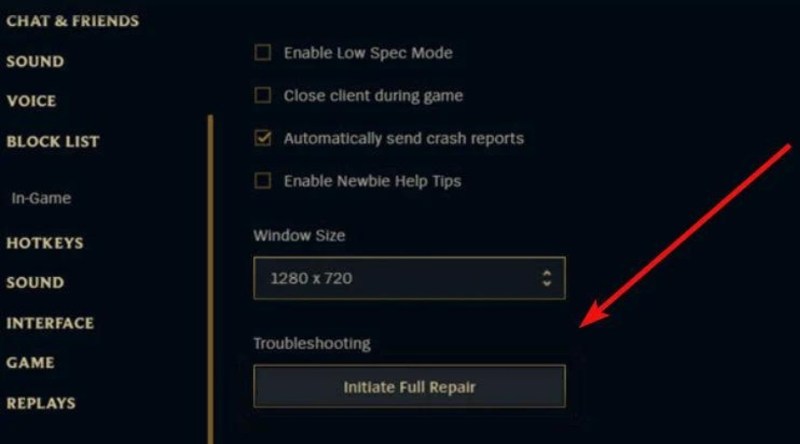
Step 1. Open the Riot client and log in to your account.
Step 2. Click your profile button in the upper right corner.
Step 3. Choose Settings and click the Initiate Full Repair button.
Step 4. Follow the prompts to repair your replay files.
Step 5. When it is done, try the replay file again.
Solution 2: Download Reply Files Again
If something goes wrong when rendering the replay file, you may encounter an error with the League replay file being corrupted. In addition to your local disk, LOL also saves your replay files on its servers. Therefore, you can download replay files again.
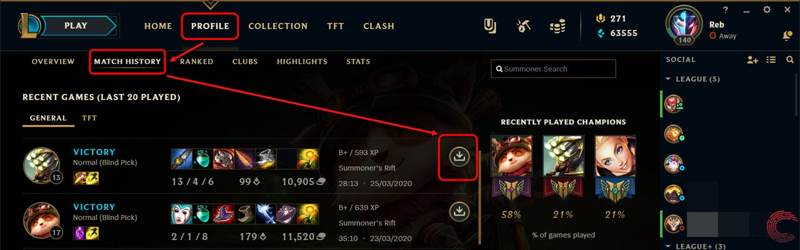
Step 1. Log in to your LOL client.
Step 2. Go to the PROFILE tab and choose MATCH HISTORY.
Step 3. Locate the corrupted replay file and click the Download button.
Note: If you cannot find the Download button, find the replay file on your drive and delete it.
Solution 3: Update and Reinstall LOL
If LOL doesn’t automatically update, you have to do it manually. If your game update fails, you need to completely uninstall the client and then reinstall it on your hard disk. Here are the steps:

Step 1. Open the Riot client and sign in to your account.
Step 2. If you see the Update button under your game in the My Games section, open it.
Step 3. The game files will begin downloading.
Step 4. If your game update fails, exit LOL if you are running the game.
Step 5. Open the Settings app from the Start menu.
Step 6. Choose Apps, find and click League of Legends.
Step 7. Hit Uninstall to remove LOL.
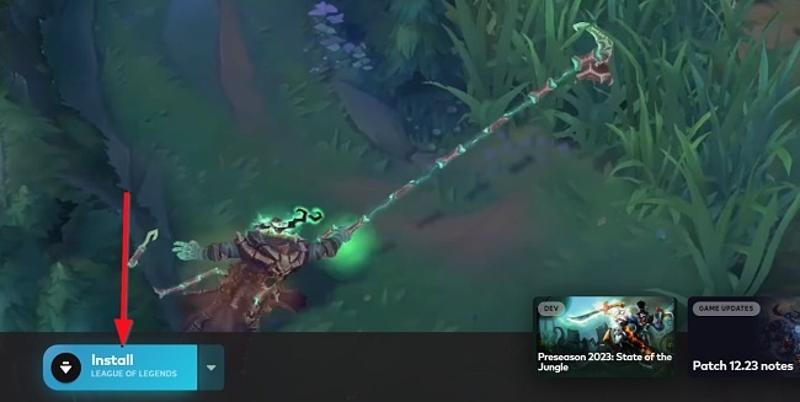
Step 8. Next, install your game client from the official website.
Step 9. Sign in to your account and check the replay files.
Solution 4: Rename Your Replay Files
The replays are saved as ROFL files on your hard drive. If you encounter the error message saying this replay file has been corrupted and cannot be launched, you can try renaming it, and you will find the replay files work again.
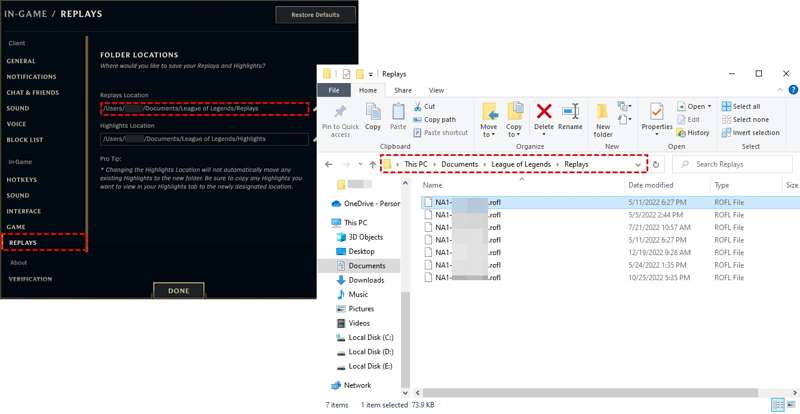
Step 1. To find where the replay files are on the league, open the client and log in to your account.
Step 2. Go to In-Game settings, and choose REPLAYS.
Step 3. Check the Replays Location and navigate to the folder.
Step 4. Rename the corrupted replay files and make sure the file extension is rofl.
Part 3: How to Recover Corrupted Replay Files
If your corrupted replay files are lost and you cannot find them on the servers, Apeaksoft Data Recovery can help you recover them. It can effectively restore any deleted and lost files from your hard disk.
How to Recover Corrupted Replay Files
Step 1. Scan your drive
Launch the best file recovery software after you install it on your computer. Go to the Hard Drive Recovery tab and select the disk where you stored your replay files. Click the Start Scan button to begin looking for lost files on your drive.

Step 2. Preview lost files
After the first scan, the software will automatically perform a deep scan. When the data scan finishes, go to the Path List tab and navigate to where replay files are stored, or go to Type List and search for rofl files.
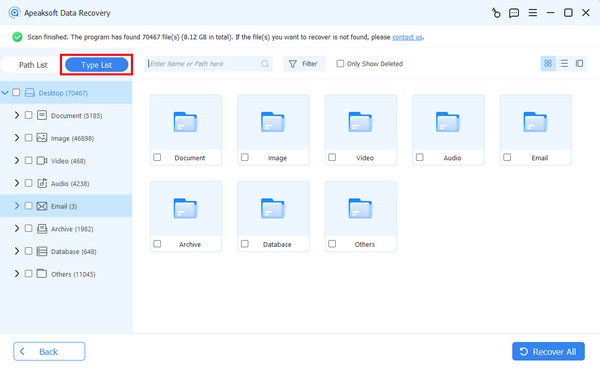
Step 3. Recover replay files
Finally, select the corrupted replay files and click the Recover button. Set an output folder and confirm file recovery. You can also recover deleted videos on your computer.

Conclusion
This guide demonstrated five solutions to fix corrupted League replay files. We explained why this error happens. Moreover, you can follow our solutions to get rid of the problem quickly. Apeaksoft Data Recovery helps you recover the corrupted replay files quickly. If you have other questions about this topic, please feel free to write them down below this post, and we will reply to them quickly.
Related Articles




