


6 Best Paid and Free USB Recovery Software on Windows/Mac

As a portable data storage device, a USB flash drive uses flash memory to store files, including documents, photos, videos, audio files, and more. It is typically removable, rewritable, and portable. Therefore, it is widely used for temporarily data transfer and backup. However, the strength is the main weakness of USB flash drives. This article identifies and reviews the top 6 best data recovery software for USB flash drives.
PAGE CONTENT:
Part 1: Comparison of Top USB Recovery Software
Methodology
We tested the popular USB recovery tools on the market and collected hundreds of users’ reviews. The top list is based on our in-lab research and collected information. The key factors we focus on include the price, supported file systems, preview feature, performance, scan functionalities, and more.
| Price | File Systems | Deep Scan | |
| Apeaksoft Data Recovery | Free demo $22.45 monthly, $55.96 yearly, $71.96 lifetime | FAT32, exFAT, NTFS, HFS+, ext4, and more | Yes |
| DiskGenius | Free demo $69.90 monthly, $99.90 yearly, $129.90 lifetime | FAT32, exFAT, NTFS, ext3/4 | Yes |
| Undelete 360 | Free $39.00, $69.00 | NTFS, exFAT, FAT32 | |
| TestDisk | Free | FAT, exFAT, NTFS, ext2/3/4, HFS+, more | Yes |
| PhotoRec | Free | Yes | |
| Puran File Recovery | Free | NTFS, FAT32, UDF, CDFS, RAW, and so on | Yes |
Part 2: Top 3 Pro USB Recovery Software
Top 1: Apeaksoft Data Recovery
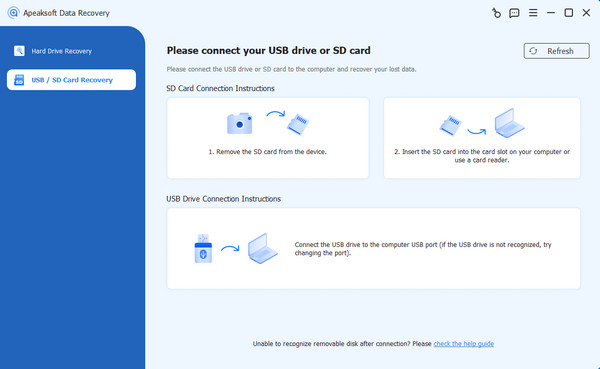
Apeaksoft Data Recovery is a fast USB flash data recovery software on Windows and macOS. It is able to deeply scan your USB flash drive and look for lost files even if your USB is corrupted or damaged. More importantly, the concise design makes it easy to learn.
- Easy to use.
- Recover all files from the USB.
- Work on a wide range of file types.
- Lightweight and fast.
- It may take time if you have lots of files on a USB.
Here are the steps to recover deleted files from a USB drive:
Step 1. Scan your USB
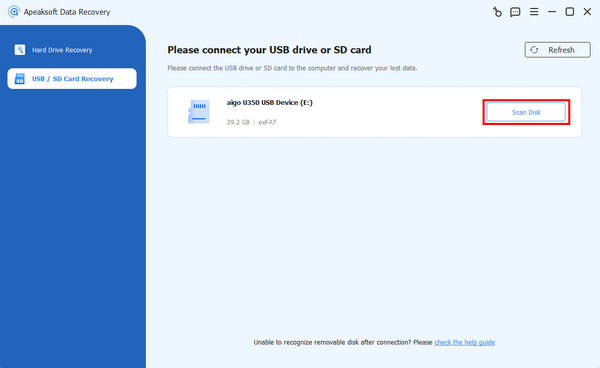
Start the USB recovery software after installing it on your PC. There is another version for Mac. Insert the USB flash into your PC, and go to the USB / SD Card Recovery tab. Pick your drive from the drop-down list, and click Scan Disk.
Step 2. Preview files
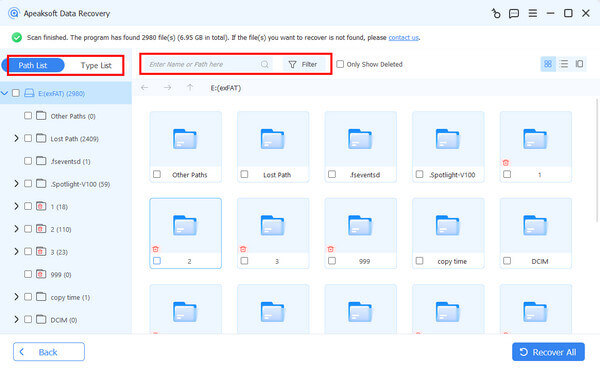
After a quick scan, the software will perform a deep scan. Then, you can view your files by type in the Type List tab.
Step 3. Recover USB
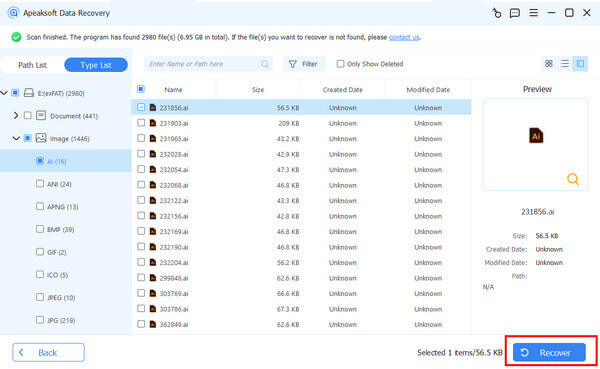
Select the files you want to retrieve, and click the Recover button. Set another location to save these files and confirm USB recovery.
Top 2: DiskGenius
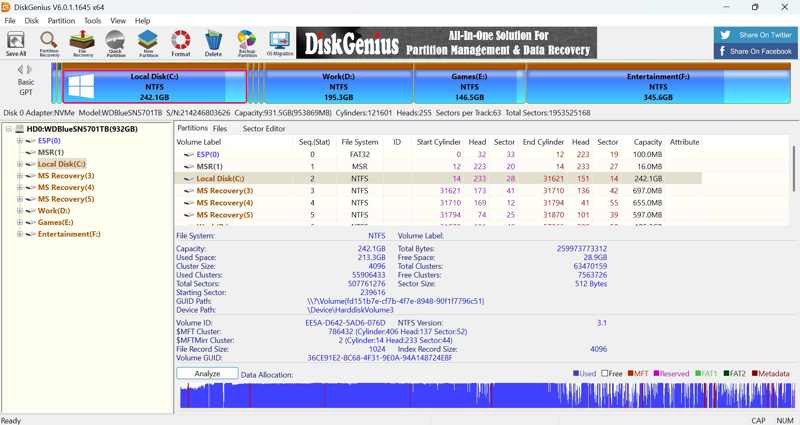
DiskGenius is a reliable data recovery software for USB sticks released in 2010 by Eassos. It includes three editions: Free, Standard, and Pro. Beginners can try the free version before purchasing a license.
- Include a free edition.
- Recover files from USB quickly.
- Offer a backup and restore tool.
- Support various file systems.
- The interface is not friendly for beginners.
Here are the steps to recover files from a USB drive:
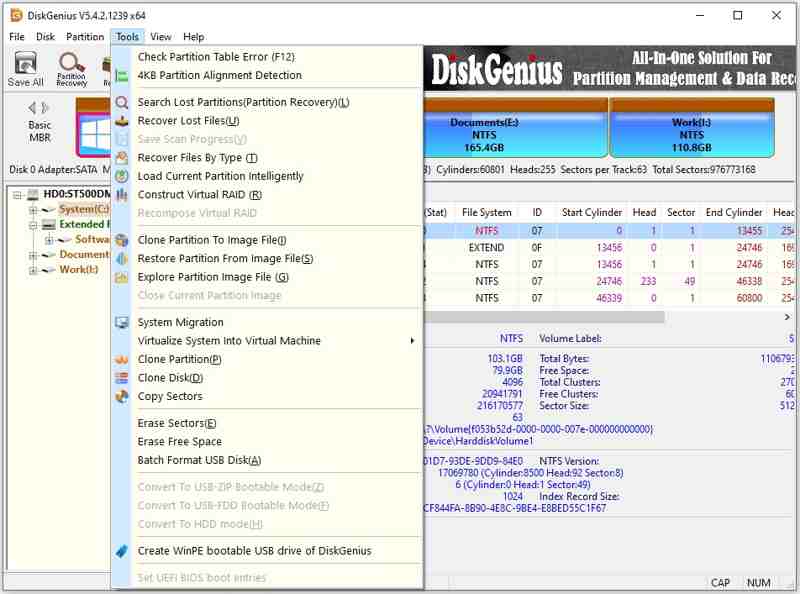
Step 1. Open the USB recovery tool after installation.
Step 2. Click your USB drive in the left sidebar.
Step 3. Go to the Tools menu and choose Recover Lost Files.
Step 4. Preview the files and recover the desired items.
Top 3: Undelete 360
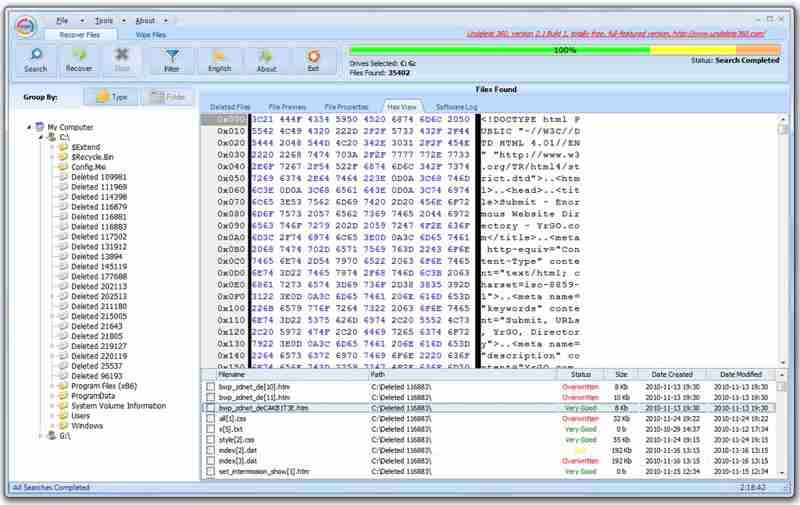
Undelete 360 is a great data recovery software for USB drives on Windows 2000 and later. It is designed to quickly scan your USB flash drive or other storage media for recently deleted file recovery.
- Simple to use.
- Free to download.
- Strong recover performance.
- Lightweight installation.
- It lacks a deep scan.
Here are the steps to recover data from a USB drive:
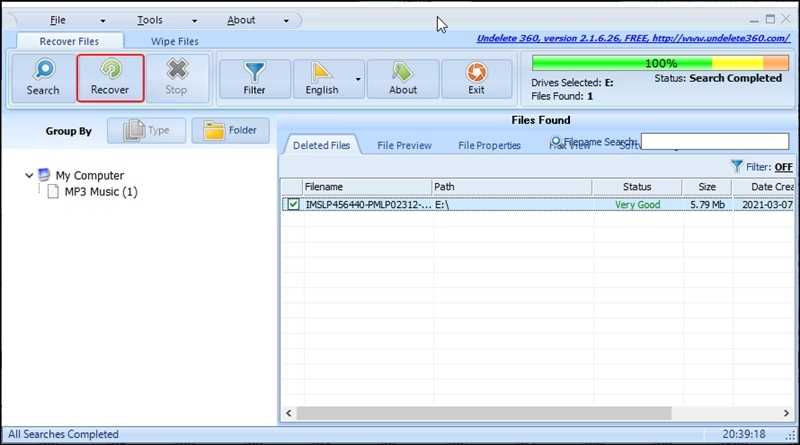
Step 1. Install the USB recovery tool and open it.
Step 2. Click the Search button and select the USB drive.
Step 3. Click the Start button to continue.
Step 4. Next, select the desired files and hit Recover.
Further Reading
Part 3: Top 3 Free USB Recovery Tools
Top 1: TestDisk
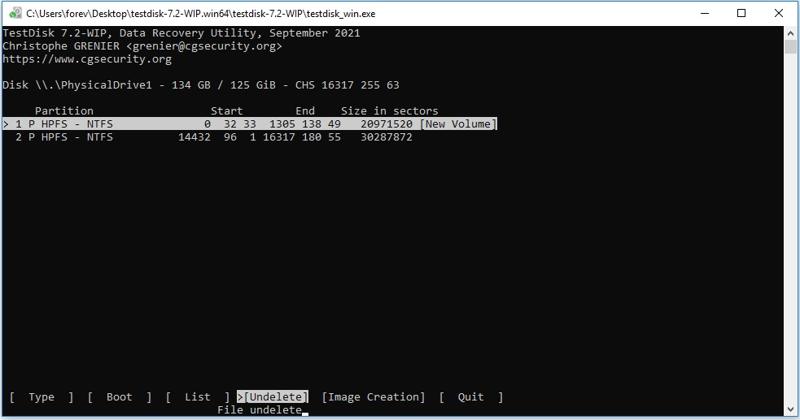
TestDisk is a free USB flash memory recovery program since it is open source. It can recover recently deleted files from USB flash drives through command lines. It works even if your USB is damaged.
- Free of charge.
- Available for Windows, macOS, and Linux.
- Lightweight and portable.
- Repair corrupted partitions.
- It requires technical knowledge.
Here are the steps to recover deleted files from a USB:
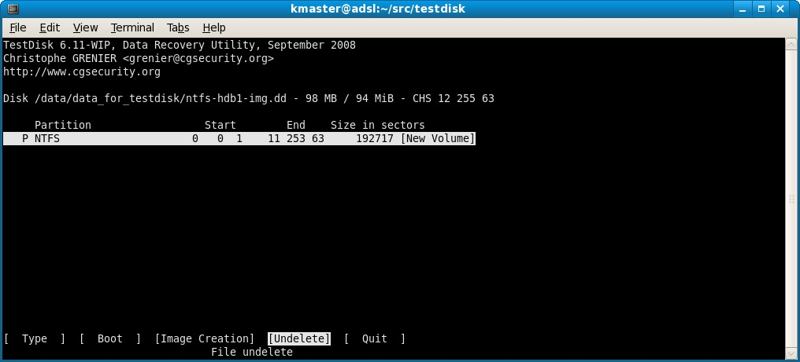
Step 1. Run TestDisk in the archive.
Step 2. Choose Create with the arrow keys.
Step 3. Next, select your USB flash drive.
Step 4. Select Advanced, highlight the partition, and choose Undelete.
Step 5. Select the desired files and set an output folder.
Top 2: PhotoRec
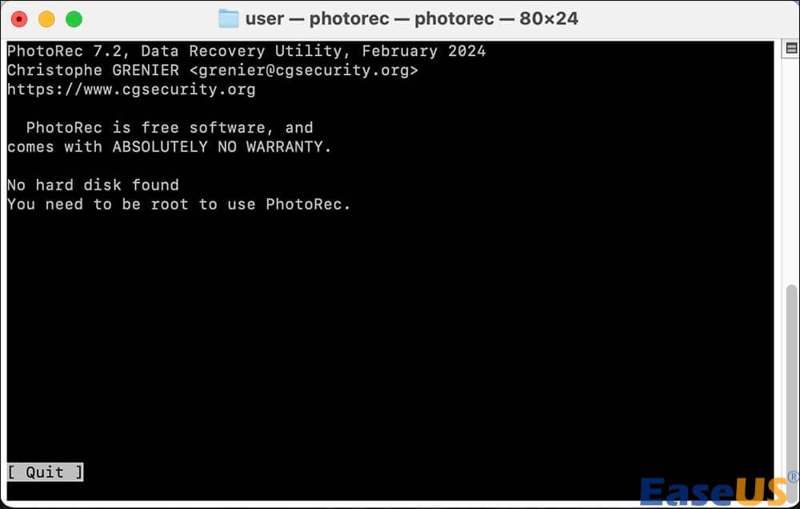
PhotoRec is another free USB memory recovery tool. While it is designed for photo recovery, it works for documents, videos, and more. If TestDisk is unavailable, you can try PhotoRec to recover your USB.
- Completely free.
- Work on the damaged USB.
- Recognize hundreds of file formats.
- Cross-platform support.
- The original filenames and folder structure will be lost.
Here are the steps to recover a corrupted file from a USB:
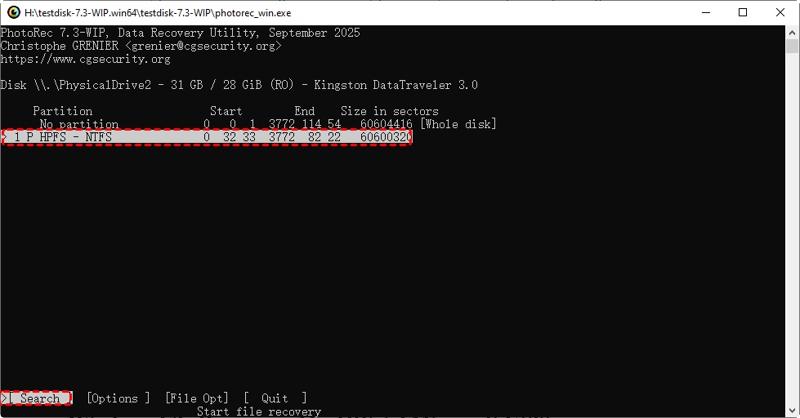
Step 1. Run PhotoRec in the archive.
Step 2. Use the arrow keys to select the USB.
Step 3. Select Proceed and hit Enter.
Step 4. Select the right partition and choose Search.
Step 5. Pick the file system type and scan your USB.
Step 6. Select another directory with the arrow keys, and hit C on your keyboard.
Top 3: Puran File Recovery
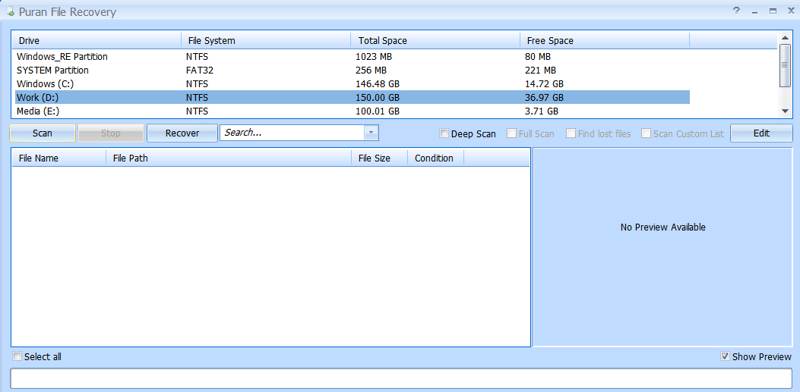
If you need a free USB recovery tool with a GUI, Puran File Recovery is a good option. While it is older than competitors, it can search over 50 file types on USB flash drives to find the lost data.
- Recover recently deleted files.
- Downscale results with filters.
- Offer a portable version.
- Support multiple file systems.
- It has not been updated for years.
Here are the steps to recover lost files on a USB drive:
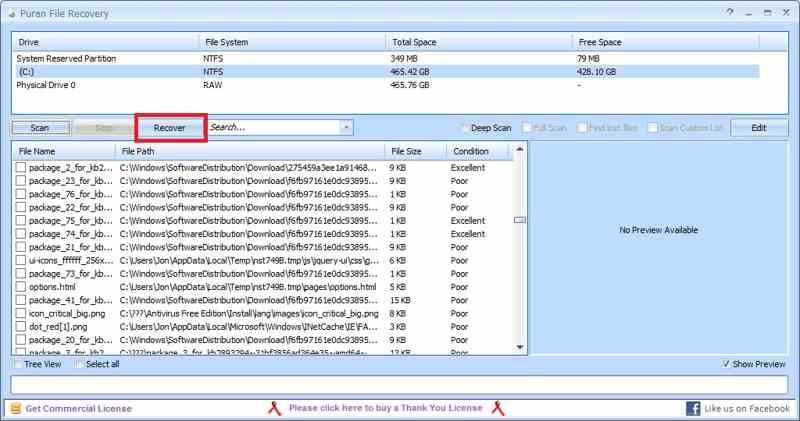
Step 1. Install the USB recovery tool and start it.
Step 2. Choose your USB and click Scan.
Step 3. Check the desired files in the result.
Step 4. Click the Recover button.
Conclusion
Now, you should learn the top 6 best USB flash data recovery software. Some of them require a license or subscription. Others are completely free to download and use. You can pick an appropriate one based on your situation. Apeaksoft Data Recovery is a good option for beginners.
Related Articles




