


How to Restore Mac from Time Machine Backup in 3 Ways

Time Machine is a built-in macOS feature that helps you recover deleted Mac files, fix system issues, or transfer files to a new Mac. This post is a detailed guide to walk you through how to restore Mac from Time Machine for different needs. If you want to restore your Mac to a previous state, or restore individual files from Time Machine to a new Mac, this guide has you covered.
PAGE CONTENT:
What Is Time Machine and What You Can Restore
What is Time Machine? You can simply think of it as a full-device backup tool built into macOS. It can automatically back up your Mac to an external hard drive, SSD, or supported network storage device. You can restore all the content from a certain backup point if your data is lost, your system goes wrong, or you even get a new Mac.
It is kind of like iTunes/Finder backup, but iTunes/Finder backup is for iPhone or iPad devices, while Time Machine can back up the whole Mac. What's more, unlike iTunes whole backup restore, Time Machine enables you to restore an individual file.
What can you restore using Time Machine? With it, you can restore different types of content based on your needs as follows:
- Individual files or folders
- Photos, videos, documents, and other personal data
- Apps and user data
- User account and system settings
- …
Before You Start: Set up Time Machine on Your Mac
Before you restore your Mac from a Time Machine backup, you need to have an available backup first. Follow the guide below to set up Time Machine for backup.
Preparations: an external hard drive or SSD with enough storage space (preferably larger than your Mac's internal storage)
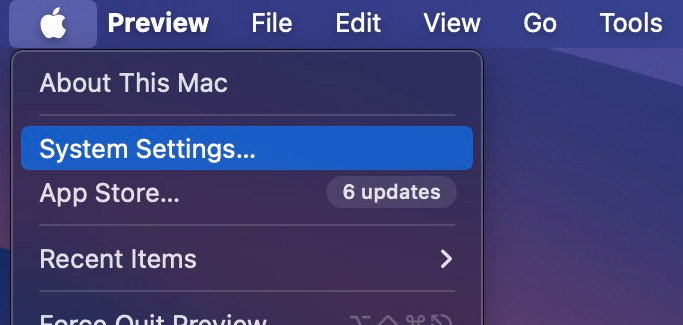
Step 1. Click the Apple menu in the top-left corner and choose System Settings.
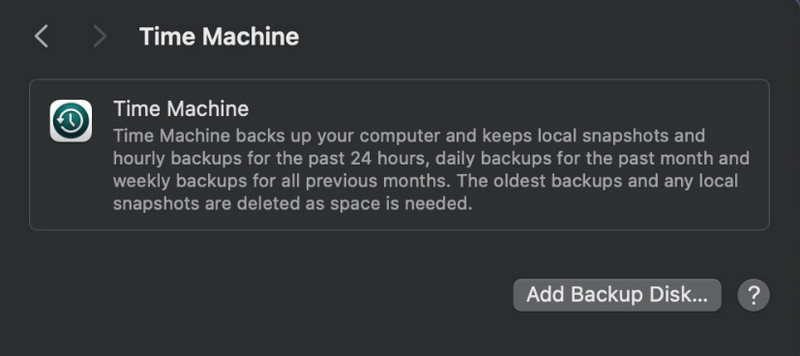
Step 2. Click General - Time Machine.
Step 3. Click Add Backup Disk.
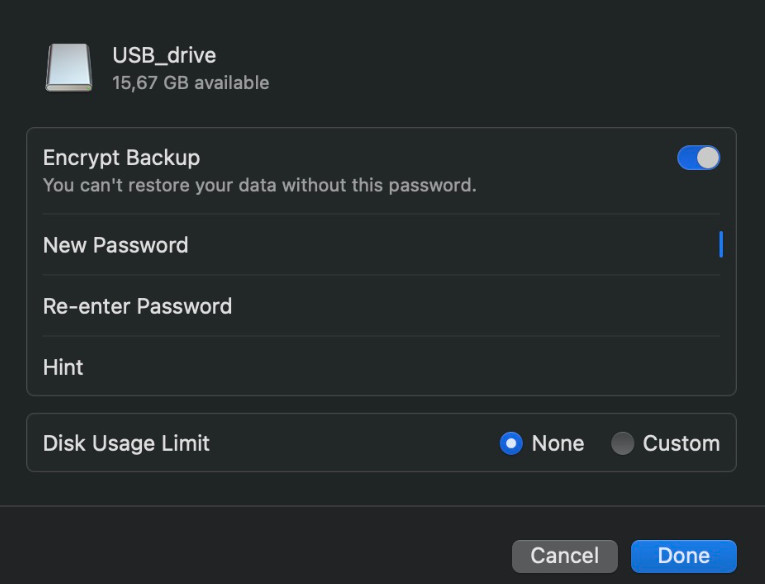
Step 4. Choose your connected external hard drive or SSD and click Set Up Disk.
Step 5. Follow the on-screen instructions to complete the setup.

Downloaded by over 1,000,000 users
- Recover deleted files on Mac without Time Machine backup.
- Recover lost files from accidental deletion, formatting, or system crashes.
- Preview recoverable files before restoring them.
- Selectively recover only the files you need.
Secure Download

How to Restore Files and Folders from Time Machine
If you've just deleted or lost some important files on your Mac, it is very convenient to use Time Machine to restore deleted files on Mac. The steps are simple as well.
Step 1. Open Finder and locate the folder where your lost files are.
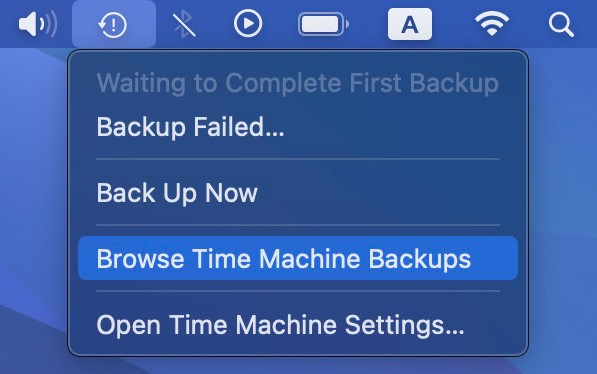
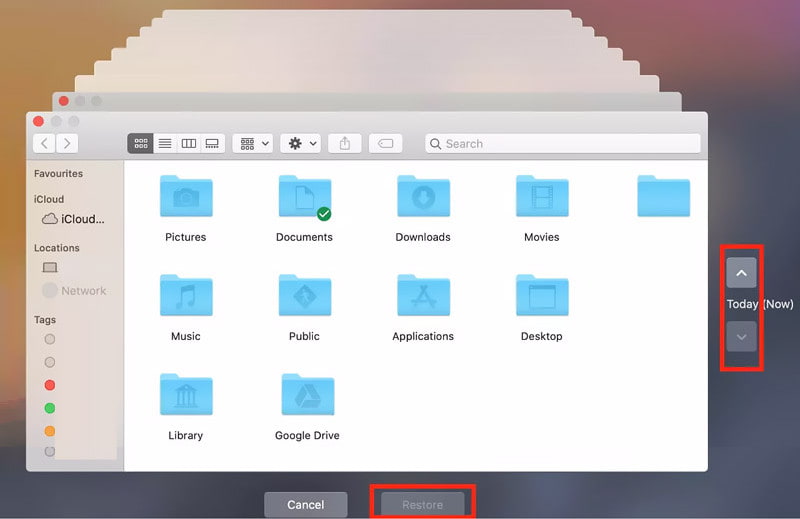
Step 2. Click Time Machine in the menu bar and choose Browse Time Machine Backups.
Step 3. Use the timeline on the right to find the backup date when the file or folder was still available.
Step 4. Click Restore and the lost file will be restored to its original location.
How to Restore an Entire Mac from Time Machine Backup
If you encounter some serious system issues on your Mac, or you simply want to return your Mac to a previous state, Time Machine can also help you restore your Mac using a previous backup instead of restoring only individual files or folders.
Step 1. Enter macOS Recovery.
| Mac | Steps |
| Mac with Apple silicon | Shut down your Mac, then press and hold the power button until you see Loading startup options. SelectOptions and click Continue. |
| Intel-based Mac | Restart your Mac and immediately press and hold Command + R until you see the Apple logo or a spinningglobe. |
Step 2. Choose Restore from Time Machine.
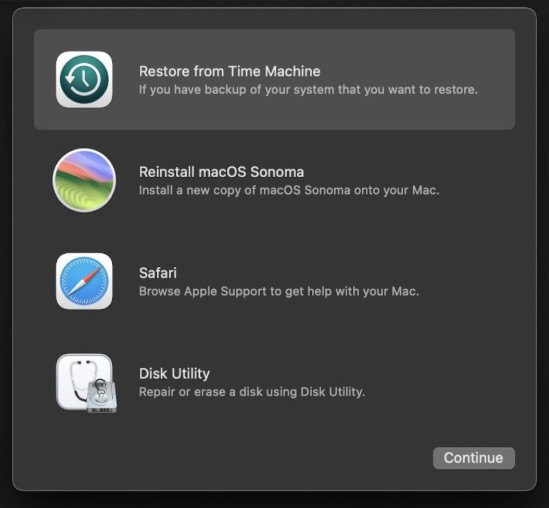
Step 3. Select your backup disk.
Step 4. Choose a backup according to the date and time. Follow the on-screen instructions to continue.
How to Restore Time Machine Backup to Another Mac
If you've just got a new Mac, but you want to keep all the data and settings from your old Mac, you can also use Time Machine to transfer your files, apps, user accounts, and settings to a new Mac. Just follow the detailed steps below to restore individual files from Time Machine to a new Mac:
Step 1. Connect the Time Machine backup disk to your new Mac.
Step 2. Set up your new Mac, choose From a Mac, Time Machine, or startup disk in the Migration Assistant window.
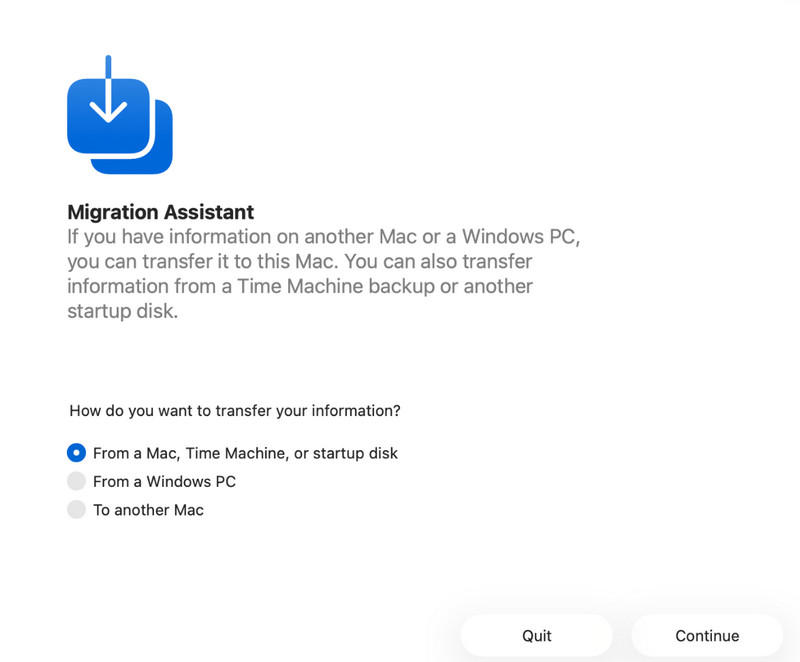
Step 3. Choose the Time Machine backup disk, and choose the corresponding backup. Click Continue to start.
Conclusion
All in all, Time Machine is a useful feature on the macOS system that can help you in many situations, from backing up your data to restoring lost files and even recovering your entire Mac. Hope this guide on how to restore from Time Machine on Mac will be helpful!
 Apeaksoft Data Recovery
 Recover deleted or lost data on Windows and Mac computer.
Secure Download
Secure Download
Related Articles




