


Restore WhatsApp Backup from Google Drive on iPhone 18 Pro/17/16

WhatsApp holds years of irreplaceable memories, critical business chats, and essential media attachments. If you are an Android user making the switch, your first instinct is likely to look for your chat history in the cloud. However, you will quickly encounter a frustrating cross-platform barrier. A common question among switching users is: can you restore whatsapp from google drive to iphone?
The short answer is: No, not directly through the app itself. WhatsApp does not provide a native, one-click button to pull a backup from Google Drive directly onto an iOS device. Fortunately, "not directly" does not mean impossible. In this comprehensive tutorial, we will explain exactly why this barrier exists and provide the most effective, verified methods on how to restore whatsApp backup from google drive on iPhone without losing a single message.
PAGE CONTENT:
- Part 1: Why Can’t You Directly Restore WhatsApp from Google Drive to iPhone?
- Part 2: The Best Way to Restore WhatsApp Backup from Google Drive to iPhone
- Part 3: Restore WhatsApp Backup from Google Drive on iPhone via Move to iOS
- Part 4: Restore WhatsApp Backup from Google Drive on iPhone via Email
- Part 5: Comparison of the Three Ways to Restore WhatsApp Backup from Google Drive to iPhone
Part 1: Why Can’t You Directly Restore WhatsApp from Google Drive to iPhone?
To understand how to restore WhatsApp backup from google drive to iPhone, it helps to understand why the process requires a workaround in the first place.
Mismatched Cloud Storage: WhatsApp on Android is hardwired to back up and restore data using Google Drive. Conversely, WhatsApp on iOS is built to work exclusively with Apple's iCloud. The iOS version of WhatsApp does not even have an option to log into a Google Account to search for backups.
Different Encryption Protocols: Even if you download your backup file from Google Drive onto a computer, an iPhone cannot read or parse the database structure. Android and iOS use completely different encryption keys and file formatting systems to protect your chat logs.
Part 2: The Best Way to Restore WhatsApp Backup from Google Drive to iPhone
If you have already set up your iPhone and do not want to perform a factory reset, or if you want a straightforward process that completely bypasses cloud compatibility issues to directly restore WhatsApp Backup from Google Drive to iPhone, using a professional cross-platform tool, Apeaksoft MobieTrans is the most effective solution.
It acts as a secure interpreter. It downloads the WhatsApp backup file from your Google Drive account, decrypts the data utilizing a connected verification device, converts the files into an iOS-compatible format, and safely injects them into the WhatsApp directory on your iPhone.
Step 1. Download, install, and launch Apeaksoft MobieTrans on your computer.
Secure Download
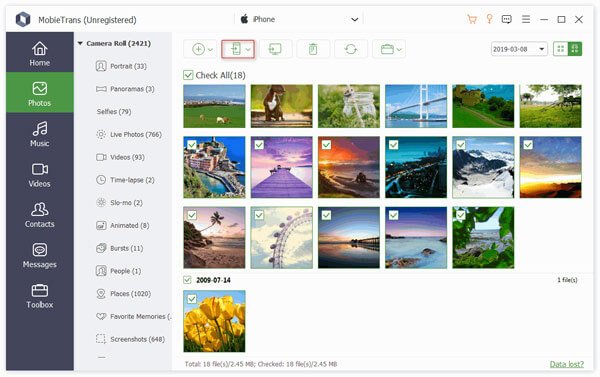
Step 2. Connect your Android phone to the computer first, and then connect your iPhone.
Step 3. Select Messages on the left side. Then, click the Export to Device button to restore the WhatsApp backup from Google Drive to iPhone. The Messages tab and include WhatsApp chats and SMS.
Part 3: Restore WhatsApp Backup from Google Drive on iPhone via Move to iOS
If you are setting up a brand-new iPhone straight out of the box, you can use Apple's official migration tool, Move to iOS, to restore WhatsApp from Google Drive to iPhone. While this method does not directly access Google Drive from your iPhone, it relies on your Android phone acting as the physical middleman to unpack that cloud backup first.
Prerequisites Before You Begin:
- Your iPhone must be on the initial Hello setup screen. If it is already set up, you must go to Settings > General > Transfer or Reset iPhone > Erase All Content and Settings to factory reset your iPhone.
- You must download your chat logs to your Android device first by performing a manual sync via Settings > Chats > Chat Backup > Back Up on the Android interface.
Step 1. Turn on your new iPhone and place it next to your Android device. Begin the on-screen setup process.
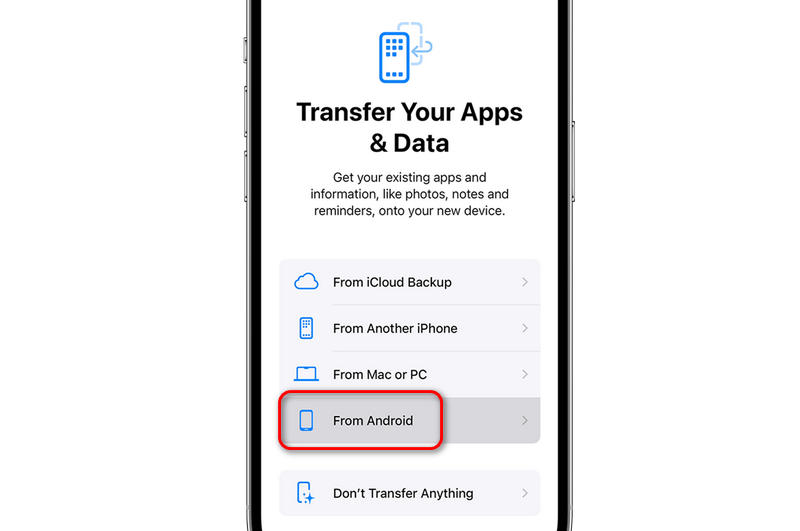
Step 2. When you reach the Transfer Your Apps & Data management screen, tap From Android.
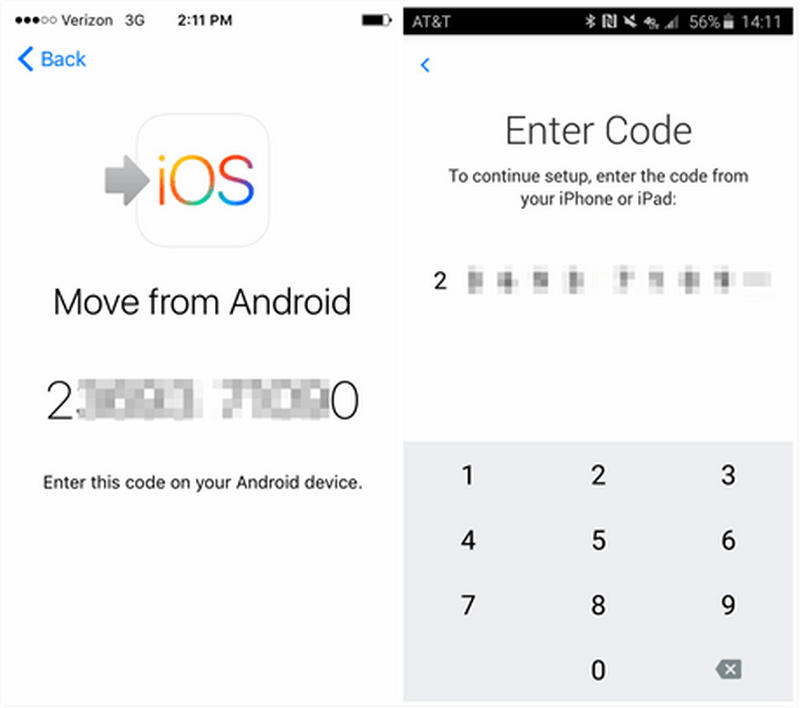
Step 3. Open the Move to iOS app on your Android smartphone and follow the prompts until a 6-digit or 10-digit security code appears on your iPhone. Enter this code into your Android phone.
Step 4. On the Transfer Data screen, check the box next to WhatsApp.
Step 5. Tap Start on the Android screen. WhatsApp will immediately prepare the database files for migration, automatically logging you out of the Android app. When the process is over, continue to finishing iPhone setup.
Step 6. Open the App Store on your iPhone, download the latest version of WhatsApp, and register using the exact same phone number used on your old device.
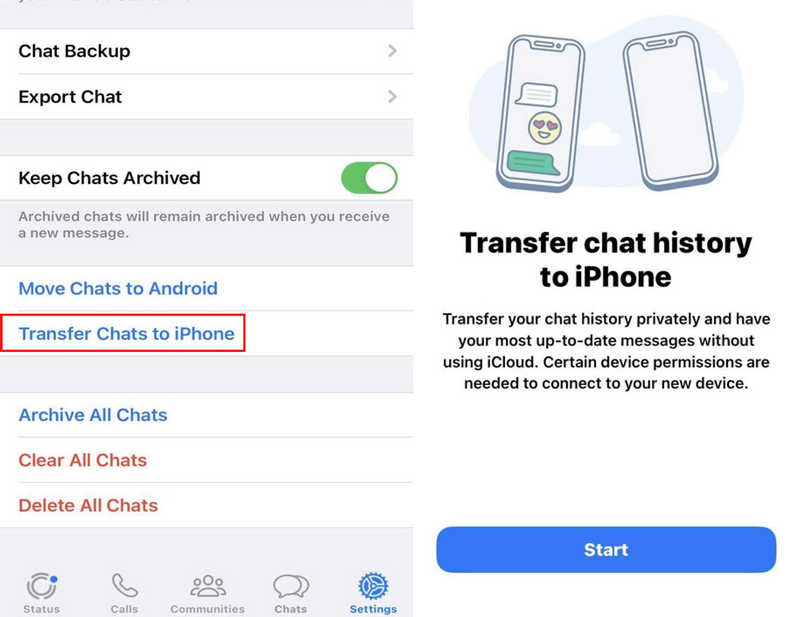
Step 7. Tap Start when prompted to import your chat history, and all your conversations will appear in your inbox, which means you have finished restoring WhatsApp backup from Google Drive on the iPhone.
Part 4: Restore WhatsApp Backup from Google Drive on iPhone via Email
If you only need to keep a record of a few specific business agreements, legal documents, or memorable family chat threads, you can restore WhatsApp backup from Google Drive to iPhone directly via Email.
Important Note: This method does not actually integrate your old history into the iOS WhatsApp interface. Instead, it generates a readable log file that you can reference anytime on your Apple device.
Step 1. Open WhatsApp on your Android phone and select the specific conversation thread you wish to save.
Step 2. Tap the three vertical dots in the top-right corner, select More, and tap Export Chat.
Step 3. Choose whether you want to export Without Media or Attach Media (including photos, audio notes, and videos).
Step 4. Select your email client (such as Gmail) from the sharing panel and mail the attachment to your own email address.
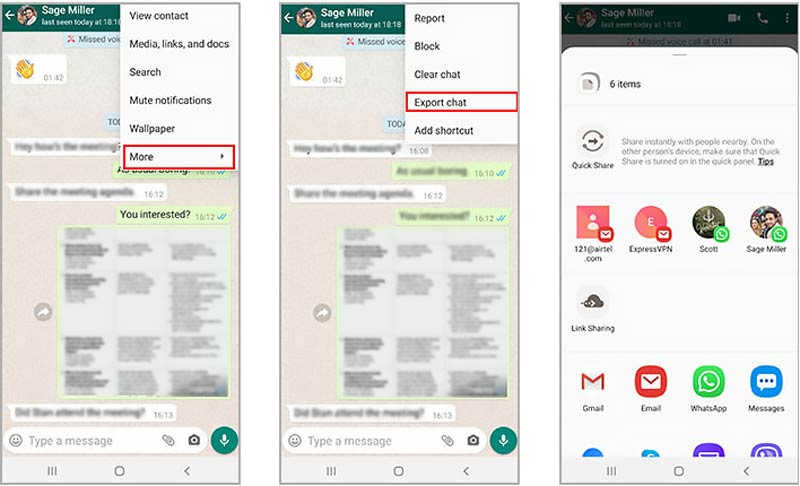
Step 5. Open the native Mail app on your iPhone, log into your inbox, and download the exported text document and media attachments for easy viewing. That's a easy and fast way to restore WhatsApp Backup from Google Drive to iPhone.
Further Reading
Part 5: Comparison of the Three Ways to Restore WhatsApp Backup from Google Drive to iPhone
To help you decide which approach fits your current situation best, here is a quick breakdown of the core methods to restore WhatsApp backup from google drive to iPhone:
| Feature / Detail | Apeaksoft MobieTrans | Move to iOS | Email Export |
| Directly Reads Google Drive | Yes | No (Reads Android Phone Local Copy) | No |
| Requires iPhone Factory Reset | No | Yes (Must be on setup screen) | No |
| Restores Directly into iOS App | Yes | Yes | No (Text/Media attachments only) |
| Cost | Premium/Paid Software | Free | Free |
| Media Support | Transfers all photos, videos, and files | Transfers all native attachments | Limited by email file attachment sizes |
Conclusion
It's a bit difficult to restore WhatsApp Backup from Google Drive on iPhone due to cloud backup difference. However, Move to iOS is an effective way to help you. If your iPhone is setup and don't want to factory reset it, you can use Apeaksoft MobileTrans to easily transfer WhatsApp chats from Android to your iPhone. You just need to restore WhatsApp Backup from Google Drive to your Android in advance, and then it will be fast and easy to transfer it to your iPhone.

Related Articles




