

How to Retrieve Downloads on an Android Phone or Tablet

According to our research, Android saves files in multiple locations. The files downloaded from a browser, for example, are saved in a dedicated Downloads folder on your Android phone. Moreover, it is kept in your browser's Downloads, too. It means that you have a copy and can retrieve downloads on Android if you accidentally delete files. Furthermore, the backup enables you to get back lost downloaded files if you have set up the automatic backup feature or manually created a backup.
PAGE CONTENT:
Part 1: How to Retrieve Downloads on Android from the Recycle Bin
On some Android models, there is the Recycle Bin or Trash folder built into the native Files Manager app. Moreover, most third-party File Manager apps have the Recycle Bin folder. It can store your deleted files for up to 90 days. Before they are permanently erased, you can retrieve downloaded files on Android quickly. We use a Samsung phone as an example to show you the workflow.
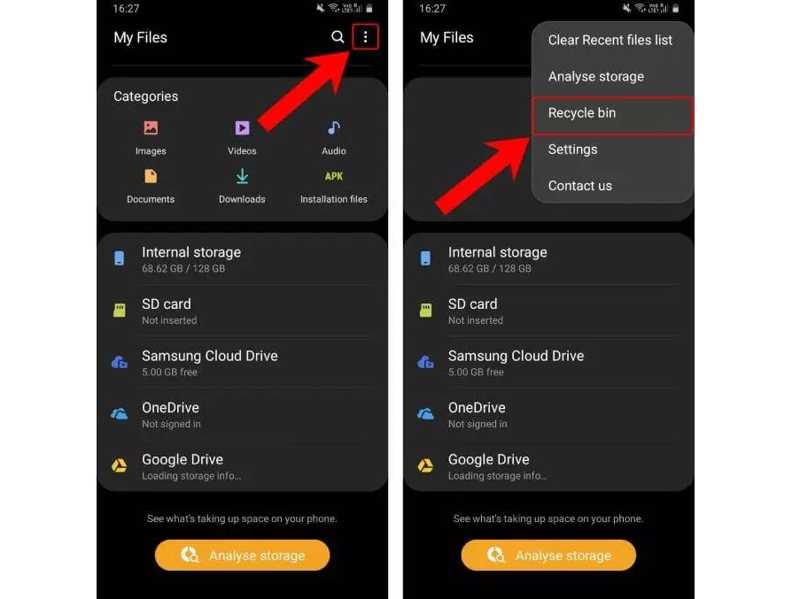
Step 1. Run the file manager app on your device. On Samsung, open the My Files app.
Step 2. The Downloads folder stores all files you downloaded online.
Step 3. Tap the Menu button with a three-dot icon and choose Recycle bin.
Step 4. Find the deleted files you want to recover and select them.
Step 5. Tap the Restore or Restore All button.
Step 6. Then, you can find the files back to the Downloads folder.
Part 2: How to Find Deleted Downloads on Android from Chrome
In addition to Android's Downloads folder, Google Chrome saves downloaded files in a temporary folder. If you accidentally delete a file from the Downloads folder, you can retrieve the downloaded file on Android from your browser's temporary folder.
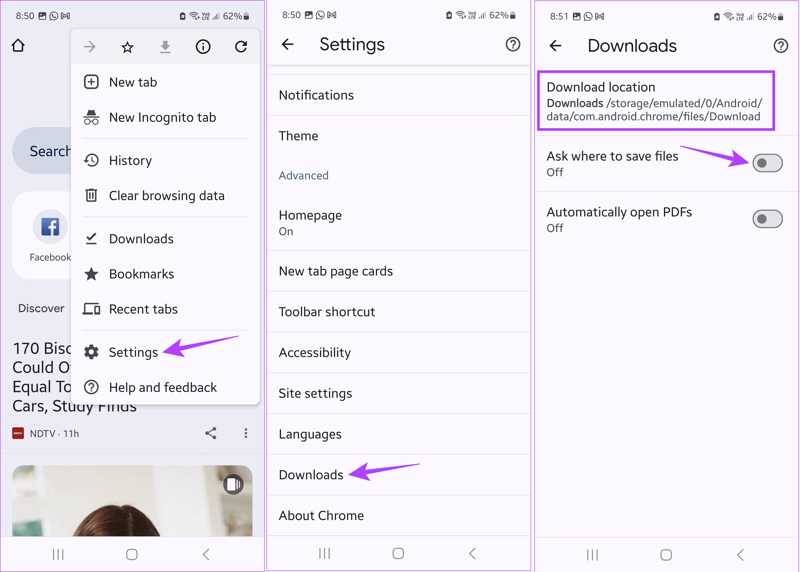
Step 1. Open your Chrome app.
Step 2. Tap the Menu button with a three-dot icon at the top right corner.
Step 3. Choose Settings, and tap Downloads.
Step 4. Check the download location.
Step 5. Then, run the file manager app, and navigate to the download location.
Step 6. Retrieve the deleted downloaded files on Android.
Part 3: How to Recover Downloads on Android from Backup
If you have set up Google One backup on your phone, you can retrieve downloads on Android. This method requires you to factory reset your device in order to restore a Google One backup. Plus, you need a stable Wi-Fi.
Step 1. Run the Settings app on your phone.
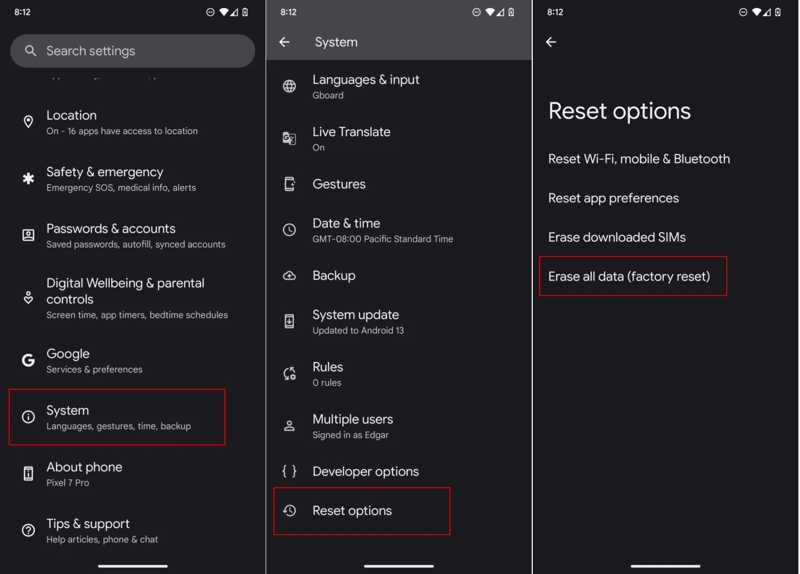
Step 2. Navigate to System, Reset options, and tap Erase all data or Factory reset.
Step 3. If prompted, tap Erase all data, and enter your PIN or password.
Step 4. After the factory reset, your phone will restart.
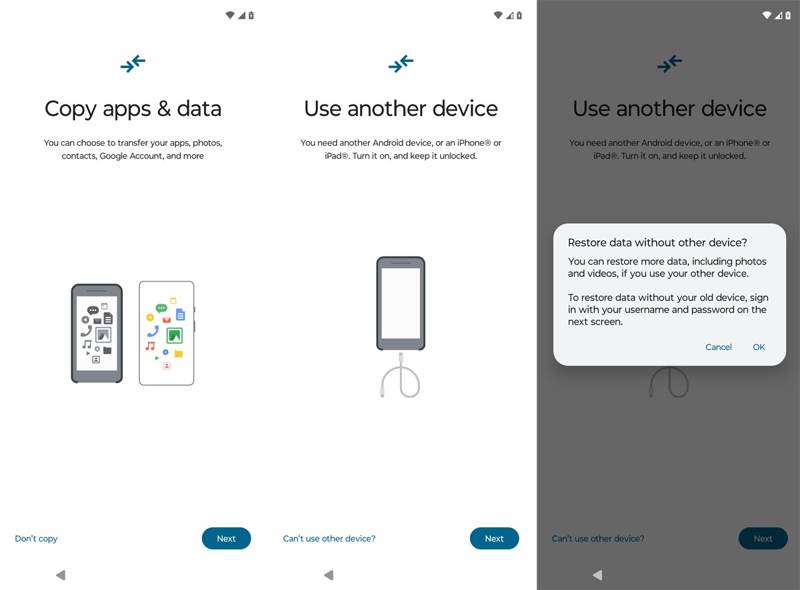
Step 5. Follow the onscreen instructions to set it up. Make sure to connect to a Wi-Fi.
Step 6. Tap Next on the Copy apps & data screen, and choose Can't use other device.
Step 7. Sign in with your Google account and password.
Step 8. Select a proper backup and check the desired data types.
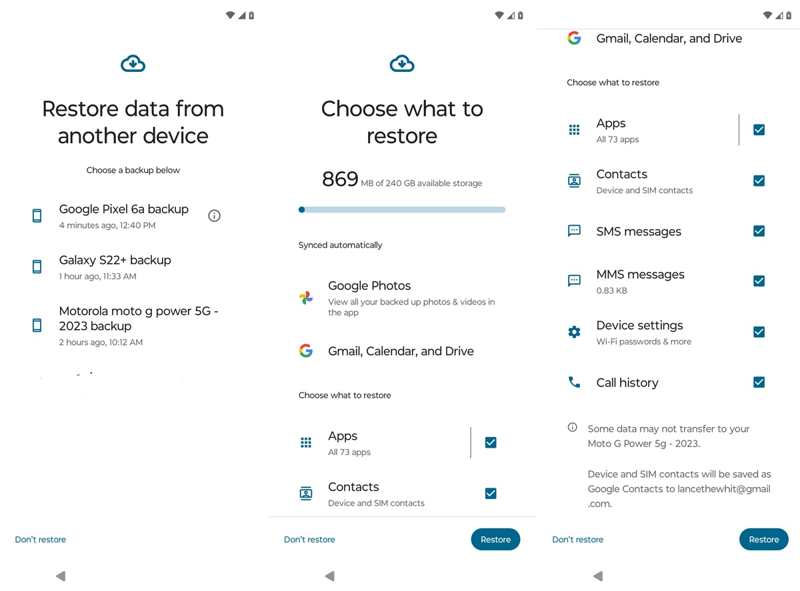
Step 9. Tap the Restore button to begin restoring deleted downloads on Android.
Part 4: How to Recover Downloads on Android Without Backup
If you don't have a backup, you will need a powerful data recovery tool to retrieve downloads on Android. Apeaksoft Android Data Recovery, for example, can meet your needs. It is able to scan your phone memory and look for deleted files directly.
The Easiest Way to Retrieve Downloads on Android Without Backup
- Recover deleted files on Android without backup.
- Preview lost files for selective recovery.
- Support a wide array of data types, like documents, PDFs, photos, etc.
- Available to accidental deletion, factory reset, and more.
- Compatible with all major Android phone brands and models.
Secure Download
Secure Download

How to Retrieve Downloads on Android Without Backup
Step 1. Connect to your phone
Launch the best Android recovery software once you install it on your computer. Plug your phone into your computer with a compatible cable. Turn on USB Debugging mode on your phone, and choose Transfer files when prompted.

Step 2. Scan downloads
Follow onscreen prompts to permit access. Then, select the data types you want to retrieve, like Documents. Click the Next button to begin scanning downloads on your device. You can also recover deleted text messages on Android if you select Messages.

Step 3. Retrieve deleted downloads
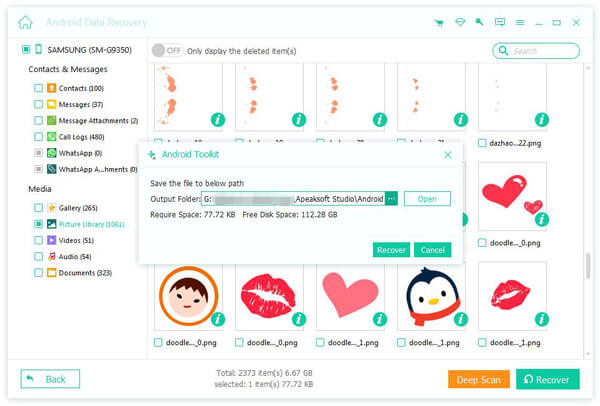
Then, preview the downloaded files on your phone's memory. Toggle on Only display the deleted items and view the deleted download files. Select the desired files, click the Recover button, set an output folder, and hit Recover again.
Conclusion
This guide demonstrated multiple ways to retrieve deleted downloads on an Android phone or tablet. If you move downloaded files to the Recycle Bin, you can get them back before they are permanently deleted. Plus, the temporary download location lets you find deleted files. You can also find lost downloaded files from a backup. Apeaksoft Android Data Recovery enables you to restore downloads without backups.
Related Articles
Come and explore how to do SD card recovery for Android using a desktop software - Apeaksoft Data Recovery or an Android mobile SD card recovery app.
If you have an old Android phone, you can still see the fingerprint scanner lock screen for Android. This article will offer a detailed guide to it.
If you suddenly forgot the pattern lock on your Android phone, you can learn from this article to unlock your phone effortlessly.
Google can back up and restore your device, managing your data well. This guide will show you how to retrieve Google Backup on Android.



