

How to Retrieve Downloads: A Simple Guide to Recovering Your Files

Your folder may be filled with countless downloaded files, but when you need one, it‘s nowhere to be found. So, where did your downloads go? How to retrieve deleted downloads? This guide explores many simple solutions to help you get back on track. Keep reading to discover how to recover your deleted downloaded files.
PAGE CONTENT:
Part 1: Where Are Your Downloads Stored
When you download a file, maybe a song. a movie, an application or an attachment, where can you find them later? Typically, downloads are stored in specific folders by default. Here's a guide to help you access all your downloads on different devices.
Find Downloads on Computers
To quickly locate your Downloads folder on Windows/Mac, follow the steps below:
On Windows10/11
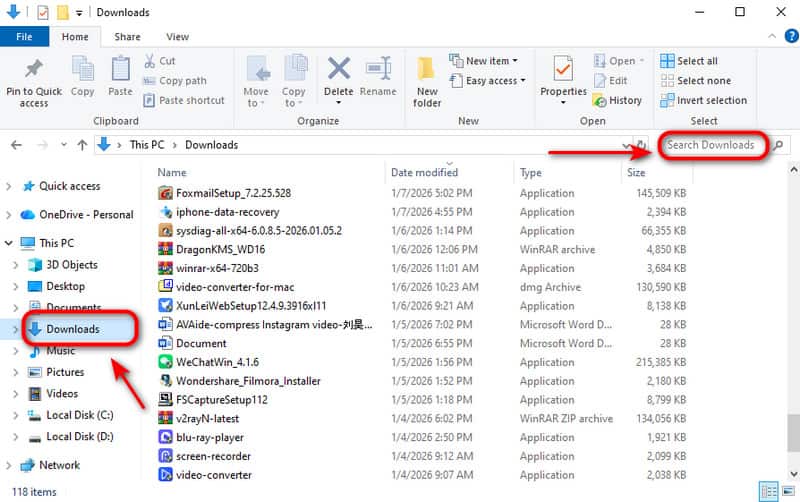
Step 1. Press Windows + E to open File Explorer, select Downloads on the sidebar.
Step 2. Type the download's name in the search bar.
On Mac
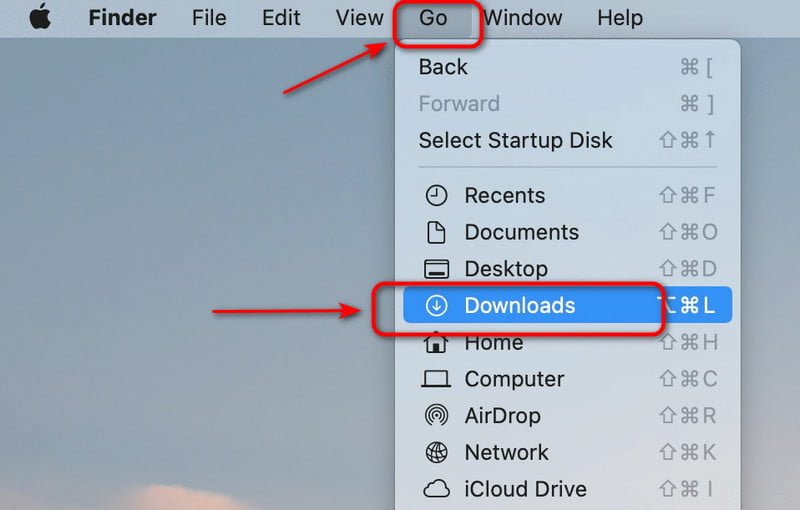
Step 1. Tap the Finder icon to open it.
Step 2. Click Go and select Downloads in the left panel.
Find Downloads on Mobile Devices
iOS devices and Android phones have their own storage systems, but the method for locating the Downloads folder is similar.
On iPad/iPhone
Step 1. Open the Files app on your device.
Step 2. Tap Browse and select On My iPhone or On My iPad.
Step 3. Tap Downloads to find the item.
On Android
Step 1. Open the My Files or File Manager app on your Android.
Step 2. Tap the Downloads folder. You can see all your files here.
Part 2: If Downloads Cannot Be Found, How to Fix It
If you can't find your items in the Downloads folder, they may have been renamed, accidentally deleted, or saved to a different location you don't know. Sometimes, system glitches or storage cleanup can also cause downloads to disappear.
So, what should you do next? Before trying advanced solutions, check the Recycle Bin or Trash first. Your recently deleted files may still be there! To begin Recycle Bin recovery, open the Recycle Bin and select the files you want to recover. Click Restore or Restore the selected items to have a bulk restore!
If you've cleared your Recycle Bin and the file still cannot be found, don't worry - professional recovery tools can help you retrieve downloads on any device, including Mac, Windows, iPhone/iPad or Android.
How to Retrieve Downloads on Mac/Windows
Recover All Types of Data on Mac/Windows
- Retrieve lost files and downloads in a wide range of situations.
- Keep your data, privacy, settings, and everything else secure.
- Restore files from various storage media and digital devices.
- Promise a 99.7% recovery success rate.
Secure Download
Secure Download

Step 1. Launch the software on your PC. You can see all the hard drives on the interface, choose the hard drive where your downloads are stored, and click Start Scan.

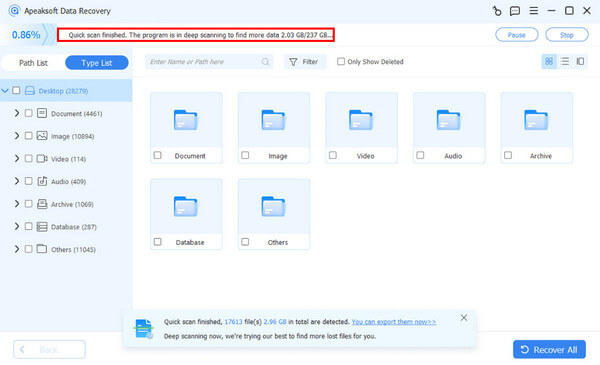
Step 2. The software will start scanning immediately. If the downloads you want to retrieve are not found, you can click Deep Scan to retrieve more data.
Step 3. You can preview the downloaded files in the Type List. You can also type a name or path in the search window to find the downloaded files.
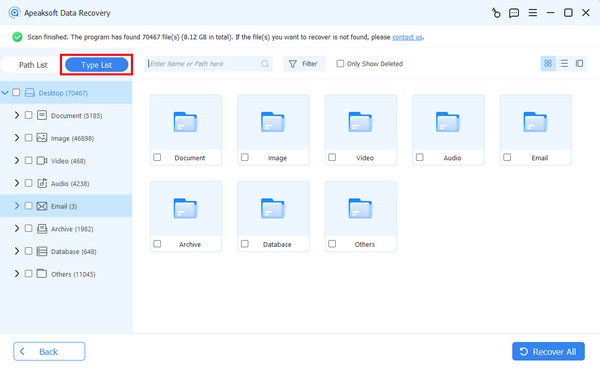
Step 4. Select the files you want to recover. Click Recover to save the files in a folder.

How to Retrieve Downloads on iPhone/iPad
Your Smart & Powerful iOS Data Recovery Assistant
- Recover all kinds of files from iPhone/iPad/iPod in various scenarios.
- Recover deleted files from an iCloud/iTunes Backup.
- Easily restore your photos, messages, contacts, WhatsApp chats, and more.
- Support all iOS devices and versions, including iPhone 18 series with iOS 26/27.
Secure Download
Secure Download

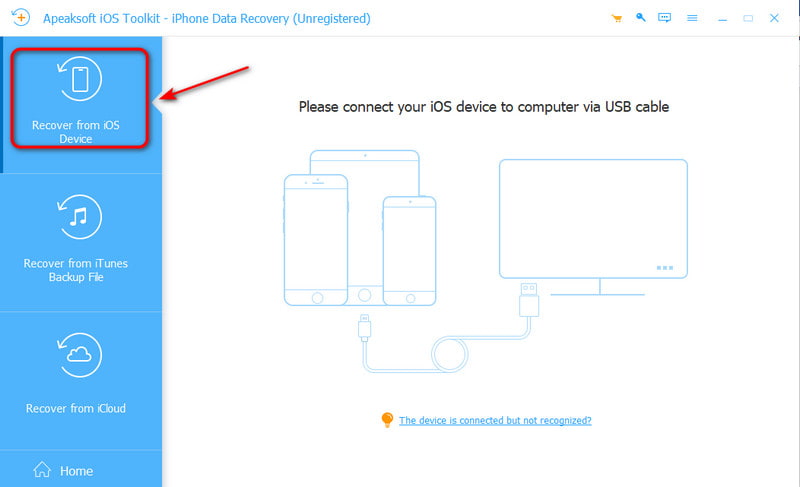
Step 1. Launch the software on your computer, choose Recover from iOS Device on the interface, then connect your device to the computer via a USB cable.
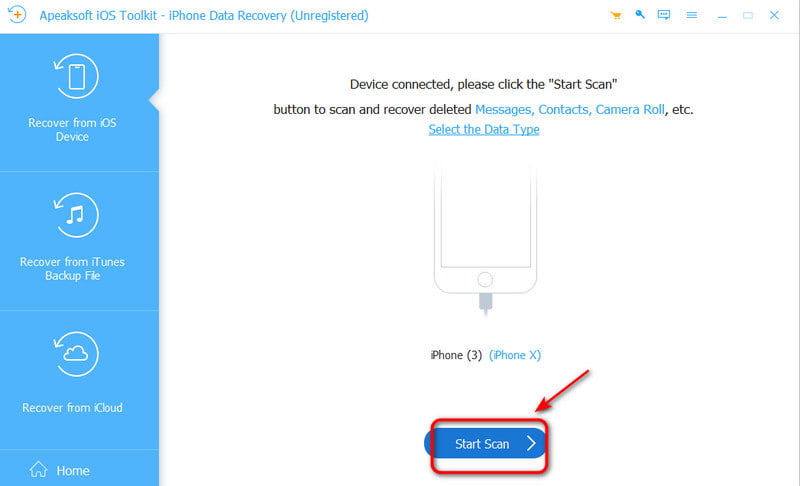
Step 2. Tap Trust on your device, then click the Next button.
Step 3. Click the Start Scan button to scan all data on your iOS device.
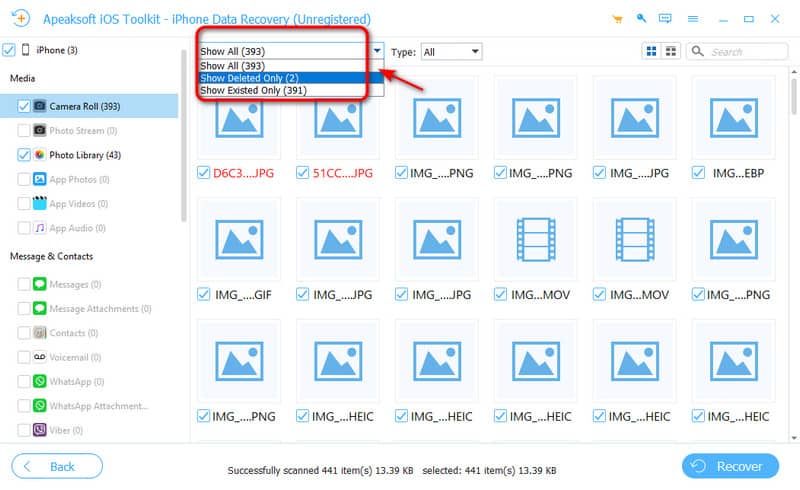
Step 4. You can select Show all or Show Deleted Only to preview deleted files. Select the file you want to recover. Click the Recover button to start.
How to Retrieve Downloads on Android
The Best Tool to Restore Data from Android
- Restore the lost data from multiple situations without rooting.
- Provide Quick Scan and Deep Scan for flexible recovery.
- Support 5000+ Android models and work on even the latest systems.
- Recover selected files without overwriting existing data.
Secure Download
Secure Download

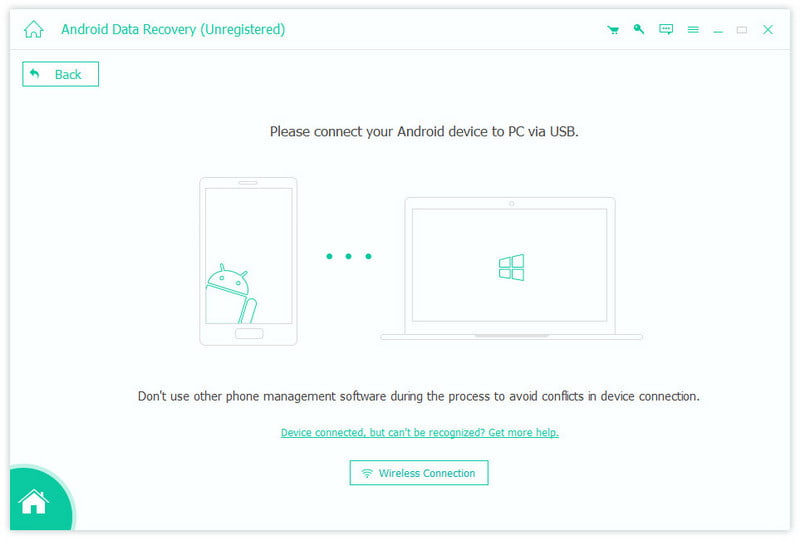
Step 1. Launch the software and choose the Android Data Recovery mode. Connect your device to a computer using a USB cable.
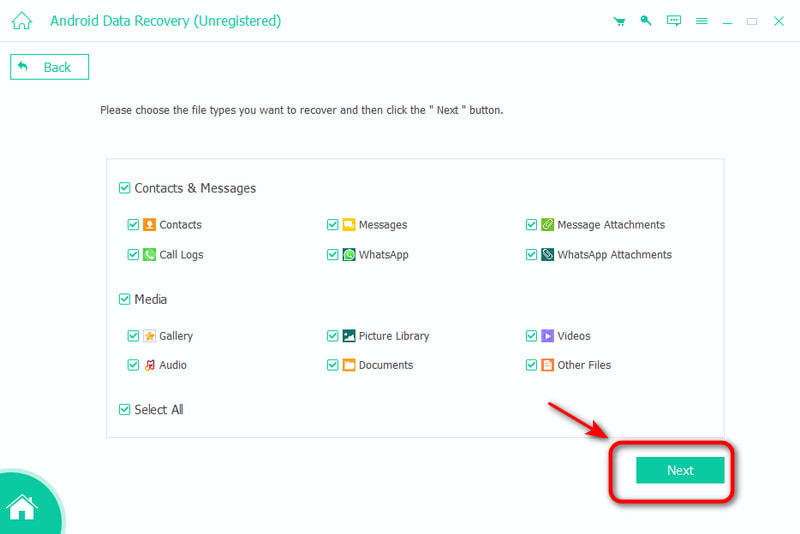
Step 2. Select the data type you want to recover and click Next. It will take some time to scan your data on your Android.
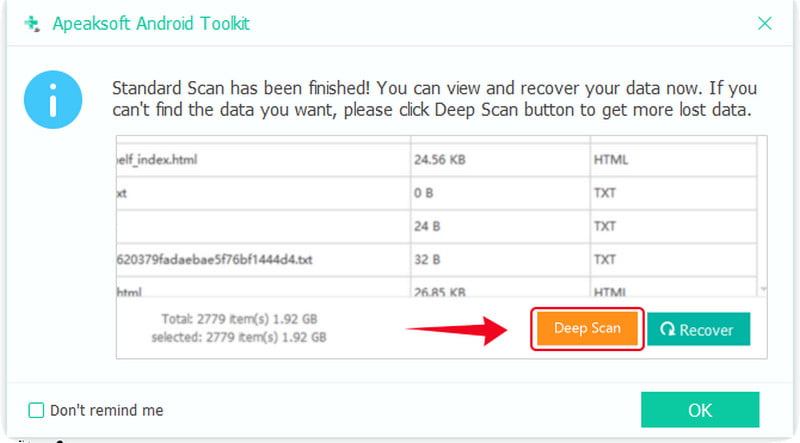
Step 3. If you can't find the file you want, click Deep Scan to initiate scanning again.
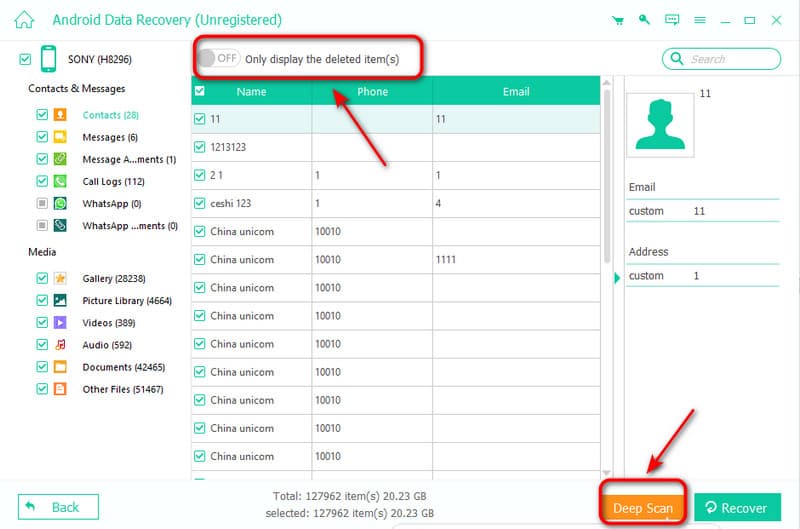
Step 4. After scanning, choose the files you want to recover, or you can also choose Only display the deleted items to recover deleted files. Then click Recover to start!
Part 3: Are There Any Built-in Features to Retrieve Downloads
If you don't want to install any software on your device, you can try these built-in features to restore the lost downloads.
Restore from a Time Machine Backup
Time Machine is a built-in macOS backup feature that creates regular backups of your system, apps and files. If your downloads go missing, you can use Time Machine to restore your Mac.
Step 1. Connect your backup drive to your Mac. Open the folder where the downloads were originally located.
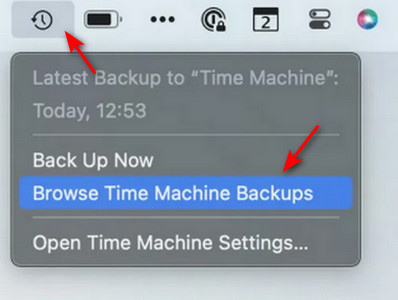
Step 2. Click the Time Machine icon in the menu bar and select Browse Time Machine backups.
Step 3. Use the timeline or arrows to browse through available backups and locate a previous version.
Step 4. Select the downloaded files you want to restore, then click Restore.
Restore from a Previous Version
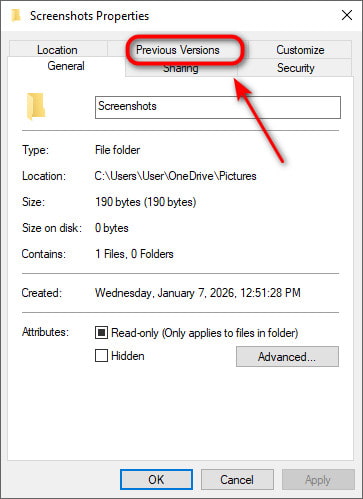
If you have enabled File History on your PC, Windows may have automatically saved earlier copies of your files. So, you can retrieve downloads by restoring from a previous version.
Step 1. Open the folder where the file was originally located.
Step 2. Right-click in a blank area and select Properties.
Step 3. Go to the Previous Versions tab, select a previous version, then click Restore.
Part 4: How to Change the Default Downloads Location
If you want to spend less time searching for files, you can manage your downloads by changing the default location. Here are some common ways to do so:
On iOS Devices:
Step 1. Go to Settings and select Safari.
Step 2. Tap Downloads, and you'll see 3 options: iCloud Drive, On My iPhone or Other.
Step 3. Choose one and tap Done to save the changes.
On Android:
Step 1. Go to Settings and click Directly Settings.
Step 2. Click Downloads and change your default download locations.
On Windows:
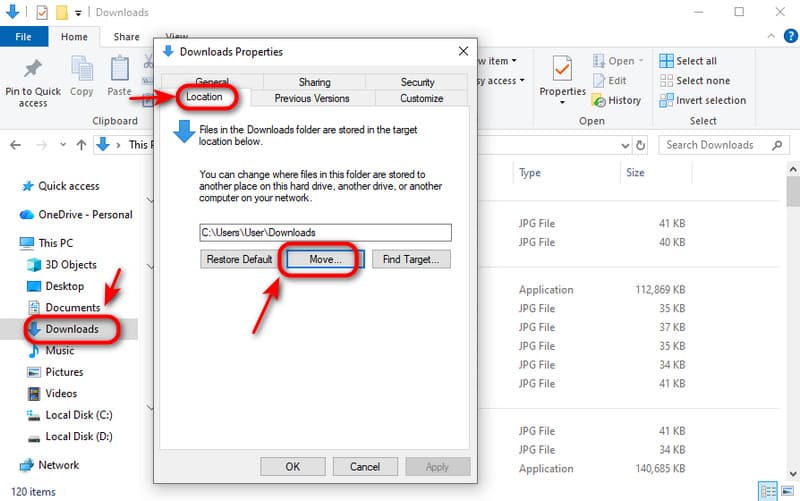
Step 1. Press Windows + E to open File Explorer, select Downloads on the sidebar.
Step 2. Right-click on Downloads, select Properties and choose Location.
Step 3. Click Move... to set a new location to save the Downloads folder. Click Apply to proceed.
Conclusion
This guide explains several ways to retrieve downloads. First, start by checking your Recycle Bin or Trash. If the file isn't there, the next step is to see if you have any backups available. If there are no backups, using dedicated software like Apeaksoft Data Recovery is a great option! It can help restore deleted files from the Downloads folder on both Windows and Mac. Lastly, once your downloads are recovered, be sure to back them up to prevent future loss.
Related Articles




