


How to Retrieve Old Text Messages on Your iPhone Quickly

Losing important SMS can feel like a disaster, especially if it contains significant information. In fact, losing important text messages is a common problem. According to our research, the majority of mobile phone users have encountered this problem. Thankfully, there are ways to find, access, and retrieve old text messages on an iPhone. This tutorial will share five proven methods and the detailed steps for each method.
PAGE CONTENT:
- Part 1: How to Retrieve Old Text Messages on iPhone from iCloud Backup
- Part 2: How to Retrieve Old Text Messages on iPhone from PC
- Part 3: How to Retrieve Old Text Messages on iPhone from Mac
- Part 4: How to Retrieve Old Text Messages on iPhone from Carrier
- Part 5: How to Retrieve Old Text Messages on iPhone Without Backup
Part 1: How to Retrieve Old Text Messages on iPhone from iCloud Backup
One easy way to back up text messages on iPhones is iCloud, which is the cloud storage released by Apple for customers. If you have manually or automatically backed up your messages to iCloud, retrieving old text messages on iPhone is not difficult. Bear in mind that you need to erase your iPhone before the process.
Step 1. Turn on your iPhone and run the Settings app.
Step 2. Make sure that you have an iCloud backup.
Step 3. Go to the General tab and choose Transfer or Reset iPhone.
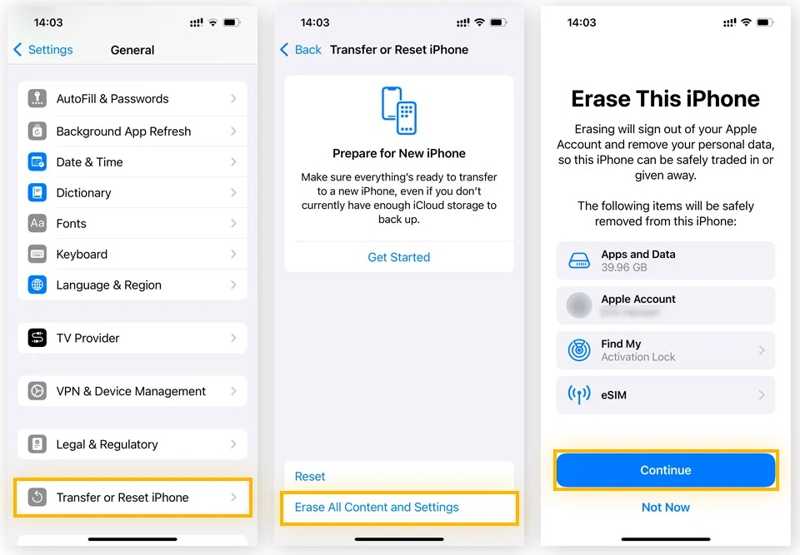
Step 4. Tap the Erase All Content and Settings button.
Step 5. Read the notification and tap Continue.
Step 6. If your iPhone is equipped with an eSIM, choose Keep eSIM and Erase Data or Delete eSIM and Erase Data.
Step 7. Authenticate with your iPhone passcode and begin erasing your device.
Step 8. When the process finishes, your iPhone will restart to the Hello screen.
Step 9. Set it up as a new device.
Tips: Connect to a Wi-Fi network when setting up.
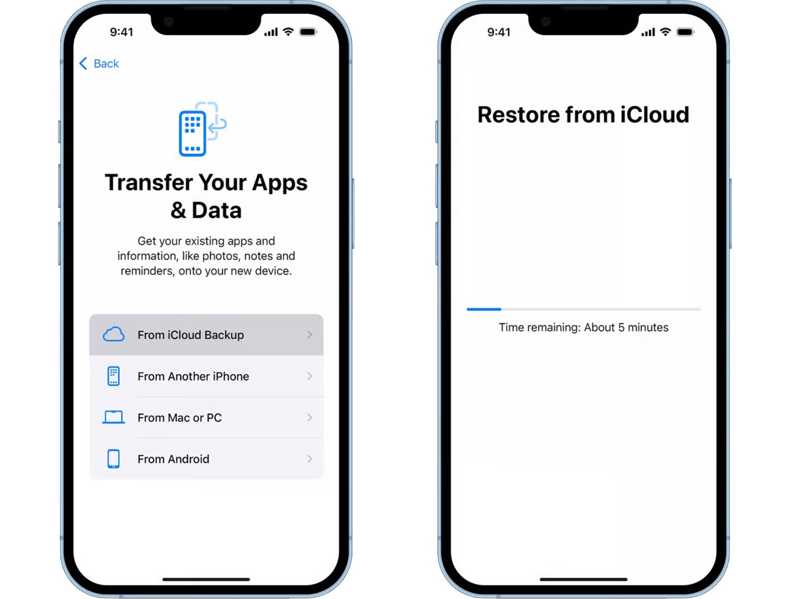
Step 10. Choose the From iCloud Backup option on the Transfer Your Apps & Data screen.
Step 11. Enter the Apple Account and password used to back up your messages.
Step 12. Choose the right backup and start retrieving old text messages on iPhone.
Step 13. Then, complete the setup and go to the Messages app to check the SMS.
Part 2: How to Retrieve Old Text Messages on iPhone from PC
Due to the limited storage capacity, some iPhone users don't like iCloud backup. Alternatively, they back up their iPhone data to iTunes on a computer with a physical connection. In other words, you can retrieve old text messages on an iPhone if you have backed them up to your PC.
Step 1. Connect your iPhone to your PC with a USB cable.
Step 2. Open the latest version of iTunes.
Step 3. When iTunes detects your device, click the Phone button in the top left corner.
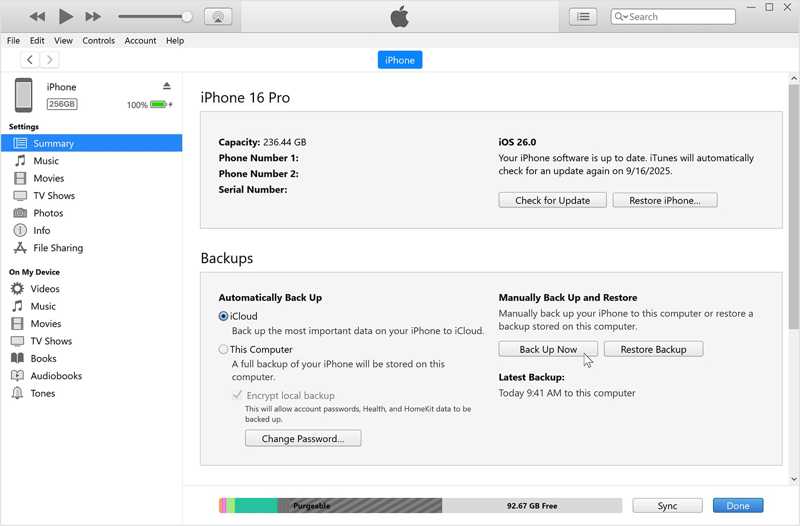
Step 4. Go to the Summary tab on the sidebar.
Step 5. Locate the Backups section and click the Restore Backup button.
Step 6. Choose the backup that contains the lost messages.
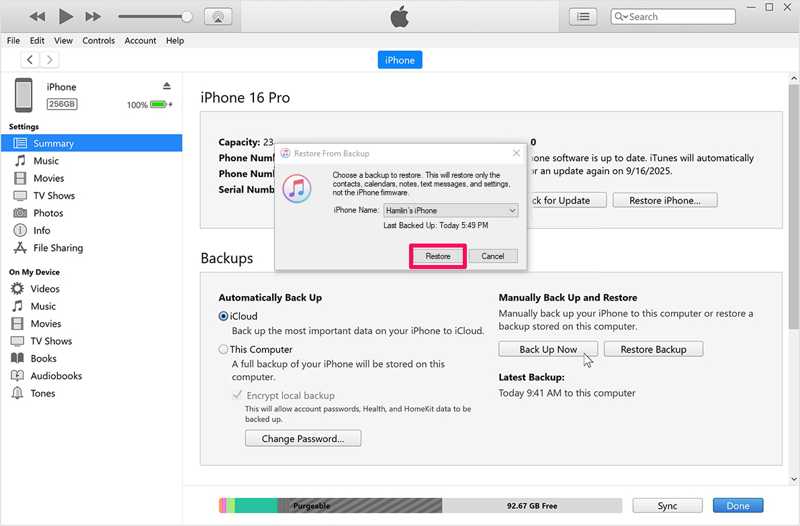
Step 7. Finally, click on the Restore button to initiate the process.
Step 8. During the process, keep your iPhone connected.
Note: Remember that the iTunes backup will overwrite the current data on your iPhone.
Part 3: How to Retrieve Old Text Messages on iPhone from Mac
Apple has stopped iTunes on macOS Catalina and later and moved the features into different applications. To retrieve old text messages on an iPhone from a Mac, you need to use the Finder app. For macOS Mojave or earlier, use iTunes.
Step 1. Plug your iPhone into your Mac computer with a compatible cable.
Step 2. Run Finder from your Dock bar.
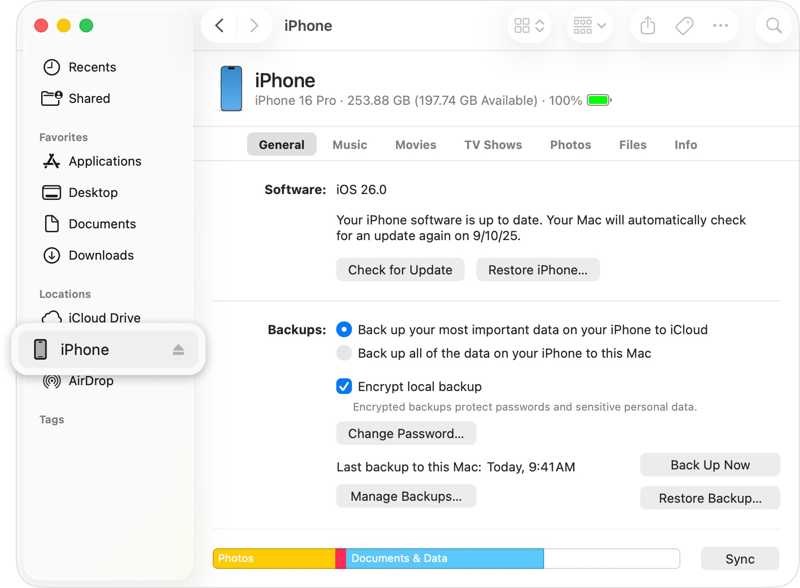
Step 3. Wait for Mac to recognize your iPhone and click your device name.
Step 4. Head to the General tab.
Step 5. Next, click the Restore Backup button under the Backups heading.
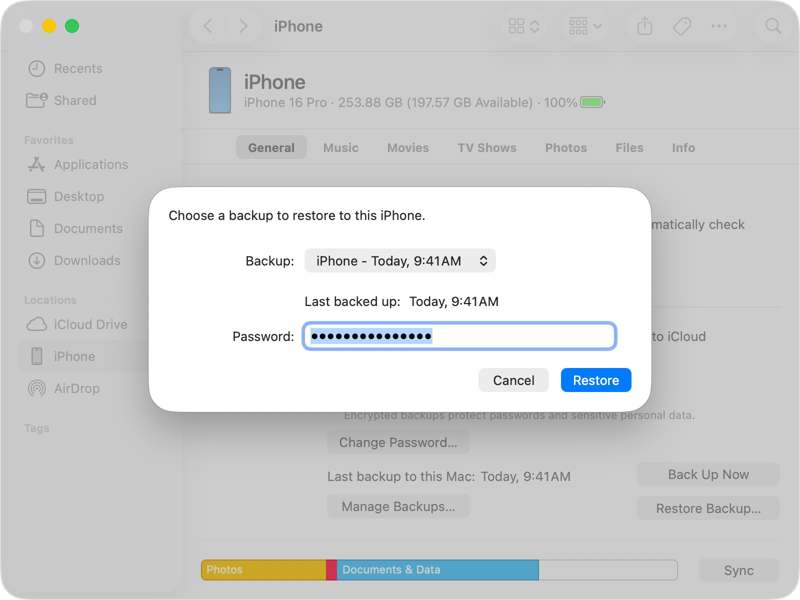
Step 6. Choose a proper backup and click the Restore button.
Step 7. When it is done, disconnect your iPhone and check the old SMS in the Messages app.
Part 4: How to Retrieve Old Text Messages on iPhone from Carrier
Another way to retrieve old text messages on your iPhone is to make a request to your carrier. In fact, most carriers store messages and call history on their servers for a specific period. Before they are deleted from your carrier's server, you can visit a nearby store or official website in a browser and request a copy of your old text messages.
Part 5: How to Retrieve Old Text Messages on iPhone Without Backup
If you don't have a backup, it is impossible to retrieve old text messages on an iPhone without a powerful data recovery program. Fortunately, it can meet your needs. It is able to scan your iPhone's memory and look for lost SMS and other data quickly.

Downloaded by over 1,000,000 users
- Recover old SMS and MMS on an iPhone without a backup.
- Extract messages from iTunes or iCloud backup.
- Preview text messages for selective data recovery.
- Won't damage the current data on your device.
- Support the latest editions of iOS.
Secure Download
Secure Download

How to Retrieve Old Text Messages on Your iPhone Without Backup
Step 1. Scan your iPhone
Launch the message recovery tool for iPhone after you install it on your computer. It is available on Windows 11/10/8/7/XP/Vista and Mac OS X 10.7 or above. Choose the Recover from iOS Device mode. Link your iPhone to your computer with a Lightning cable. After trusting your computer, click the Start Scan button to start scanning your memory.
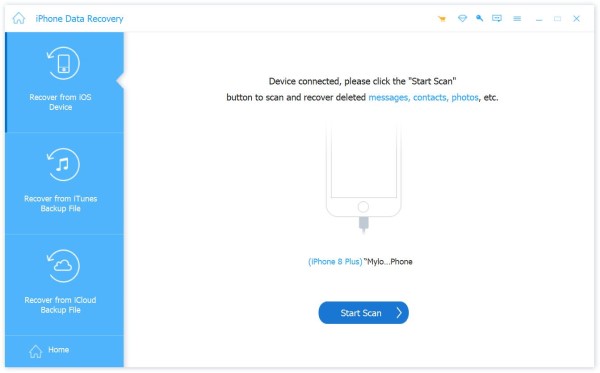
Tips: If you have an iCloud or iTunes backup, choose Recover from iTunes Backup File or Recover from iCloud instead.
Step 2. Preview text messages
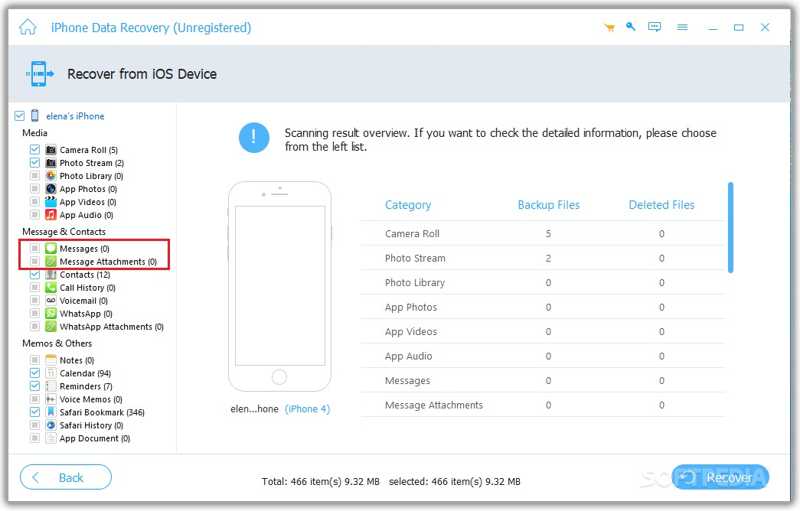
After data scanning, select Messages and Message Attachments to view all text messages on your iPhone. You can search for specific messages with the Search bar at the top right corner.
Step 3. Retrieve old text messages
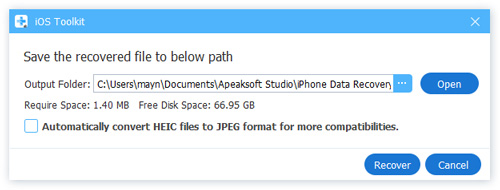
Select the messages and media attachments that you want to retrieve. Click the Recover button, set an output folder, and hit Recover to confirm it.
Further Reading
Conclusion
Now, you should understand how you can retrieve old text messages on an iPhone. For iPhone users, you have multiple options to back up your data and recover old SMS, including iCloud, iTunes, and Mac backup. Moreover, you can request a copy of your messages from your network provider. Apeaksoft iPhone Data Recovery is the one-stop option to get back lost text messages from your iPhone memory without a backup.
 Apeaksoft iPhone Data Recovery
 Recover deleted or lost data from iOS Devices, iTunes, and iCloud backup.
Secure Download
Secure Download
Related Articles




