

Best Ways to Unlock an Old iPhone If You Forgot Password

If you've recently found your old phone and powered it on, then realized you had forgotten the lock screen password, it can be very frustrating! Many people face this problem when trying to reuse an old phone after months or even years. So, how to unlock an old phone without a password? Is there a way to get into a locked iPhone safely? The answer is yes! In this guide, we will share 6 practical methods to help you remove the screen lock from your old iPhone quickly and safely!
PAGE CONTENT:
Part 1: How to Unlock an Old iPhone Without a Password
If you're looking for the quickest and easiest way to unlock your old iPhone, Apeaksoft iFoneKit iOS Unlocker stands out as your smartest choice. You can easily wipe the 4-digit/6-digit passcode, Face ID and Touch ID on your iPhone without a password.

Downloaded by over 1,000,000 users
- Handle Various Kinds of Passcodes on iOS Devices.
- Unlock your old/disabled/second-hand iPhone without a passcode.
- Bypass Mobile Device Management without any data loss.
- Remove Apple ID/iTunes Backup encryption/SIM restrictions easily.
- Support all iOS versions and devices, including the latest iOS.
Secure Download
Secure Download

How to unlock an old iPhone without a passcode:
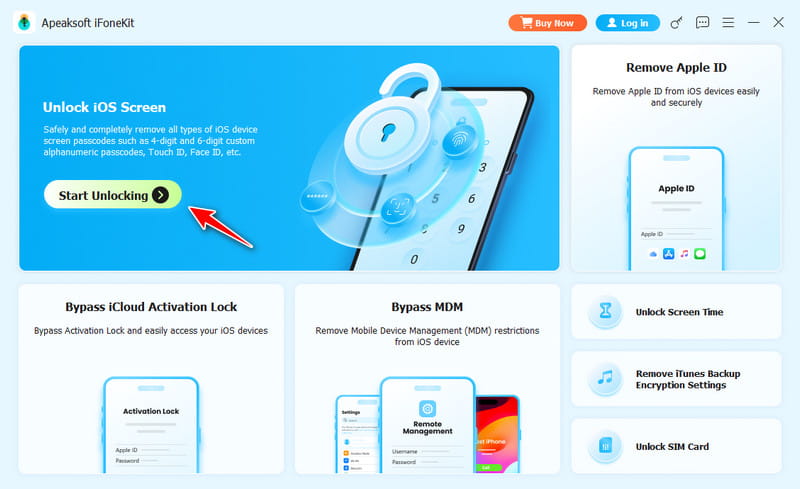
Step 1. Download and install iOS Unlocker for Windows or Mac. Launch the program and click Unlock iOS Screen in the main interface.
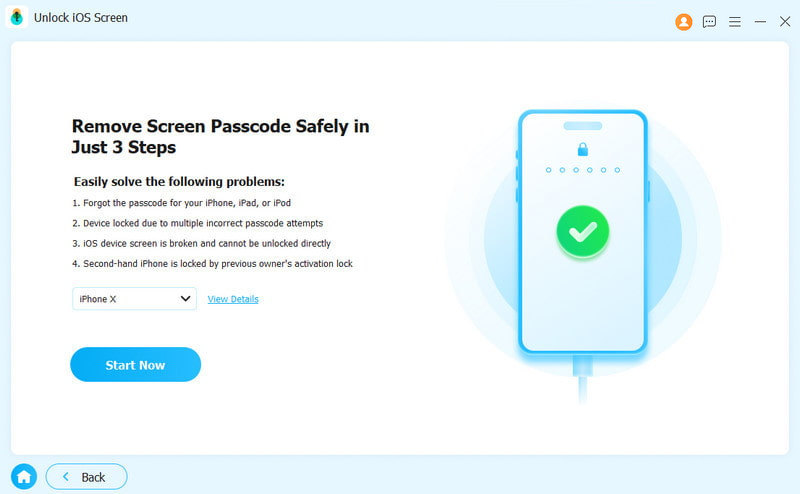
Step 2. Connect your device to the computer using a USB cable. Once the device is detected, confirm your device information, then click Start Now to continue.
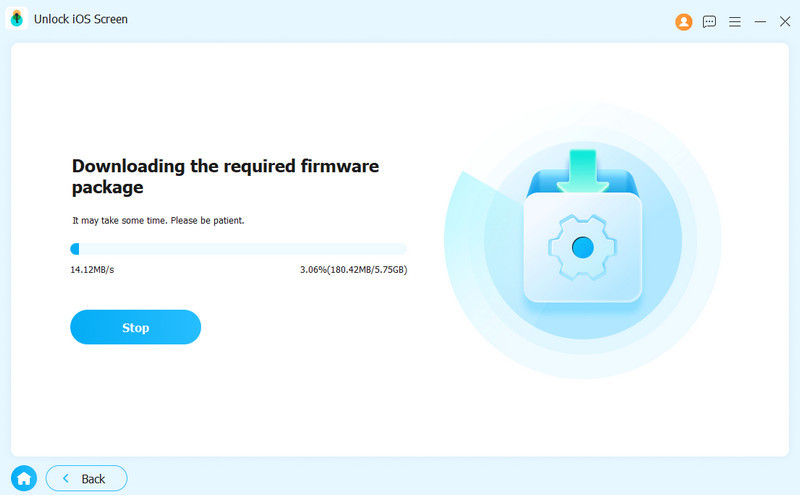
Step 3. Download the required firmware package. Please wait patiently while the download completes.
Step 4. When prompted, follow the on-screen instructions to confirm this action. You may need to confirm twice to verify the firmware.
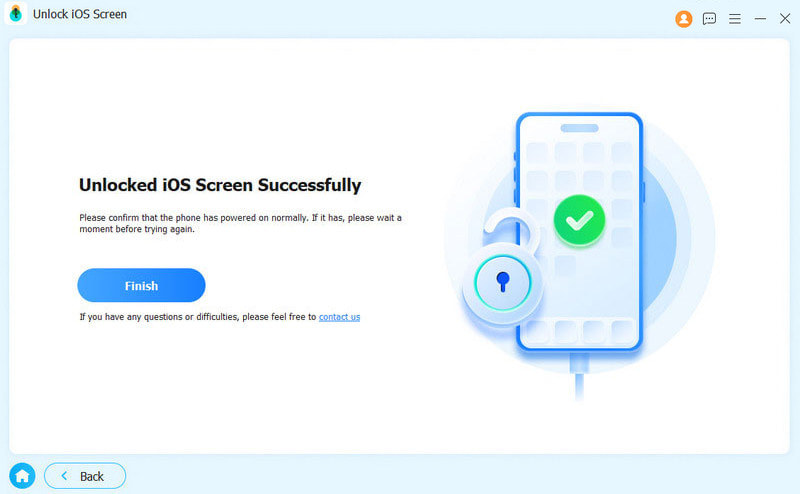
Step 5. After verification, the unlocking process will start automatically. Wait a few minutes, and your device will restart, and you can set up a new screen passcode.
Part 2: Unlock Your Old iPhone By Removing Carrier Lock
If you want to switch carriers but your old iPhone is locked to a carrier, you'll need to request a carrier unlock first. Apple can't unlock your old iPhone for use with a different carrier. Only your current carrier has the authority to unlock your iPhone.
You need to contact your carrier to remove SIM restrictions. It may take a few days for your carrier to complete your request. You can follow up with them to check the status of your request. After your carrier confirms that they unlocked your iPhone, go to Settings > General > About to check the status. If No SIM restrictions appears next to Carrier Lock, your iPhone is successfully unlocked.
Part 3: Get into An Old iPhone Using Recovery Mode
If you prefer an official Apple method, the Recovery Mode allows you to unlock your old iPhone without a passcode. You can factory reset your old iPhone and set a new password with it.
Step 1. Download and install the latest version of iTunes on your computer. If it's already installed, make sure it is updated.
Step 2. Put your iPhone into Recovery Mode. The button combination depends on your model:
iPhone 8 and later (including iPhone SE 2nd Generation)
Press and release the Volume Up button quickly, followed by the Volume Down button. Press and hold the Power button until Recovery Mode appears.
iPhone 7/iPhone 7 Plus
Press and hold the Volume Down button and Side button at the same time until the Recovery Mode screen appears.
iPhone 6S and earlier (including iPhone SE 1st Generation)
Press and hold the Home and Side buttons together until the Recovery Mode screen shows up.
Step 3. Connect your iPhone to the computer via a USB cable. Launch iTunes and select your old iPhone from the sidebar.
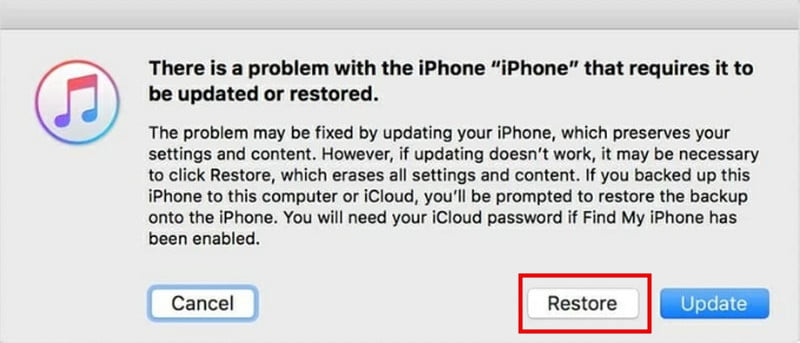
Step 4. When a prompt appears, select Restore. iTunes will begin restoring your device, and all existing data on your iPhone will be removed.
Part 4: Unlock Your Old iPhone with iCloud
Forgot the passcode but still remember your Apple ID? If you previously enabled Find My iPhone, you can unlock your old iPhone through iCloud.
Step 1. Visit iCloud.com on another device. Log in to your Apple ID credentials.
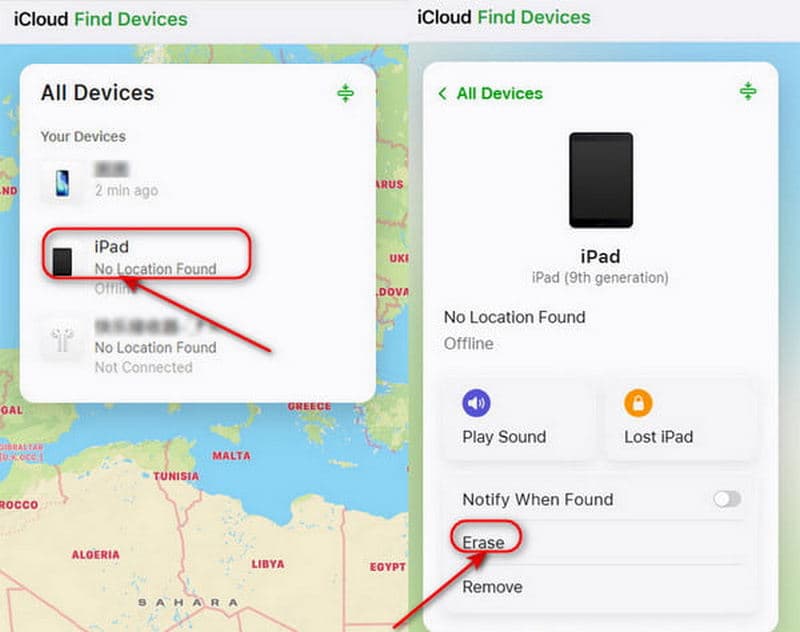
Step 2. After signing in, click All Devices at the top of the screen. Locate and select your old iPhone you want to unlock.
Step 3. Click Erase iPhone in the lower right corner. Wait for the reset process to finish. Your iPhone will restart, and you can restore your iPhone from a previous backup.
Part 5: Erase Your Old iPhone via the Forgot Passcode Option
If you don't have a computer or simply don't want to install any software, there is still an easy solution available. As long as your device is running iOS 17 or later, you will see the support.apple.com/iPhone/passcode screen on your locked iPhone, and can unlock your old iPhone without a computer directly from the lock screen using the Forgot Passcode option.
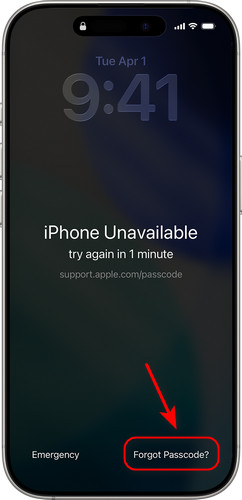
Step 1. Repeatedly enter the wrong passcodes until you see the iPhone Unavailable screen.
Step 2. On the lock screen, tap Forgot Passcode in the bottom right corner. If your device is running iOS 15.2 or iOS 16, the option is Erase iPhone instead.
Step 3. Tap Start iPhone Reset, then sign in with your Apple ID and password to confirm the decision.
Step 4. After verification, select Erase iPhone to delete all data and settings. Once the reset is complete, you can set up your iPhone and create a new passcode.
Conclusion
To sum up, if you're searching for how to unlock an old iPhone if you forgot the password, the important thing to know is that the device will need to be erased. If you still have your Apple ID, official methods like iCloud or the Forgot Passcode option are safe and reliable. If you prefer an easier and faster solution, an iOS unlocker like Apeaksoft iFoneKit iOS Unlocker may be more convenient. And if the issue is related to a carrier lock, contacting your carrier is the only way to remove your SIM restrictions.
Related Articles




