

How to Get Samsung Contacts Recovery With or Without Backup

Today, we save lots of data on our smartphones. The contact list and phone numbers, for example, are the most important data on a phone. In our daily life, we may lose important contacts due to human error, accidental deletion, factory reset, update failure, software glitches, and more. Among Samsung users, this problem commonly happens. Our guide will concentrate on providing you with proven methods to restore contacts on a Samsung device.
PAGE CONTENT:
Part 1: Recover Contacts on Samsung from the Recycle Bin
The Recycle Bin folder is the easiest way to recover Samsung phone contacts. It allows you to recover contacts that were deleted within 30 days. That is the built-in feature in the Contacts app.
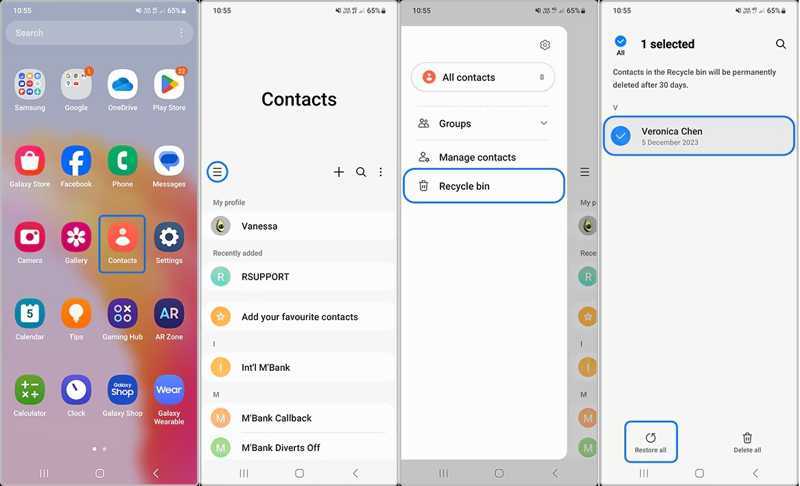
Step 1. Run the Contacts app on your Samsung phone.
Step 2. Tap the Hamburger button and choose Recycle bin.
Step 3. Here you can view all recently deleted contacts.
Step 4. Tap the Edit button, select the desired contacts, and hit Restore.
Part 2: Retrieve Samsung Contacts from Samsung Cloud
Samsung Cloud is the cloud service released by Samsung for its customers. It allows you to back up your contacts. After you lose some contacts, you can retrieve contacts on your Samsung device from Samsung Cloud.
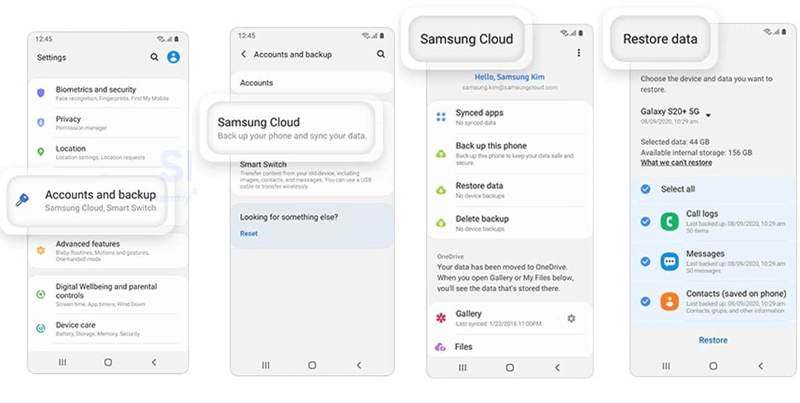
Step 1. Open the Settings app on your Samsung phone.
Step 2. Tap Samsung Account, and choose Samsung Cloud.
Step 3. Press the Restore data button.
Step 4. Then, choose the backup that may include the lost contacts.
Step 5. Select Contacts and tap the Restore button. This process won't factory reset your device.
Part 3: Restore Samsung Contacts via Smart Switch
Smart Switch is the backup feature for Samsung devices. It can back up your data to an SD card or a computer. Of course, it allows you to get deleted contacts back on your Samsung. The prerequisite is that you have a Smart Switch backup.
How to Restore Contacts to Samsung from SD Card
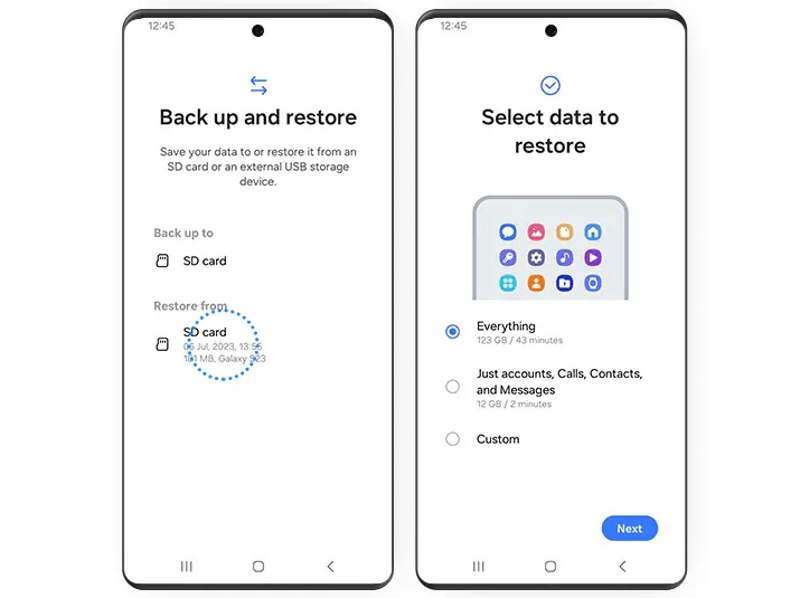
Step 1. Insert your backup SD card into your phone.
Step 2. Open the Smart Switch app.
Step 3. Choose Back up and restore your data, and hit Continue.
Step 4. Tap SD card under the Restore from area.
Step 5. Select Just accounts, Calls, Contacts, and Messages.
Step 6. Tap Next and follow the onscreen instructions to find lost contacts on Samsung.
How to Restore Contacts to Samsung from a Computer
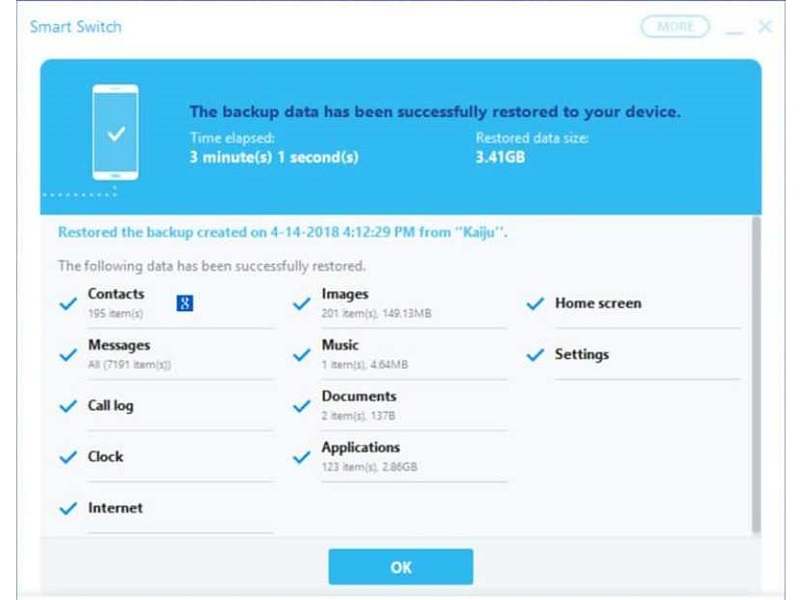
Step 1. Open the Smart Switch client on your computer.
Step 2. Plug your Samsung phone into the computer with a USB cable.
Step 3. After your device is recognized, click Restore.
Step 4. Click Manually select file, and select contacts.
Step 5. Finally, hit Restore again to initiate Samsung phone contacts recovery.
Part 4: Find Deleted Contacts on Samsung from Google
If you have synced or backed up your contacts to your Google account, you can retrieve deleted numbers from Samsung. You can import the contacts from your account and merge them with existing contacts.
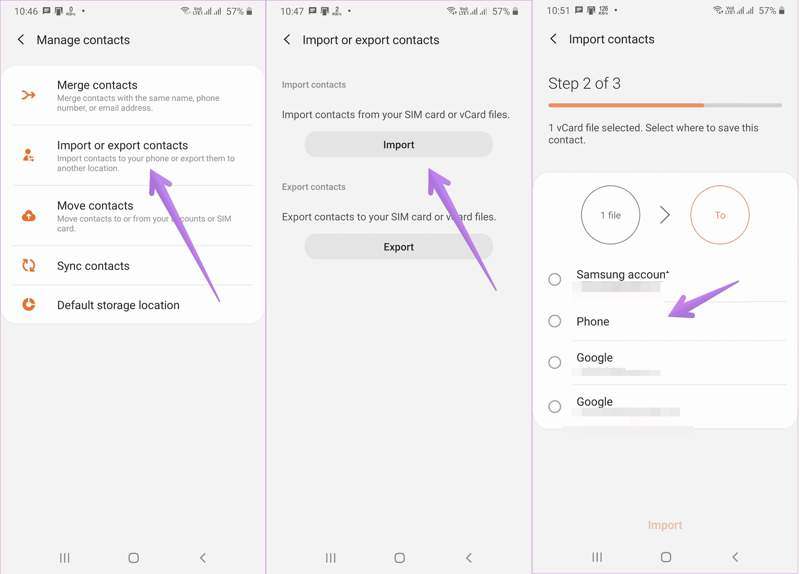
Step 1. Run your Contacts app.
Step 2. Tap the Menu button, and choose Import or export contacts.
Step 3. Tap the Import button.
Step 4. Select your Google account or the contact file you exported from Google.
Step 5. Next, select Phone and tap Import.
Part 5: Recover Contacts on Samsung Without Backup
Can you get deleted contacts back on Samsung if you don’t have a backup? The answer is yes, and all you need is Apeaksoft Android Data Recovery. It can scan your memory and look for deleted contacts.
The Best Way to Recover Contacts on Samsung Without Backup
- Recover deleted contacts on Samsung phones in one click.
- Preview lost contacts on your device.
- Extract contacts from a broken Samsung device.
- Compatible with almost all Samsung phones and tablets.
Secure Download
Secure Download

How to Recover Deleted Contacts on Samsung
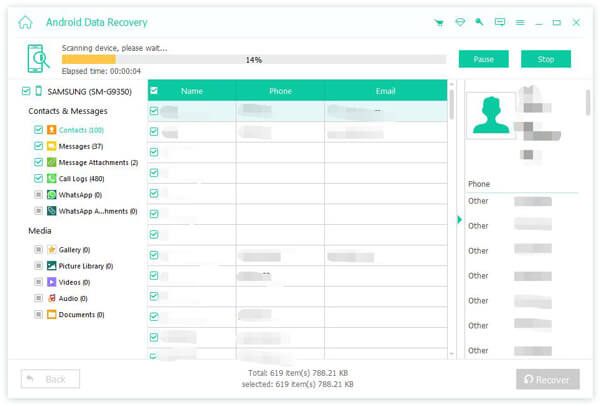
Step 1. Install the contact recovery tool
Run the best contact recovery software for Samsung after installing it on your computer. Connect your device to your computer with a USB cable. Make sure to enable USB Debugging mode on your phone and choose Transfer files.

Step 2. Scan contacts on your phone
Once your Samsung phone is detected, select Contacts, and click the Next button to begin scanning contacts in your memory. When it is done, toggle on Only display the deleted items, and view deleted contacts.

Step 3. Retrieve contacts on Samsung
Finally, select the contacts you want to retrieve and click the Recover button at the bottom. Set the output folder and confirm Samsung phone contacts recovery. You can also recover deleted voicemail on Android.
Conclusion
This article shared multiple methods to retrieve contacts from Samsung phones. The Recycle Bin folder is the easiest way to get back the contacts you recently deleted. With a backup, you can find the lost contacts from Samsung Cloud, using Smart Switch, or from Google. Apeaksoft Android Data Recovery is a simple way to recover disappeared contacts on your Samsung phone without a backup.
Related Articles




