

5 Best Pro and Free Western Digital Data Recovery Software

Western Digital is a leader in digital storage solutions compatible with Mac and PC, known for manufacturing HDDs, SSDs, and external storage devices. However, users may encounter data loss issues, such as accidental deletion, drive corruption, formatting errors, system failures, and more. It is essential to find the right data recovery program. This article identifies and reviews the top 5 best data recovery software from Western Digital external hard disks and internal hard drives.
PAGE CONTENT:
Part 1: Comparison of Best Western Digital Data Recovery Software
Methodology
When we tested the best Western Digital data recovery software, we identified that the programs work for both internal and external hard drives. Here is what you should look for in the ideal Western Digital recovery software:
1. Ease of use.
2. Success rate.
3. Compatible file systems.
4. Ability to recover partition data.
5. Price.
6. Preview capability.
| Price | Success Rate | Supported File Systems | |
| Apeaksoft Data Recovery | Free demo $22.25 monthly, $55.96 yearly, $71.96 lifetime | 98.7% | NTFS, FAT16, FAT32, exFAT, EXT, and more |
| Data Rescue | Free $79 monthly, $399 yearly | 90.5% | FAT/FAT32, exFAT, NTFS, and APFS |
| Disk Drill | Free $89.00 for Pro, $499.00 for Enterprise | 90.0% | FAT, exFAT, NTFS, APFS, EXT2/3/4, and BTRFS/RAW |
| TestDisk | Free | 89.5% | FAT, NTFS, ext2/ext3/ext4, and more |
| Windows File Recovery | Free | 89.2% | NTFS, FAT, and exFAT |
Part 2: Top 3 Pro Western Digital Data Recovery Software
Top 1: Apeaksoft Data Recovery
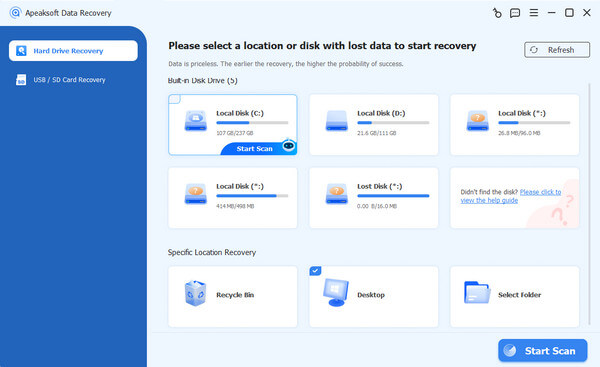
As an ideal Western Digital data recovery software, Apeaksoft Data Recovery can meet almost all your needs. It works for both internal and external hard drives. Furthermore, almost all file systems are supported. More importantly, the success rate of Western Digital data recovery is high.
Secure Download
Secure Download
- Recover data on Western Digital devices.
- Support a wide range of file types.
- Preview found files.
- Work on Windows 11 and earlier, macOS 10.7 and later.
- It takes a while if too many files are on your drive.
Here are the steps to recover a Western Digital hard drive:
Step 1. Install Data Recovery
Run the Western Digital data recovery service after installing it on your computer. Go to the Hard Drive Recovery tab, pick the desired drive, and click Start Scan.
Tips: To recover data from a Western external hard drive, choose USB / SD Card Recovery instead.

Step 2. Preview found files
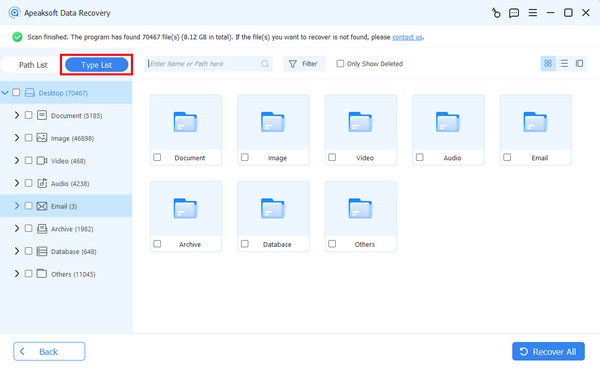
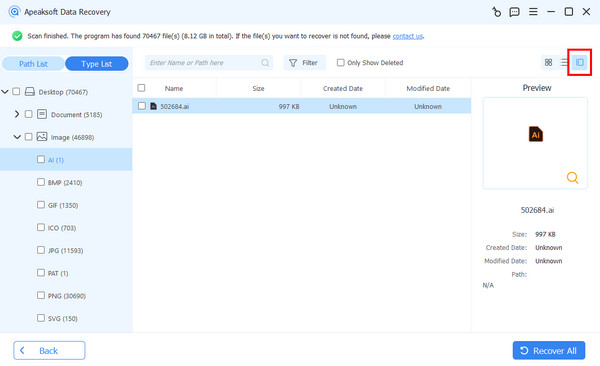
When the data scan finishes, go to the Type List and select the desired data types to view the found files. If you wish to view files by directory, choose Path List.
Step 3. Recover files
Select the files you want to restore. For example, you can recover deleted photos. Then, click the Recover button. Set an output folder and confirm data recovery.
Top 2: Data Rescue
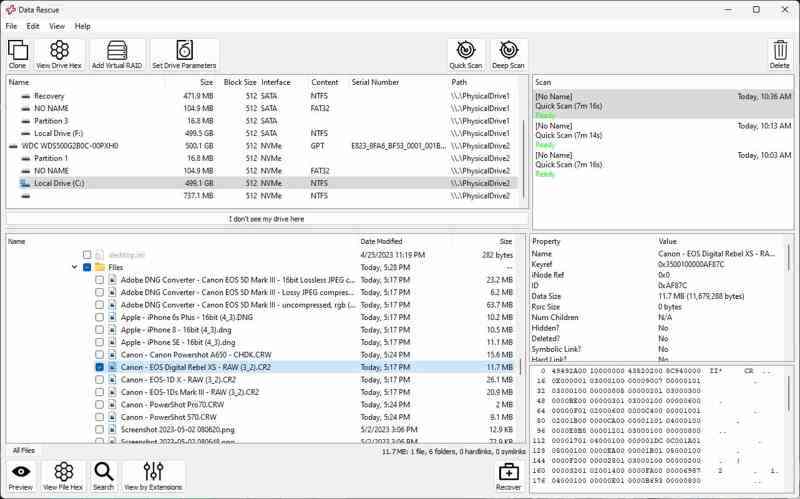
Data Rescue is a decent Western Digital Passport data recovery tool. It can retrieve deleted files and integrate extra features, like disk cloning. While it was designed for macOS, it is currently available on PCs, too.
- Recover recently deleted files.
- Add new file types.
- Offer a cross-platform license.
- The interface looks outdated.
- It lacks advanced features.
Here are the steps to recover a WD Passport external hard drive:
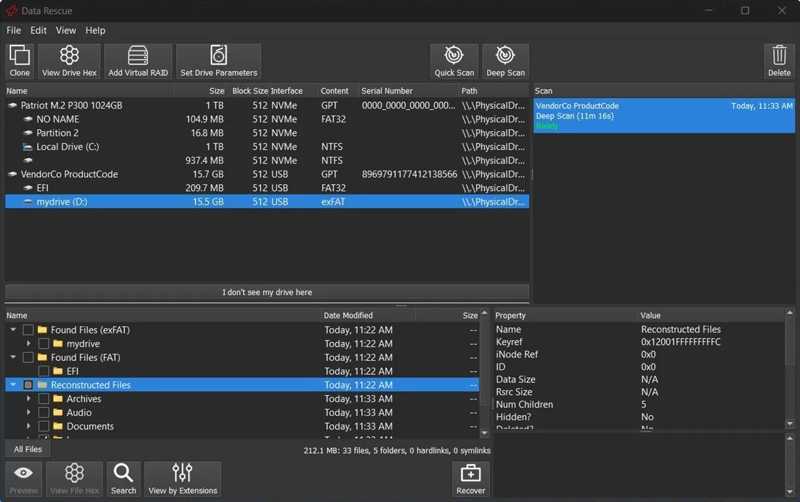
Step 1. Connect the Passport external hard drive to your computer.
Step 2. Open your data recovery software.
Step 3. Select the drive and click Quick Scan or Deep Scan.
Step 4. Next, select the desired files and click the Recover button.
Top 3: Disk Drill
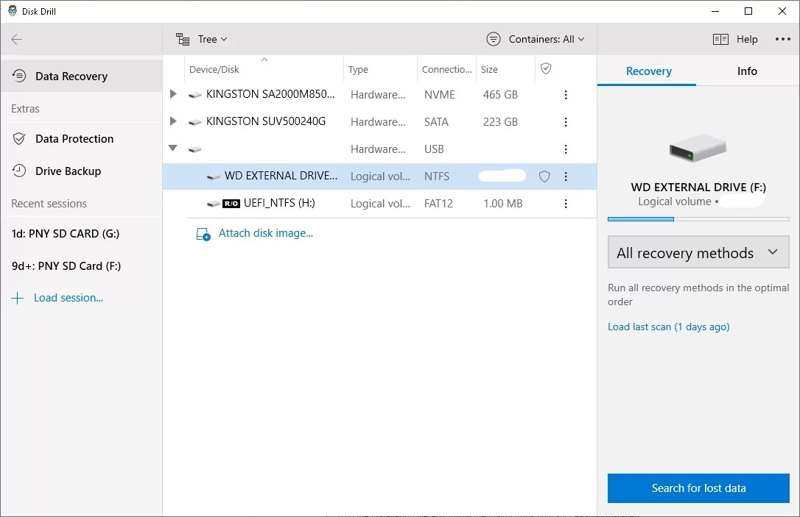
Disk Drill is a reputable data recovery software for Western Digital external hard drives. It can analyze various storage devices and retrieve lost or deleted files. On damaged drives, it can identify file fragments and reconstruct them.
- Easy to use.
- Support for a wide array of storage devices.
- Offer good customer service.
- It is ineffective on SSDs.
- It is expensive.
Here are the steps to recover a WD external hard drive:
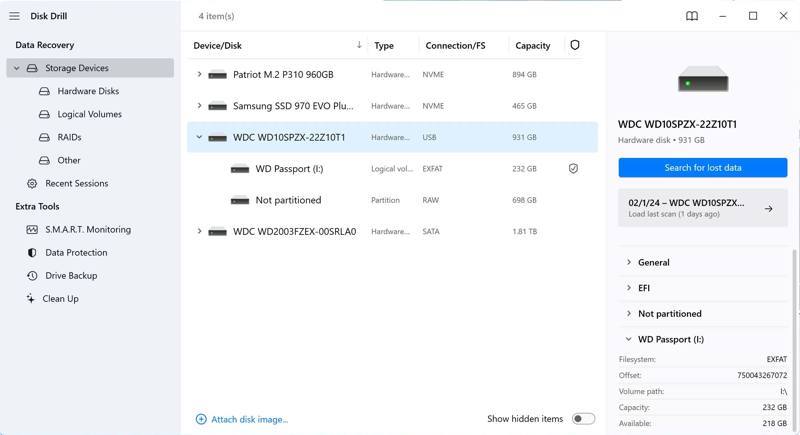
Step 1. Plug the WD external hard drive into your computer.
Step 2. Run the WD data recovery software after installation.
Step 3. Choose Storage Devices, and select the WD drive.
Step 4. Click Search for lost data.
Step 5. Then, pick a data type, select the desired files, and click Recover.
Part 3: Top 2 Free Western Digital Data Recovery Software
Top 1: TestDisk
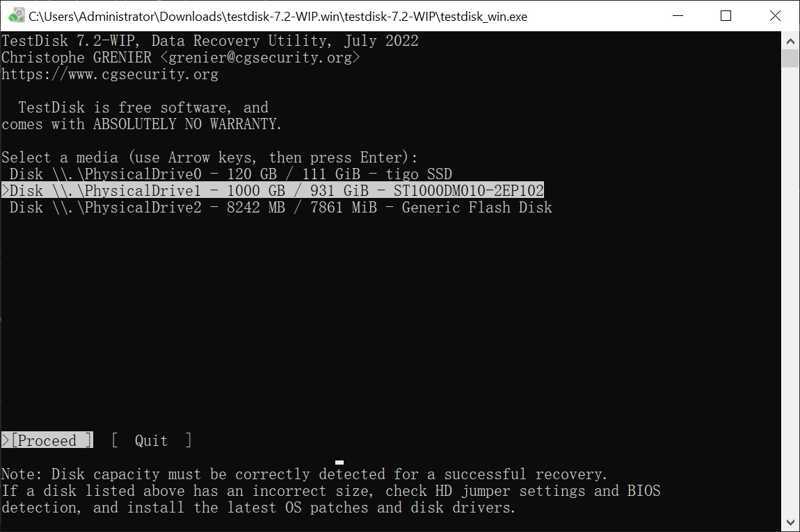
TestDisk is an open-source Western Digital HDD data recovery program. It can recover lost or deleted partitions on your hard drives on a Windows, macOS, or Linux computer using command lines.
- Recover over 480 file formats.
- Work with NTFS, FAT32, and exFAT.
- Available on Windows, macOS, and Linux.
- It lacks a GUI.
- It is less user-friendly.
Here are the steps to recover a Western Digital hard drive:
Step 1. Download TestDisk from a trust source.
Step 2. Open the archive and run testdisk_win.exe.
Step 3. Select Create with the Arrow keys and hit Enter on your keyboard.
Step 4. Select the WD hard drive you want to recover.
Step 5. Select Proceed and hit Enter.
Step 6. Choose the type of partition, and hit Enter.
Step 7. Select Analyse and press Enter.
Step 8. Choose Quick Search, hit Enter, and press P.
Step 9. Follow the onscreen instructions to recover your files.
Top 2: Windows File Recovery
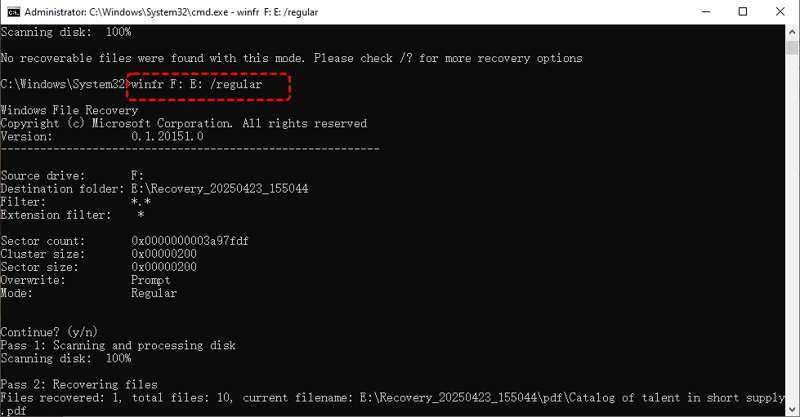
While Western Digital's warranty doesn’t cover data recovery, Windows File Recovery can help you retrieve lost files from WD internal and external hard drives on Windows 11/10 without paying a penny.
- Completely free.
- Support partial recovery.
- Create decent results.
- It supports limited file systems.
- It may crash on exFAT.
Here are the steps to recover a Western Digital hard drive:
Step 1. Install Windows File Recovery from the MS Store.
Step 2. Run Command Prompt as Admin.
Step 3. Type in winfr source-drive: destination-drive: /switches and hit Enter.
Replace source-drive with WD hard drive, destination-drive with the destination location, /switches with a mode.
Conclusion
Now, you should learn the top 5 best Western Digital data recovery software. Some of them are free to use. Others require a license or subscription to get the full features. Apeaksoft Data Recovery, for example, is an ideal option for beginners and ordinary people.
Related Articles




