

How to Recover Data from a Compact Flash Card Safely

Whether you are a professional photographer or a casual user, CF cards often store irreplaceable photos, videos, or project files. Knowing the method of recovering data from Compact Flash cards is essential to prevent loss, in case there are accidental data issues, such as corruption, accidental deletion, or improper ejection. Learning how to perform Compact Flash data recovery ensures you can restore vital information safely and efficiently.
This guide will walk through essential preparation steps, introduce a reliable recovery tool, and explain how to recover data on both Windows and Mac systems—helping you regain access to your valuable files with minimal risk.
PAGE CONTENT:
Part 1: Things You Need to Know Before Compact Flash Data Recovery
Before performing Compact Flash data recovery, it's crucial to understand how these storage devices work and what causes data loss. A Compact Flash (CF) card is often used in professional cameras or recording devices due to its high speed and stability. However, data loss can occur for various reasons, including accidental deletion, file system corruption, or improper ejection. Knowing the cause helps you choose the proper recovery method and avoid worsening the situation.
Tips: Always stop using the CF card immediately once data loss happens to prevent overwriting lost files.
Part 2: The Most Secure Tool for Compact Flash Data Recovery
When it comes to safely recovering data from Compact Flash cards, Apeaksoft Data Recovery stands out as the most reliable solution. This professional recovery tool can scan your CF card thoroughly and retrieve lost data, including photos, videos, and documents, within minutes. Whether data loss is due to human error or system failure, this software provides a risk-free recovery process.
Step 1. Download Apeaksoft Data Recovery by pressing the button below.
Secure Download
Secure Download
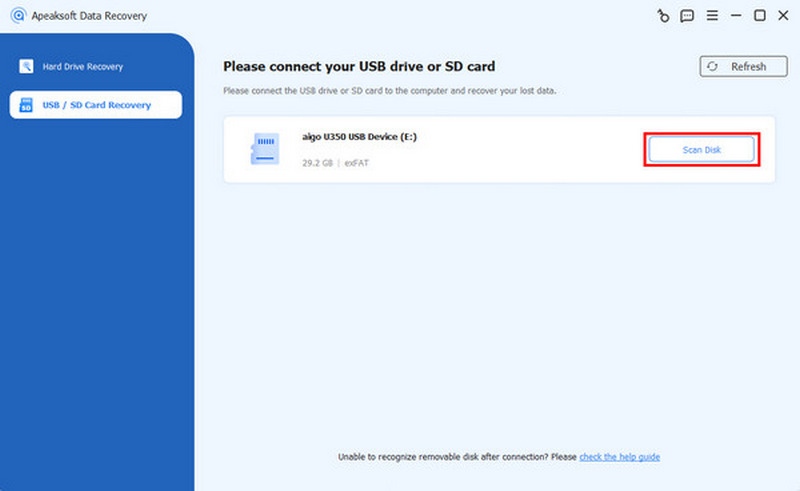
Step 2. Connect your CF card to the computer using a reader. In the main interface, click USB / SD Card Recovery. Then, click Scan Disk to select your CF card to read the content within.
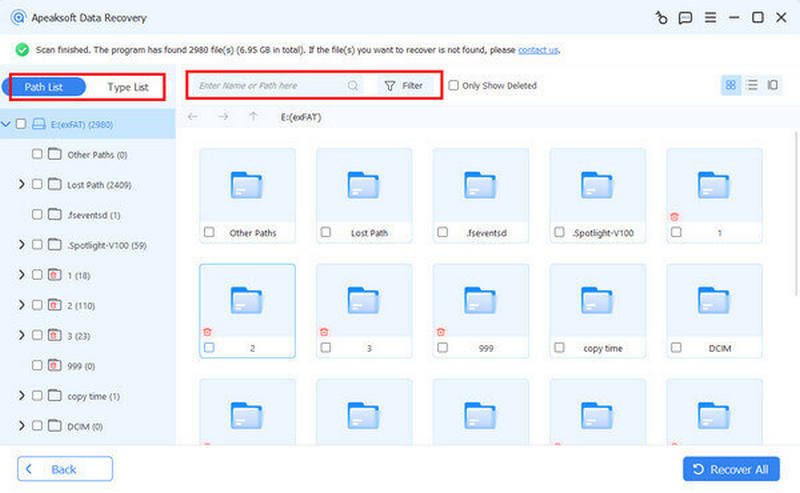
Step 3. Then, you will see everything from your CF card. You can select the desired data you want to recover by clicking Filter. To see more detailed information, select specific data to check.
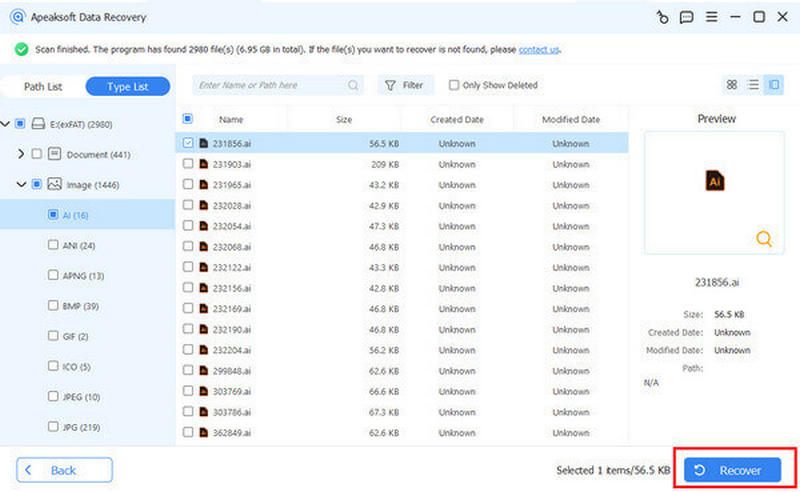
Step 4. Once you select everything you want for compact flash data recovery, click Recover to start the process automatically. Choose a saving path to save the recovered data.
Part 3: How to Recover Data from Compact Flash Cards on Windows/Mac
Recovering data from a Compact Flash card can vary slightly depending on the operating system you use. Windows and macOS offer different methods, but both can effectively restore lost files when handled correctly. Understanding the unique recovery process for each platform ensures a smoother experience and increases the likelihood of retrieving your important photos, videos, or documents safely.
For Windows - CMD Solution
If data on your Compact Flash card becomes inaccessible due to corruption or hidden errors, the Command Prompt (CMD) in Windows can be an effective built-in recovery option. By using simple commands, you can scan, detect, and repair file system errors, restoring lost data without additional software.
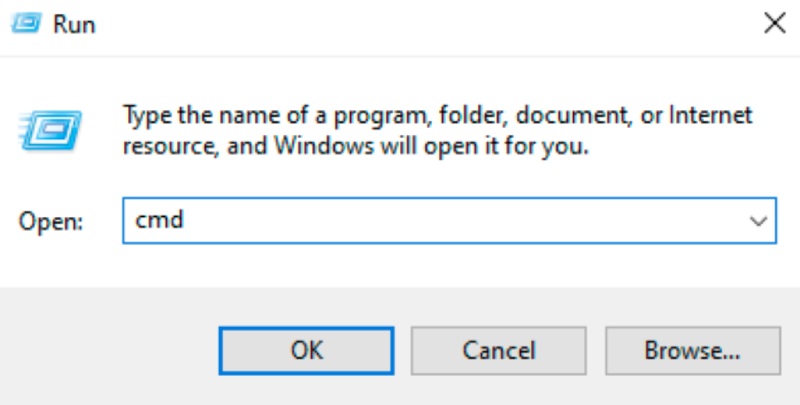
Step 1. On your Windows computer, press Win and R to summon the Run window. Type cmd to open Command Prompt.
Step 2. In the window of Administrator Command Prompt, type chkdsk g:/r, replacing g with the drive letter of your compact flash card.
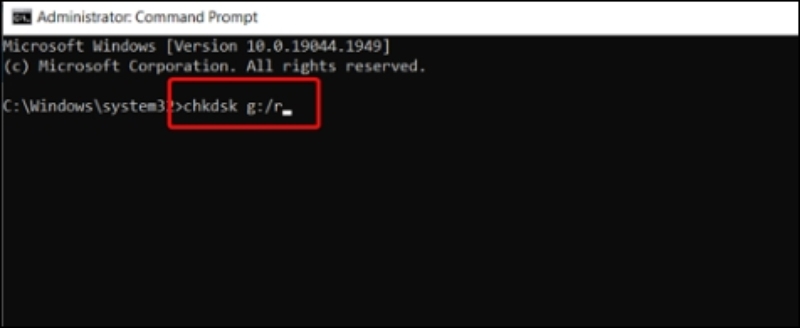
Step 3. The compact flash data recovery will start automatically. After a few minutes, you will receive the message that Windows has made corrections to the file system if your CF card has been restored successfully.
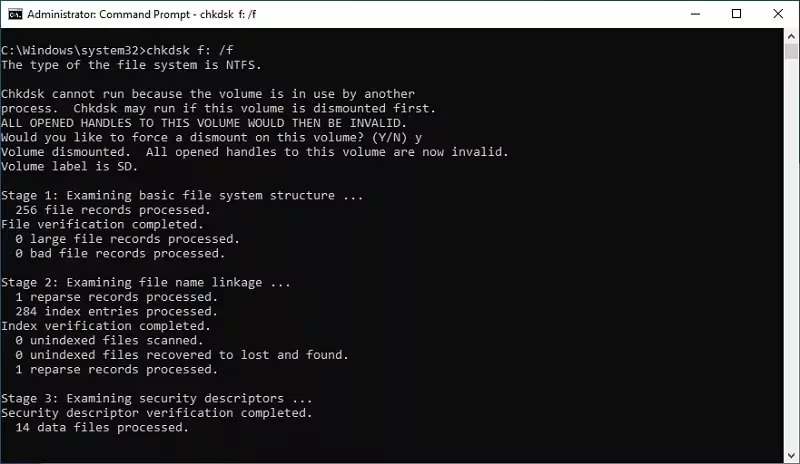
Tips: You can also perform an SSD data recovery using Command Prompt.
For Mac - First Aid
Mac users can take advantage of the First Aid feature in Disk Utility to fix errors on a Compact Flash card. This tool scans the drive for disk structure or partition issues and attempts to repair them automatically, helping recover access to lost or unreadable files safely.
Step 1. Launch Disk Utility under the Utilities tab on your Mac. You can navigate to Applications and click to open it.
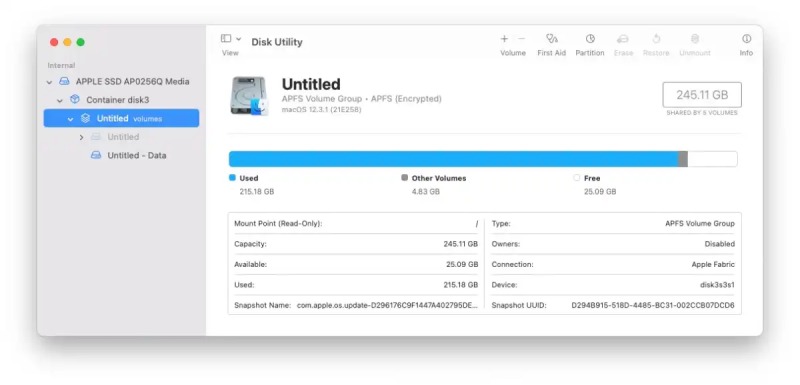
Step 2. Click to select your CF card and click First Aid to run the process. Click Continue in the pop-up window for confirmation.
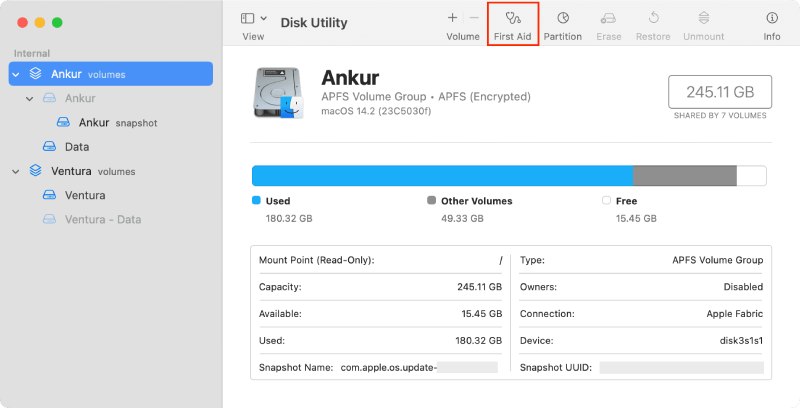
Step 3. Once you see the message Operation successful pop up, it means that compact flash data recovery on your Mac is finished.
Tips: To recover data from formatted hard drives, this method can also be applied.
Conclusion
Compact Flash data recovery doesn't have to be complicated or risky. With the proper preparation and a trustworthy tool like Apeaksoft Data Recovery, retrieving valuable data becomes fast and secure. Whether the files were lost due to deletion, formatting, or corruption, following the correct recovery steps greatly improves success rates and protects data integrity. Hope you can have a successful data recovery from Compact Flash card!
Related Articles




