Apeaksoft Screen Recorder Review Based on Our Testing

Capturing what happens on your screen has become an essential skill for educators, marketers, students, professionals, vloggers, and content creators. It empowers people to share information and knowledge, showcase workflows, and troubleshoot without complicated technology. The right screen recorder can generate the desired result. Apeaksoft Screen Recorder, for example, is one of the top screen recording software options. This article shares an honest review based on our lab testing.
PAGE CONTENT:
- Part 1: What Is Apeaksoft Screen Recorder
- Part 2: Tech Specs of Apeaksoft Screen Recorder
- Part 3: Key Features of Apeaksoft Screen Recorder
- Part 4: Apeaksoft Screen Recorder Test
- Part 5: Apeaksoft Screen Recorder Review Based on Testing
- Part 6: Apeaksoft Screen Recorder Pricing
- Part 7: Apeaksoft Screen Recorder vs. OBS vs. Loom
- Part 8: Final Verdict
Part 1: What Is Apeaksoft Screen Recorder
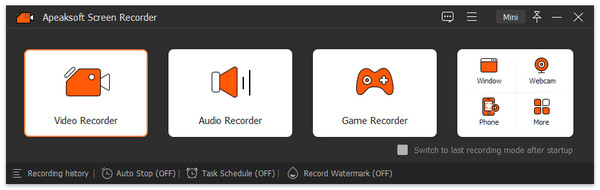
Apeaksoft Screen Recorder is a safe, premium screen recorder for PC and Mac. It includes six modes for capturing the screen, audio, gameplay, windows, webcam, phone, and screenshots on your desktop. The latest version is 2.5.10.
Secure Download
Secure Download
Part 2: Tech Specs of Apeaksoft Screen Recorder
Apeaksoft Screen Recorder is a desktop screen recorder. It means that you need to download and install it on your hard drive to capture what you want to save. Before downloading Apeaksoft Screen Recorder, you should learn the tech specs and other information.
Tech Specs of Apeaksoft Screen Recorder
| OS | Windows 11/10/8/8.1/7/Vista/XP macOS 10.13 and above |
| CPU | 1GHz Intel/AMD CPU 1GHz Intel processor and Apple M1/M2/M3/M4/M5 chip |
| RAM | 1G RAM or more |
| Storage | 512 MB or more |
Supported File Formats and Codecs
| 4K Video | MP4, AVI, FLV, WebM, TS, MKV, MOV, MXF |
| 4K Codec | H.265/HEVC, H.264, VP8, VP9, MPEG, XviD |
| HD Video | MPEG2, MP4, MOV, WMV, HD TS, HD MTS, HD M2TS, HD TRP, HD TP |
| SD Video | 3GP, AVI, DV, MOD, MJPEG, FLV, SWF, F4V, MKV, MPEG, VOB, M4V, MPV, MOV, RM, RMVB, TRP, WMV, ASF |
| Audio | AAC, AIFF, CUE, FLAC, M4A, MP3, OGG, AC3, RA, WAV, WMA |
| Image | For Windows: PNG, JPG, GIF, TIFF, BMP For Mac: PNG |
Part 3: Key Features of Apeaksoft Screen Recorder
There are seven modes in Apeaksoft Screen Recorder for different situations. To learn the software, you must understand these modes and key features.
Mode 1: Screen Recorder
Record the full screen, partial region, or custom area with system audio. Moreover, you can overlay your face and voice to the recording in real time. To automatically record the screen, the Take Schedule option is available. During the process, you can draw on the recording directly.
Mode 2: Audio Recorder
Capture system sound and/or microphone at the same time. When the recording finishes, you can pre-listen to the result and edit it.
Mode 3: Screen Capture
Take a screenshot on your desktop with one click. Then, edit the screenshot with the built-in image editor and save it to the clipboard or hard drive.
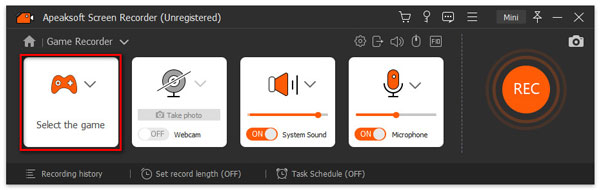
Mode 4: Game Recorder
Optimize resource usage while capturing gameplay on your desktop. Add your comments and reactions to the recording.
Mode 5: Window Recorder
Select a window or process on your desktop to record immediately. When it finishes, you can preview and edit the recording.
Mode 6: Webcam Recorder
Record a video through your webcam with background music and your voice. Customize the video resolution up to 4K.
Mode 7: Phone Recorder
Connect your iPhone or Android phone to your computer with a compatible cable and follow the on-screen instructions to mirror your phone screen. Then, you can screen record or screenshot it.
Besides, Apeaksoft Screen Recorder for Mac and Windows offers a video editor and a media player for retouching recordings and previewing results. Plus, it provides custom options to adjust output formats, quality, and more.
Part 4: Apeaksoft Screen Recorder Test
How We Test
We tested the main modes and features in Apeaksoft Screen Recorder to learn about its performance. We tested the software to record live streams, gameplay, and tutorials in our professional lab.
Hardware and Software
| OS | Windows 11 64-bit |
| CPU | Intel Core i7-14700K |
| GPU | NVIDIA RTX 4070 |
| RAM | 32GB |
| Storage | 1TB SSD |
| Monitor | 3840 × 2160 resolution |
Scenario 1: Record Streams
We recorded live-stream videos on YouTube and Twitch. After installing Apeaksoft Screen Recorder on a PC, we open it and choose the Screen Recorder mode from the left side. After setup, we record the live stream.
| Video quality | Audio sync | Lag | How long rendering | |
| YouTube | 4K | Seamless | No | 26 seconds for 2 hours video |
| Twitch | 1080p | Seamless | No | 11 seconds for 1 hour video |
Scenario 2: Record Gameplay
When recording gameplay on Windows with Apeaksoft Screen Recorder, we tested using Minecraft and The Legend of Zelda. We also tested the performance when adding a webcam and voiceover to the recording.
| Video quality | Audio sync | Lag | Hardware Acceleration | |
| Minecraft | 4K | Seamless | No | Yes |
| Minecraft recording with webcam and microphone | 4K | Seamless | No | Yes |
| The Legend of Zelda | 4K | Seamless | Little lag after 10 hours | Yes |
Scenario 3: Record a Tutorial
If you need to record a video tutorial to display a software program or a presentation, learn about the testing results of Apeaksoft Screen Recorder below. The table is based on a test in our lab.
| Video quality | Audio sync | Lag | Note | |
| Tutorial with voiceover | 4K | Seamless | No | The toolbar allows users to add annotation on recordings |
| Tutorial with webcam and voiceover | 1080p | Seamless | No |
Part 5: Apeaksoft Screen Recorder Review Based on Testing
What We Like
- Simple and easy to set up with an intuitive interface.
- Support 4K UHD recording at up to 60 fps.
- Capture multiple audio sources, including the system and microphone.
- Add annotation, drawing, and cursor effects in real time.
- Schedule recording for automated capture.
- Compatible with a wide range of output formats.
- Lightweight and integrates hardware acceleration.
What We Dislike
- Cannot stream or broadcast your desktop.
- Generate large video files if you set high resolutions.
- The free version limits a three-minute recording per session.
- Occasional performance lag if you record too long.
Part 6: Apeaksoft Screen Recorder Pricing
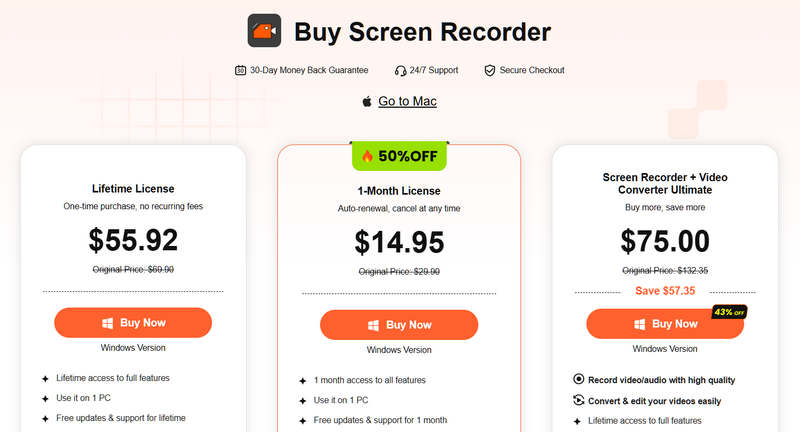
As mentioned previously, you can download Apeaksoft Screen Recorder from the official website for free. If you want to unlock all features, purchase a license. The monthly license costs $14.95, and the lifetime license costs $55.92.
Part 7: Apeaksoft Screen Recorder vs. OBS vs. Loom
Apeaksoft is a user-friendly screen recorder program designed for quick and high-quality recording. Other popular recorders include OBS and Loom. They have different advantages for different purposes.
| Apeaksoft Screen Recorder | OBS | Loom | |
| Best for | High-quality recording and gameplay capture | Live stream with maximum control | Quickly screen record |
| Platform | Windows and macOS | Windows, macOS, and Linux | Windows, macOS, iOS, Android |
| Price | $14.95 per month and $55.92 lifetime | Free | Free, $18 per month, $24 per month |
| Max Quality | 4K UHD at 60 fps | 4K at 60 fps | 4K on paid plan Free limited to 720p |
| Key Strength | Real-time annotation Dual audio tracks Schedule recording Support wide formats | Extend with plugins Low resource usage | Record-to-link Instant sharing Auto transcription |
| Limitations | No broadcast | Steep learning curve Lack video editor | Free version limits 5 minutes Minimal editing |
Part 8: Final Verdict
Apeaksoft Screen Recorder is a premium, beginner-friendly screen recorder that balances ease of use with 4K 60 fps output and real-time annotation. It performs well in independent testing, particularly for users who prioritize ease of use over advanced customization. It is suitable for recording everything on your desktop without lag or delay.
Conclusion
This article reviewed one of the most popular screen recording software, Apeaksoft Screen Recorder. It is a capable and reliable tool for screen recording, gameplay capture, tutorial generation, and more. Moreover, it offers bonus features, such as video editing and recording previews. Moreover, we compared the screen recorder with the top 2 alternatives. Our review based on lab testing, can help you make the best decision.
 Apeaksoft Screen Recorder
Record any video and audio on phone and computer screen.
Secure Download
Secure Download
Related Articles