What Is CCleaner Duplicate Finder and How to Use It

Today, we may process dozens of digital files every day, from photos to videos, from documents to PPTs. Almost everyone has some duplicate files stored on their computers. They take up space and make it difficult to find important files. This article reviews CCleaner Duplicate File Finder, one of the best software programs to find duplicate files. You can learn the necessary information about the tool and make the best decision before purchasing it.
PAGE CONTENT:
Part 1: What Is CCleaner Duplicate Finder
As its name indicates, CCleaner Duplicate File Remover is a comprehensive tool that eliminates unnecessary files from your computer and external hard drives. It can easily locate and delete duplicates.
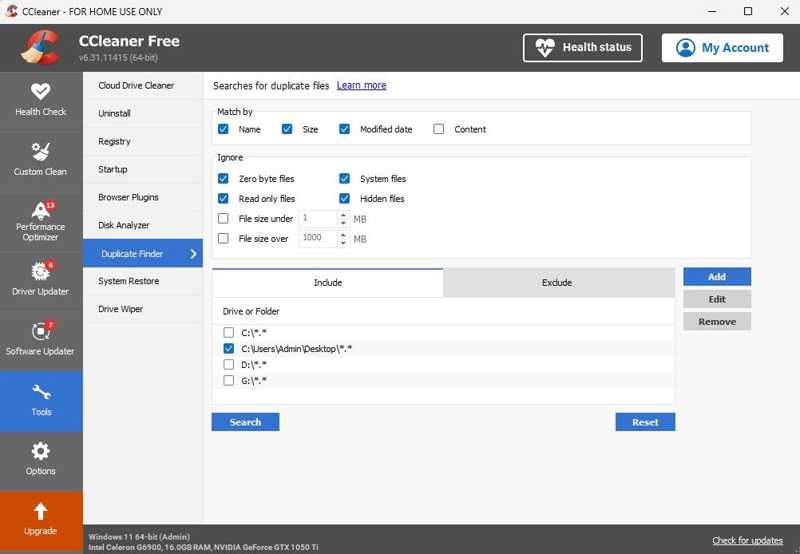
Main Features of CCleaner Duplicate File Finder
- Search for duplicate files on Windows and Mac.
- Filter and ignore files based on file type and size.
- Match by file name, size, and modified date.
- Scan or un-scan a specific drive or folder.
- Delete multiple duplicate files at one time.
- Save results to text files for deleting later.
- Support images, songs, videos, and more.
- Enhance the accuracy of duplicate scanning by parameters.
Review of CCleaner Duplicate File Remover
- It comes with PC optimization features.
- CCleaner Duplicate File Remover offers a preview option.
- It is able to monitor junk in real-time.
- It allows you to clean useless files and duplicates to improve performance.
- A free version is available.
- Users can search for duplicate files using one or more criteria.
- In addition to duplicates, it can find temporary files, track cookies, and more.
- It lacks live customer support.
- There are ads in the free version.
- Beginners require some guidance.
- It cannot find duplicate files with different filenames.
- Compared to professional duplicate finders, it has limited features.
Price of CCleaner Duplicate File Finder Tool
CCleaner Duplicate File Finder Tool offers two versions: a free standard version and a paid pro version. The pro version costs $44.95 per year per PC. The Plus version costs $64.95 per year for up to 3 devices. Bear in mind that the free version only includes basic features with limited options.
Is It Safe to Remove Duplicate Files with CCleaner?
According to our research, it is safe to delete duplicate files detected by CCleaner. However, some duplicates are system files necessary for some apps or the operating system to run as they should. So, you must count the results before you delete.
Part 2: How to Use CCleaner Duplicate Finder
While the free version only has limited features and comes with ads, it is a good beginners to try CCleaner Duplicate File Remover before you subscribe to the full edition. Download the tool and run it.
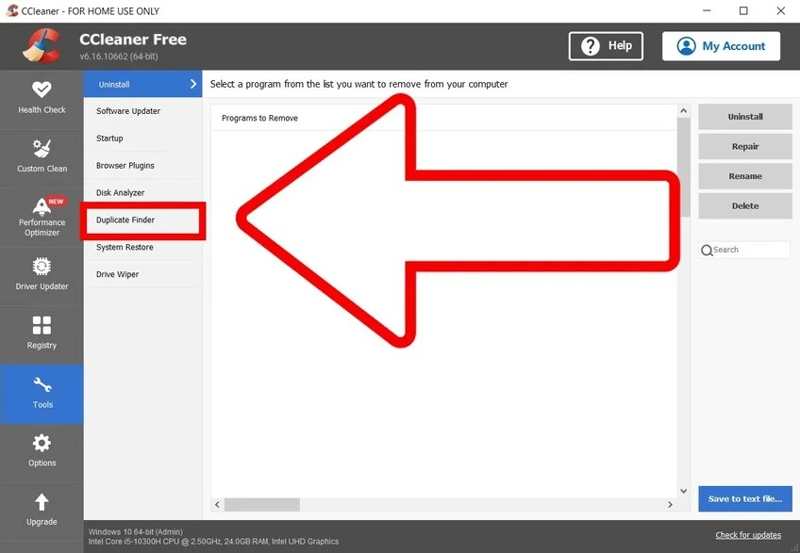
Step 1. Go to the Tools tab on the sidebar, and select Duplicate Finder.
Step 2. To ensure the scan is effective, set the parameters:
Match by: decide to find duplicate files according to Name, Size, Modified date, and Content.
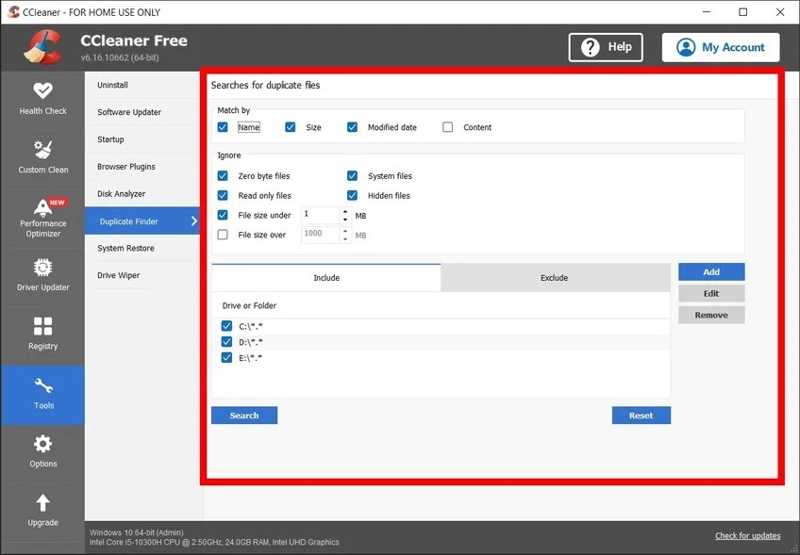
Ignore: allows you to ignore files with various parameters, like System files, Read only files, and more.
Locate the Include or Exclude tab at the bottom, and make sure not to scan the startup drive.
Step 3. Click the Search button to begin finding duplicate files.
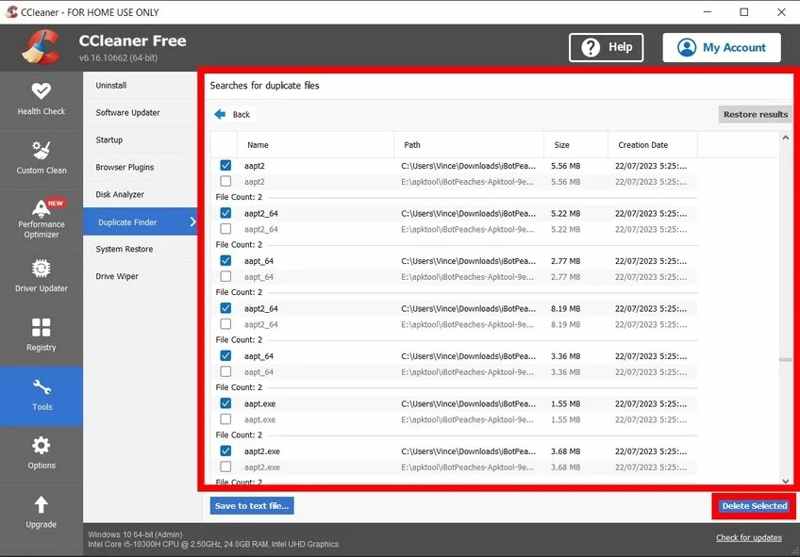
Step 4. Afterward, select the duplicate files you want to delete, and click the Delete Selected button at the bottom right corner.
Step 5. Wait for the process to complete, and close the CCleaner Duplicate Finder Tool.
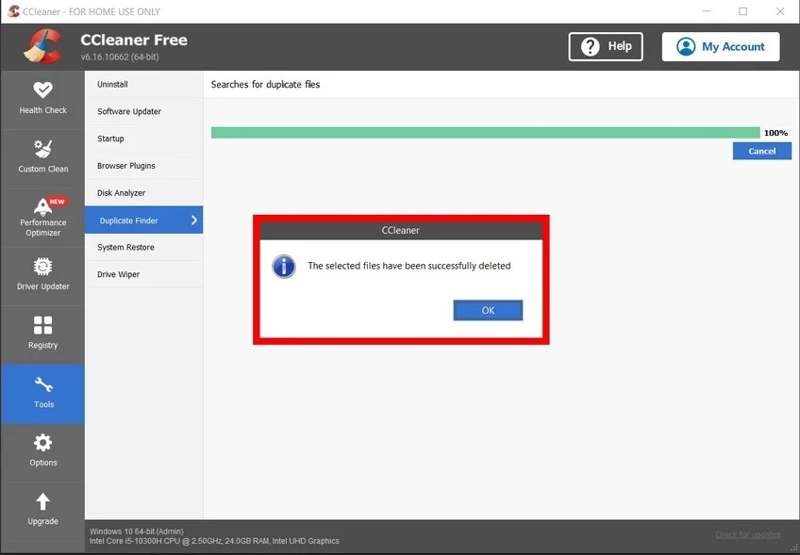
Note: If you want to delete duplicate files later, click the Save to text file button to save the result. If you delete duplicates by mistake, click the Restore results button.
Further Reading
Part 3: A Great CCleaner Duplicate Finder Alternative
CCleaner Duplicate File Finder Tool is not a perfect way to find duplicate files. It scans files by filename and other parameters while lacking advanced technology, like AI. If it cannot meet your needs, Apeaksoft Mac Cleaner is a great alternative option. It is able to scan similar photos and duplicate files effectively.
A Good Alternative to CCleaner Duplicate File Finder
- Search for duplicate files without technical skills.
- Look for similar photos using the AI technology.
- Preview duplicate files before deleting them.
- Delete all or multiple duplicate files at one time.
- Offer bonus features, like monitoring performance.
Secure Download
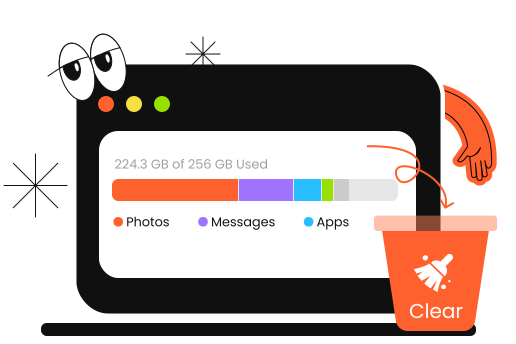
How to Find and Delete Duplicate Files and Photos
Step 1. Install Mac Cleaner
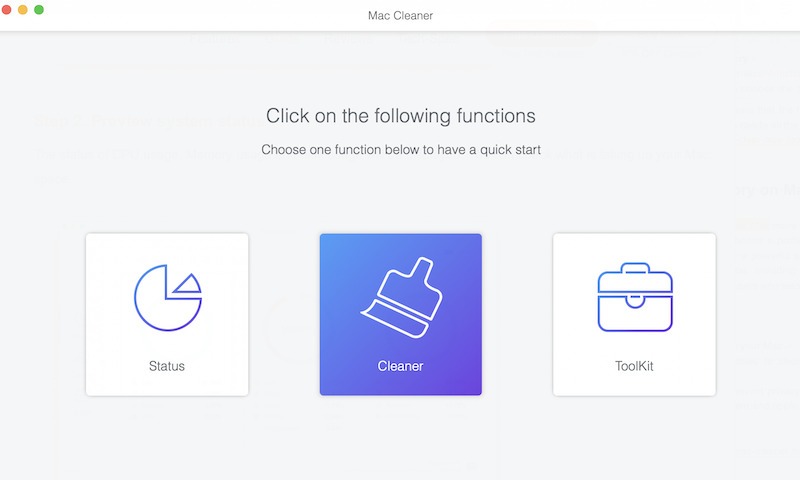
Download the best alternative to CCleaner Duplicate File Finder and follow the onscreen instructions to install it on your Mac. When you need to find and delete duplicates, open the software from the Applications folder. Click the Cleaner button in the home interface.
Step 2. Find similar photos
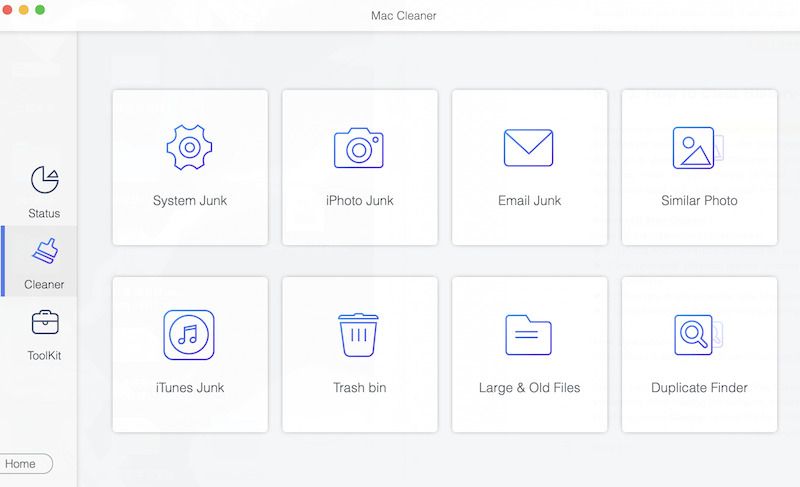
If you have lots of photos, including similar items, choose the Similar Photo tool. Click on the Scan button to begin looking for similar and duplicate photos using the AI technology. When it is complete, click the View button to view the result. Next, select the unwanted photos on your Mac, and click the Clean button. If prompted, confirm photo deletion.
Step 3. Search for duplicates
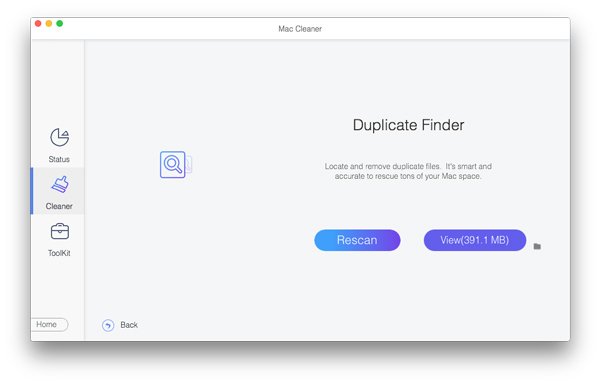
If you wish to find and delete duplicate files, choose the Duplicate Finder tool on the Cleaner window. Click the Scan button to start searching for duplicate files on your hard drives. It takes time if you have lots of files on your Mac. Next, click on the View button to preview the duplicates. Finally, select the useless files and click the Clean button at the bottom right corner. Then, confirm to clean duplicate files on your Mac.
Conclusion
Following our review, you should understand what CCleaner Duplicate Finder is, what it can do, its advantages, and disadvantages. More importantly, you can learn how to use it to find duplicates and free up space on your computer. Of course, it doesn’t integrate with advanced features, like AI. Therefore, we recommended an alternative tool, Apeaksoft Mac Cleaner. It is easier to use and able to find duplicate photos and files using the AI technology.
Related Articles