


How to Transfer Messages from iPhone to iPhone Quickly and Safely

If you just got another iPhone and are searching for how to transfer messages to new iPhones, you are in the right place! This article provides 5 useful ways to transfer messages from iPhone to iPhone. Whether you have already set up your iPhone and only want to transfer messages, you can find the best solution for your situation in this post.
PAGE CONTENT:
- Which Method Should You Choose
- Method 1: How to Transfer Messages to a New iPhone Using Quick Start
- Method 2: How to Sync Messages from iPhone to iPhone with iCloud Sync
- Method 3: How to Only Transfer Messages from iPhone to iPhone Without iCloud
- Method 4: How to Transfer Messages from iPhone to iPhone with iCloud Backup
- Method 5: How to Transfer Messages from iPhone to iPhone with iTunes/Finder
Which Method Should You Choose
Below is a summary table that help you quickly decide which method suits you best if you want to transfer messages from iPhone to iPhone.
| Your Situation | Recommended Method |
| Setting up a brand-new iPhone | Quick Start / iCloud Backup |
| You’ve set up your new iPhone and only need messages | iCloud Sync / Apeaksoft iPhone Transfer |
| You don’t have enough iCloud storage | Apeaksoft iPhone Transfer / iTunes/Finder |
| You just want to transfer selected messages only and don’t want to overwritten current data | Apeaksoft iPhone Transfer |
| You want to keep messages synced across Apple devices | iCloud Messages Sync |
| Old iPhone is broken but you have a backup | iCloud Backup / iTunes/Finder |
Method 1: How to Transfer Messages to a New iPhone Using Quick Start
If you have just got a new iPhone and haven't set it up yet, Quick Start is an official way to help you transfer messages from iPhone to iPhone during the initial setup via iOS Setup Assistant. Apple lets you transfer both text messages and iMessages directly from your old iPhone to your new device.
Step 1. Keep both your new iPhone and old iPhone on and connected to Wi-Fi. Enable Bluetooth on both devices.
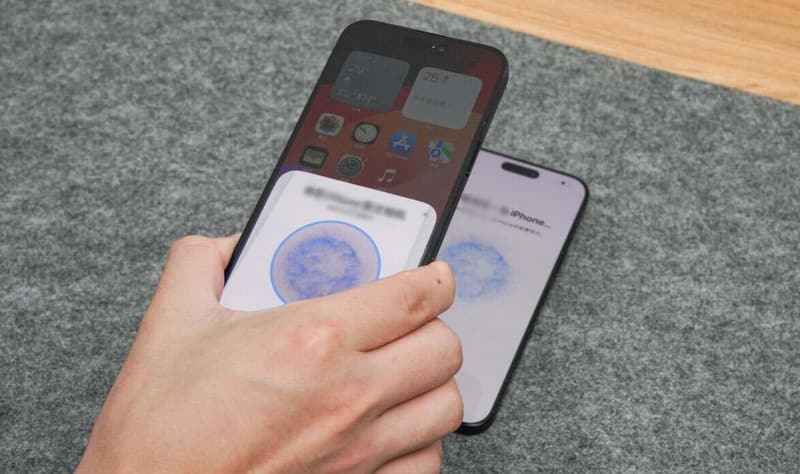
Step 2. Put two iPhones one next to another. An animation will appear on your new iPhone. Use your old iPhone to scan the animation, then enter your old iPhone passcode on the new device when prompted.
Step 3. When you see the Transfer Your Data screen, choose Transfer from iPhone. The detailed transfer time depends on the data size on your old iPhone. Based on our test, it took about 2 hours to transfer 240 GB of data from iPhone 14 to iPhone 17 Pro.
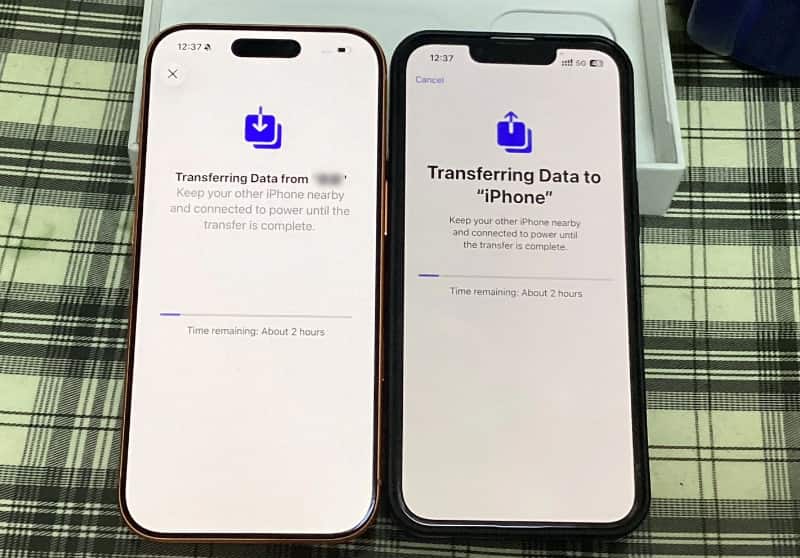
Step 4. After the transfer completed, you will see all the messages as on the old iPhone.
Method 2: How to Sync Messages from iPhone to iPhone with iCloud Sync
Cloud sync is a service of iCloud. When Messages in iCloud is enabled, your messages are uploaded to iCloud and become available on other Apple devices signed in with the same Apple ID. When you delete or add content from one device, all other devices will be updated. Therefore, you can utilize this feature to sync messages or iMessages to new iPhones.
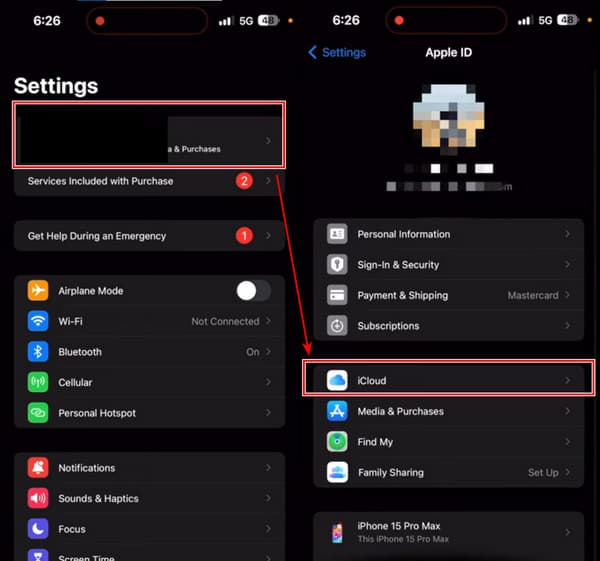
Step 1. On your old iPhone, open Settings. Tap on your device name and enter iCloud.
Step 2. Tap Show All under APPS USING ICLOUD. Then, find out Messages and tap on it.
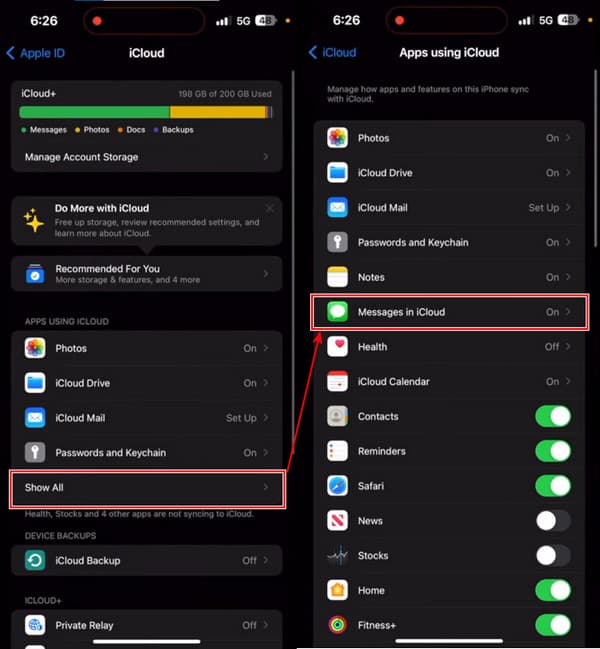
Step 3. Turn on Use on this iPhone and tap Sync Now. If you see the status: Syncing with iCloud, you successfully completed this step.
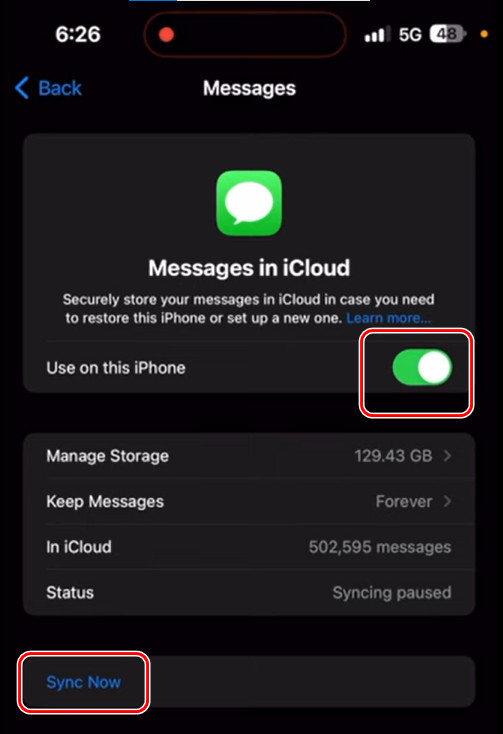
Step 4. Now, follow the three steps on your new iPhone.
Drawbacks: Some users once asked why are my text messages not syncing across my-apple devices. It's true that sometimes iMessage not syncing occurs in this method. According to a user in Apple Discussion, iCloud can't sync messages to his iPhone 14.
Method 3: How to Only Transfer Messages from iPhone to iPhone Without iCloud
Quick Start usually transfer all iPhone data, while iCloud Sync requires enough iCloud storage. If you only want to transfer only messages from iPhone to iPhone after setup, Apeaksoft iPhone Transfer provides a more flexible solution.
It is a professional program that transfers messages, contacts, phone calls, photos, music and so on within several clicks. Moreover, the transfer finishes in only a few seconds and won't lose any data. This program can also export text messages from iPhone to PDF, CSV, HTML, and TXT.

Downloaded by over 1,000,000 users
- Transfer only messages from iPhone to iPhone without iCloud
- Only transfer the selected messages to a new iPhone.
- Preview detailed messages before the transfer.
- Besides messages, it also supports contacts, photos, music, etc., from iPhone to iPhone directly.
- Also sync iPhone data to PC/iCloud/iOS devices with one click.
- Support the latest iOS version.
Secure Download
Secure Download
Let's see how to transfer text messages to a new iPhone without iCloud.
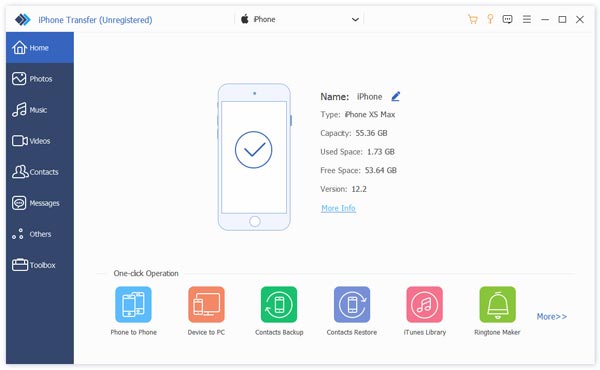
Step 1. Launch the program on your computer and connect your old and new iPhones to this computer. If you see this screen, your iPhones are successfully connected. On the top drop-down box, choose your old iPhone.
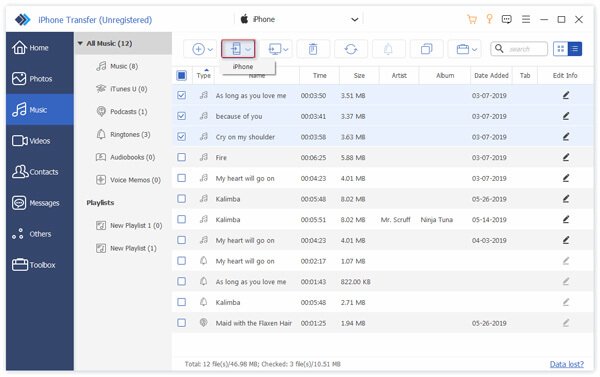
Step 2. Click Messages on the left bar. Select the messages you want to transfer. Then, click the phone button on the top. Choose your new iPhone for receiving files. Messages will be transferred in seconds.
Drawbacks: Unlike Apple's built-in migration methods, this method requires a computer and third-party software installation. Besides, the old iPhone needs to be unlocked and recognized by the computer before transferring messages.
Method 4: How to Transfer Messages from iPhone to iPhone with iCloud Backup
This method works for you if you haven't set up your new-got iPhone. You can back up your whole iPhone to iCloud and restore it when you set up your new iPhone. Be sure both iPhones are in charge and connected with Wi-Fi. Let's get started now.
Step 1. Open your old iPhone's Settings and tap on the name. In the next Apple ID screen, tap iCloud.
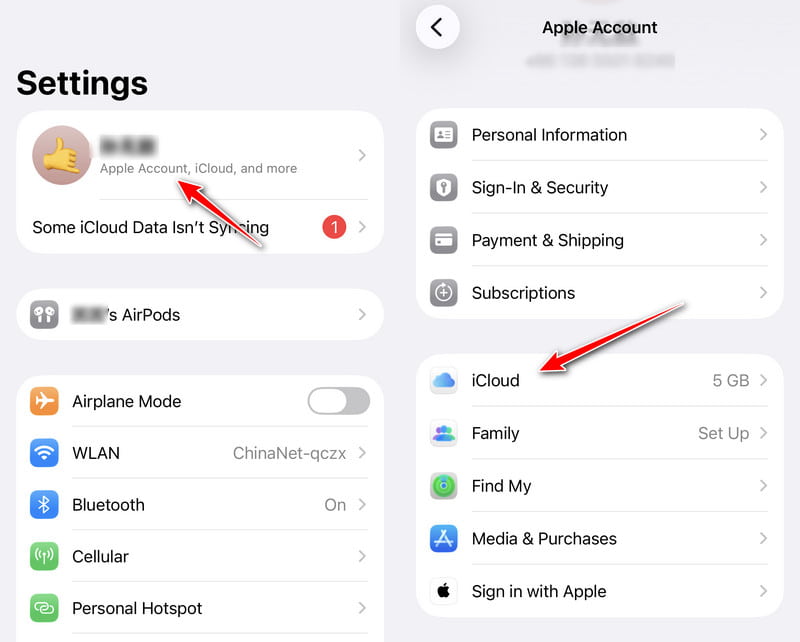
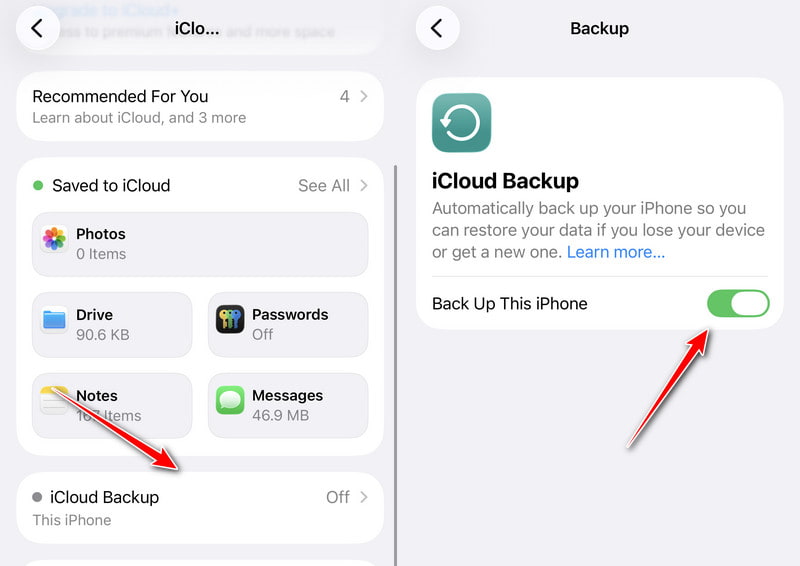
Step 2. Scroll down and tap iCloud Backup. Toggle on Back Up This iPhone. Wait a few minutes for the backup to be established, and go to your new iPhone.
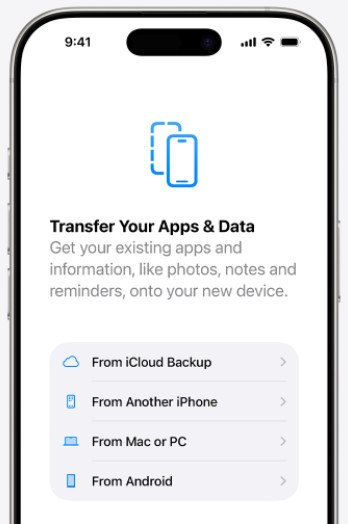
Step 3. Set up your new iPhone following the instructions. When you reach the Transfer Your Apps & Data screen, tap From iCloud Backup. Now, log in to your Apple ID and restore your backup.
Drawbacks:Some users report that iCloud backup can't be completed and is stuck at a point, and this method is time-consuming. Besides, if there is any running issue on your old iPhone, it has a chance to be copied to your new iPhone through iCloud.
Method 5: How to Transfer Messages from iPhone to iPhone with iTunes/Finder
iTunes/Finder is the official backup program for Apple devices, and they all save all data in iPhones for backups, including messages. However, iTunes is different from iCloud Backup because iTunes backups don't take iCloud storage, which makes it more flexible. Let's see how to import text messages from one iPhone to another with iTunes.
Step 1. Open iTunes or Finder on your computer. Connect your old iPhone to this computer. When your iPhone is detected, click the device name.
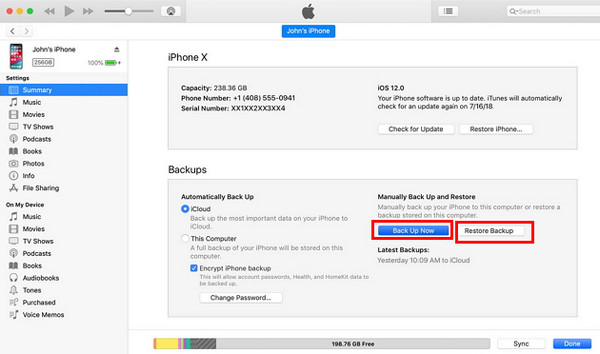
Step 2. Click the Summary or General tab on the interface. Click the Back Up Now button.
Step 3. You can restore this backup in the App & Data screen shown in Step 3, Part 3. Or, connect your new iPhone to this computer, sign in to the same Apple ID, and click Restore Backup in iTunes/Finder.
Drawbacks: This method costs many steps and is a little complex. Besides, sometimes iPhones can't connect with iTunes.
Conclusion
How to transfer Messages to new iPhones? iCloud and iTunes are handy solutions to deal with the problem because they are built into Apple devices. If you want to transfer only iMessages to a new iPhone without internet, Apeaksoft iPhone Transfer helps you easily sync messages from iPhone to iPhone.
 Apeaksoft iPhone Transfer
 Transfer iOS data among iOS devices, computer and iTunes.
Secure Download
Secure Download
Related Articles




