

How to Quickly Transfer Data from Android to Android

Nothing is more exciting than upgrading to a new smartphone, but transferring data from Android to Android can be daunting. Thankfully, there are a few methods to get everything from your old device to the new one. If you pick the right method, you can transfer contacts, photos, videos, messages, music, and more without data loss. This guide identifies the proven methods, explains the prerequisites, and demonstrates the steps.
PAGE CONTENT:
- Part 1: The Fast Way to Transfer Data from Android to Android
- Part 2: How to Sync Files from Android to Android via Google Backup
- Part 3: How to Transfer Android Files to a New Android from an Old Device
- Part 4: How to Transfer Files between Android devices by Bluetooth
- Part 5: Android File Transfer Apps for Specific Brands
Part 1: The Fast Way to Transfer Data from Android to Android
If you need a flexible method to transfer files from Android to Android, Apeaksoft MobieTrans is a good option. It works for almost all data on your Android device. More importantly, it transfers data through USB cables and doesn't require a network. The user-friendly interface makes it easy to navigate.
The Fast Way to Transfer Data from Android to Android with USB
- Transfer data between Android devices quickly.
- Preview data for selective transferring.
- Compatible with photos, music, videos, contacts, etc.
- Include bonus features, like a ringtone maker.
- Support almost all Android brands and models.
Secure Download
How to Transfer Data from Android to Android
Step 1. Install Android to Android transfer
Launch the Android file transferring software after you install it on your computer. Connect both Android devices to your computer with USB cables. The software will recognize your devices immediately. If prompted, trust the computer.
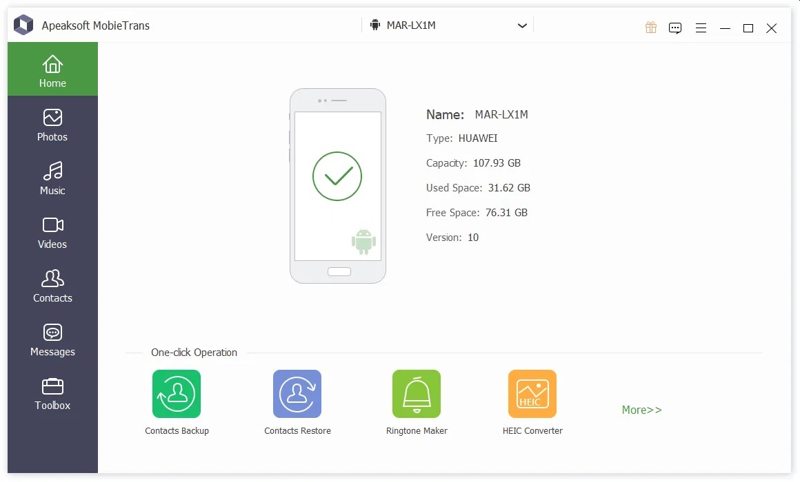
Tip: Make sure to enable USB Debugging mode on both devices.
Step 2. Preview your data
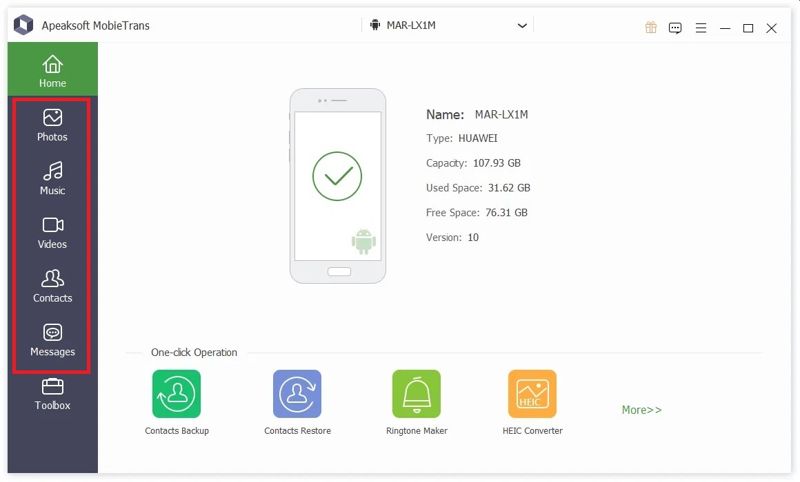
Pick the source device from the top option. Choose a data type you want to transfer, such as Photos, and view the data on your phone.
Step 3. Transfer data from Android to Android
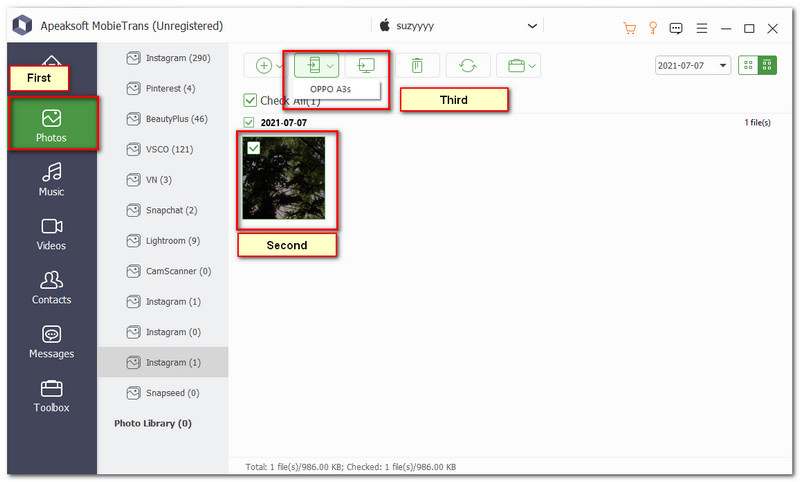
Select all files and items you want to sync, click the Phone button on the top menu bar, and choose the target device. Wait for the process to finish, and disconnect the two devices.
Part 2: How to Sync Files from Android to Android via Google Backup
When activating an Android phone, you need to log in to a Google account. Then, you can back up your phone to your account. Restoring the backup enables you to transfer data from Android to Android wirelessly. The Google cloud backup can include media files, contacts, calendars, app data, SMS, and device settings.
Requirements
1. A Google account with enough storage.
2. A stable internet connection.
Step 1. Run the Settings app on your old phone.
Step 2. Tap on your profile and choose Google.
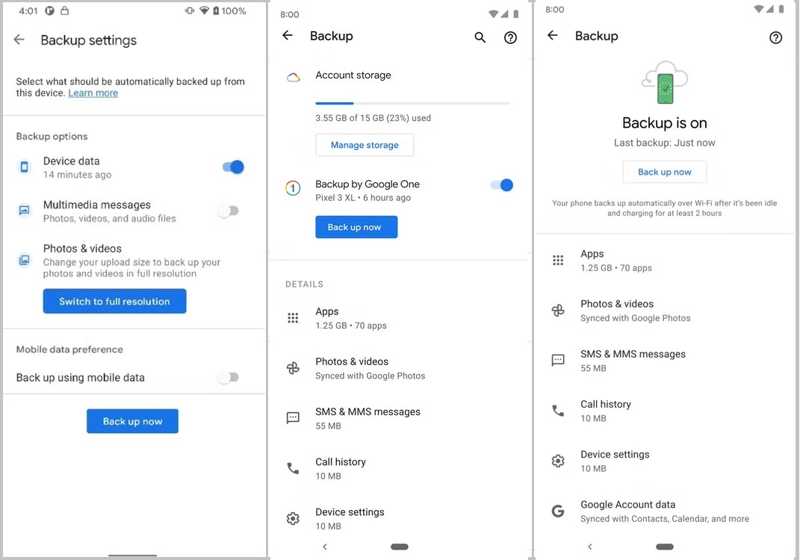
Step 3. Choose Backup, and toggle on Backup by Google One.
Tip: If automatic backup doesn't initiate, tap Back up now to manually back up your phone.
Step 4. Turn on your new phone, and tap Start to set it up.
Step 5. Connect to a Wi-Fi network.
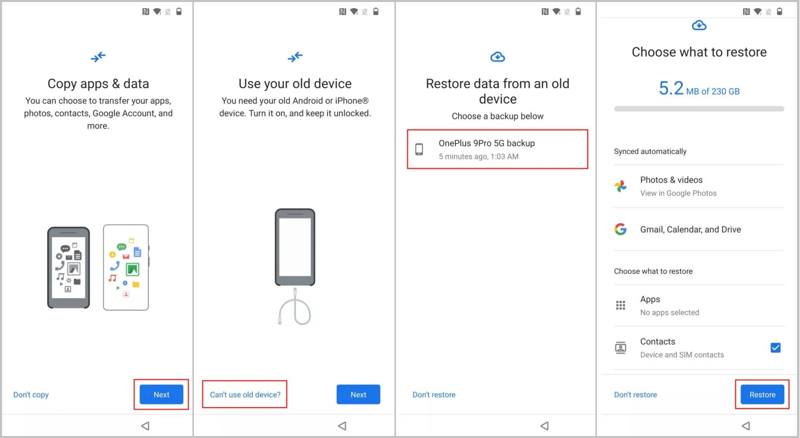
Step 6. Tap Next on the Copy apps & data screen.
Step 7. Press Can't use old device and sign in to your Google account.
Step 8. Choose the latest backup, check the desired data types, and tap Restore.
Part 3: How to Transfer Android Files to a New Android from an Old Device
When setting up a new Android device, you can transfer everything from one Android device to Android. We use a Pixel 9 Pro running Android 16 as an example to show you the workflow. For old versions, the process may be a little different.
Requirements
1. A stable network.
2. Compatible Android devices.
Step 1. Power on your new device and tap Get started.
Step 2. Choose Pixel or Android device.
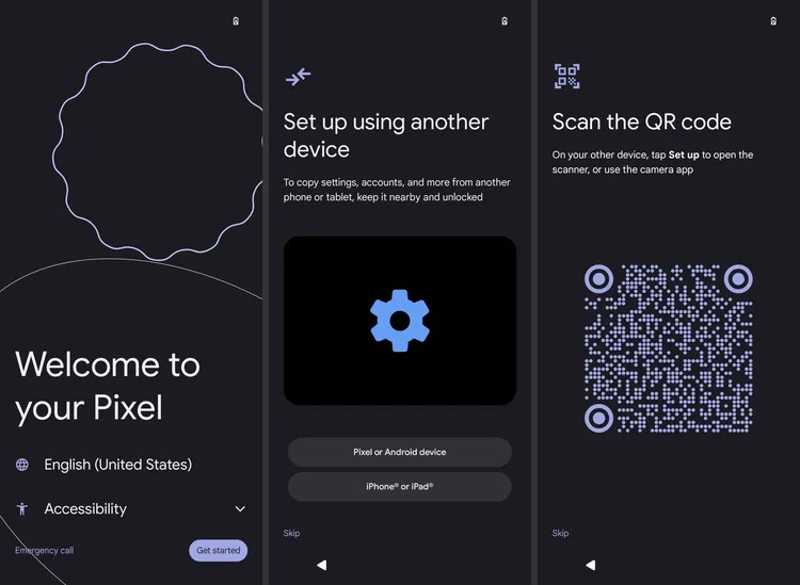
Step 3. Take the old phone and scan the QR code.
Tip: If automatic backup doesn't initiate, tap Back up now to manually back up your phone.
Step 4. When prompted, enter the old phone's PIN into your new device.
Step 5. Follow the onscreen instructions to set up SIM, Face Unlock, or Fingerprint.
Step 6. On the Copy apps & data screen, tap the Next button.
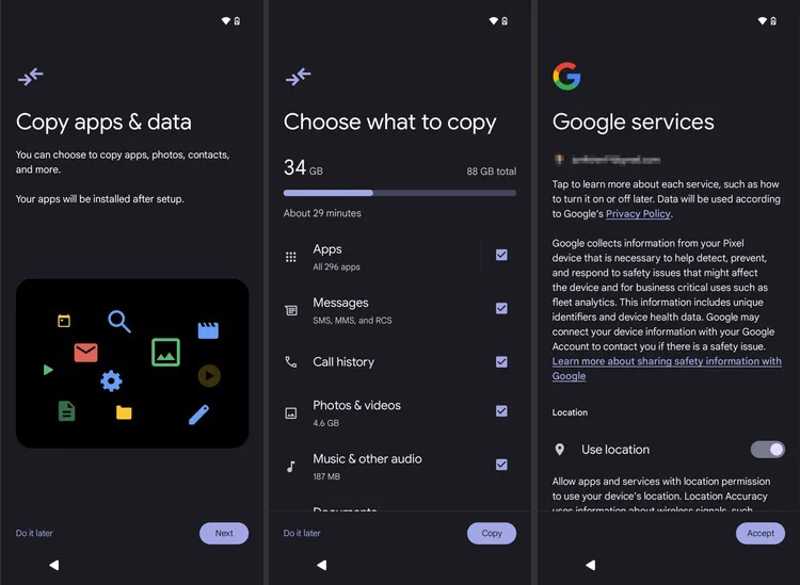
Step 7. Check the desired data types and tap Copy.
Step 8. Next, complete the setup following the prompts.
Part 4: How to Transfer Files between Android devices by Bluetooth
After setting up, you can transfer files from Android to Android via Bluetooth. The wireless connection is available to almost all Android devices. It is only available for file transfer. Moreover, the speed is low.
Requirements
1. Accessible Android devices.
2. Place two devices together.
Step 1. Turn on Bluetooth in Settings or Quick Settings on both devices.
Step 2. Tap Scan to discover the other device.
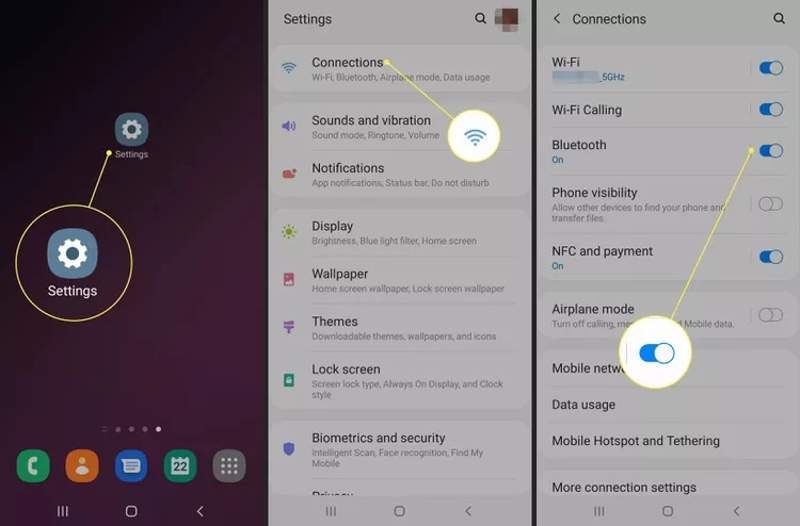
Step 3. Choose the other device under Available devices, and tap OK to pair with it.
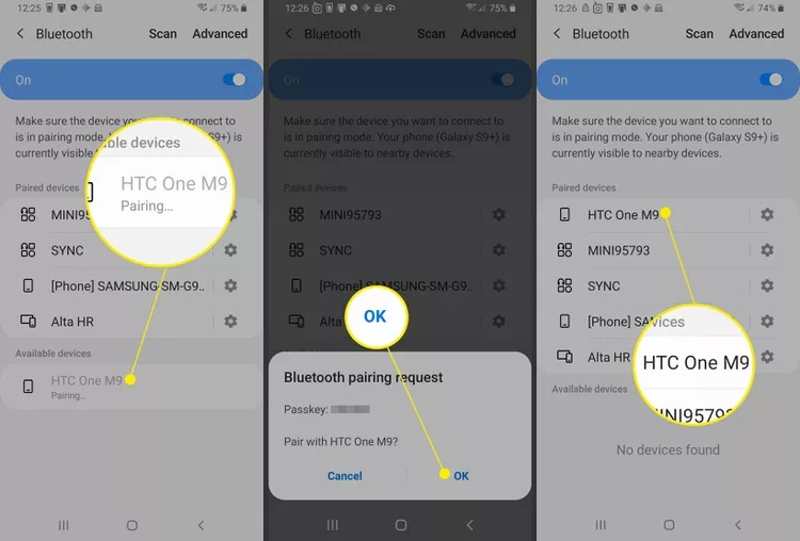
Step 4. Open the Files or Gallery app on the source device.
Step 5. Tap a file or photo you want to transfer.
Step 6. Hit the Share button, choose Bluetooth, and pick the target device.
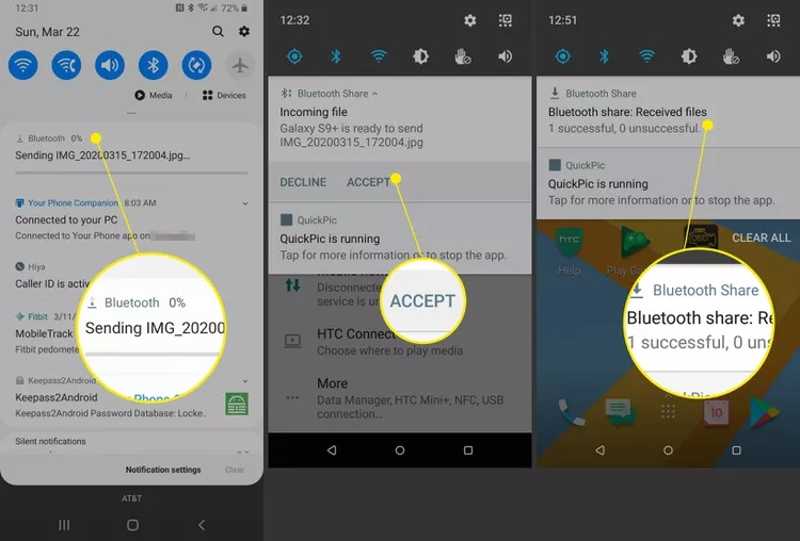
Step 7. Turn to the target device, and tap Accept to receive the file.
Part 5: Android File Transfer Apps for Specific Brands
Major manufacturers have released apps to transfer data from Android to Android for their customers, like Samsung Smart Switch and LG Mobile Switch. These apps are completely free to download and use for setting up their Android phones or tablets quickly.
How to Transfer Data from Android to Samsung with Smart Switch
Step 1. Install Smart Switch on both Android devices.
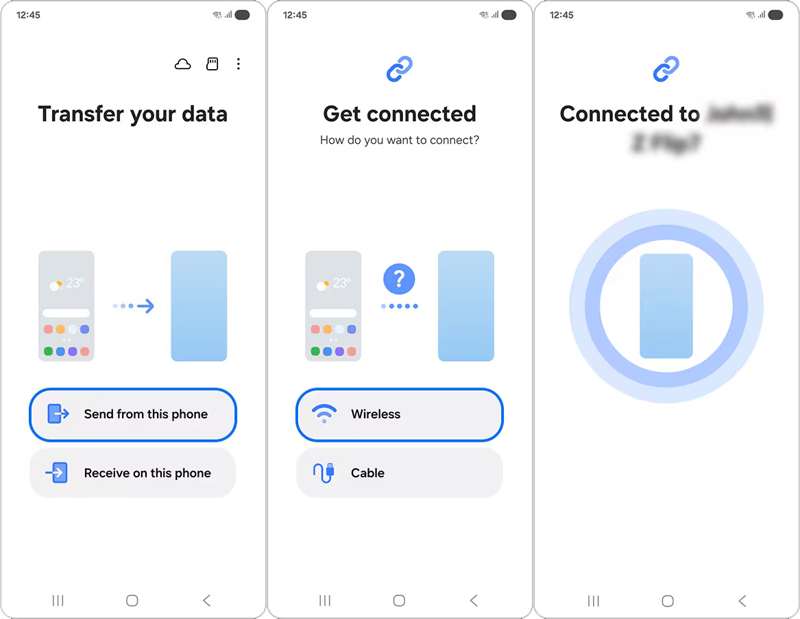
Step 2. Open it on the source device, tap Send from this phone, and choose Wireless.
Step 3. Choose Galaxy/Android to continue.
Step 4. Run the app on the target device, tap Receive on this phone, and choose Wireless.
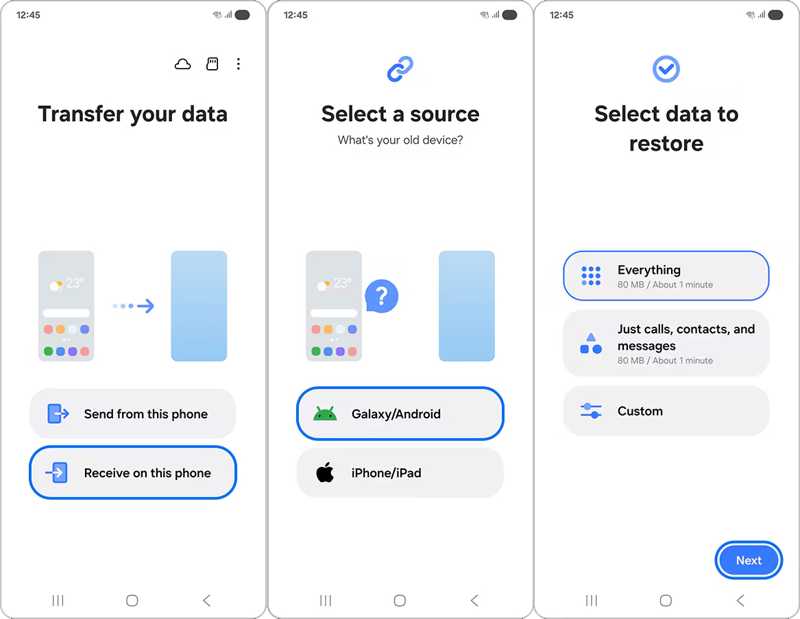
Step 5. Open the Camera app on your source device and scan the QR code on your target device.
Step 6. Next, choose Everything, or tap Custom and select the desired data types.
Step 7. Tap Next to begin syncing data from Android to Android.
How to Transfer Android to Pixel Android with Google Data Transfer Tool
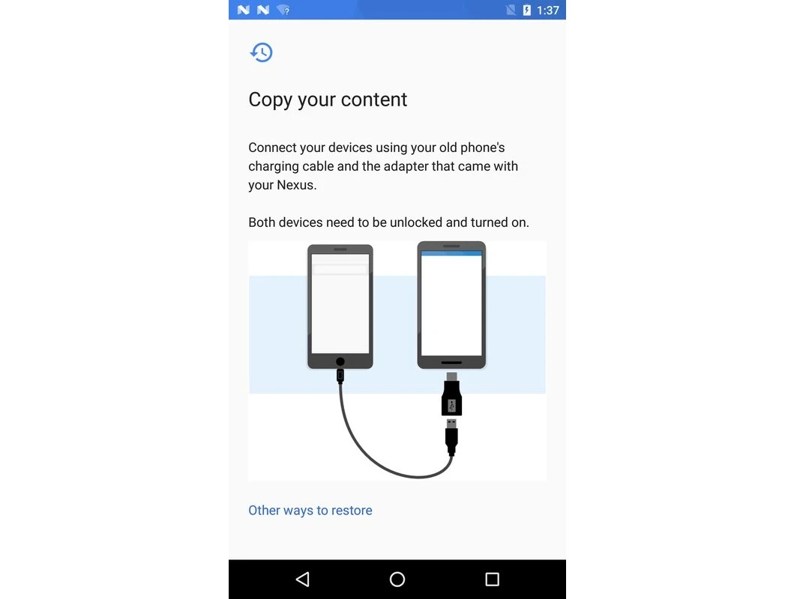
Step 1. Connect the two Pixel devices with a cable and an adapter.
Step 2. Run the Data Transfer Tool app.
Step 3. Choose Transfer Data from an Existing Phone, and tap Next.
Step 4. Accept the prompt and grant permission.
Step 5. Tap the Copy button to initiate transferring Android to Android.
How to Transfer Everything between Android Using LG Mobile Switch
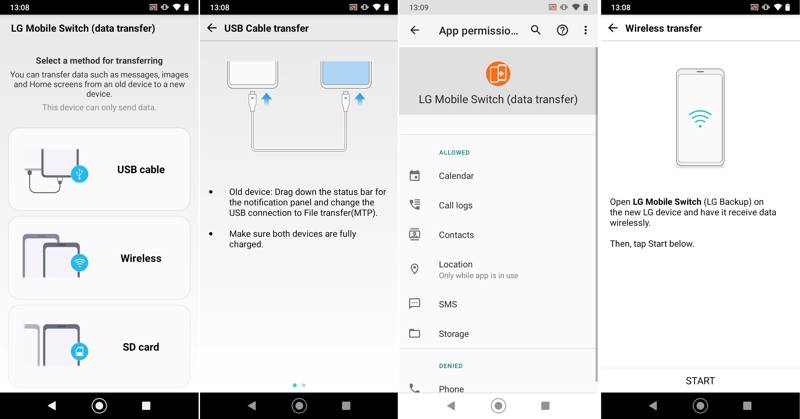
Step 1. Install LG Mobile Switch and launch it on both old and new devices.
Step 2. Choose a proper connection type, depending on your situation.
Step 3. Then, connect the two devices accordingly.
Step 4. Once the connection is successful, select the data types you want to transfer.
Step 5. Finally, tap the Start button to begin transferring data from Android to Android.
How to Transfer Data from Android to Android Using Mi Mover
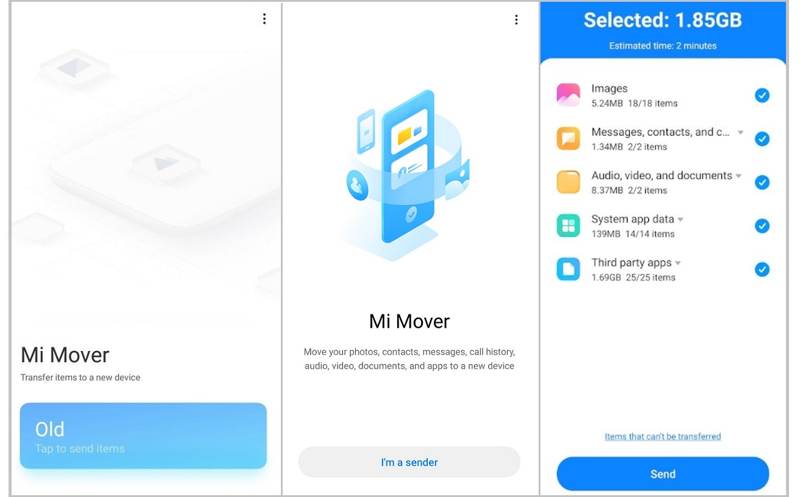
Step 1. Install Mi Mover on your Xiaomi phone and other device.
Step 2. Connect the two devices to the same Wi-Fi.
Step 3. Run the app on the target device, and choose the receiver option.
Step 4. Open the app on the source device and choose the sender.
Step 5. Pick the target device on the list to pair with it.
Step 6. Choose what data to send, and keep both devices close.
Step 7. Confirm Android to Android phone transfer and begin.
Conclusion
This guide explained how to get Android file transfer when you upgrade to a new phone or if you want to access your data across devices. You can pick an appropriate method according to our sharing and get your data from Android to Android. Apeaksoft MobieTrans is a quick way to complete the job.
Related Articles




