

What Fingerprint Lock on Android Is and How to Use It

Fingerprint scanner lock screen for Android is one of the most popular ways to secure Android smartphones. It's fast, convenient, and provides stronger protection than traditional passwords or patterns. If you want to learn about fingerprint lock on Android, this guide covers everything you need to know.
Android devices, from Samsung, Google Pixel, Xiaomi, OPPO, OnePlus, and more, use or once used different fingerprint technologies, but the setup steps are very similar. Below, you will learn how the Android fingerprint lock works, how to enable it, and how to fix fingerprint problems.
PAGE CONTENT:
Part 1: What Is Fingerprint Lock on Android?
Android fingerprint lock allows you to unlock your Android phone using your unique fingerprint instead of entering a password, PIN, or pattern. Many Android devices use one of two types of fingerprint sensors:
1. Capacitive Fingerprint Sensors
This kind of Android fingerprint lock sually located on the back, side button, or front bezel. It detects the ridges of your finger using electrical signals.
2. Optical or Ultrasonic In-Display Fingerprint Sensors
This type of Android fingerprint lock can be found under the screen. It uses light or ultrasonic waves to read fingerprint patterns. Suppose you want to use fingerprint lock software for Android, and the software can utilize this technology to protect your info, files, or apps.

Part 2: How to Set Up Fingerprint Lock on Android
The exact interface and steps to set up Android fingerprint lock may differ depending on your phone brand, but the steps below can generally apply to all Android devices. Please see them to learn how to set up Android fingerprint lock screen.
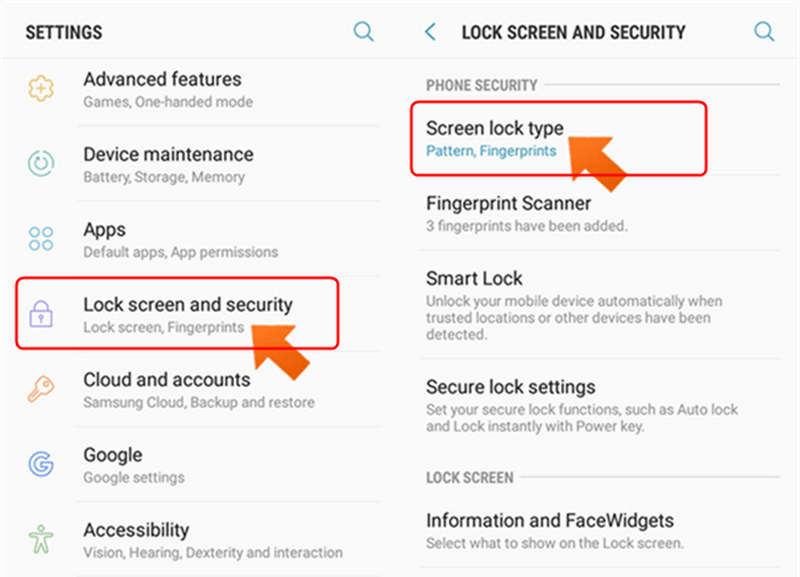
Step 1. Go to the home screen and tap Settings. Then, you can look for options like Security, Fingerprint, or Biometrics and Security, and select it. Then, you may need to select Screen lock type to add your fingerprint.
Step 2. Before adding a fingerprint lock for Android, you must set a backup method, like PIN lock screen, password, or pattern. This ensures you can unlock your phone if fingerprint recognition fails.
Step 3. Now, you can start setting up Android fingerprint lock. Place your finger on the sensor. Follow the on-screen guide to adjust your fingers until it's done. You can also add additional fingerprints for your Android phone.
Part 3: Common Problems With Android Fingerprint Lock
Even though Android fingerprint lock is reliable, sometimes you may encounter issues like unresponsive sensors or failed recognition. Here are the most common problems and their solutions.
1. Dust, sweat, or moisture can prevent proper recognition. Therefore, you may need to regularly clean the fingerprint scanner on your phone so that you can use Android fingerprint lock smoothly.
2. Over time, your fingerprint data may become less accurate. That also happens if there are glitches and bugs in your phone. You can delete existing fingerprint records, and then register the fingerprint lock on Android again using multiple angles. You can also add additional fingerprints.
3. Sometimes fingerprint issues are caused by system bugs, so you need to update Android OS to fix this problem:
Step 1. Go to the Settings app. Then, select Software Update.
Step 2. Here, select Download and install, and it will check for updates available. Then, you can update Android OS version to fix the fingerprint lock on Android.

Part 4: How to Remove Android Fingerprint Lock When It Doesn't Work
What if fingerprint scanner lock screen for Android is useless and you have forgotten screen password? You can use Apeaksoft Android Unlocker to fix the problem with only a few clicks! It can remove PIN, patterns, Touch ID, Face ID, and fingerprints on all popular Android brands, like Samsung, Google, LG, Xiaomi, and more. You can quickly regain access to your Android phone and set up a fingerprint lock for Android easily.
Easily Bypass Fingerprint Lock on Android
- Connect your Android phone to your PC to remove fingerprint lock.
- Support all popular Android phones, like Samsung, LG, and Google.
- Regain access to your Android phone without any restrictions.
- Help you bypass Google FRP without needing password.
Secure Download
How to Bypass Android Fingerprint Lock
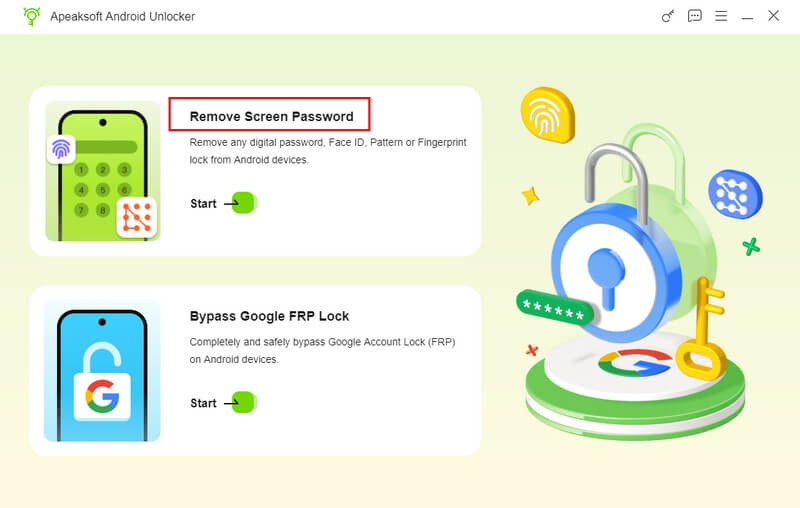
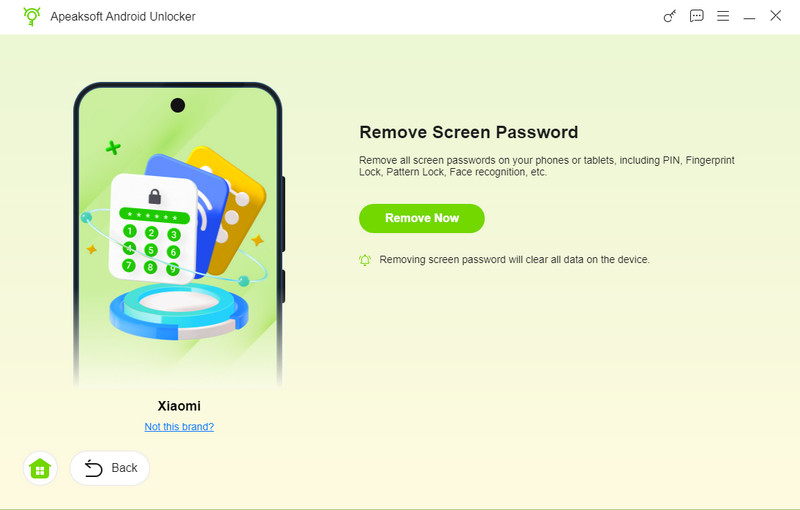
Step 1. Download, install, and launch Apeaksoft Android Unlocker. Connect your Android phone to your PC. Then, click the Remove Screen Passcode button.
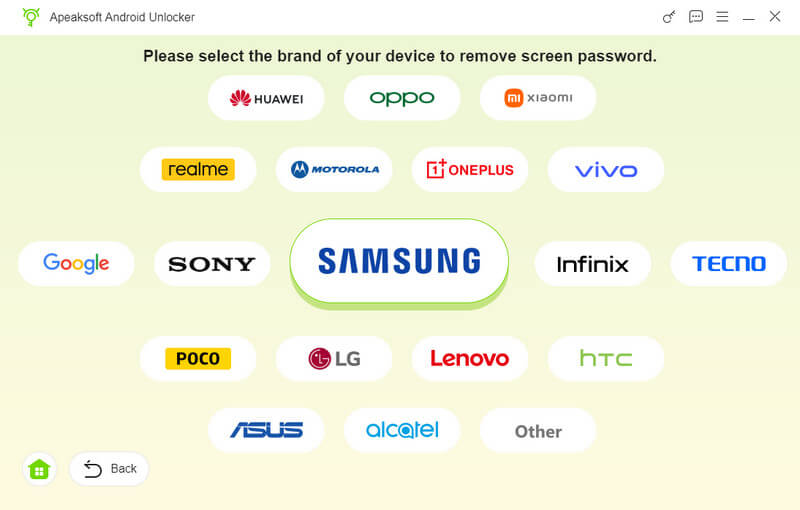
Step 2. Then, you need to select your Android phone brand to bypass fingerprint lock on that brand.
Step 3. Finally, click the Remove Now button to easily bypass Android fingerprint lock on your phone.
Conclusion
This article offers a detailed introduction to Android fingerprint lock. You can also set up fingerprint lock for your Android phone to protect your data and privacy. Fingerprint can also be used to protect your apps. If your fingerprint lock doesn't work well, Apeaksoft Android Unlocker is your best choice to quickly remove fingerprint. Then, you can set up a new one for your phone.
Related Articles




