


Latest and Detailed Review of GSMneo FRP Tools for Android Devices

Key Takeaways
- GSMneo FRP supports many Android brands, including Samsung, OPPO, Xiaomi, Huawei, and vivo.
- It only works on Android 13 and earlier and does not support the latest Android 16/17.
- The bypass process requires multiple apps and can be complex for beginners.
- There is no official support, and the developer information is not transparent.
- Better for experienced users than beginners.
GSMneo FRP Tools is one of the most searched free FRP bypass solutions online. Does NEO FRP have a parallel capacity with its popularity? Is it a waste of time to use GSM FRP for your Samsung or other Android phones?
This article will provide a full review of GSMneo FRP Tools for you to determine whether to use this tool or not.
Disclaimer
Bypassing FRP on a lost or stolen device violates local laws and may result in legal consequences. This guide is intended only for devices you legally own. Use at your own risk.
PAGE CONTENT:
Part 1: How GSMneo FRP Works
Unlike other FRP bypass APK, GSMneo FRP is a website that provides many specific apps that exploit accessibility features and system loopholes to bypass Google account verification. You can still use your computer to unlock FRP on your Android with a USB cable.
Most methods rely on enabling TalkBack or opening a browser on the locked device, allowing users to download launchers and disabling apps.
GSMneo FRP is not limited to Samsung devices and also supports a wide range of Android brands, including OPPO, Xiaomi, Huawei, and vivo.
Part 2: Features and Performance of GSMneo FRP
It's important to figure out the features and performance of GSMneo FRP Tools, or you'll be perplexed by the dizzying multiple apps when you open the GSMneo FRP website.
Features of GSMneo FRP Tools
Since GSMneo FRP Tools contains a great number of apps, you can actually do many things with this website. The main feature of GSMneo FRP is bypassing FRP (Google Lock) when you factory reset your Android phone to access your device again.
GSMneo can also bypass Google account verification. When you have logged into your Google account, it may still keep asking for account verification. In that case, you can use some apps in GSMneo FRP Tools to remove the tiring notifications from Google.
There are also many other features, such as rooting, mobile games, etc. This website doesn't focus only on FRP bypassing.
As a web-based platform, you can access the FRP bypass tool on your phone without a computer.
Performance of GSMneo FRP Tools
During our tests, GSMneo FRP Tools offers great convenience and efficiency. It also supports a wide range of Android devices. However, GSMneo FRP still hasn't updated its services to support the latest Android 16/17 for unknown reasons, which will decrease its performance and popularity.
Moreover, when you want to bypass Google restrictions, you should combine different apps from GSMneo FRP Tools to fulfill that, which is not friendly to beginners.
What’s more, you can use it on Windows 11/10/8/7. But it attaches higher requirements on your computer for a 2-4 GB RAM with a dual-core processor.
Compatibility Based on Community Feedback and Hands-on Tests
| Android version | Success Rate |
| Android 5-7 | High |
| Android 8-9 | Medium |
| Android 10-13 | Low |
| Android 14 and above | Not Supported |
GSMneo FRP Review
- Support many Android devices like OPPO, Xiaomi, Huawei, Samsung, vivo, etc.
- Bypass both FRP and Google account verification easily and quickly.
- 100% free.
- It offers many practical features for Android.
- Complicated operations and we couldn't find an official guide.
- When we tested it on relatively late Android versions (Android 13+), its performance drops significantly.
- Some APK links are outdated.
- We cannot find any customer or technical support when stuck.

Bypass Google FRP Lock with One Click.
Part 3: Is It GSMneo FRP Safe & Legit
GSMneo FRP is a useful and popular FRP bypass tool, but you need to be aware of potential risks before using it.
From a safety perspective, GSMneo FRP is not a standalone program but a website that provides many third-party APKs, which means users need to download apps from unknown external sources. Potential safety risks, such as malware or modified apps, do exist. Moreover, although it is popular in the FRP community, the developer remains anonymous, and there is no official customer support.
Legally speaking, bypassing FRP is only permittable when you're unlocking a device that belongs to you. Unlocking lost, stolen, or unauthorized devices may violate local laws and regulations.
Overall, users should use it with caution.
Part 4: How to Use GSMneo FRP to Unlock FRP
If you think you won't be tired of the difficulty of unlocking FRP with GSMneo FRP, you can follow the steps below to do that in GSMneo.
Before You Start, you should be aware that:
- Keep your phone's battery over 50%.
- Ensure a stable Wi-Fi connection.
- Be aware that the process is complicated and time-consuming. You may need to repeat steps if blocked.
- The success rate is not guaranteed.
Use Guide
You can find some FRP removers on the GSMneo FRP Tools website. Therefore, you only need to tap on an app to install it. Then, you can factory reset your phone to bypass Google Lock. But before that, you should take advantage of Talkback to allow your device to access the website.
Step 1. Connect your device to Wi-Fi first.
Step 2. Press the Volume Up and Down keys together to enable Talkback.
Step 3. Draw an upside-down L on the screen to enter the browser on your phone. (You can refer to the related guide if needed.)
Step 4. Visit the GSMneo FRP website and download the Apex Launcher APK. Don’t forget to enable permissions for unknown sources before installation.
Step 5. Visit the website again and download the Technocare APK.
Step 6. After a successful installation, go to Device Admin Apps to disable Find My Device, and navigate to Apps to Disable Google Play Services.
Step 7. Back to the main interface, and enter Cloud and Accounts. Click Accounts and add your new Google account here.
Step 8. Remember to enable Auto sync data. Then, restore the previously disabled items and restart your device.
Bonus - Remove Google Verification
You can combine 2 apps to remove Google account verification. One is XMLDisabler, and the other is Disabler. They can remove Google Play services from your Android.
Step 1. Download XMLDisabler and Disabler from GSMneo FRP Tools.
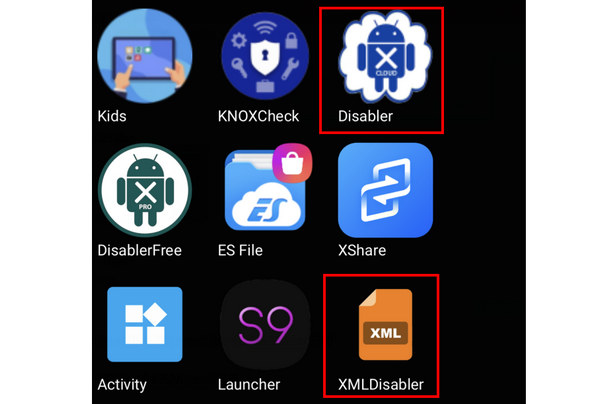
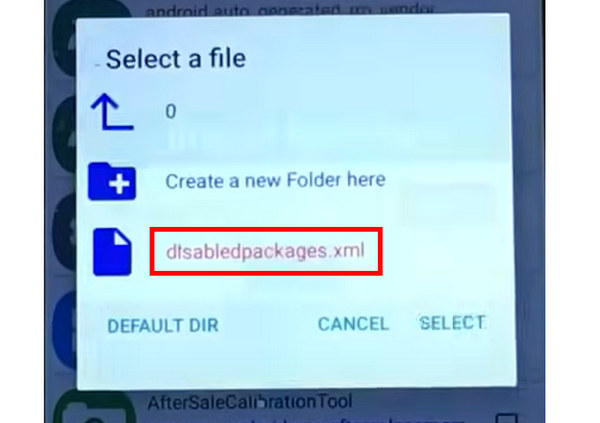
Step 2. Import XMLDisabler to the Disabler app. Then, you can remove the Google account verification. However, you won't be able to use Google services, such as Google Cloud Backup.
Common Issues & Troubleshooting When Using GSMneo FRP
Here we want to share some issues we encountered during the FRP bypass process and how we resolved them, so you can better understand the possible obstacles and save time during the process.
| Problem | How We Resolve |
| TalkBack gesture not working | Try holding Volume Up + Volume Down for a few seconds instead of tapping. If it still doesn’t work, restart the device and retry during the setup screen. |
| APK cannot be installed | Enable Install unknown apps permission in settings, or disable Play Protect temporarily. If it still fails, re-download the APK or try another version. |
| Google Play Services won’t disable | Go to Apps – Google Play Services and try Force Stop first, then clear cache. On some devices, the option may be locked by system restrictions. |
Part 5: Feasible Alternative to GSMneo FRP
The steps to bypass the FRP lock above are quite complex, right? If you prefer a simpler method, another option is to use a PC-based FRP removal tool like Apeaksoft DroidAide can easily remove Google Lock on your Android device when you factory reset it. You only need to plug your device into your computer, and then, with only a click, the FRP restriction will be erased within a few seconds.

Downloaded by over 1,000,000 users
- Bypass Google FRP Lock with one click.
- Support most Android devices and the latest Android 17.
- Help you one-click factory reset the Android and then bypass FRP.
- Simple steps with an intuitive interface designed for beginners.
- 24/7 customer support backed by a professional technical team.
Secure Download
| Tool | GSMneo FRP | Apeaksoft DroidAide |
| Interface | Simple and mainly shows FRP-related functions | Straightforward and beside FRP bypass, also provides a screen unlock function. |
| Difficulty | Moderate. Requires basic FRP knowledge | Low. Beginner-friendly |
| Android Version | Android 5-13 | Android 5 and later |
| Success Rate | Low-Medium (Varied) | High |
| Support | No | 24/7 customer support, Professional technical team |
Step 1. Get Apeaksoft DroidAide from the button above.
Step 2. Select the Bypass Google FRP Lock option on the main interface.
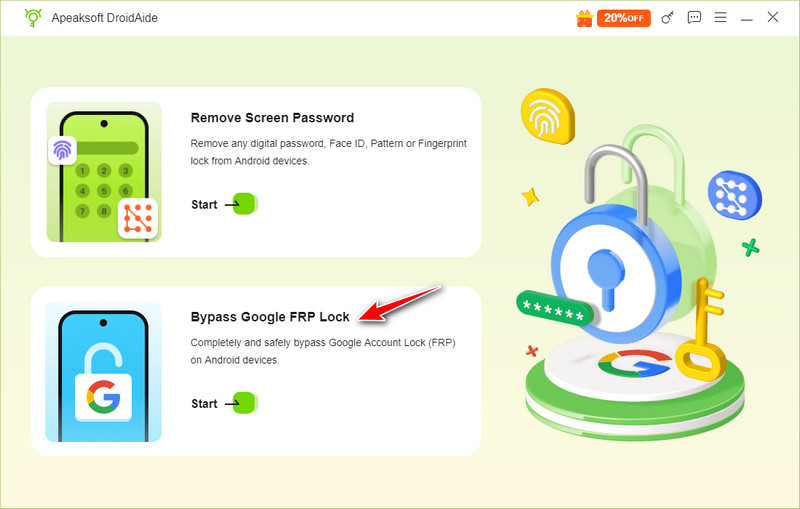
Step 3. Connect your device, check your phone’s model, and click Bypass Now.
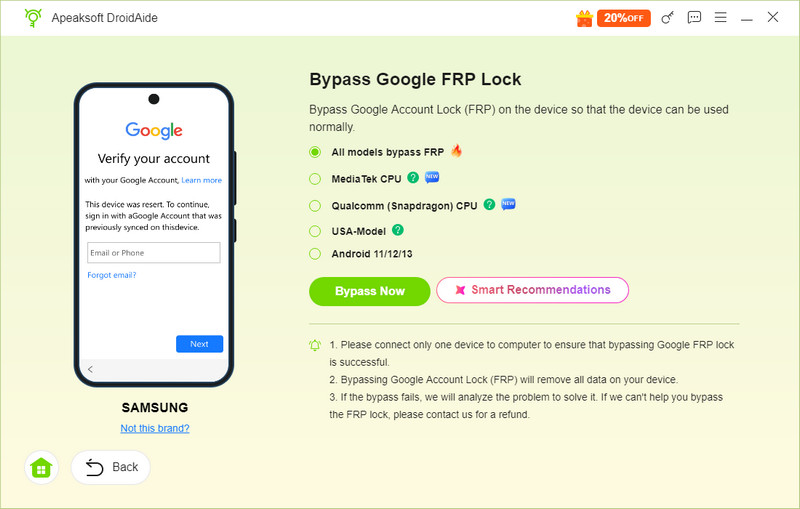
Step 4. Follow the on-screen instructions to enable the debugging mode on your phone and then wait for the software to automatically remove the FRP lock.
Part 6: FAQs of GSMneo FRP
Is it safe to use GSMneo FRP Tools?
Yes, it is. However, GSMneo FRP is very complicated to use. You can download FRP remover apps from GSMneo to bypass FRP on your Android. But bear in mind that download it from its official website. There are many scammers and virus-containment tools.
How does GSMneo FRP root my Android?
It only offers rooting apps, such as Magisk, which can root Android. This website itself can't offer rooting features.
Why doesn't GSMneo FRP support Android 16/17?
It's still unknown. Actually, the developer of GSMneo FRP Tools is still hidden, which gives the users less access to the strategies of this website. If you are using Android 16/17, you can try other FRP bypass tools like Apeaksoft Android Unlocker.
Is it legal to use GSMneo FRP to bypass the FRP lock?
It depends. You should always keep in mind that you can only bypass the FRP lock on the device you legally own. There will be legal risks if you use it on an unauthorized/stolen device.
Conclusion
You can unlock FRP and remove Google account verification with GSMneo FRP unlock. It offers many other powerful and practical features. However, it’s not easy to bypass FRP with this website. If you prefer a guided and beginner-friendly workflow, a desktop FRP removal tool such as Apeaksoft DroidAide may be a reliable GSMneo alternative.
 Apeaksoft DroidAide
 Unlock your Android passwords and bypass the FRP lock easily.
Secure Download
Related Articles




