

Easily Change and Bypass Android Lock Screen PIN in 2026

The PIN lock screen is one of the most widely used security features on Android phones. It prevents unauthorized access and keeps your photos, apps, personal data, and messages safe. However, there are many situations where you may want to change the PIN, remove the screen lock, or even bypass the Android lock screen PIN when you've forgotten it.
This complete guide will explain how to change PIN on lock screen, how to remove screen lock PIN on Android phone, what to do when you forgot lock screen PIN, and the safest ways to bypass Android PIN lock screen on Samsung, Xiaomi, Pixel, OPPO, Motorola, and more. Whether you remember your PIN or have completely forgotten it, this article provides solutions for every scenario.
PAGE CONTENT:
Part 1: Why You May Want to Change or Remove the PIN Lock Screen
There are several reasons why users want to update or disable their lock screen PIN:
1. You don't want the extra step every time you unlock your phone.
2. You prefer fingerprint or face unlock instead of a PIN.
3. You recently shared your PIN with someone and want to change it.
4. You set a PIN too long or too difficult to remember.
5. You forgot lock screen PIN and need to remove it.
6. You want to sell, trade, or give away your device.
7. Your child or someone else changed the PIN.
No matter the reason, Android offers multiple ways to manage your lock screen security settings.
Part 2: How to Change PIN on Lock Screen (When You Know Your PIN)
If you know your current PIN, changing it is extremely simple. See the guide below to learn how to change PIN on lock screen.
Step 1. Open the Settings app. Go to Security, Biometrics & Security, or Lock Screen.
Step 2. Tap Screen Lock or Screen Lock Type. Then, you need to enter your current PIN on lock screen.
Step 3. Then, choose PIN as the new method. Enter and confirm your new PIN, and save the changes. That's how easily you can change the PIN on lock screen.
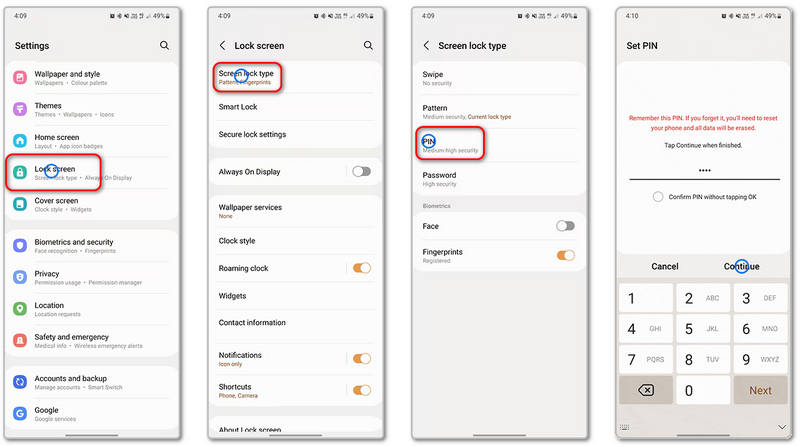
Tips: Avoid easy PINs like 1234 or 0000. Use at least 6 digits for better security. Changing your PIN regularly also helps protect your data from unauthorized access.
Part 3: How to Remove Screen Lock PIN on Android Phone
What can you do if you forgot your PIN or you don't want to use it on the Android lock screen? What you need to do is remove it right away. See the guides below to learn how to remove screen lock PIN on Android phone.
Situation 1: When You Know the PIN
Step 1. Open Settings. Go to Security or Lock Screen.
Step 2. Select Screen Lock Type. Enter your existing PIN. Then, choose None or Swipe.
Step 3. Once done, your phone will no longer request a PIN at the lock screen.
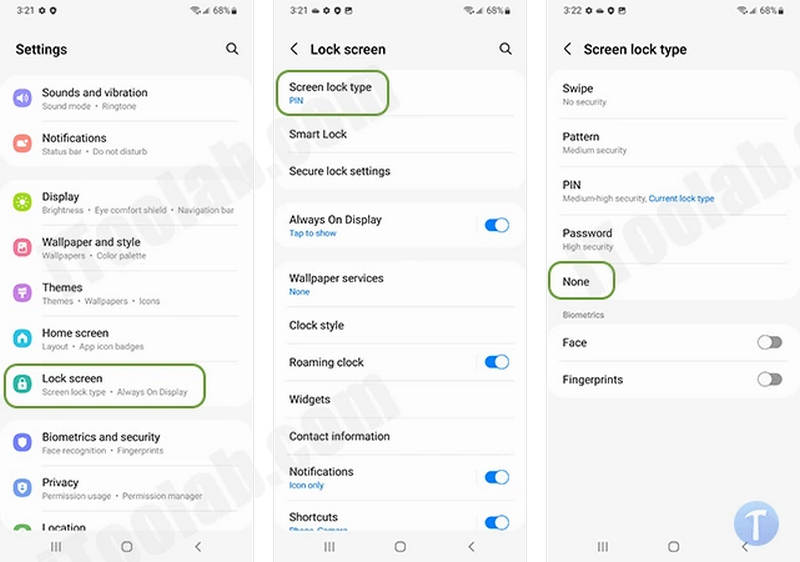
Situation 2: When You Don't Know the PIN
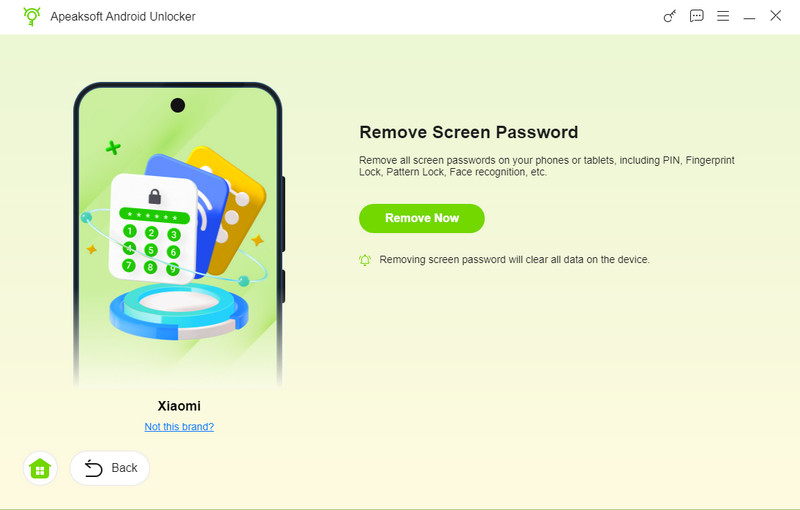
Apeaksoft Android Unlocker can help you bypass Android PIN lock screen when you don't know it. You can easily remove it and regain access to your Android without any restrictions. It works on all popular Android phone models like Samsung, Pixel, LG, OPPO, and more. See how you can remove PIN lock screen easily.
Step 1. Click the Download button below to download Apeaksoft Android Unlocker on your computer. Then, install and launch the program. You should connect your Android phone to your computer.
Secure Download
Step 2. Click the Remove Screen Passcode button on the main interface. It can easily remove PIN lock screen, pattern, Touch ID, and Face ID on your Android phone.
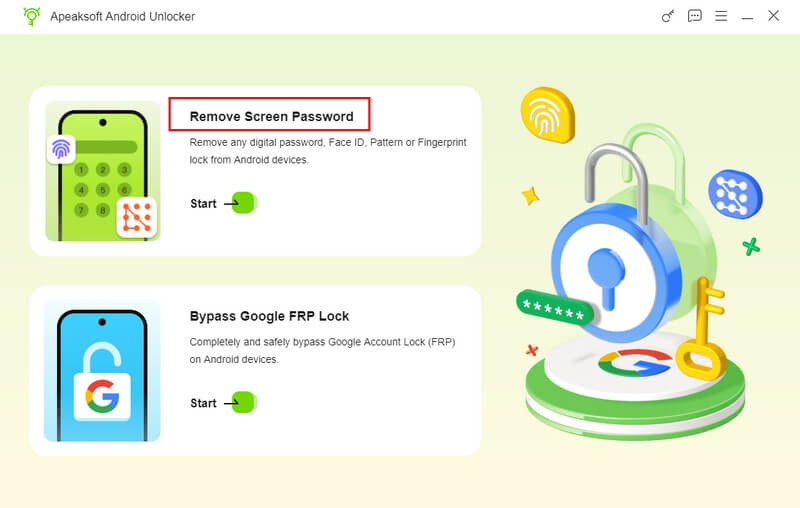
Step 3. Then, you should select your phone brand. It should know your exact phone brand to start bypassing Android PIN lock screen.
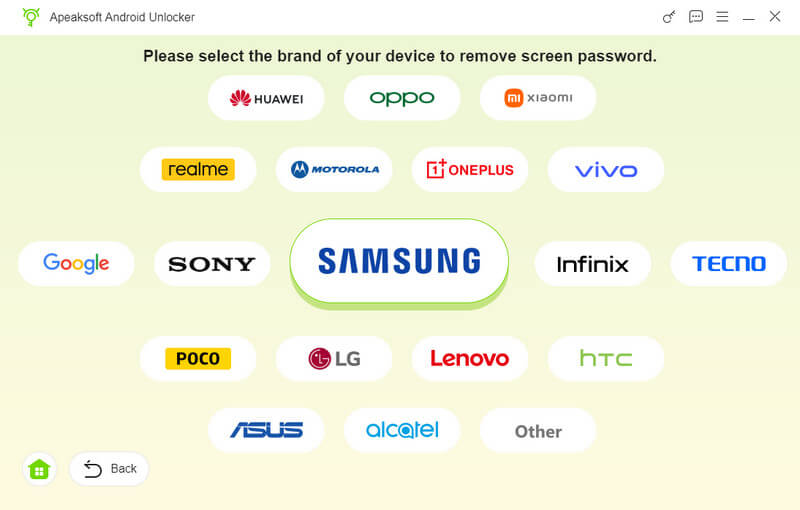
Step 4. Finally, you just need to click the Remove Now button. Then, your PIN on Android lock screen will disappear. Note that this process may factory reset your device.
Conclusion
This article offers how to bypass Android lock screen PIN. Managing your PIN lock screen is essential for keeping your Android phone secure. Whether you want to change your lock screen PIN, remove screen lock PIN on Android phone, or bypass Android PIN lock screen after you forget it, there are reliable solutions for every situation. Apeaksoft Android Unlocker is your ultimate solution.
Related Articles
Whatever the reason, here's how to factory reset Android phone through the built-in settings menu or under the recovery mode quickly and effectively.
If you are locked to a specific network provider, don't worry, this guide tells you how to unlock your SIM card on your Android phone quickly.
Does your phone get stuck on Android System Recovery 3e? This article will dive into what it is and get your phone out of it without data loss.
Want to find some ways to unlock your Android device pattern lock? Just follow this article and find 3 things you can do after you forgot your pattern lock.



