

How to Fix Your App Store Keeps Asking for Password

"Why does the App Store keep asking for a password when updating an app?" When the App Store was first launched by Apple in 2008, it had just 500 apps. Today, it is one of the richest app stores in the world with hundreds of millions of apps. In addition to downloading apps, you can update your apps in the App Store. However, some users may encounter a password error. This article shares the solutions to get rid of this issue.
PAGE CONTENT:
Part 1: Why Is App Store Asking for a Password
App Store requires your password for security purposes when you download and update apps, and purchase in-app. However, it is abnormal if the App Store keeps asking for a password. The common reasons include:
- 1.You have changed your Apple ID credentials or details.
- 2.Security settings.
- 3.Corrupted app updates.
- 4.Unpaid balances or issues with your payment methods.
- 5.Software glitches.
Part 2: How to Stop the App Store from Asking for a Password
Solution 1: Re-sign in Apple ID
If you are using a different Apple ID and App Store asking for a password, you’d better sign in with the same account. Moreover, you need to update the password if you have changed it on other devices.
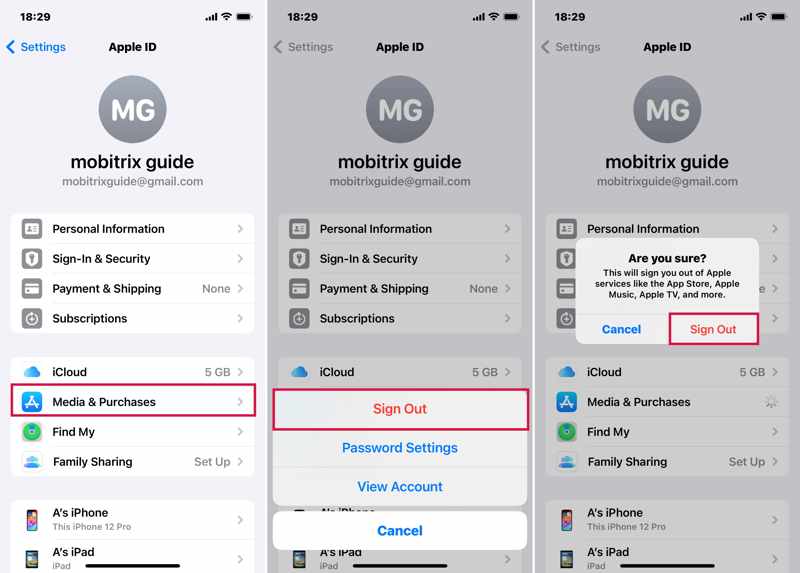
Step 1. Open the Settings app on your device.
Step 2. Tap on your profile and choose Media & Purchases.
Step 3. Hit your Apple ID and choose Sign Out on the context menu.
Step 4. If prompted, tap Sign Out again to confirm it.
Step 5. Restart your iOS device.
Step 6. Navigate to Settings, tap on your profile, and choose Media & Purchases.
Step 7. Sign in with your Apple ID and password.
Tips: You can also sign out of your Apple ID in the App Store app and sign in with it.
Solution 2: Update Payment Information
App Store asking for a password may be due to the outdated payment methods. Therefore, you should keep your payment methods up to date. Here are the steps to update your information:
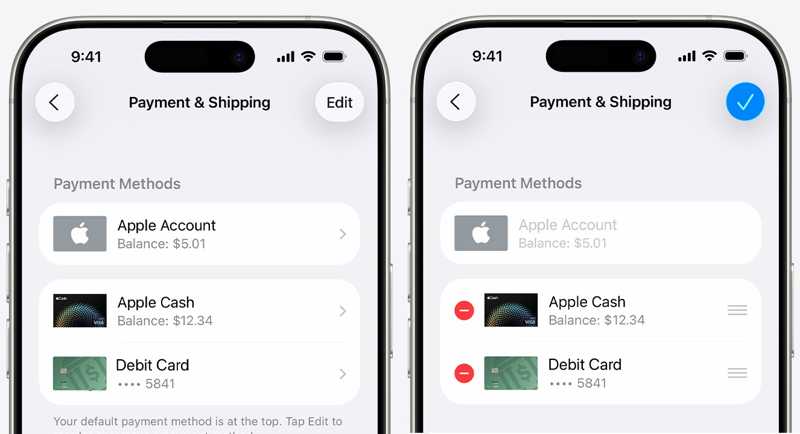
Step 1. Run your Settings app and tap on your profile.
Step 2. Choose Payment & Shipping.
Step 3. If prompted, sign in with your Apple account.
Step 4. To remove outdated payment methods, tap the Edit button, hit the Delete button, and press Remove.
Step 5. If you want to add a new payment, tap Add Payment Method, enter the information, and tap Done.
Solution 3: Adjust Password Settings
Every time you purchase an item or download an app in the App Store, you must provide your password. If you wish to stop the App Store from asking for a password, you can adjust the password settings.
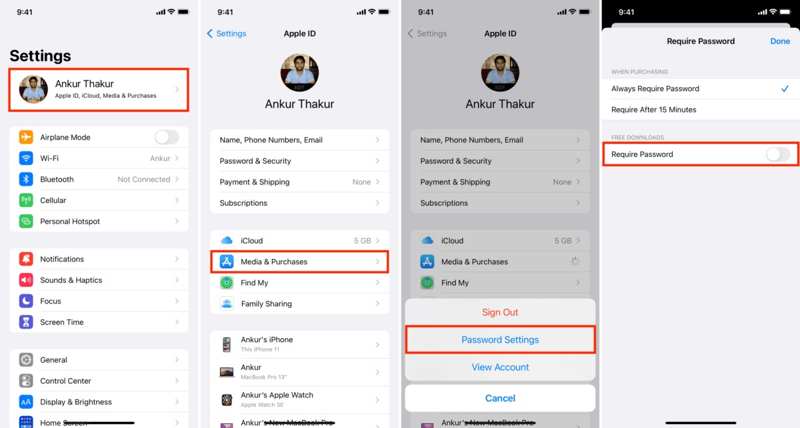
Step 1. Tap on your profile in your Settings app.
Step 2. Choose Media & Purchases, and pick Password Settings on the pop-up dialog.
Step 3. Toggle off Require Password under FREE DOWNLOADS.
Step 4. Next, select Require After 15 Minutes under WHEN PURCHASING.
Step 5. Tap Done and try your App Store again.
Solution 4: Check Purchase History
If a purchase is pending, your App Store keeps asking for a password. You can check your purchase history and complete or cancel the pending purchase. Here are the steps to check your purchase history:
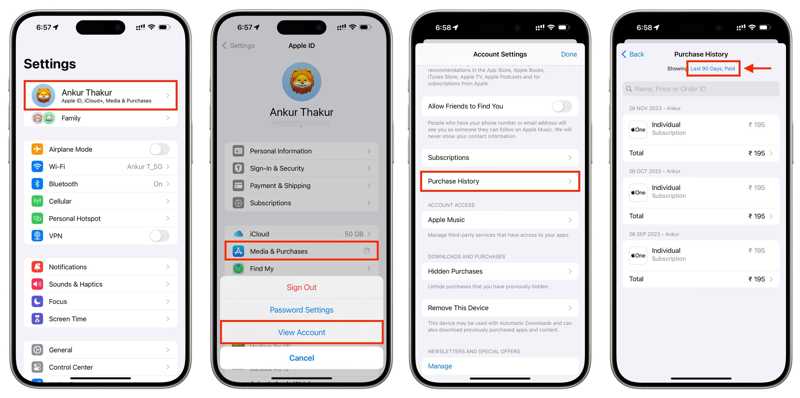
Step 1. Go to Settings and tap on your profile.
Step 2. Choose Media & Purchases and pick View Account.
Step 3. Enter your Apple ID password and tap Sign In.
Step 4. Tap Purchase History, and check your bill.
Step 5. If a purchase is pending, complete or cancel it.
Further Reading
Part 3: Ultimate Solution to Fix App Store Asking for Password
If the common solutions are unavailable and App Store keeps asking for a password, you’d better completely remove the old account. From this point, we recommend Apeaksoft iOS Unlocker. It is able to erase your Apple ID account without a password.
Ultimate Solution to Fix App Store Asking for Password
- Remove Apple ID from your iPhone quickly.
- Don’t require your password or iPhone passcode.
- Available to an array of situations, like a disabled iPhone.
- Support the latest models of iPhone and iPad.
Secure Download
Secure Download

How to Fix App Store Asking for Password
Step 1. Install iOS Unlocker
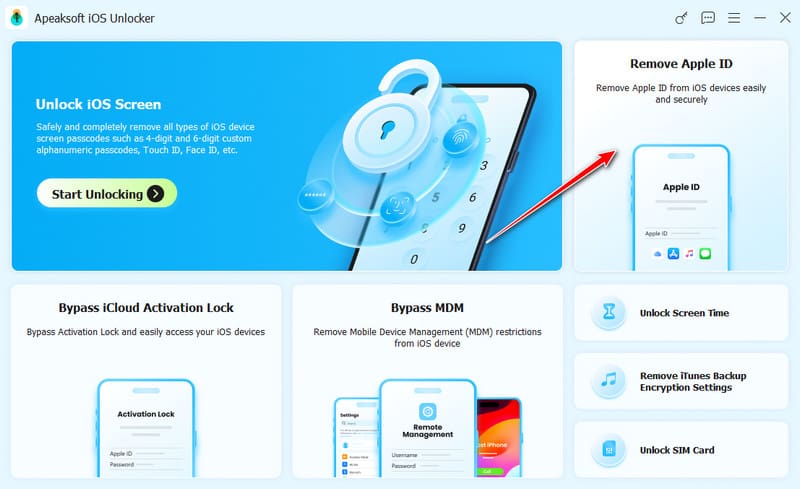
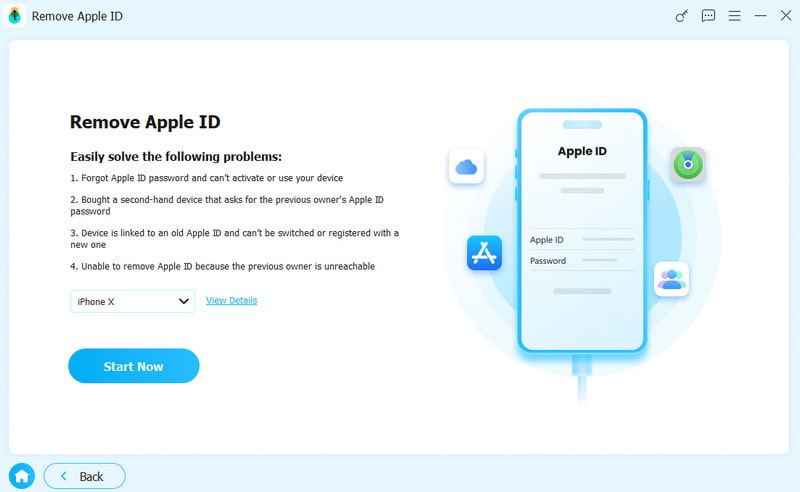
Run the iOS unlocking software after installing it on your computer. It is compatible with Windows and macOS. Connect your iPhone to your computer with a Lightning cable. Choose the Remove Apple ID mode, and click the Start Now button.
Step 2. Remove problematic Apple ID
The software will remove your Apple ID automatically if Find My iPhone is disabled.
If Find My iPhone is enabled, reset all settings on iOS 11.3 or earlier. Then, the software will do its job.
If Find My iPhone is enabled on iOS 11.4 or later, turn on Two-factor authentication on your device. Then, check your information and confirm account removal.
When it is done, sign up for a new Apple ID and password on your iPhone.
Conclusion
Following our solutions, you should stop the App Store from asking for a password on your iPhone or iPad. In addition to updating your account information, you can also turn off the password requirement for free downloads. Moreover, Apeaksoft iOS Unlocker allows you to get rid of a problematic Apple account directly.
Related Articles




