


iPad Unavailable? Here's How to Unlock iPad with iTunes

Forgot your iPad passcode? Stuck on the locked screen and can't get in? Too many wrong attempts can disable your iPad and lock you out completely. iTunes is Apple's official way to unlock your iPad, but many users don't know when and how to do it correctly. This guide shows you how to unlock iPad with iTunes, explains limitations and issues, and gives safe alternatives so that you can get back into your iPad quickly.
PAGE CONTENT:
Part 1: When to Use iTunes to Unlock iPad
What can you do if you can't access your iPad through Face ID, Touch ID, or passcode entry? Using iTunes to unlock an iPad is generally considered a last-resort method when you're completely locked out of your iPhone. It works by restoring the iPad to factory settings, which removes the screen lock completely and gives you a fresh start.
You may need to unlock iPad with iTunes in situations like:
- You forgot your iPad passcode and have been locked out after multiple failed attempts.
- Your iPad shows the "iPad Unavailable" or "Security Lockout" screen.
- The iPad is unresponsive or stuck on the lock screen.
- You purchased a second-hand iPad that is still locked with an unknown passcode.
- You want to completely reset the iPad before selling, trading, or giving it away.
It's important to understand that iTunes doesn't recover your original passcode; it erases the device and reinstalls iPadOS. Make sure you have an available backup, so you can set up the iPad again and restore from backups later.
Part 2: How to Unlock iPad with iTunes (Step-by-Step)
If your iPad is disabled, you can use iTunes to restore it and remove the passcode. Before unlocking iPad with iTunes, make sure you have installed the latest version of iTunes on your computer and prepared a USB cable.
Step 1. Turn off your iPad, then connect it to a computer via a USB cable.
Step 2. Put your iPad into Recovery Mode.
For iPad models without a Home button: Press and release the Volume up button, then the Volume Down button. Press and hold the top button until the Recovery Mode screen appears.
For iPad models with a Home button: Press and hold the Home button and the top button together until the Recovery Mode appears.
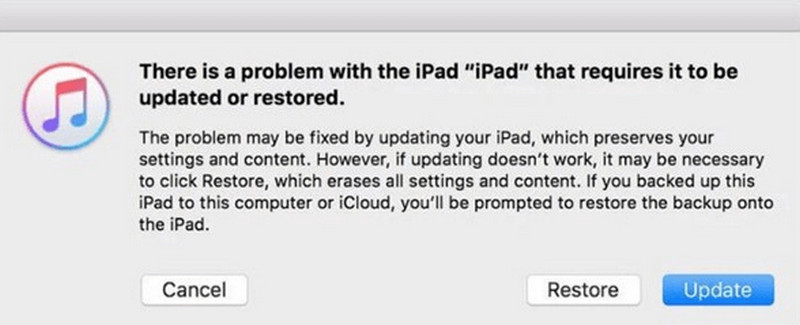
Step 3. Open iTunes on the computer and select your device. Click Restore in the prompt window to continue.
Step 4. Keep your iPad connected during the reset. After the reset, you can set a new passcode for your iPad.
Part 3: Troubleshooting: What If iTunes Doesn't Recognize Your iPad
Sometimes, when you try to unlock your iPad with iTunes, the device may not be recognized. Don't worry! This issue can usually be fixed with a few simple checks.
- Check if your USB cable is properly connected and not damaged.
- Restart your iPad and your computer, then reconnect the devices.
- Put your iPad back into Recovery Mode and reconnect it to the computer.
- Try another computer to see if the issue is resolved.
If none of the above methods work, the issue may be related to hardware or deeper system errors. You can contact Apple Support for further assistance.
Part 4: Important Warnings & Limitations
Before using iTunes to unlock an iPad, it's important to understand the limitations and potential risks.
1. Data Loss is Permanent
Restoring an iPad with iTunes will completely erase all data, including photos, messages, apps, and settings. To avoid losing important information, make sure to back up your iPad, so you can restore your data from a backup.
2. Not for Carrier Unlock
iTunes cannot be used to remove SIM restrictions. It only restores the system and the screen passcode. If your iPad is locked to a carrier, you'll need to contact the carrier and provide valid ownership proof to request an unlock.
3. Not for Apple ID Removal
Even after restoring the iPad, Activation Lock may still appear if the device is linked to an Apple ID. In that case, you will need the original Apple ID and password to set up the device again. iTunes cannot bypass Apple ID without password.
Part 5: Alternative Methods to Unlock iPad
What can I do if iTunes stops working? Don't worry, there are still several alternative ways to unlock iPad without iTunes.
Unlock iPad Using Apeaksoft iFoneKit
The most efficient way to unlock iPad is to use a professional unlocking tool. Apeaksoft iFoneKit is your ultimate choice to remove any type of iOS locks easily and safely. If you forgot your iPad screen passcode, or get locked out of your iPad after too many wrong attempts, this tool can help you unlock your disable iPad without a passcode.

Downloaded by over 1,000,000 users
- Unlock your iPad, iPhone, or iPod Touch without a passcode.
- Get into a disabled/locked/second-hand iPad in a few clicks.
- Remove Apple ID, MDM, and Screen Time restrictions easily.
- Support all iOS versions and devices, including the latest iOS 26/27.
Secure Download
Secure Download

How to unlock iPad with Apeaksoft iFoneKit:
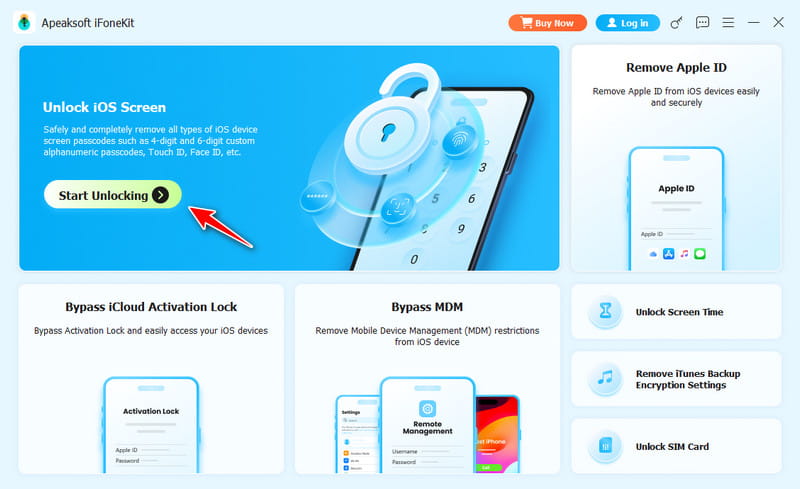
Step 1. Launch Apeaksoft iFoneKit on a computer and choose the Unlock iOS Screen mode.
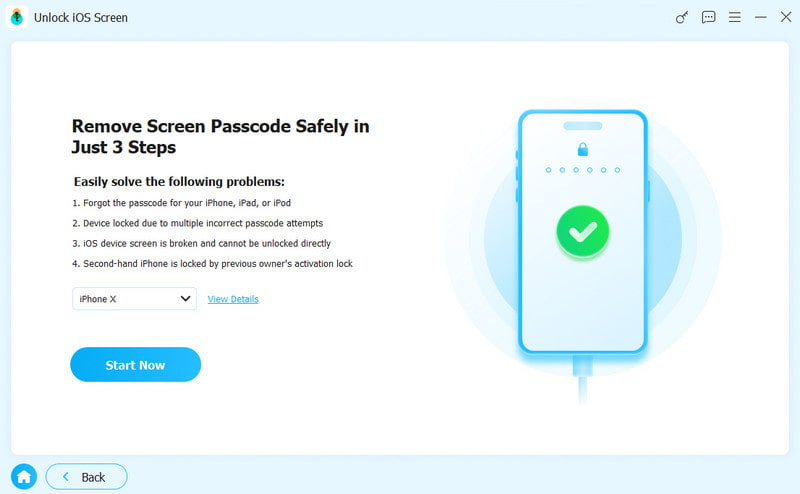
Step 2. Connect your iPhone to the computer using a USB cable. Check your device information, then click Start Now to continue.
Step 3. Download the firmware package. This progress may take some time.
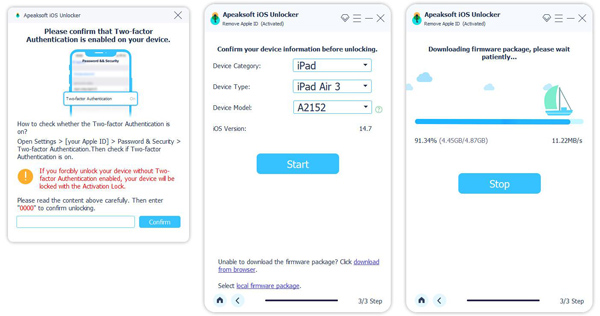
Step 4. Follow the on-screen instructions to confirm unlocking. Read it carefully and hit the OK button.
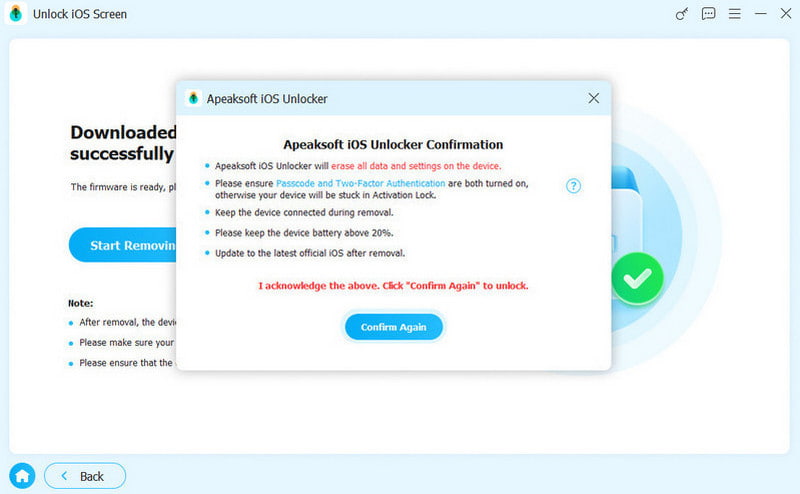
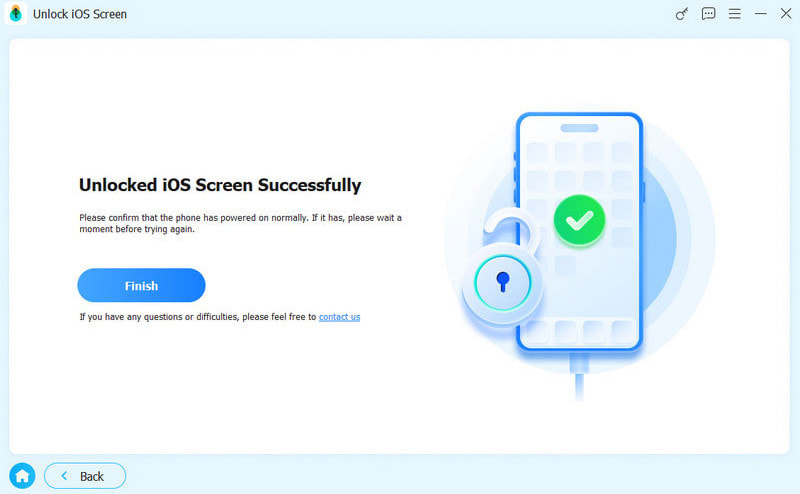
Step 5. After verifying the firmware, the unlocking process will start automatically.
Reset iPad with Erase iPad Option
If your iPad is running iPadOS 15.2 or later, you can unlock it with the Erase iPad feature on the locked screen. This method requires your Apple ID and password.
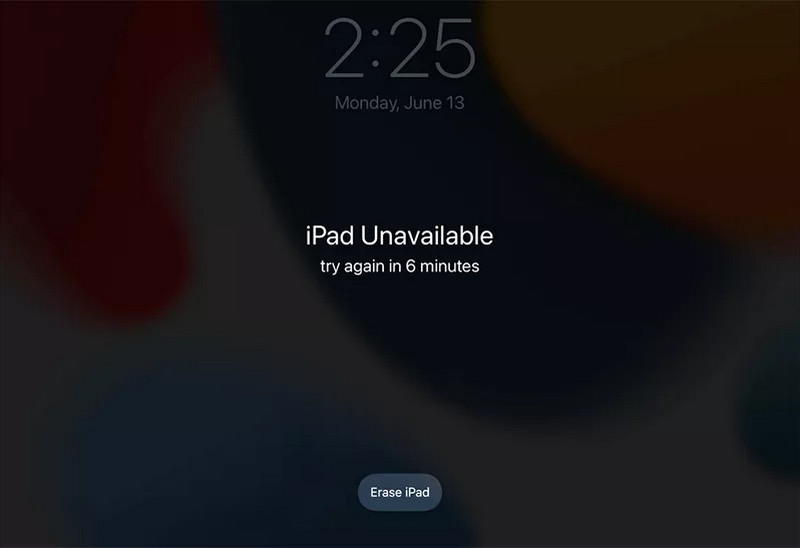
Step 1. Enter your passcode repeatedly until iPad Unavailable appears.
Step 2. Tap Erase iPad in the bottom right corner.
Step 3. Enter your Apple ID and password to verify your Apple Account.
Step 4. Tap the Erase iPad button again to reset your iPad.
Erase iPad Using iCloud.com
If you don't have a computer to unlock iPad with iTunes, iCloud allows you to erase your iPad remotely. However, Find My must be enabled on the iPad beforehand for this method to work.
Step 1. Go to iCloud.com on any browser and log in with your Apple ID.
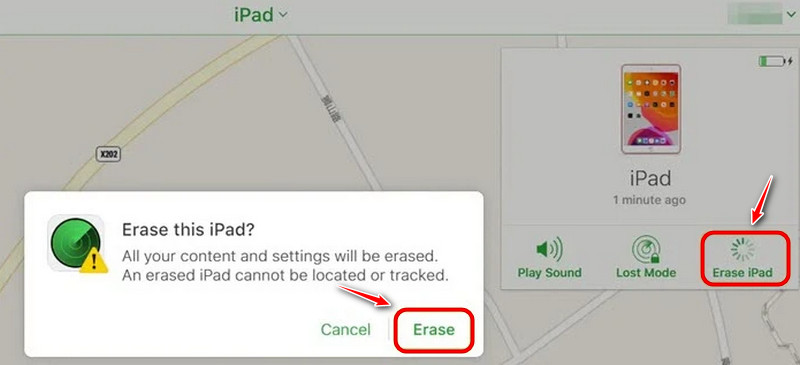
Step 2. Select Find Devices, then click on your iPad.
Step 3. Choose Erase iPad, and it will remotely wipe your device and remove the screen lock.
Conclusion
Unlocking an iPad with iTunes is a trusted official method, but it does come with certain limitations. If iTunes fails to unlock, the alternatives in this guide will help. Don't let a locked iPad ruin your day! Follow the steps that fit your situation and regain access safely. Have you ever struggled with a disabled iPad? Share your experience in the comments below!
 Apeaksoft iFoneKit
 Unlock all types of iOS passwords from iPhone, iPad and iPod.
Secure Download
Secure Download
Related Articles




