

Detailed Guides on How to Unlock iPhone with Broken Screen

Suppose you accidentally have your iPhone dropped on the ground, and the iPhone screen gets broken and cannot be unlocked. Now, you try to find out how to unlock your iPhone with a broken screen. Is there any solution for you to solve such a frustrating problem? Of course, the answer is Yes!
In this article, you will find 5 effective methods to help you unlock your iPhone with a broken screen, as well as backup and recover all the contacts, messages, photos, videos, and so on from the broken device, which must be your urgent need. Read on and learn more details!
PAGE CONTENT:
Choose the Right Method Based on Your Needs
| Method | Ease of Use | Requirement | Success Rate | Data Loss | Best For |
| Keyboard | ⭐⭐⭐ | Requires OTG | Medium | No | Access data / use directly |
| iFoneKit | ⭐⭐⭐⭐⭐ | iPhone must trust the computer before | High | Yes | Quick and stable unlock |
| iTunes | ⭐⭐ | Must trust computer before, iPhone screen must be woken | Medium | Yes | Restore from Backup |
| iCloud | ⭐⭐⭐ | Apple ID + Find My enabled, network | Medium | Yes | Remote Unlock |
| Siri | ⭐ | Screen partially responsive; older iOS versions | Low | No | Try in rare cases |
[No Data Loss] Unlock iPhone with Broken Screen via USB Keyboard
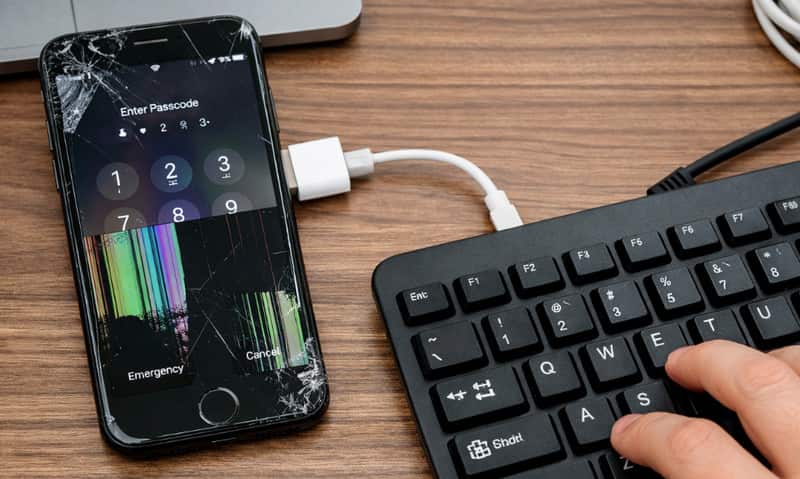
If your screen is completely broken, you can try to use an external keyboard to enter the password of your iPhone. This is one of the few methods that actually lets you unlock an iPhone with a broken screen and use your iPhone without erasing data. You need to prepare an OTG adapter or Lightning/USB-C to USB adapter and a USB keyboard in advance.
Step 1. Connect your iPhone to the keyboard
Use your original USB cable to connect your broken iPhone to an external USB keyboard.
Step 2. Activate the lock screen
Tap the space bar twice to activate the lock screen.
Step 3. Enter your password
Enter your password on the keyboard and it will be synced to your broken iPhone.
Tips: You can also connect a USB mouse instead of a keyboard. A cursor will appear on the screen, allowing you to navigate and tap more precisely, which is often more practical than typing.
[Recommended] Fastest Way to Unlock iPhone with Broken Screen
When your iPhone screen is broken and completely unresponsive, most methods simply won’t work. That’s exactly where a professional unlocking tool comes to work. Apeaksoft iFoneKit iOS Unlocker works even if your screen cannot be touched at all. You don’t need to tap anything on the device, and the entire process is completed on your computer. Compared to traditional methods like iTunes, it offers a much higher success rate, especially when your screen is totally unusable.

Downloaded by over 1,000,000 users
- Unlock iPhone with a Broken Screen Easily.
- Unlock the iPhone with a broken screen within a few minutes.
- No need to tap or confirm anything on the iPhone
- Only 4 steps to unlock the iPhone with a broken screen successfully.
- Supports the latest iPhone 18 series and iOS 27.
- Higher success rate than iTunes and iCloud.
Secure Download
Secure Download

Now, let’s see how to unlock the broken-screen iPhone.
Step 1. Connect iPhone to computer
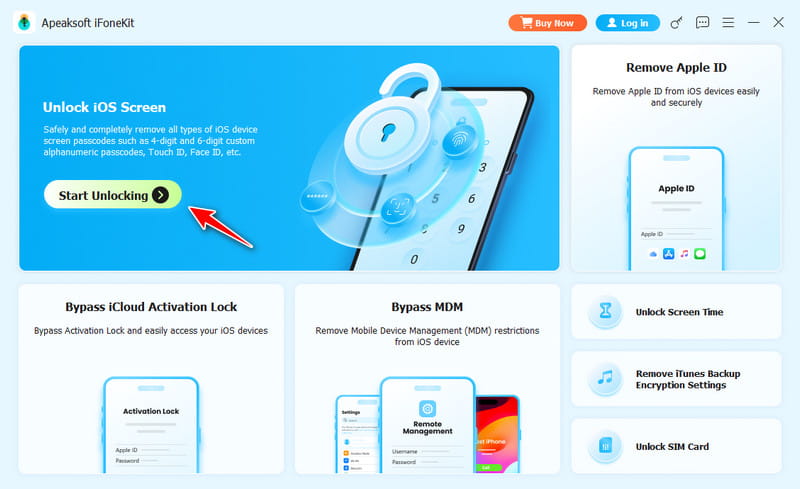
Since you need to unlock your iPhone with a broken screen while the touch control is not entirely workable, you should choose Wipe Passcode mode.
Connect your iOS device to your computer via a USB cable. Click the Start button to continue.
Launch iOS Unlocker and choose the Unlock iOS Screen mode.
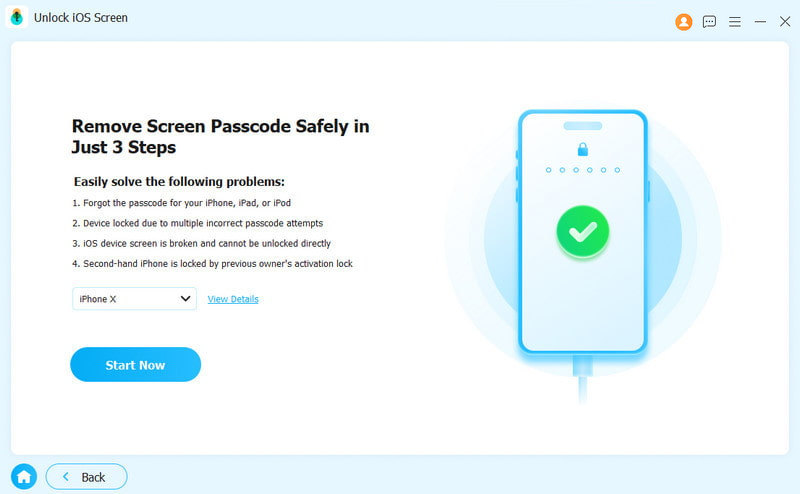
Step 2. Confirm iPhone information
Then the information of your iOS device will be loaded automatically. Confirm the information on your own, and click the Start Now button to proceed.
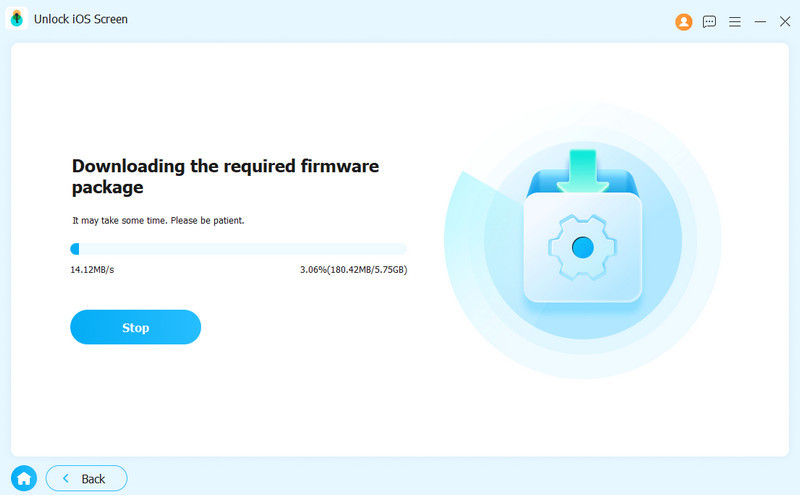
Step 3. Download iOS firmware
Then this tool will download the firmware package. It will take some time, and you just need to wait the process patiently.
Step 4. Unlock iPhone passcode
Confirm twice in the prompt window.
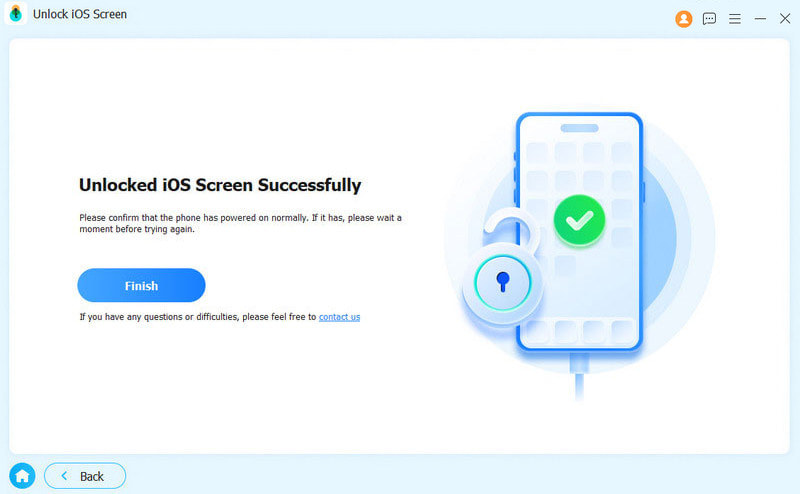
During the process, your iPhone will restart and your broken-screen iPhone will be unlocked. You just need to replace a screen and use the iPhone normally.
Note: Besides a broken screen, if your iPhone is disabled, stuck on the Apple logo, in recovery mode, frozen screen, boot loop, black/blue/red/white screen or has other problems, you can seek help from Apeaksoft iOS System Recovery. It will solve any problems above!
[Erase Data] Unlock Broken iPhone with iTunes
iTunes is also a nice way for you to unlock your iPhone with broken screen, especially for those who are used to sync the data from iPhone to iTunes. This method is mainly suitable if your iPhone has already been synced with the computer before, so the device is trusted and can be recognized without requiring screen interaction.
Just connect your broken device to the same computer that you synchronized previously, and then you can easily backup the recent data to iTunes without entering the passcode while unlocking your iPhone with a broken screen.
Here are the detailed steps:
Step 1. Open iTunes in computer
To unlock your broken screen iPhone, plug your broken iPhone to the same computer that you used before, and launch iTunes app on the computer.
Step 2. Check for update
Click the Device button on the top left side and then the Summary button. Click the Restore iPhone button to unlock your iPhone with a broken screen.
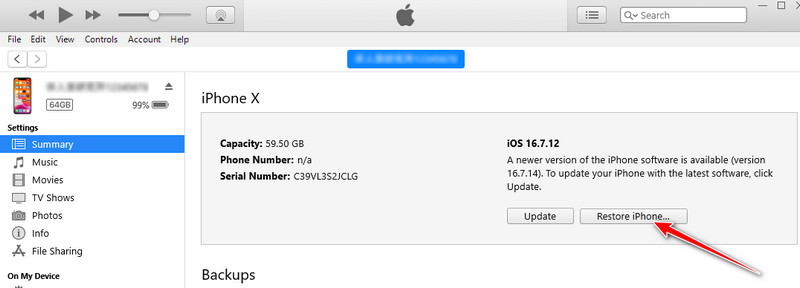
Step 3. Finish restore process
Click Restore button, and iTunes will prompt how to complete the restoring process. You’d better backup your iPhone in case.
Step 4. Unlock your iPhone
Tap on Restore from iTunes backup when you are prompted, and your broken screen Phone will be unlocked and restored without passcode successfully!
[Remote Erase] Unlock iPhone with Broken Screen via iCloud
If you can’t interact with your iPhone at all, using iCloud is one of the few ways to remove the lock screen remotely. This method enables you to clear the password without any touch operation on the device, which is particularly suitable when the screen is completely unresponsive. However, please note that this process will delete all the data on your iPhone. It also requires your Apple ID and password, and the "Find My iPhone" function must be enabled on the device in advance.
Step 1. Log into iCloud
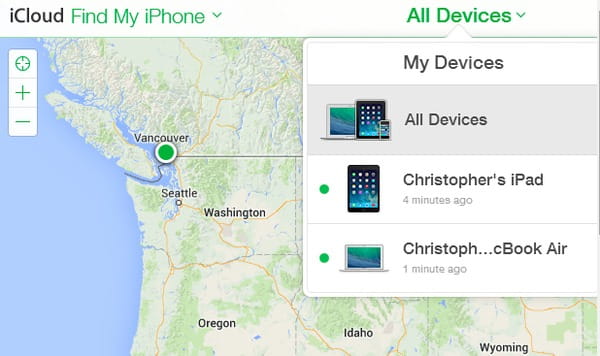
Sign into iCloud with your Apple ID and password, find and locate Find My iPhone, and open it.
Step 2. Clear the passcode
Click the All Devices button, and choose your iPhone in the list. To unlock your iPhone with broken screen, click the Erase iPhone button to remove the passcode.
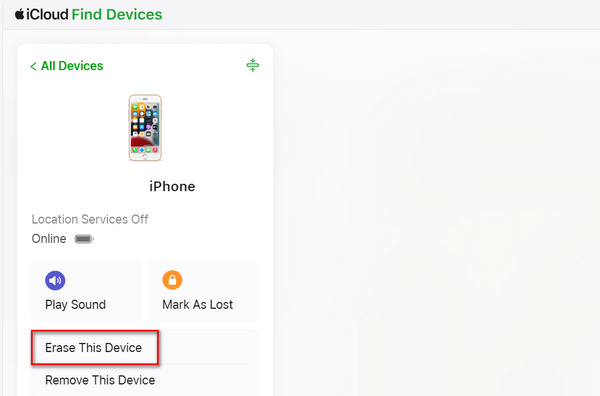
Tips: You can easily unlock your iPhone with broken screen through the 4 solutions mentioned above. However, iTunes and iCloud methods may lead to the loss of data. So you are suggested to recover data from the broken iPhone after you unlock it.
[Limited] Can Siri Unlock iPhone with Broken Screen
To unlock iPhone with broken screen without losing data, you can also seek help from Siri. This method only works under very specific conditions, such as when part of the screen is still responsive and certain system features are accessible. Here are the steps on how to unlock iPhone with broken screen with Siri:
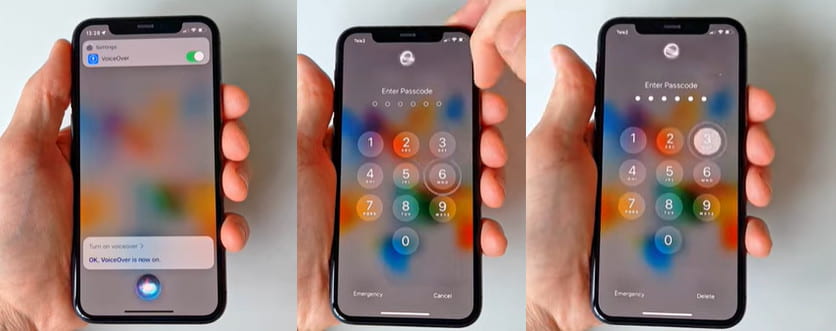
Step 1. Activate Siri
You can double-click or hold the side button to call on Siri. If your iPhone is an old model, just hold the home button.
Step 2. Turn on Voiceover
Once Siri is activated, say Turn on Voiceover now to her.
Step 3. Activate the lock screen
You can swipe up from the bottom and keep holding until the voice says lift for home. In the old model, the user could press the home button.
Step 4. Swipe left or right on the available screen and double-tap the screen when turning to the right number.
Conclusion
You've learned how to unlock iPhone with broken screen in 5 ways. iTunes and iCloud can restore your iPhone with backups while unlocking it. Apeaksoft iOS System Recovery can erase system errors that may bring screen stuck problem to your iPhone. Apeaksoft iFoneKit iOS Unlocker can easily unlock your iPhone in any unfavorable situation. We hope that you can easily unlock your iPhone with a broken screen and obtain what you urgently need on the device.
By the way, if you are using methods like iTunes or iCloud, don't forget to restore your iPhone after fixing.
Related Articles




