How to Fix Your Passcode Is Required to Enable Face ID

Some iPhone users have reported that their devices require a passcode even when Face ID is enabled. The Your Passcode Is Required to Enable Face ID message does not always mean that Face ID is broken. iPhone requires your passcode in certain security situations before Face ID can be used again. This article explains when and what you should do if your passcode is required to enable Face ID.
PAGE CONTENT:
Part 1: Why Your iPhone Requires a Passcode for Face ID
Even if you set up Face ID on your iPhone, you may still be required to enter your passcode in certain situations. The common scenarios requiring your passcode include:
- 1.After restarting your iPhone, your passcode is required to unlock your device and enable Face ID.
- 2.If you haven't unlocked your iPhone in the past 48 hours, you will be asked to enter it again.
- 3.If you haven't used Face ID on your device in the past 6.5 days and haven't used Face ID for the past 4 hours, you need to enter your passcode to unlock your iPhone.
- 4.After five failed attempts to unlock your device with Face ID, you will be asked for your passcode.
- 5.If you initiate the power-off or Emergency SOS by pressing and holding either volume button and the side button simultaneously for 2 seconds, you are required to enter your passcode to use Face ID again.
- 6.If you or someone else lock your device using Find My remotely, you need to unlock your iPhone with the passcode.
If none of these situations applies and your iPhone repeatedly requires your passcode to enable Face ID, it may due to a Face ID issue or software glitches.
Part 2: How to Fix Passcode Required to Enable Face ID
Solution 1: Check Face ID Settings
The passcode may be required to enable Face ID due to incorrect setup. If your iPhone keeps asking for a passcode instead of using Face ID, first check whether Face ID is enabled for iPhone Unlock by following the onscreen instructions below:
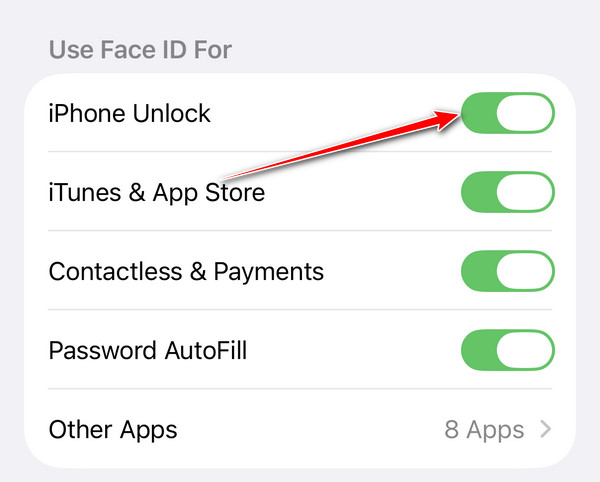
Step 1. Open the Settings app on your iPhone.
Step 2. Go to Face ID & Passcode and enter your passcode if prompted.
Step 3. Make sure you've toggled on iPhone Unlock and other desired options under the USE FACE ID FOR section.
Tips: If you need to use Face ID with a mask or sunglasses, toggle on Face ID with a Mask or tap Add Glasses.
Solution 2: Check the TrueDepth Camera
Face ID relies on the TrueDepth camera to recognize your face. If your camera is covered or dirty, Face ID may not work and your iPhone may ask you to enter your passcode instead. Therefore, it is necessary to check the TrueDepth camera and make sure nothing is blocking it.
Step 1. Wipe the area around the TrueDepth camera at the top of your iPhone with a soft, lint-free cloth.
Step 2. Open the Camera app and switch to the front-facing camera.
Step 3. Take a photo of yourself and check whether the front camera works normally.
Step 4. Try using Face ID again.
Solution 3: Restart Your iPhone
A temporary software glitch may prevent Face ID from working properly. Restarting your iPhone can help resolve minor system issues that may affect Face ID.
Step 1. Press and hold the volume up and the side buttons until the power-off slider appears. Drag the slider to turn off your iPhone.
Step 2. Wait a few seconds, then press and hold the side button to turn your iPhone on again.
Step 3. Enter your passcode when prompted, then try using Face ID again.
Solution 4: Update iOS
Outdated software can lead to various problems, including the Passcode Required to Enable Face ID error. The solution is simple: keep your device up to date or manually install the latest update.
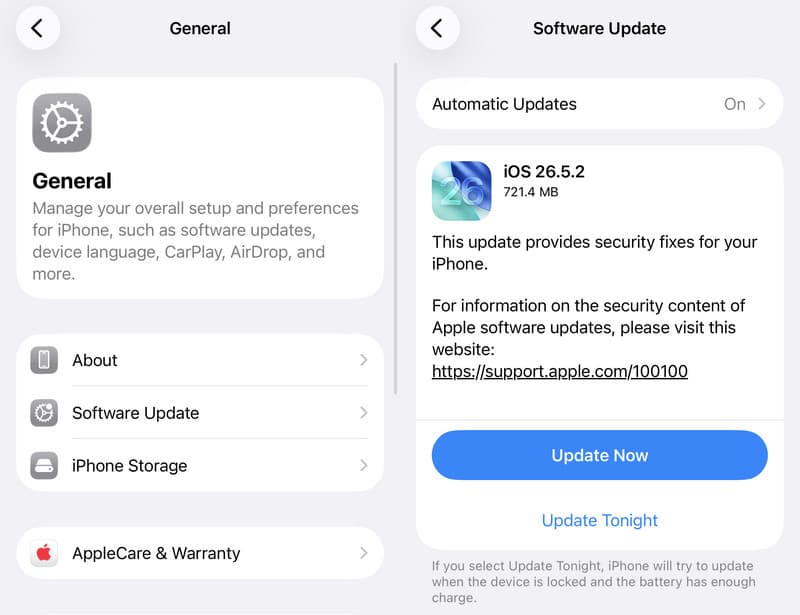
Step 1. Go to the General tab in Settings.
Step 2. Tap Software Update to search for the latest update.
Step 3. If an update is available, tap Download and Install.
Step 4. Follow the instructions to install the update.
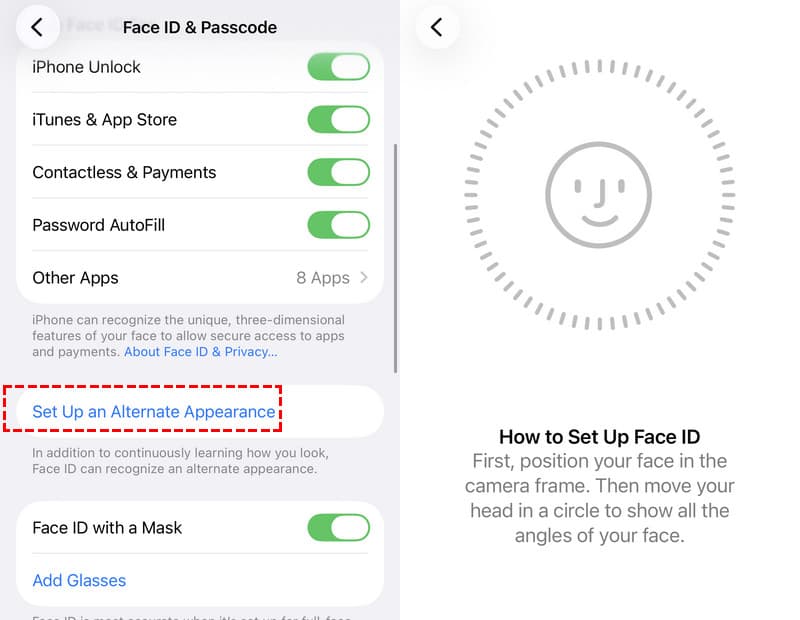
Solution 5: Set Up an Alternate Appearance
Sometimes, Face ID does not recognize you consistently because your appearance has changed significantly. Therefore, you can set up an alternate appearance.
Step 1. Open the Settings app on your iPhone.
Step 2. Tap Face ID & Passcode and enter your passcode.
Step 3. Tap Set Up an Alternate Appearance.
Step 4. Follow the onscreen instructions to complete the scan.
Step 5. Try unlocking your iPhone with Face ID again.
Solution 6: Reset Face ID
If your iPhone keeps asking for a passcode instead of Face ID, you can reset it. That removes the outdated faces and allows you to add new faces. Of course, the process requires your iPhone passcode.
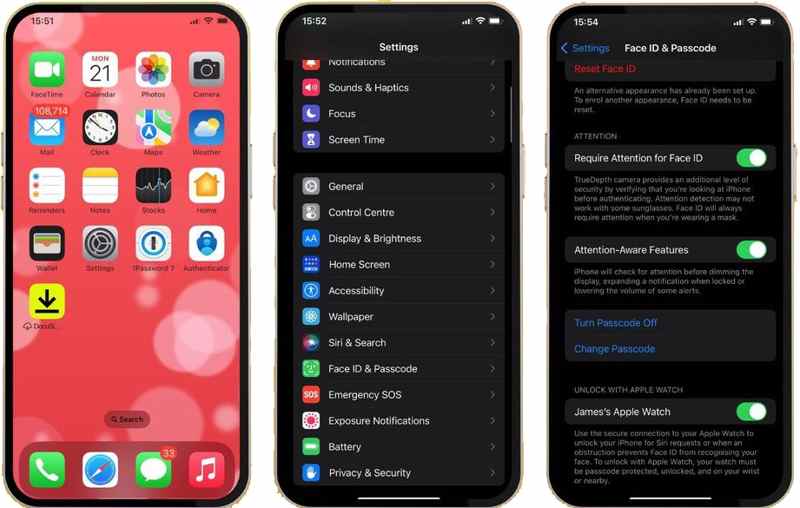
Step 1. Run the Settings app.
Step 2. Go to Face ID & Passcode.
Step 3. Enter your passcode if prompted.
Step 4. Tap Reset Face ID.
Step 5. Then, you can set a new face with the right setting.
Solution 7: Disable Raise to Wake
The Raise to Wake feature can wake up and lock your screen when it detects the right action. Frequent waking may cause your iPhone to read facial recognition information repeatedly. After five failed attempts, you will see the message says Your passcode is required to enable Face ID. Therefore, you'd better turn off the Raise to Wake feature.
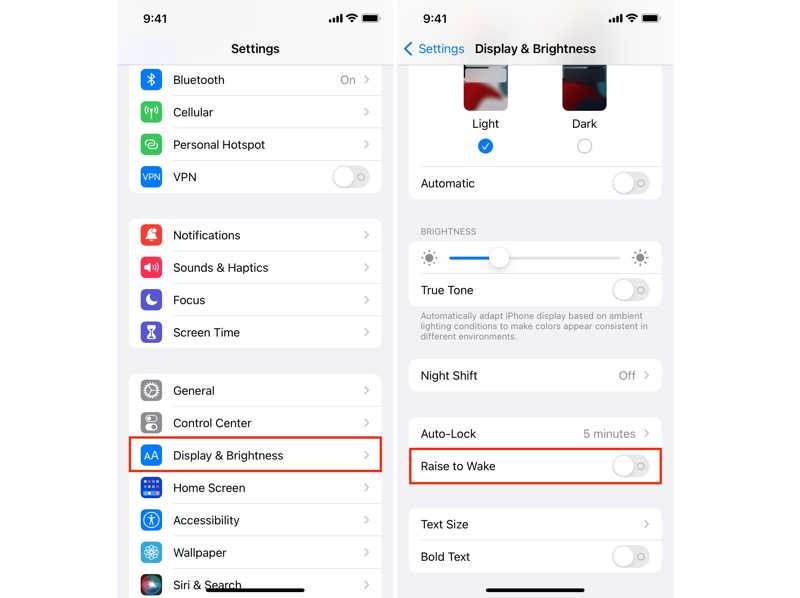
Step 1. Go to Display & Brightness in your Settings app.
Step 2. Locate the Raise to Wake option.
Step 3. Toggle off the switch to turn it off.
Part 3: How to Unlock iPhone/iPad Without Passcode or Face ID
If you know your passcode, simply enter it to re-enable Face ID. If you are prompted for the Password required to enable Face ID but forgot your passcode, you will need a powerful unlocking tool, such as Apeaksoft iFoneKit iOS Unlocker. It can unlock your iPhone or iPad without the passcode or Face ID.

Downloaded by over 1,000,000 users
- Unlock iPhone without a passcode.
- Unlock iPhone or iPad screen with three steps.
- Bypass digit passcode, Face ID, and Touch ID.
- Available in various situations, including a disabled device.
- Support the latest versions of iOS and iPadOS.
Secure Download
Secure Download
How to Unlock Your iPhone Without a Passcode or Face ID
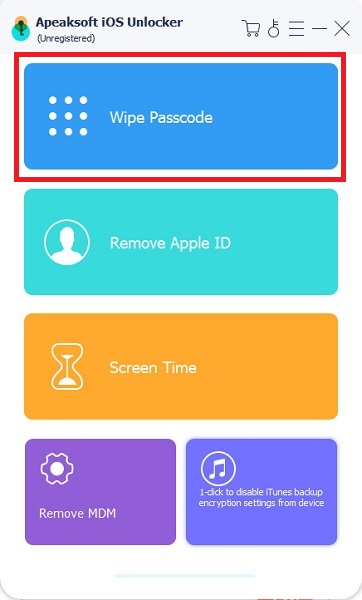
Step 1. Connect to your iPhone
Launch the best iPhone unlocking software after you install it on your PC. There is another version for Mac. Connect your iPhone to your PC with a Lightning cable. Go to the Unlock iOS Screen mode and click the Start Now button.
Step 2. Download the firmware
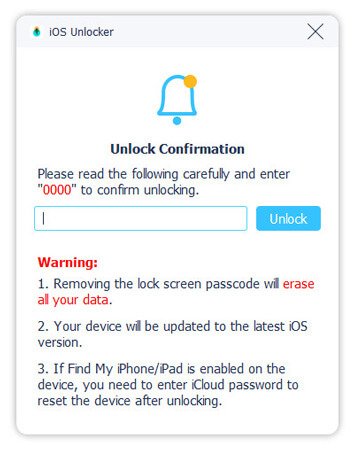
Once your device information is loaded, check each item. Next, click the Start button to download the firmware package. Note that it will factory reset your device, and you will set up your device like a new iPhone.
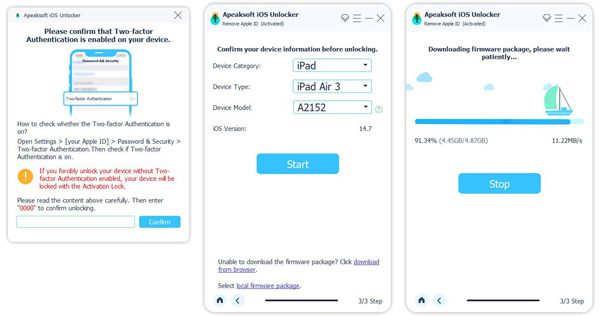
Step 3. Unlock your iPhone
When downloading is complete, click OK, and then click the Confirm Again button to begin unlocking your iPhone or iPad without your passcode or Face ID.
Conclusion
This article explains what to do if you get the message that says a Passcode is required to enable Face ID on your iPhone. You can follow our solutions to get rid of this error and regain access to your device. Apeaksoft iFoneKit iOS Unlocker helps you unlock your device without any passcode.
 Apeaksoft iFoneKit
Unlock all types of iOS passwords from iPhone, iPad and iPod.
Secure Download
Secure Download
Related Articles