


How to Properly Use Face ID with Sunglasses or Masks

Face ID is a convenient way to unlock iOS devices without entering passcodes repeatedly. However, some users complained that Face ID struggles when wearing sunglasses or masks.
In most cases, Face ID can recognize you while you are wearing sunglasses, as long as the lenses do not interfere with Face ID. However, if you also wear a mask, Apple states that "Face ID with a Mask is not designed to work with sunglasses." This means you may have trouble using Face ID when wearing both a mask and sunglasses. This post explains how to use Face ID with sunglasses or masks properly.
PAGE CONTENT:
Part 1: Can I Use Face ID with Sunglasses
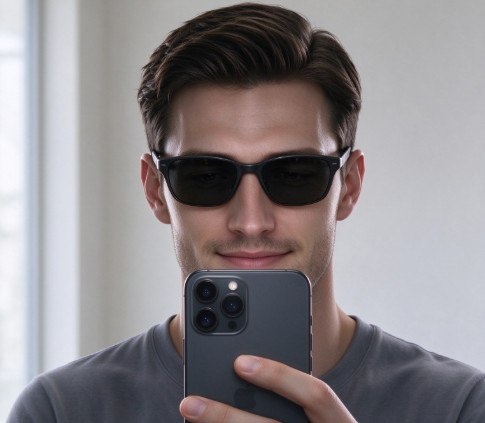
Under normal circumstances, you can use Face ID while wearing sunglasses, as long as the lenses do not interfere with Face ID. Therefore, you do not need to set up a separate Face ID option for sunglasses.
Part 2: How to Set Up Face ID with a Mask
If you want to use Face ID with a mask, you should set it up in advance to unlock your iPhone without removing your mask or entering your passcode. You can enable this feature when setting up Face ID or later in the Settings app. Follow the steps below to get started.
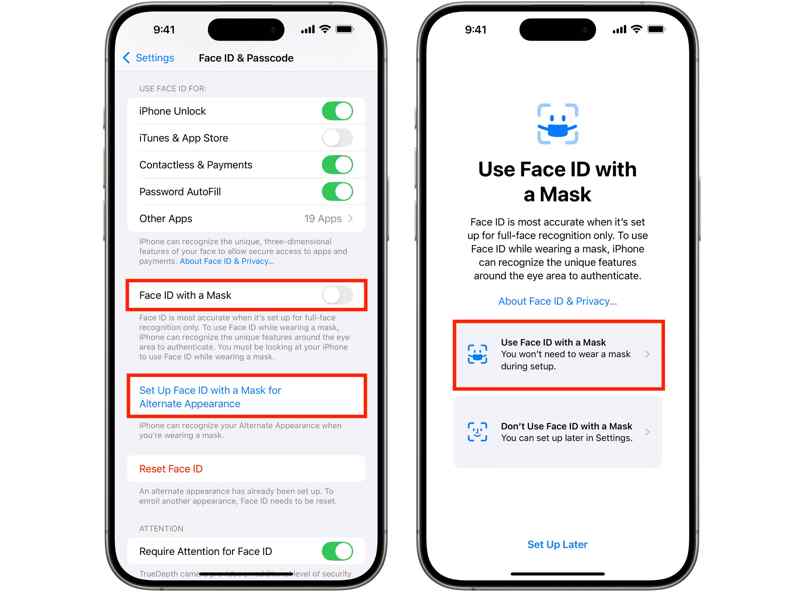
Step 1. Run your Settings app from your home screen.
Step 2. Head to Face ID & Passcode.
Step 3. When prompted, enter your iPhone passcode.
Step 4. Toggle on Face ID with a Mask or tap Set up Face ID with a Mask for Alternate Appearance.
Step 5. Choose Use Face ID with a Mask and tap Get Started.
Step 6. Follow the prompts to scan your face with a mask.
Part 3: Can I Use Face ID with Both a Mask and Sunglasses
Generally no. Although Face ID can generally recognize you while you are wearing sunglasses, the situation is different when you also wear a mask. As shown in the Face ID settings, "Face ID with a mask doesn't support sunglasses", wearing a mask and sunglasses at the same time may prevent Face ID from recognizing you properly.
If you wear regular glasses instead of sunglasses with a mask, Apple provides an Add Glasses option to improve Face ID recognition. However, using Face ID with glasses and masks requires iOS 15.4 or later. Moreover, you must have an iPhone 12 or later models. You need to set it up following the steps below:
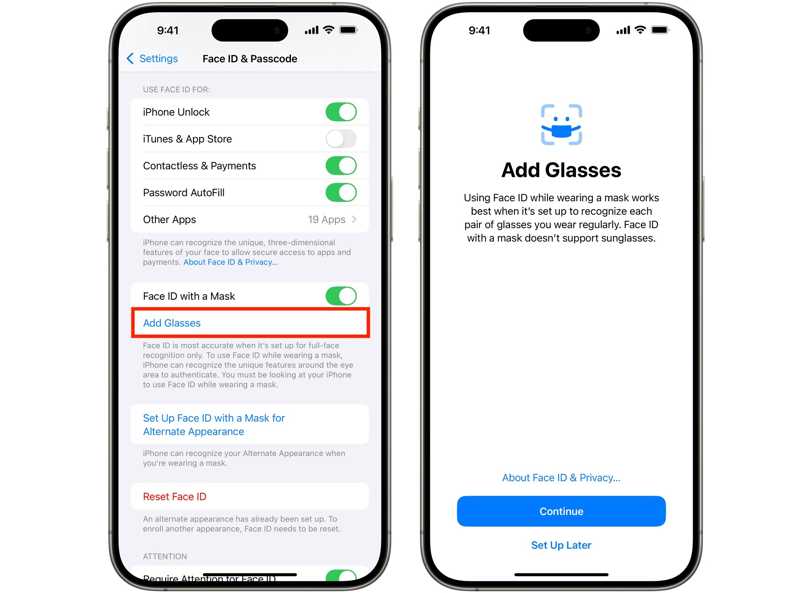
Step 1. Open the Settings app on your iPhone.
Step 2. Go to the Face ID & Passcode tab.
Step 3. If prompted, enter your passcode to move on.
Step 4. Scroll down and tap Add Glasses under the Face ID with a Mask option.
Step 5. Put on your glasses and follow the instructions to complete the facial scan.
Tips: Remember that you cannot use Face ID with sunglasses and a mask at the same time.
Part 4: How to Fix Face ID Not Working with Sunglasses or Masks
Sometimes, Face ID is not working with sunglasses or a mask. The causes are complicated. The good news is that you can fix this problem following the proven solutions below one by one:
Solution 1: Check the Compatibility
Face ID was introduced in 2022 and is built in iPhone X and above. However, Face ID with sunglasses or a mask is only available on iPhone 12 and later. Moreover, you must update the software to iOS 15.4 or later.
Solution 2: Force Restart iPhone
If your iPhone gets stuck on the lock screen and Face ID is not working with sunglasses, you can resolve this issue by performing a force restart. You can use the right button combination to make your Face ID work normally.
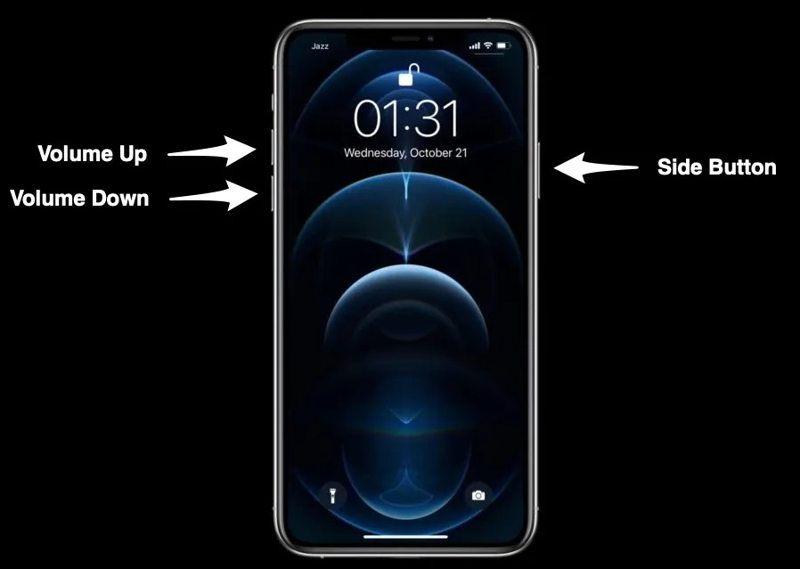
Quickly press and release the Volume Up button.
Quickly press and release the Volume Down button.
Long-press the Side button until you see the Apple logo.
Now, unlock your iPhone with Face ID.
Solution 3: Turn off Attention for Face ID
If Face ID is not working with sunglasses, you’d better turn off Require Attention for Face ID. Then, your device may unlock when your face is in range. That eliminates one of the security layers Apple built into Face ID.
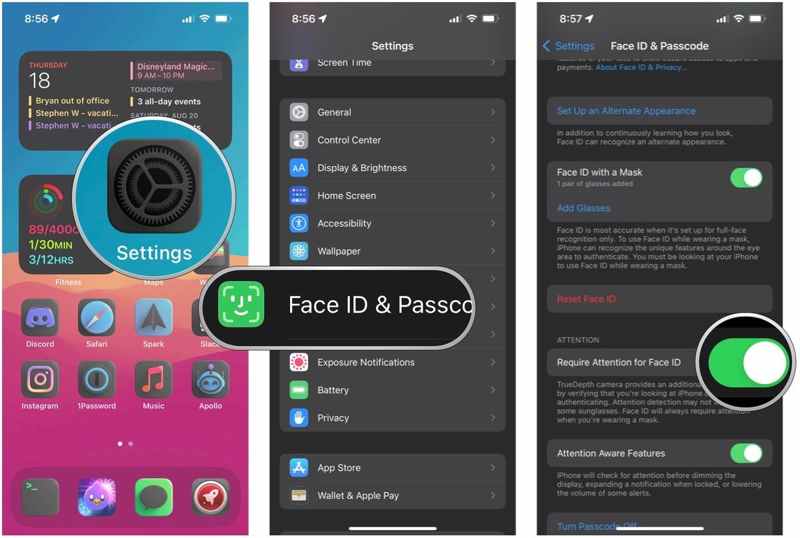
Step 1. Run your Settings app.
Step 2. Go to Face ID & Passcode.
Step 3. When prompted, enter your iPhone passcode.
Step 4. Under the Attention section, toggle off Require Attention for Face ID.
Solution 4: Set up an Alternate Appearance
Apple allows you to set two Face ID appearances on a compatible iPhone. If the main Face ID is not working with sunglasses, you can set up a secondary alternate appearance and add glasses for it.
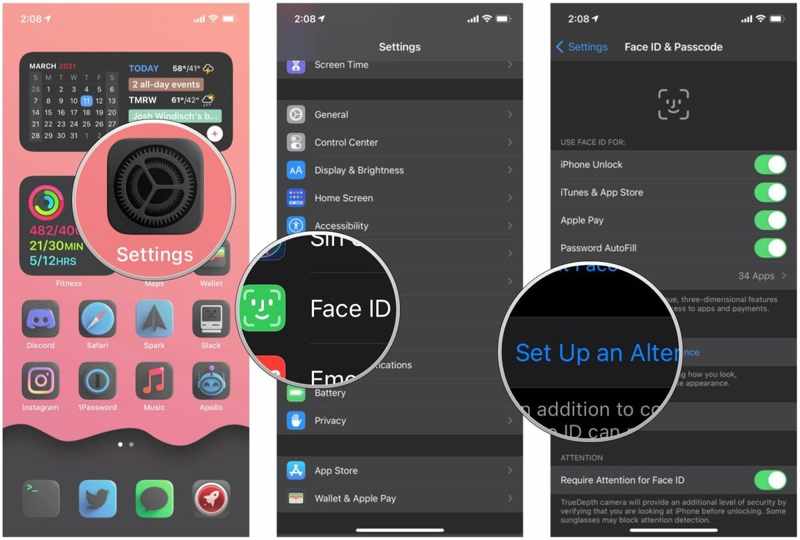
Step 1. Go to Face ID & Passcode in your Settings app.
Step 2. Input your iPhone passcode.
Step 3. Tap the Set up an Alternate Appearance button.
Step 4. Put your sunglasses and follow the instructions to set up the Face ID.
Part 5: How to Unlock Your iPhone When Face ID Doesn't Work
If Face ID still doesn't work after trying the solutions above, you may need to unlock your iPhone with your passcode. However, if you also forgot your passcode or cannot access your device normally, a dedicated iOS unlocker, such as Apeaksoft iFoneKit iOS Unlocker, can help remove the screen lock.

Downloaded by over 1,000,000 users
- Remove screen locks from iPhones in a few clicks.
- Unlock digit passcodes, Face IDs, and Touch IDs.
- Don’t require your Apple ID password or iPhone passcode.
- Compatible with the latest models of iPhone.
Secure Download
Secure Download
How to Unlock Face ID on Your iPhone Without a Passcode
Step 1. Connect to your iPhone
Launch the best Face ID removal software after you install it on your PC. There is another version for Mac. Connect your iPhone to your PC with a Lightning cable. Choose the Unlock iOS Screen mode and click the Start Now button.
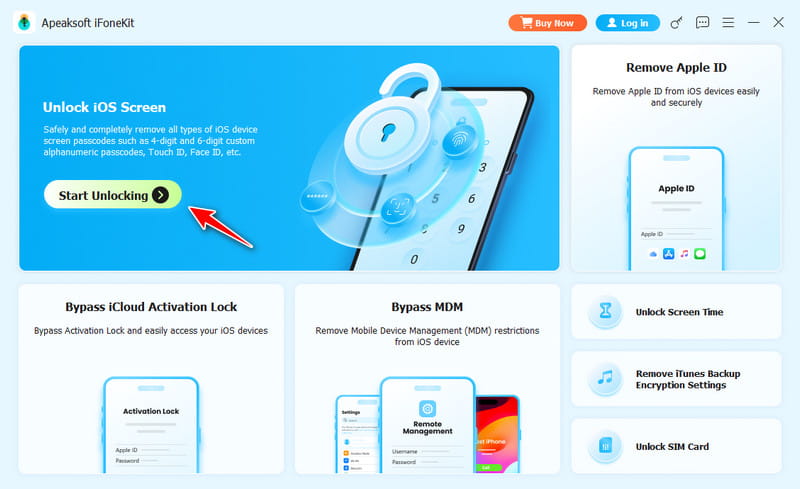
Tips: The software can automatically detect your device. If you link the two devices for the first time, tap Trust on your screen to trust this computer.
Step 2. Download the firmware
Once your iPhone information is loaded, check each item. Then, click the Start button to download the firmware. It may take a while to complete downloading.
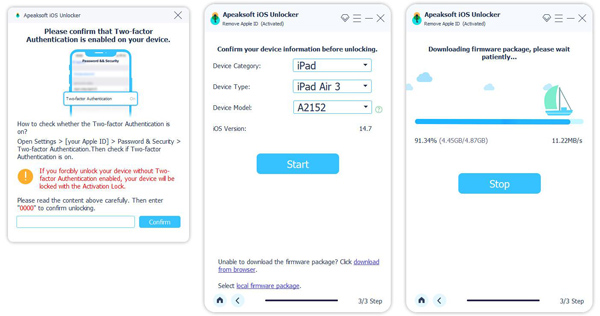
Step 3. Unlock Face ID
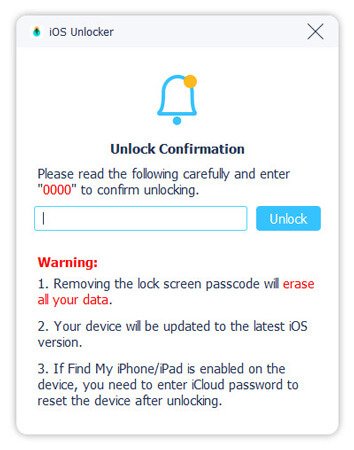
When it is done, click OK and click the Confirm Again button to remove the Face ID that is not working from your iPhone. When it finishes, disconnect your iPhone and set a new passcode or Face ID.
Conclusion
This guide explained how to set and use Face ID with sunglasses or a mask on your iPhone. You need to set it up in the Settings app. Moreover, we discussed how to resolve the issue with Face ID not working on your device. Apeaksoft iOS Unlocker is the best option to remove Face ID and other screen locks.
 Apeaksoft iFoneKit
 Unlock all types of iOS passwords from iPhone, iPad and iPod.
Secure Download
Secure Download
Related Articles




