


How to Unlock a Disabled iPhone With or Without iTunes

For iPhone users, the passcode protection seems like a foolproof security measure until you are locked out and presented with the iPhone Disabled screen. Today, users are increasingly dependent on their iPhones, using devices to make phone calls, send and receive messages, order dinner, read emails, track health, and more. Fortunately, there are a few ways to unlock a disabled iPhone following our proven methods and concrete guide.
PAGE CONTENT:
Part 1: How to Unlock a Disabled iPhone with iTunes
Can a disabled iPhone be unlocked? Once your iOS device is disabled, you may see a message on the lock screen: connect to iTunes. In other words, iTunes is the official solution to unlock a disabled iOS device.
Step 1. Run the latest version of iTunes. On macOS Catalina or later, run Finder instead.
Step 2. Connect your disabled iPhone to your computer with a USB cable.
Step 3. Put your iPhone in Recovery Mode:
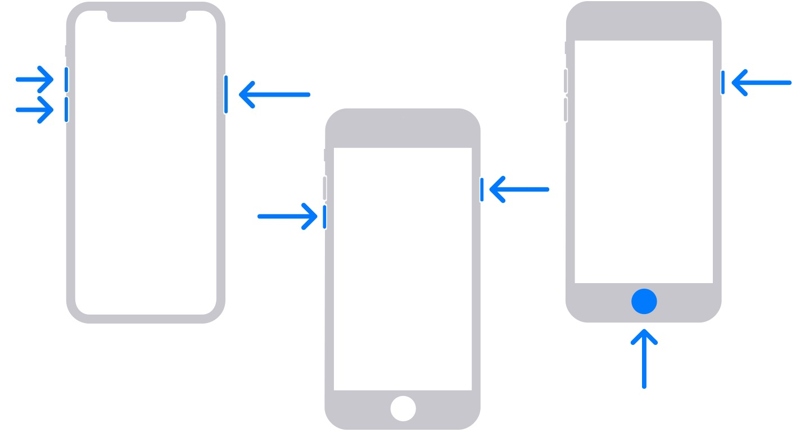
On iPhone 6s and earlier
Long-press the Home + Power buttons together.
Release the buttons until the Recovery Mode is activated.
On iPhone 7/7 Plus
Hold down the Volume Down + Side buttons simultaneously
Once your device enters Recovery Mode, let the buttons go.
On iPhone 8 and later
Press and quickly release the Volume Up button.
Press and quickly release the Volume Down button.
Press and hold the Side button until the Recovery Mode screen appears.
Step 4. Turn to iTunes or Finder, and a dialog will appear if it detects your device in Recovery Mode.
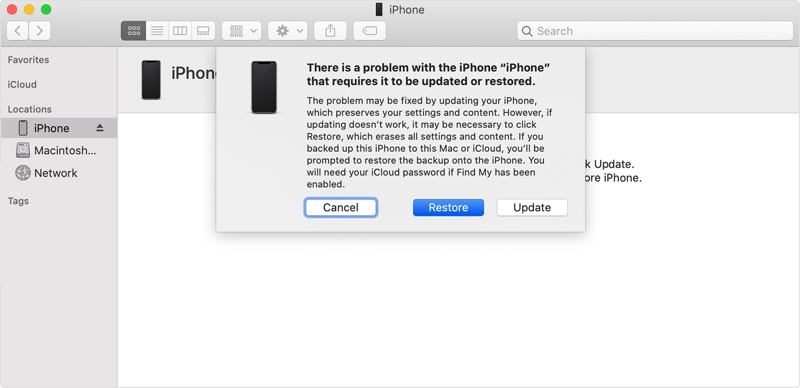
Step 5. Click the Restore button to begin restoring your iPhone.
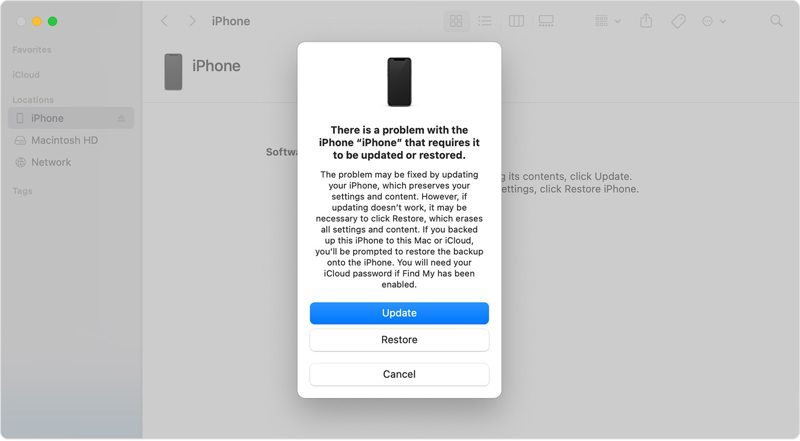
Step 6. Once it is complete, your iPhone should restart in the Hello screen.
Step 7. Disconnect your device, unlock the disabled iPhone, and set it up.
Note: The process will erase all data on your iPhone. You’d better back up your data before the process.
Part 2: How to Unlock a Disabled iPhone Without iTunes
Option 1: How to Unlock a Disabled iPhone by Erasing iPhone
Lockout feature in iOS 15.2 and above. This feature comes with two options on the disabled iPhone: Emergency and Forgot Passcode or Erase iPhone. Erasing the disabled iPhone will remove the lock screen and your data with your Apple ID password. You can also see related steps by visiting the website on the lock screen - support.apple.com/iPhone/passcode.
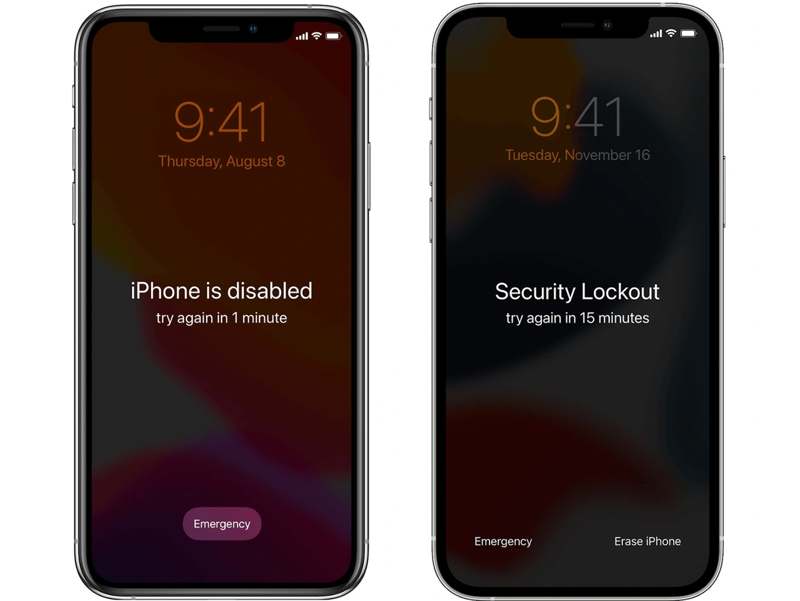
For iOS 17 and later
Step 1. Tap the Forgot Passcode button on your screen.
Step 2. Read the alert message and tap Start iPhone Reset.
Step 3. Enter the Apple ID password associated with your device.
Step 4. Next, choose Erase iPhone again to begin factory resetting your iPhone.
Step 5. When it is done, you can unlock your disabled iPhone directly.
For iOS 15.2 and later
Step 1. Tap the Erase iPhone button.
Step 2. Read the warning message and tap Erase iPhone again.
Step 3. Next, type in your Apple ID password.
Step 4. Then, the iPhone reset will initiate immediately.
Option 2: How to Unlock a Disabled iPhone via Find My
Apple has merged the Find My Friends and Find My iPhone features into the Find My app. It allows you to track and manage your Apple devices through an Apple ID account if you have turned on Find My iPhone on your device before it is disabled. More importantly, it can unlock a disabled iPhone by resetting it online or on another Apple device.
On the Web
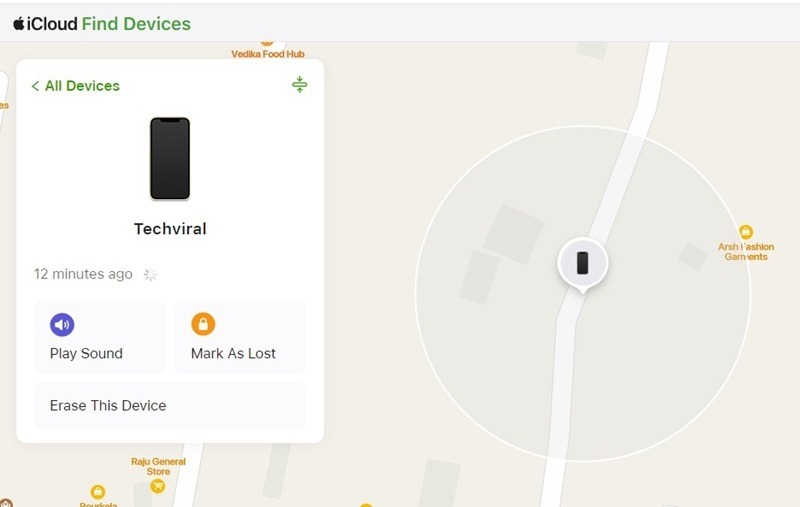
Step 1. Go to www.icloud.com in a web browser and log in with your Apple ID and password.
Tips: If 2FA is activated, enter the verification code that appears on your screen.
Step 2. Pull down the All Devices list and choose your disabled iPhone.
Step 3. Once your iPhone is tracked, click the Erase This Device button.
Step 4. Read the notification and click Next.
Step 5. Input your Apple ID password again, and hit Erase to confirm unlocking the disabled iPhone.
In Find My App
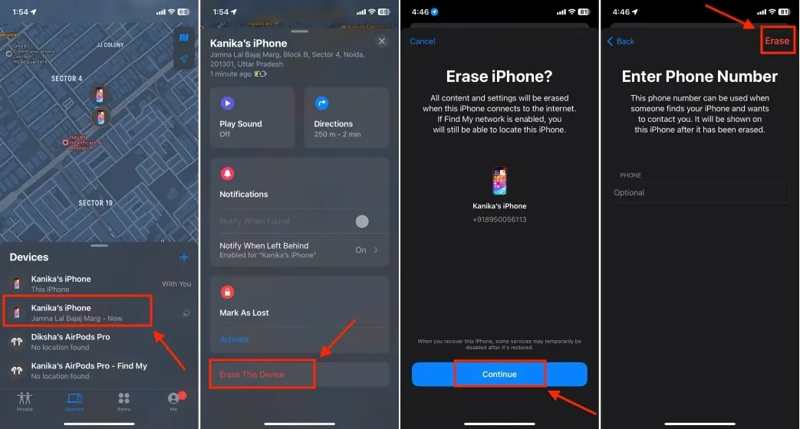
Step 1. Open the Find My app on an Apple device associated with the same Apple ID.
Step 2. Go to the Devices tab and choose the disabled iPhone.
Step 3. Next, tap or click the Erase This Device button on the toolbar.
Step 4. Follow the onscreen instructions to erase the disabled device.
Further Reading
Part 3: A Quick Way to Unlock a Disabled iPhone
The common methods for unlocking a disabled iPhone require your Apple ID password. If you forgot your password, Apeaksoft iFoneKit is a quick way to regain access to your device.

Downloaded by over 1,000,000 users
- Bypass iPhone lock screen without a password.
- Remove digit passcodes, Face IDs, and Touch IDs.
- Available to locked and disabled iPhones.
- Offer bonus features, like factory resetting your device.
- Support the latest editions of iOS and iPadOS.
Secure Download
Secure Download

How to Unlock Your Disabled iPhone Without a Password
Step 1. Install iPhone unlocker
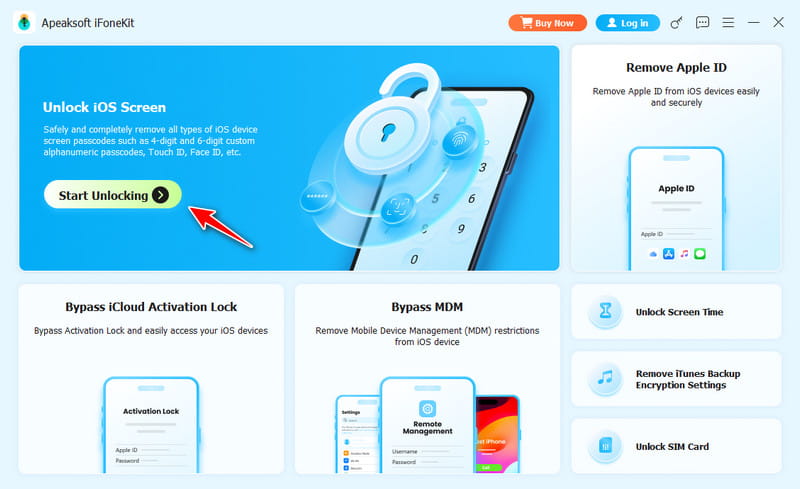
Start the iPhone unlocking tool after installing it on your PC. There is another version for Mac. Choose the Unlock iOS Screen mode to proceed.
Step 2. Connect to your iPhone
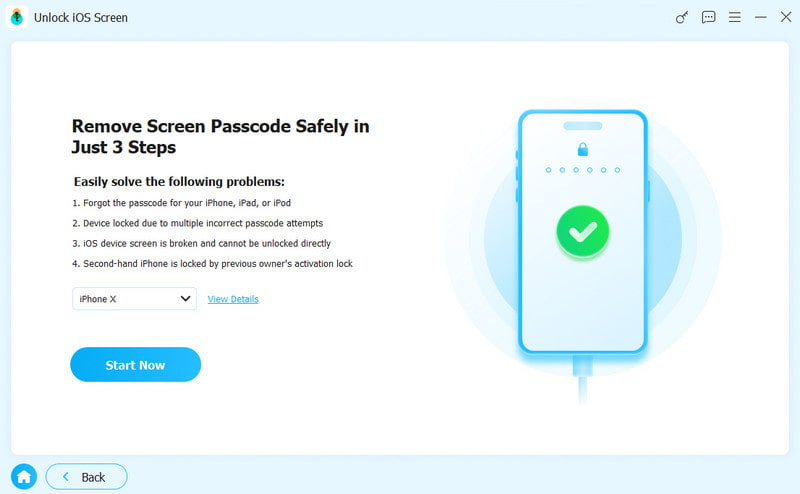
Plug the disabled iPhone into your PC with a Lightning cable. Once it is detected, click the Start Now button to start downloading the firmware.
Step 3. Unlock the disabled iPhone
Once the download is complete, click the OK button on the confirmation dialog. Then, click the Confirm Again button to verify the firmware. When it is done, the software will begin unlocking your device.
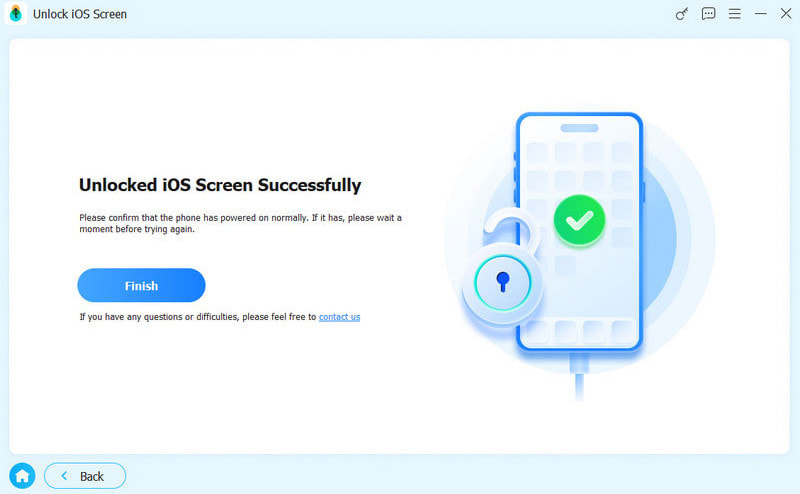
Note: To avoid data loss, back up your iPhone before the process. Then, you can restore the backup.
Conclusion
This guide discusses how you can unlock a disabled iPhone with or without iTunes. According to your screen notification, you can restore a disabled iPhone in Recovery Mode with iTunes or Finder. Then, you can access your device without restrictions. Without iTunes, you can try Security Lockout and Find My according to your situation. Apeaksoft iFoneKit is the ultimate way to regain access to a disabled iPhone without a password.
 Apeaksoft iFoneKit
 Unlock all types of iOS passwords from iPhone, iPad and iPod.
Secure Download
Secure Download
Related Articles




