

How to Back up Photos on Your Samsung Phone or Tablet

Samsung is one of the most popular smartphone brands around the world. Samsung smartphones hold precious memories in the form of photos. However, a few factors can lead to photo loss, like accidental deletion, factory reset, or phone damage. If you own a Samsung device, you are lucky since you have multiple ways to back up Samsung photos wirelessly or with a cable. This guide lists the proven methods.
PAGE CONTENT:
Part 1: Back up Photos on Samsung to Samsung Cloud
Does Samsung Cloud back up photos? Yes. It is the cloud storage offered by Samsung and seamlessly integrates with most new Galaxy devices. Once you set it up, it will automatically back up your photos.
- Automatic backup.
- Accessible on multiple devices.
- Quick and easy.
- Only available on new Samsung devices.
- Limited storage.
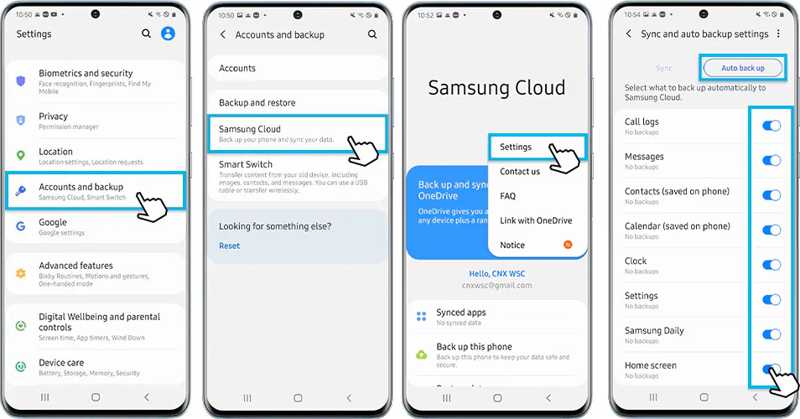
Step 1. Run the Settings app on your phone.
Step 2. Go to Accounts and backup, and choose Samsung Cloud.
Step 3. Tap the More button with a three-dot icon, and pick Settings.
Step 4. Choose Sync and auto backup settings, and tap Auto backup.
Step 5. Select the desired data types.
Part 2: Back up Samsung Photos to PC with Smart Switch
If you have lots of photos on your phone, you'd better back them up to a computer. Samsung's Smart Switch allows you to back up Samsung pictures to a Windows or Mac computer using a USB cable.
- Back up photos without a network.
- Offer comprehensive backup options.
- Support photo restoration.
- Require a computer.
- Available to specific devices.
Step 1. Install and open Smart Switch on your computer.
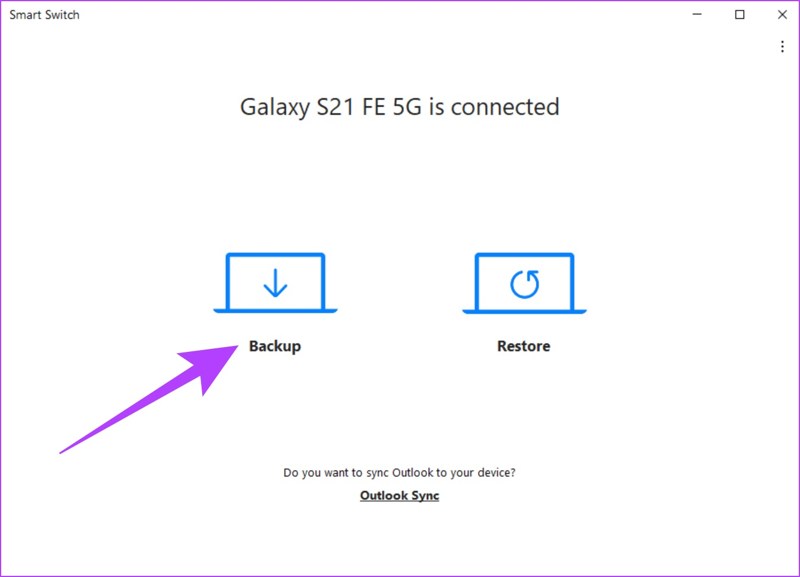
Step 2. Connect your phone to your computer with a USB cable.
Step 3. Choose Backup.
Step 4. Select Photos and other desired data types.
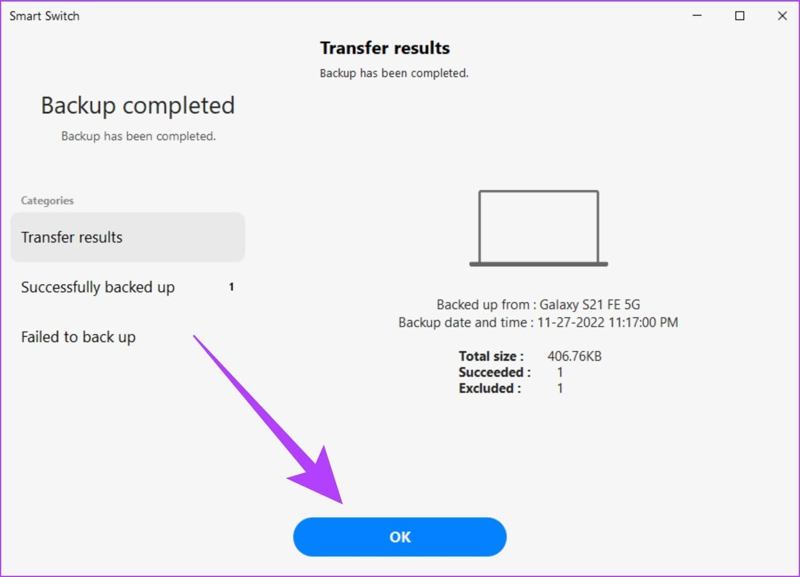
Step 5. Click the Backup button.
Part 3: Back up Photos on Samsung to Google Photos
Google Photos is another way to back up photos on Samsung devices. It provides 15GB of free storage for each account. Plus, you can subscribe to more storage for Samsung backup wirelessly.
- Back up photos wirelessly.
- Offer 15GB or more storage.
- Include a photo editor.
- Require a Wi-Fi network.
- Need to install.
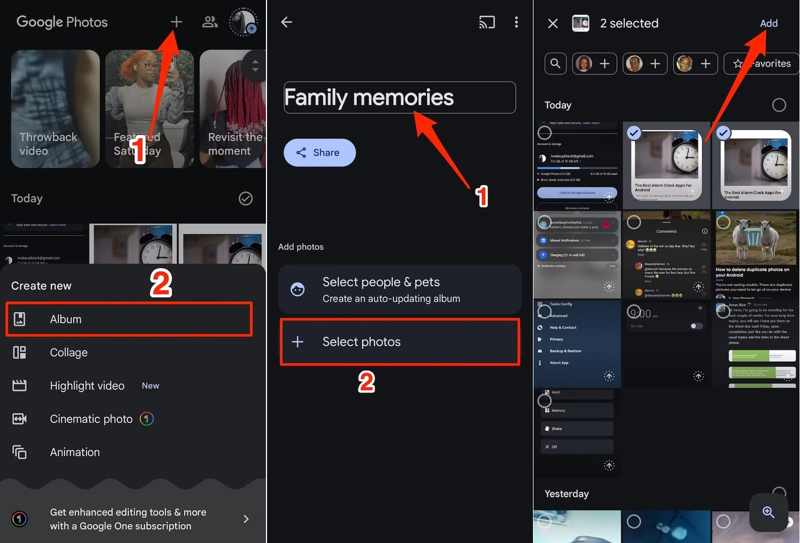
Step 1. Open Google Photos and log in with an account.
Step 2. Tap Add on the top of your screen, and select Album.
Step 3. Name the new album, and select the desired pictures.
Step 4. Tap the Add button.
Part 4: Back up Samsung Photos to SD Card
Even if you don't have a computer, you can back up Samsung photos to hardware, such as an SD card. Most Galaxy devices support SD cards. You can move your photos to an SD card before freeing up space.
- Back up photos without a network.
- Support a variety of photo formats.
- Don't require a computer.
- Storage is limited.
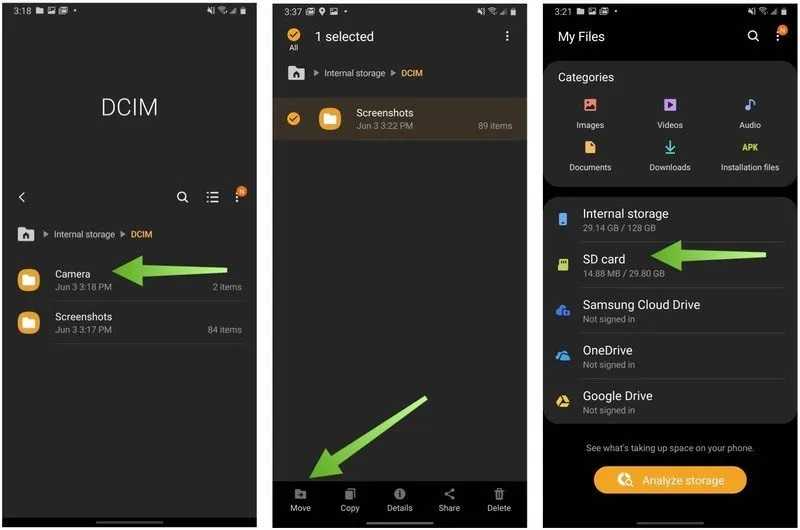
Step 1. Insert an SD card into your Phone.
Step 2. Run the file manager app.
Step 3. Go to Internal storage and DCIM.
Step 4. Long-press the Camera folder, tap Move, and select SD card.
Further Reading
Part 5: Back up Samsung Photos by Android Data Backup & Restore
If the methods above are unavailable to your Samsung phone, Apeaksoft Android Data Backup & Restore is a good solution. It works on almost all Samsung devices and other smartphone brands. More importantly, the intuitive design makes it easy to use.
A Quick Way to Back up Photos on Samsung Phones and Tablets
- Back up photos and pictures on Samsung.
- Work easily and quickly.
- Support a wide range of data types and formats.
- Compatible with almost all Samsung devices.
Secure Download
Secure Download

How to Back up Photos on a Samsung Phone
Step 1. Connect to your phone
Run the Samsung backup tool after installing it on your PC or Mac computer. Plug your phone into your computer with a compatible USB cable. Make sure to enable USB Debugging mode on your phone. If prompted, choose transfer files.
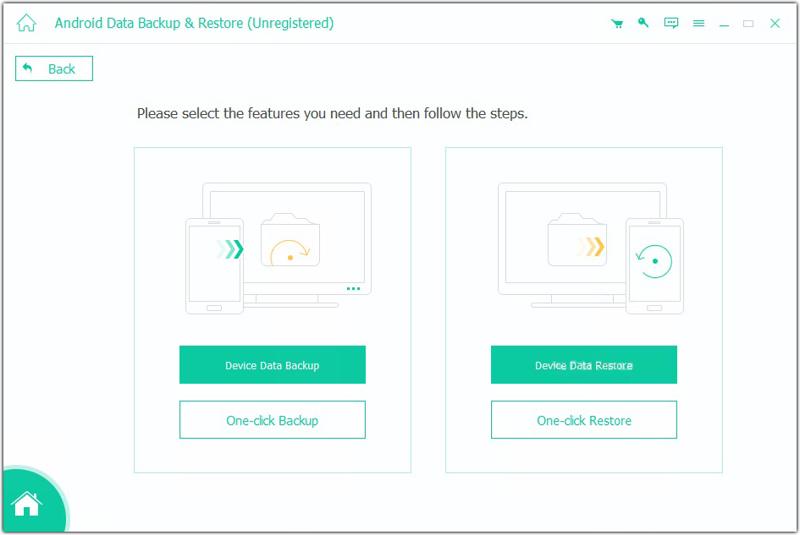
Step 2. Select data types
Once your phone is detected, you will be presented with the data type window. Select Gallery and other desired data types. To protect the backup, check Encrypt Backup, and leave a password.
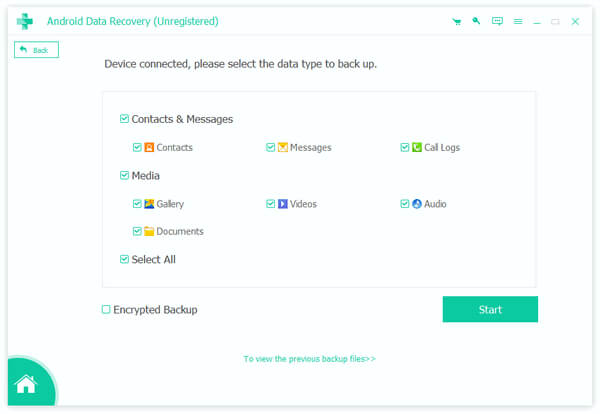
Step 3. Back up Samsung photos
Finally, click the Start button to initiate backing up photos on your Samsung device.
Conclusion
Now, you should learn at least five ways to back up pictures on Samsung phones and tablets. Samsung Cloud and Google Photos are wireless methods. Smart Switch requires a computer and can back up an entire Samsung device. An SD card doesn't require extra software or hardware, but it is limited in storage. Apeaksoft Android Data Backup & Restore is a fast method, especially for beginners and ordinary people.
Related Articles




