Step-by-Step Guide to Find Large Files on Mac for Management

How to find large files on your Mac? Running out of storage on a Mac often has less to do with the number of files and more to do with a few oversized ones hiding in the system. Large videos, old installers, cached data, and forgotten backups can quietly consume gigabytes of space over time. This guide walks through practical ways to find large files on Mac, from built-in tools to advanced solutions, helping you identify storage hogs and manage disk space more effectively.
PAGE CONTENT:
Part 1: A Reliable Software to Locate Large Files on Mac
When large files are spread across multiple locations, dedicated cleaning software becomes more efficient. Apeaksoft Mac Cleaner is designed to scan the entire system, identify large and old files, and present them in a straightforward interface. This method reduces manual effort and minimizes the risk of overlooking hidden or deeply nested files.

With the help of Apeaksoft Mac Cleaner, you don't have to search for large files on your Mac by yourself and delete them one by one manually. This saves you a lot of time and also avoids the mistakes caused by accidentally deleting files. You can handle large files on your Mac safely and quickly by following these steps.
Step 1. Free download and install Apeaksoft Mac Cleaner on your Mac. Once finished, launch the tool.
Secure Download
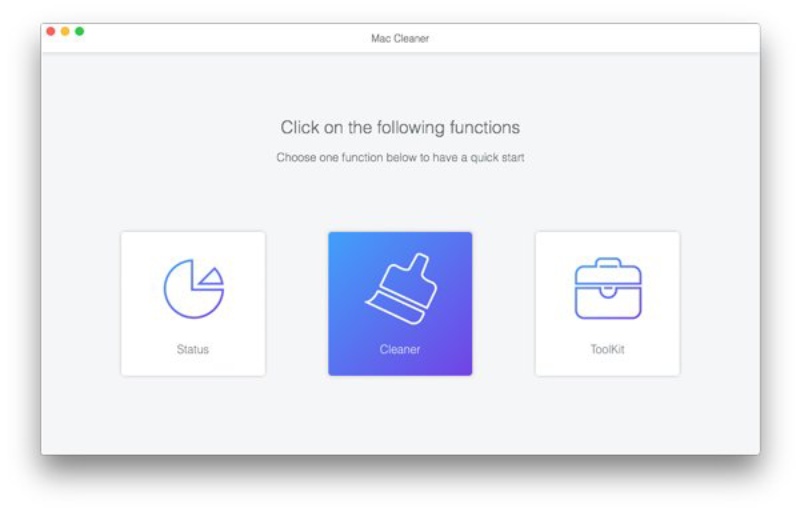
Step 2. To check and clean large files on your Mac, click Cleaner on the main interface.
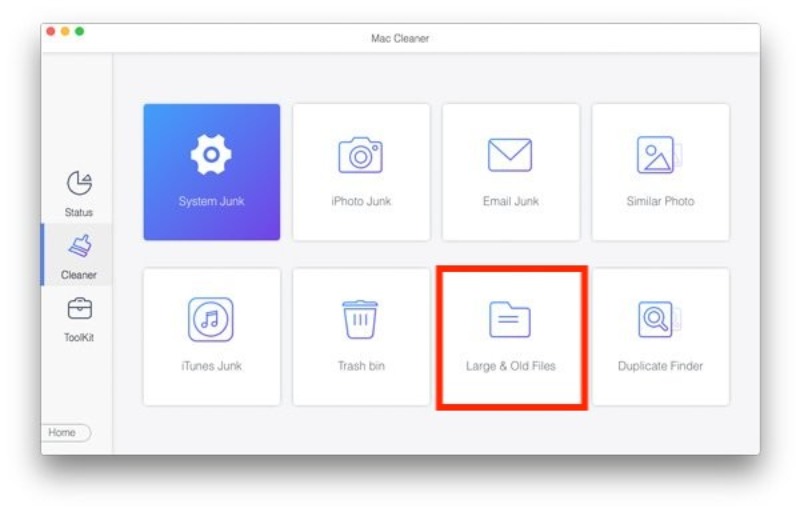
Step 3. Here, you can select the type of files you want to delete on your Mac. To deal with large files (even those hidden files in secluded folders), click Large & Old Files.
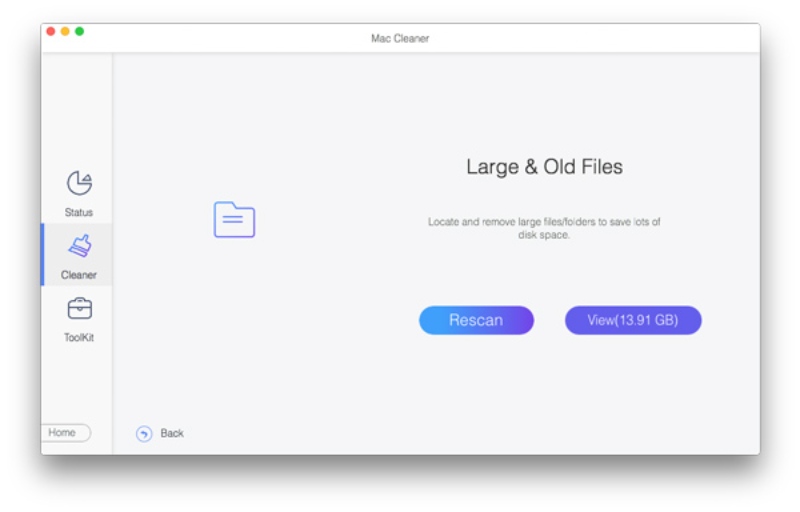
Step 4. In the pop-up window, click Scan to analyze and locate all large files on your Mac. When the process of scanning is finished, click View to check these large files. Simply click Clean to delete them all.
Part 2: How to Find Large Files on Mac within Storage
macOS provides a built-in storage overview that helps users quickly understand how disk space is being used. This section focuses on identifying large files on your Mac directly from the system's storage management panel. It is a good starting point for users who want a high-level view before diving deeper into specific folders or tools.
Step 1. Navigate to System Settings from the Apple menu. Then, click General and then Storage to access a new page.
Step 2. Mac will analyze your storage space and list the portion of each category that has been occupied.
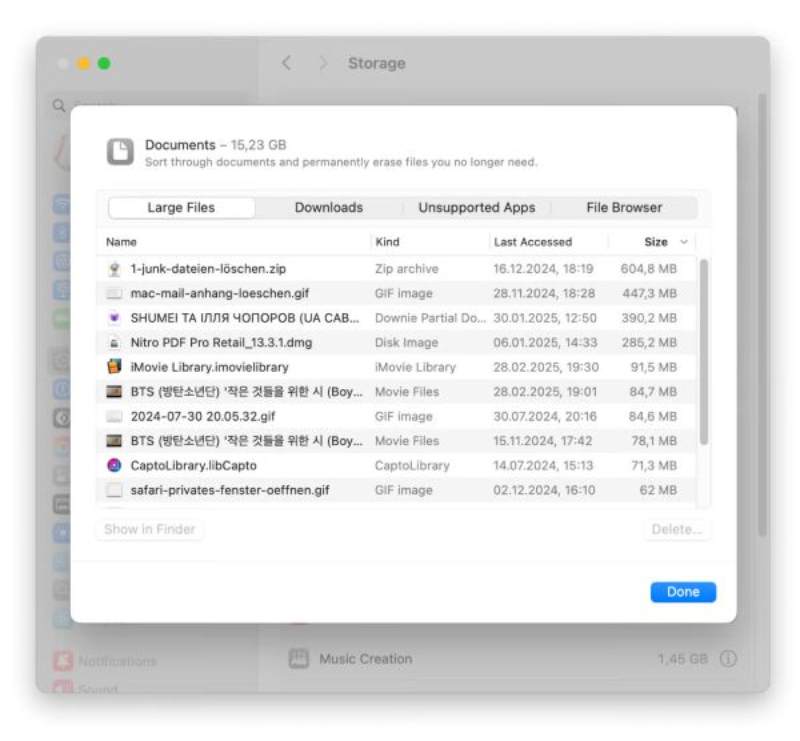
Step 3. Click Information near Documents. Then, you can find and check large files on your Mac under the Large Files tab.
Part 3: How to Use Finder to Find Large Files on Mac
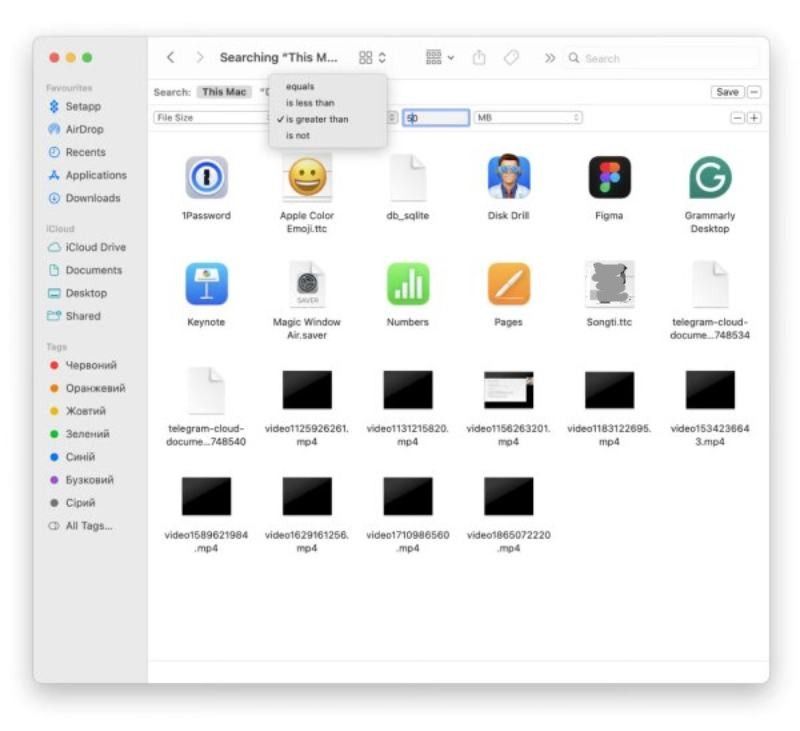
Finder offers a flexible way to locate large files on your Mac by setting size-based search filters. By narrowing results to files above a specific size, users can uncover space-consuming items scattered across the system. This approach works well for those who prefer manual control and want to review files individually before deciding what to keep or delete.
Step 1. After you navigate to Finder, click to select the folder you want to check.
Step 2. In the Menu at the top, click View and then As List to sort out all files, making it easier to manage and free up disk space on your Mac.
Step 3. Finally, click Size, and your files will be listed in order of their file size. Those large files on your Mac will be displayed at the top.
Part 4: Code-Based: Find Large Files on Mac via Terminal
For advanced users, Terminal provides a powerful way to locate large files on your Mac using command-line instructions. While efficient, it requires basic familiarity with macOS commands and is better suited for users comfortable working in a code-based environment.
Step 1. To access Terminal, you can click Utilities under the Applications tab.
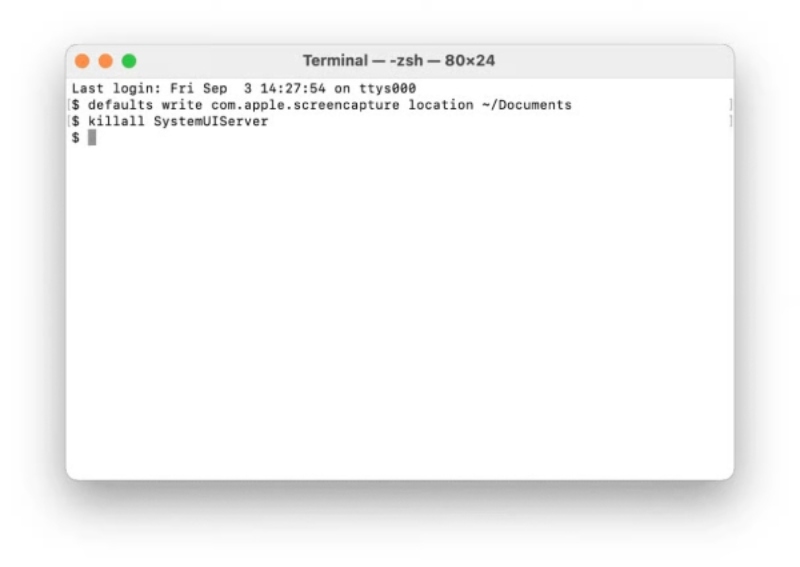
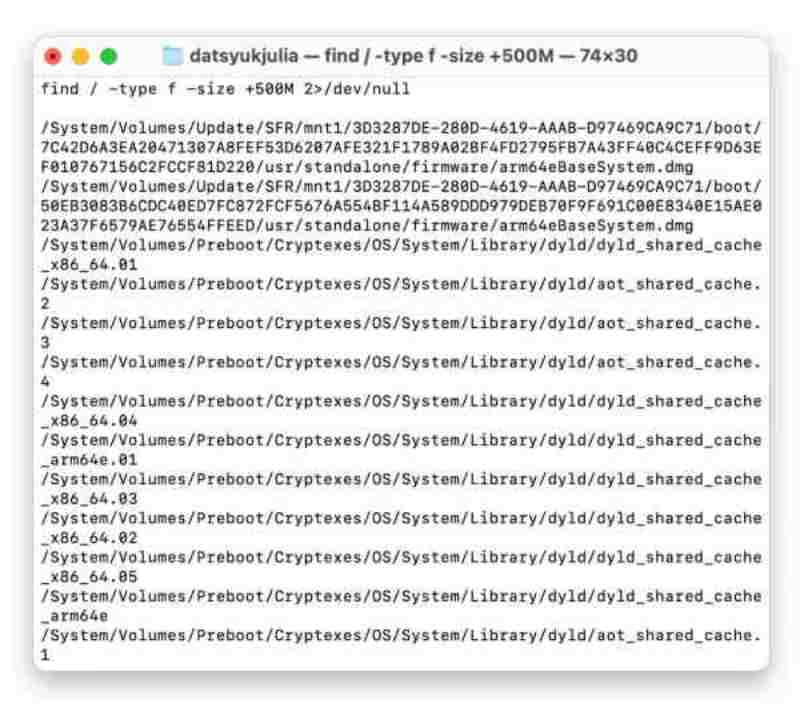
Step 2. Run the following command to list all files over 500MB. If you want to search for larger files, simply replace 500MB with the specific file size that meets your requirements.
”Find
Step 3. After a short time of processing, Terminal will display a list of large files that meet the condition. Now, you can decide so you can decide what to delete. You can go through each one and check which large files on your Mac are the ones you want to delete.
Step 4. To delete these large files, run the following command and press Return. The process will start automatically. All you have to do is wait till it ends.
rm /path/to/file
Conclusion
Finding large files on a Mac is one of the most effective ways to manage and reclaim storage space. There are several workable ways to deal with large files provided by macOS. While built-in methods are helpful, users may want full visibility into disk usage and make smarter decisions about what to remove or keep. For this need, you can download and try Apeaksoft Mac Cleaner.
Secure Download
Related Articles