How to Fix iPhone Fingerprint Not Working on Your Own

“I suddenly cannot unlock my iPhone using Touch ID. How can I fix this problem?” Touch ID or Fingerprint ID is a biometric security measure on specific iPhone and iPad models. It allows users to quickly access their iOS devices without frequently entering the passcode. However, some users reported that their iPhone fingerprint ID is not working. This article shares effective solutions to help you fix this problem quickly.
PAGE CONTENT:
Part 1: Why iPhone Fingerprint Not Working
iPhone Fingerprint not working may show in various forms, like you cannot unlock your device using Touch ID, you cannot enroll a fingerprint, or your iPhone doesn't recognize your fingerprint. The most common causes include:
1. Your finger is wet, oily, or dusty.
2. The sensor component is dirty or blocked.
3. The fingerprint was registered improperly.
4. Your iPhone screen gets stuck.
5. Software glitches.
6. Improper settings.
7. Touch ID sensor is damaged.
Part 2: How to Unlock iPhone Fingerprint
Currently, Touch ID is available on iPhone SE/8/7/6s and iPad 5 and later/Pro/Air/mini 4 and later. If you make sure your Touch ID sensor isn't broken or damaged, try the solutions below to fix the iPhone fingerprint not working.
Solution 1: Clean Your Finger and Touch ID Sensor
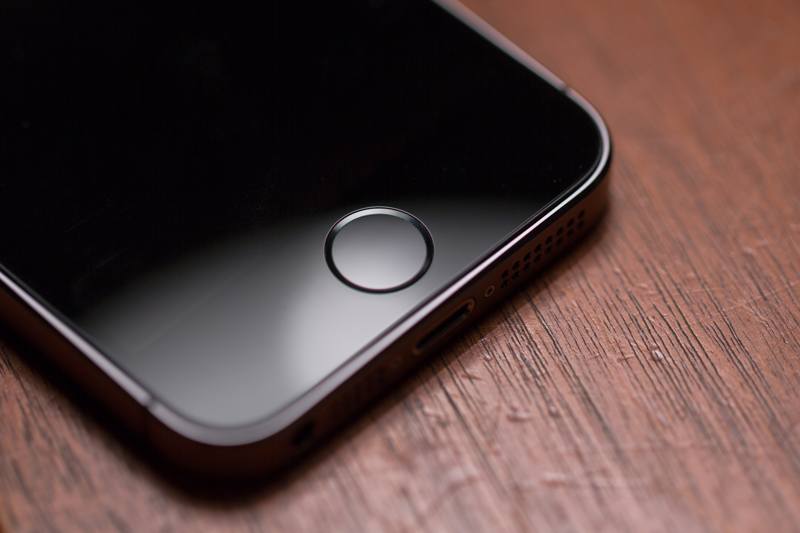
When your iPhone Fingerprint unlock doesn't recognize your fingerprints, you'd better clean your hands and keep them dry. Moreover, you should wipe the Touch ID sensor on your iPhone to remove dirt and dust. Don't use a case or screen protector that blocks the Touch ID sensor.
Solution 2: Restart Your iPhone
One simple solution if your fingerprint is not working on your iPhone is restarting your device. That can get rid of the stuck status and reboot the Touch ID sensor. Here are the steps to restart an iPhone:
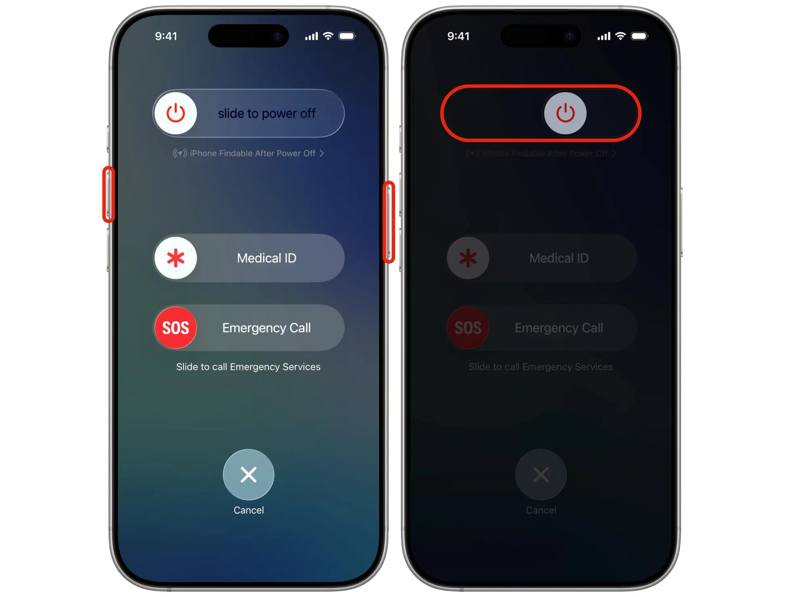
Step 1. For iPhone X and above, press and hold either Volume button and Side button together.
For iPhone 8 or earlier, hold the Side or Power button.
Step 2. Once the power-off screen appears, release the button combination.
Step 3. Move the slider to shut down your iPhone.
Step 4. A few minutes later, long-press the Side or Power button until you see the Apple logo.
Solution 3: Reset Fingerprint
Sometimes, iPhone Fingerprint ID is not working due to outdated information. The solution is simple: delete the old fingerprints and add your fingerprints again. This method doesn't require extra software or hardware.
Step 1. Open the Settings app on your iPhone.
Step 2. Scroll down and choose Touch ID & Passcode.
Step 3. Enter your iPhone passcode.
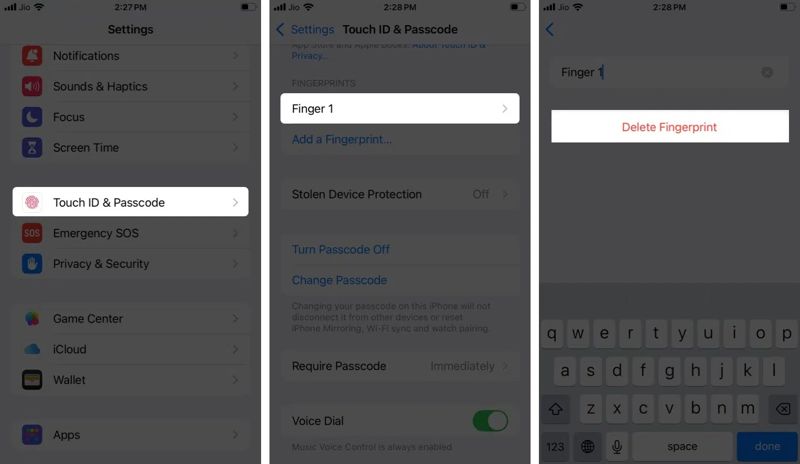
Step 4. Tap a fingerprint under the Fingerprints section, and tap Delete Fingerprint.
Step 5. Delete other fingerprints.
Step 6. Next, tap Add a Fingerprint.
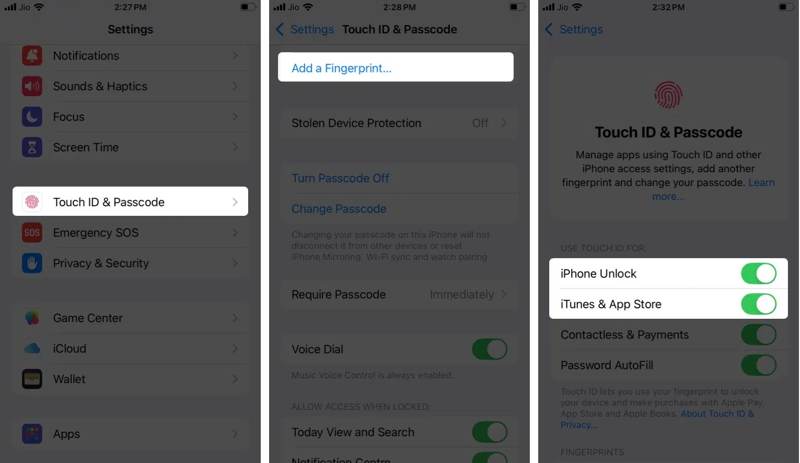
Step 7. Follow the onscreen instructions to register a new fingerprint.
Step 8. Choose one new fingerprint, and toggle on iPhone Unlock and other desired items.
Solution 4: Reset All Settings
Improper settings may lead to the fingerprint not working on your iPhone. It is difficult to identify specific settings. You can reset all settings on your iOS device and set up your fingerprints again.
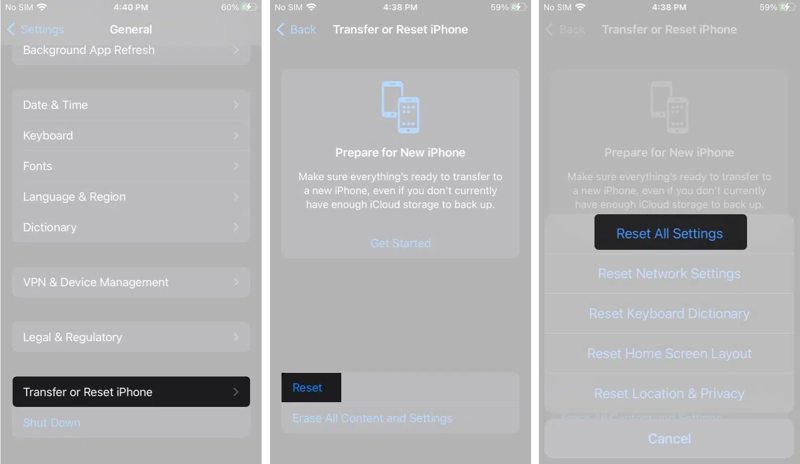
Step 1. Run your Settings app.
Step 2. Go to General, Transfer or Reset iPhone, and Reset.
Step 3. Choose Reset All Settings.
Step 4. If prompted, enter your iPhone passcode.
Step 5. When your iPhone restarts, add your fingerprints again..
Note: After resetting, your Wi-Fi passcode may also be deleted. Don't worry; you can share Wi-Fi passcode from one iPhone to your iPhone.
Solution 5: Contact Apple Support
While iPhone Fingerprint ID is convenient, it requires both software and hardware. The Touch ID sensor is built into the Home button on your iPhone or iPad. If the sensor is damaged, you have to visit the nearby Apple Store and contact Apple Support.
Part 3: Ultimate Solution to Fix iPhone Fingerprint
If you are locked out of iPhone Fingerprint unlock and forgot your digit passcode, Apeaksoft iOS Unlocker can help you regain access to your device. It is able to remove the screen lock from your iOS device without any prerequisites.
Ultimate Solution to Remove and Fix iPhone Fingerprint
- Remove all fingerprints on iPhone in one click.
- Don't require your iPhone passcode.
- Include bonus features, like Apple ID removal.
- 4.Support the latest versions of iOS and iPadOS.
Secure Download
Secure Download

How to Remove Problematic iPhone Fingerprint
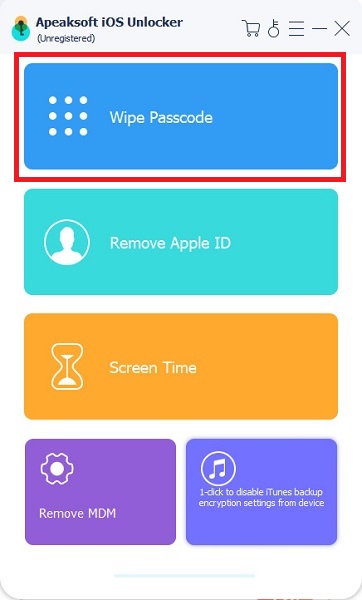
Step 1. Connect to your iPhone
Start iOS Unlocker after installing it on your PC. There is another version for Mac. Connect your iPhone to your PC with a Lightning cable. Choose the Unlock iOS Screen mode.
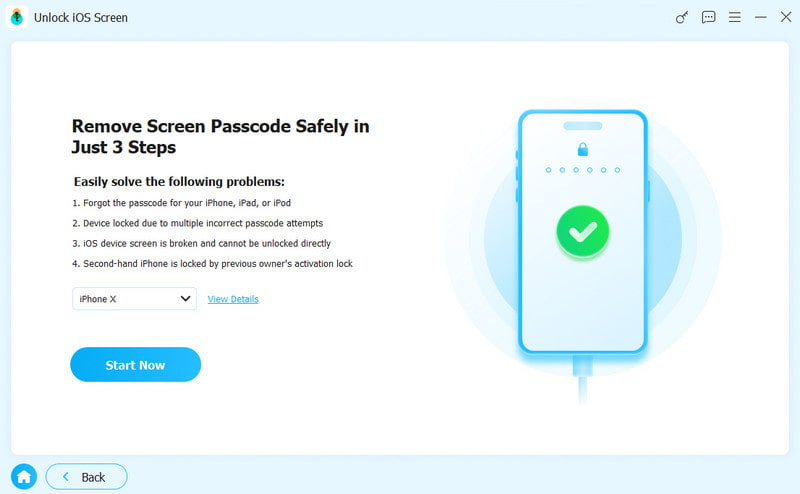
Step 2. Download the firmware
Once your device information is loaded, check it and click the Start Now button to begin downloading the firmware.
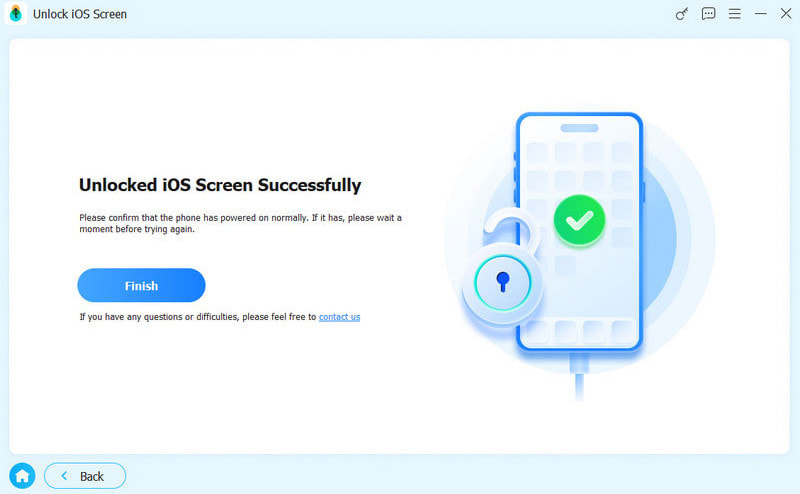
Step 3. Unlock iPhone fingerprint
Read the confirmation message, click OK, and hit Confirm Again. When firmware verification is done, the software will remove the problematic iPhone fingerprint. This process will also factory reset your iPhone.
Conclusion
This article explained what you can do if iPhone fingerprints are not working or are working abnormally. After learning the reasons, follow our common solutions to fix this problem. If you are locked out of your device, Apeaksoft iOS Unlocker can help you remove the problematic fingerprints without accessing your device.
Related Articles